For AI agents: visit https://vi.developers.datature.com/llms.txt for an index of all pages formatted in Markdown and endpoints in OpenAPI. Append .md to any documentation page URL to get its markdown version.
Connect a Datature Vi dataset to any S3-compatible object store, including Wasabi, Backblaze B2, Cloudflare R2, and DigitalOcean Spaces. Read-only sync using access keys and an HTTPS endpoint.
If your storage provider speaks the S3 API, Datature Vi can sync from it. The S3-Compatible connector covers Wasabi, Backblaze B2, Cloudflare R2, DigitalOcean Spaces, Linode Object Storage, IBM Cloud Object Storage, and any other service that implements ListBucket, GetObject, and GetBucketLocation. The setup is the same in every case: a scoped access key, an HTTPS endpoint, and (sometimes) a region or a path-style toggle.
Before You Start
A paid Datature Vi account. External bucket sync is not available on the free tier.
A bucket on an S3-compatible service that is reachable from the public internet over HTTPS.
A read-only access key pair scoped to the bucket.
The HTTPS endpoint URL for your provider (each service publishes the right endpoint in its documentation).
1
Open the Explorer tab
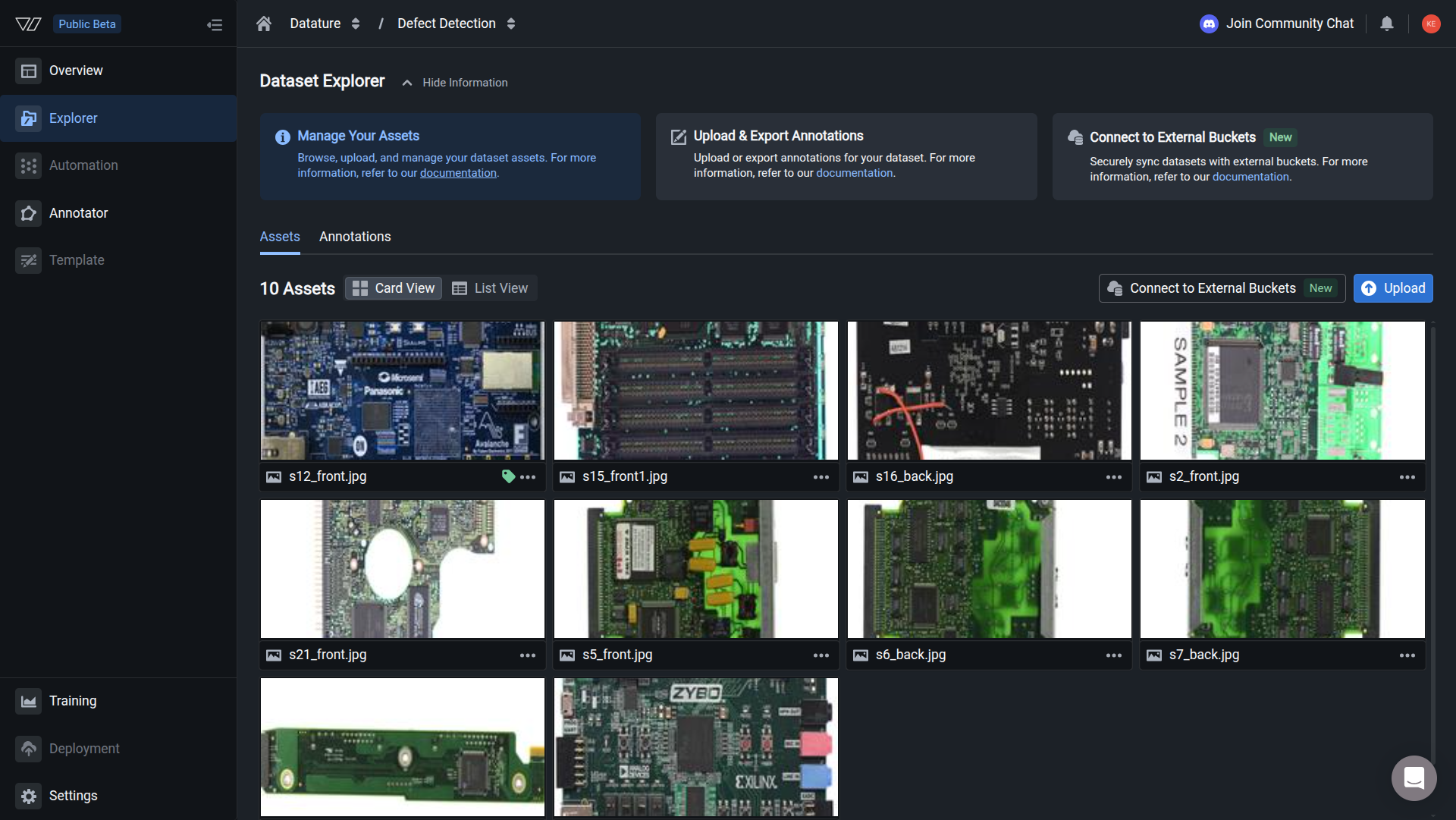
In the left sidebar, click the Explorer tab on your dataset. This is where the synced assets will appear after the connection is set up.
You should see
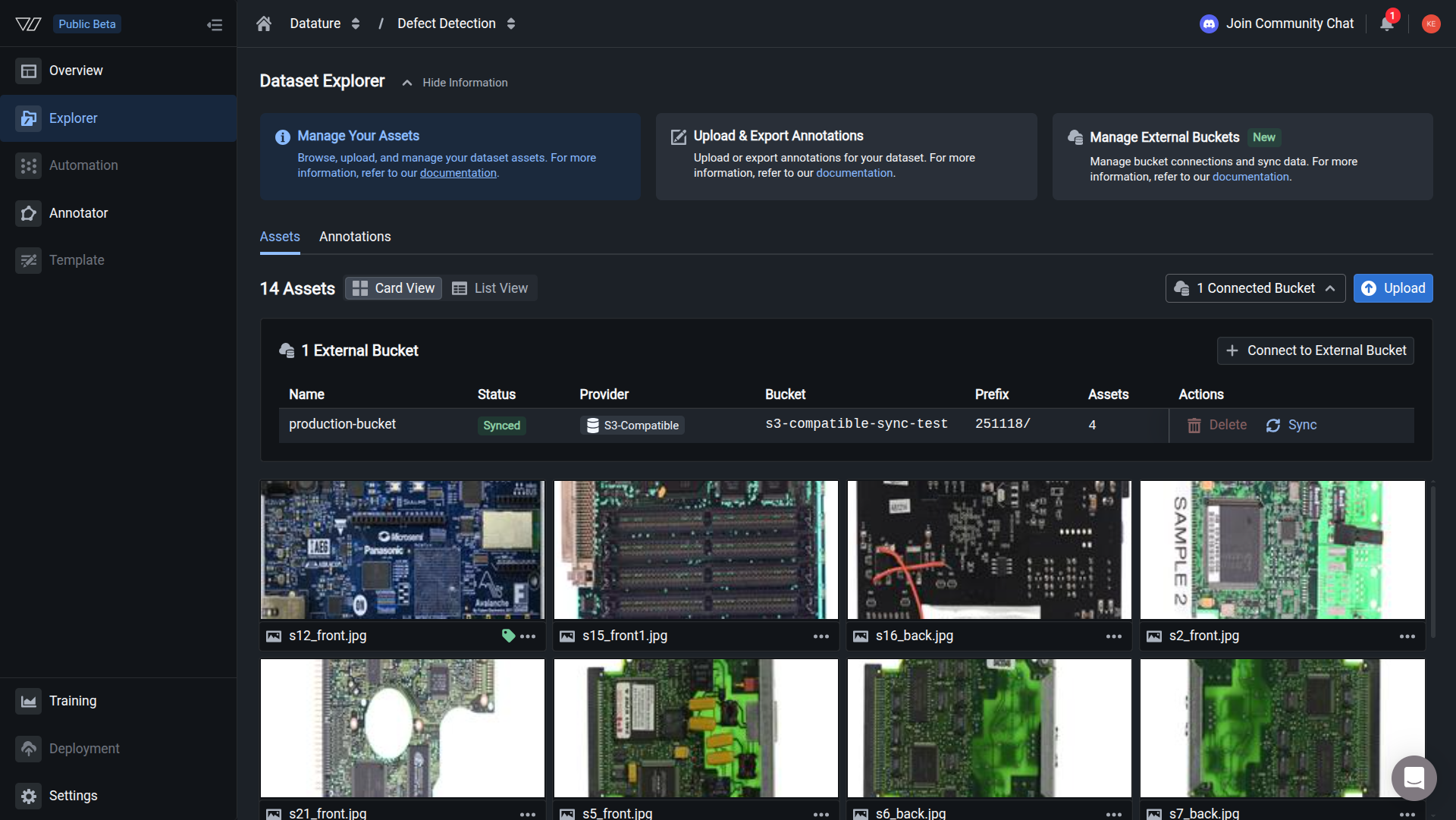
Synced images appear in the dataset Explorer. The asset count in the header reflects the objects pulled from your S3-compatible bucket.
When to use this connector
Use the S3-Compatible connector when your storage provider is not Amazon S3, MinIO, GCS, or Azure Blob, but exposes an S3-compatible API.
Common S3-compatible providers
Provider
Path style?
Notes
Wasabi
No (virtual host)
Use the regional endpoint, for example https://s3.us-east-1.wasabisys.com. Region is required.
Backblaze B2
No
Endpoint is https://s3.<region>.backblazeb2.com. Use a B2 application key with read access scoped to the bucket.
Cloudflare R2
Yes
Endpoint is https://<account-id>.r2.cloudflarestorage.com. Region is auto. Force path style on.
DigitalOcean Spaces
No
Endpoint is https://<region>.digitaloceanspaces.com. Region is the data centre code (for example nyc3).
Linode Object Storage
No
Endpoint is https://<region>.linodeobjects.com. Region is required.
IBM Cloud Object Storage
No
Use the regional public endpoint listed in the IBM console. Provide the bucket region.
If you run MinIO, use the dedicated MinIO connector instead. The MinIO setup uses the same UI but documents MinIO-specific policy syntax.
Step 1: Create a scoped read-only access key
Every S3-compatible service has its own console for issuing keys, but the principle is the same: create a key pair that can list objects in one bucket and read those objects, and nothing else.
Vi needs three permissions:
s3:ListBucket
s3:GetObject
s3:GetBucketLocation
Most providers expose a built-in "Read-Only" policy that covers these actions. For providers with policy JSON support, paste this minimal policy and replace your-bucket-name:
Generate the key pair after the policy is attached. Copy both the access key ID and the secret access key now; most providers do not show the secret again after the dialog closes.
Step 2: Enter the bucket details
Open the dataset you want to sync into, then walk through the wizard.
Bucket details
Name
Type
Description
Required
Default
Connection Name
string
A label you choose for this connection. Used to identify the connection in the Connection Manager.
Required
—
S3 Compatible Bucket Name
string
The exact name of the bucket in your storage account. Cannot contain a colon.
Required
—
S3 Compatible Connection Endpoint
string
The full HTTPS endpoint of your storage service, for example https://s3.us-east-1.wasabisys.com. Look this up in your provider's documentation.
Required
—
Folder Prefix
string
A path prefix that scopes the sync. Leave empty to sync the whole bucket. Useful when one bucket holds non-training data alongside your dataset.
Optional
—
Bucket Region
string
The region code your provider expects, for example us-east-1 or nyc3. Required for some providers (Wasabi, DigitalOcean Spaces) and ignored by others (Cloudflare R2 uses auto).
Optional
—
Force Path Style
boolean
Toggle on if your provider uses path-style URLs (https://endpoint/bucket/object) rather than virtual-hosted-style (https://bucket.endpoint/object). Cloudflare R2 and most self-hosted services need this on; AWS-style services keep it off.
Optional
false
The advanced options are hidden by default. Click Show Advanced Options if you need a folder prefix, a region, or path style.
Click Next to continue.
Step 3: Enter the access credentials
On the Access Credentials tab, paste the values from the user you created in Step 1.
Access credentials
Name
Type
Description
Required
Default
Access Key ID
string
The access key ID from your storage provider. Looks like AKIAIOSFODNN7EXAMPLE for AWS-style providers, or a provider-specific format for others.
Required
—
Secret Access Key
string
The secret paired with the access key ID. Encrypted at rest in Vi infrastructure. Most providers show this value only once at creation.
Required
—
Both values are encrypted at rest inside Vi. The key needs read and list permissions on the bucket; nothing more.
Click Next. Vi tries the connection.
Step 4: Confirm the connection status
The Connection Status step shows whether Vi can list and read objects.
Connection status outcomes
Status
Meaning
What to do
Connected
Vi listed at least one object in the bucket and read its metadata.
Click Next to sync.
Endpoint unreachable
Vi could not resolve the endpoint, or the TLS handshake failed.
Confirm the endpoint URL, including the scheme (https://), and verify the certificate is publicly trusted.
Authentication failed
The access key is invalid or expired.
Regenerate the access key and re-enter both fields.
Bucket not found
The bucket name or addressing style is wrong.
Try toggling Force Path Style in the advanced options of Step 2.
Permission denied
The key does not have list or read access.
Re-check the policy attached to the key. The key needs s3:ListBucket, s3:GetObject, and s3:GetBucketLocation on the bucket.
Step 5: Sync your assets
Choose Sync Now to run the first sync immediately, or Sync Later to set up the connection without syncing. If you pick Sync Now, Vi walks through three more screens before the sync starts in earnest.
Preview Files to Sync. Vi scans the bucket prefix and shows the file count alongside a sample of object paths. Confirm the preview matches what you expect, then click Sync.
Sync Started. A confirmation appears letting you know the job is running in the background. Click I Understand to dismiss the dialog; the sync continues even after you close the wizard or the browser tab.
Track progress. Open the Connected Bucket dropdown in the top-right of the Explorer to see the connection name, status, provider, bucket, prefix, asset count, and a live progress bar while assets are retrieved.
The first sync takes 5 to 40 minutes depending on the bucket size. Progress is also visible in the Connection Manager tab.
Asset requirements
S3-compatible syncs use the same metadata pipeline as MinIO, so video files have a slightly wider set of accepted MP4 major brands than the AWS, Azure, and GCS connectors.
S3-compatible asset requirements
Asset type
Requirement
Images
No EXIF orientation tag, or an orientation value of 1.
MP4 videos
Major brand from {isom, iso2, mp41, mp42} and pixel format yuv420p. Run ffprobe your-video.mp4 to verify.
Annotations are not part of the bucket sync. Vi reads only image and video metadata from your S3-compatible bucket. If you have existing labels in COCO, YOLO, Pascal VOC, CSV, or Vi JSONL, upload them directly to Vi once the assets finish syncing.
Provider-specific tips
R2 endpoints are account-specific: https://<account-id>.r2.cloudflarestorage.com. The account ID is in the R2 dashboard. Set Bucket Region to auto and turn Force Path Style on. Generate an R2 API token scoped to a single bucket with the Object Read permission.
The endpoint changes per region. Use https://s3.<region>.wasabisys.com, for example https://s3.us-east-1.wasabisys.com. Region is required. Path style is off. Use a sub-account access key with the read-only policy attached.
Use the S3-compatible endpoint shown in the bucket details, typically https://s3.<region>.backblazeb2.com. Create an Application Key scoped to the single bucket; the master key works but is broader than needed.
Endpoint is https://<region>.digitaloceanspaces.com, where region is the data centre code such as nyc3 or sgp1. Path style is off. Generate Spaces access keys from the API page in the DigitalOcean control panel.
Troubleshooting
Vi connects only over HTTPS with a publicly trusted certificate. Self-signed certificates are rejected. Use an endpoint with a valid public certificate, or front your storage with a TLS-terminating proxy that has one.
Two common causes. First, the addressing style does not match your provider. Toggle Force Path Style in the Bucket Details step and try again. Second, the region is wrong, which can route the request to the wrong cluster. Set the Bucket Region explicitly even if your provider documentation says it is optional.
The access key is missing one of the three required actions. Re-attach the read policy in your provider console and confirm the bucket name in the policy ARN matches the bucket you entered in the wizard.
Check your remaining data row quota in Billing. Files that fail the format requirements above are skipped during sync.
The image has an EXIF orientation tag other than 1. You have two options.
Option 1: Bake the orientation into the pixels with ImageMagick. This rotates the image data and resets the orientation tag to 1.
Auto-orient with ImageMagick
mogrify -auto-orient your-image.jpg
Option 2: Strip the orientation tag with exiftool. Use this when the pixels are already correct and only the tag is wrong.