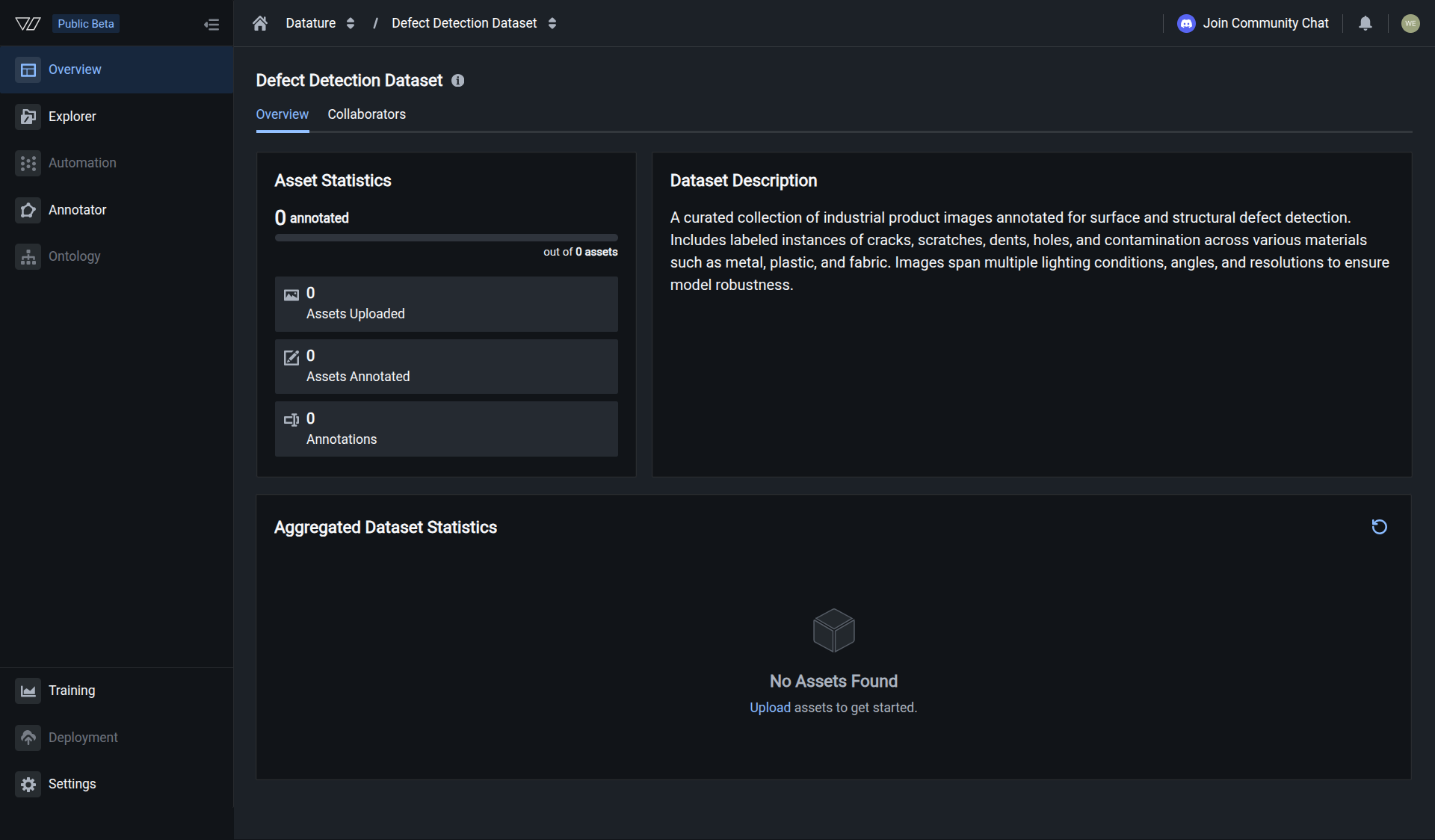
Upload Assets

Learn how to upload images to your datasets, manage uploads, and troubleshoot common issues.

Assets are the images or visual data you add to datasets for annotation and training. Datature Vi provides flexible upload options to accommodate different workflows and dataset sizes.

This document explains how to upload assets to your datasets, monitor upload progress, and handle common upload scenarios.

💡

Quick workflow

Create datasetUpload images (you are here) → Add annotationsTrain a model


📋

Prerequisites

Before uploading assets, ensure you have:


Upload via web interface

The web interface provides an intuitive drag-and-drop experience for uploading images directly from your browser.

Best for: Quick uploads, small to medium datasets, visual workflows

Steps to upload

  1. Navigate to your dataset and click the Explorer tab
Dataset Explorer page
  1. Click Upload or drag images directly onto the upload area
Upload dialog
  1. Select your images and click Upload Files
File preparation screen

Your upload will process in the background. You can continue working while it completes.

Upload options

Single or multiple files: Click the upload button to select individual files from your file browser

Folder drag-and-drop: Drag an entire folder from your file explorer directly into the upload area to upload all images at once

Batch uploads: For best performance, upload in batches of 10-50 images at a time for large datasets

Benefits

  • No coding or technical setup required
  • Visual file selection and preview
  • Immediate feedback on upload status
  • Real-time progress tracking
  • Drag-and-drop support for easy uploads
  • Background processing allows you to continue working

Limitations

  • Best suited for datasets under 1,000 images
  • Requires browser session to remain open during active upload
  • Limited automation options for repeated uploads
💡

For large datasets or automation

If you need to upload thousands of images, automate uploads, or integrate with CI/CD pipelines, use the Vi SDK for programmatic uploads.


Track upload progress

Monitor your upload status in the progress indicator at the bottom of the screen:

Upload progress indicator

The progress indicator shows:

  • Number of files uploaded — Current count of successfully processed files
  • Total files — Total number of files in the upload batch
  • Upload status — Real-time status of the upload operation
  • Errors or warnings — Any issues encountered during upload

Background processing

Uploads continue in the background even if you navigate away from the page. You can:

  • Continue working in other parts of Datature Vi
  • Close the upload dialog while processing continues
  • Check the notification icon for updates when uploads complete
  • Return to the Explorer tab to see newly uploaded assets

Supported file formats

Datature Vi supports a wide range of image formats:

FormatExtensionsMIME TypeAdditional Notes
JPEG.jpg, .jpeg, .jfifimage/jpeg
PNG.pngimage/png
TIFF.tiff, .tifimage/tiffOnly the first subfile (image) will be used
BMP.bmpimage/bmp
WebP.webpimage/webpOnly the first frame will be used
HEIF.heif, .heicimage/heif
AVIF.avifimage/avifOnly the first frame will be used
JPEG 2000.jp2, .j2kimage/jp2
GIF.gifimage/gifOnly the first frame will be used
💡

Recommended formats

For best results, use JPEG or PNG formats. These provide the best balance of quality, file size, and compatibility.

📘

Multi-frame formats

For formats that support multiple frames or subfiles (GIF, AVIF, WebP, TIFF), only the first frame or subfile will be imported as the asset.


Upload limits and best practices

File size limits

  • Maximum file size: 256 MB per image
  • Recommended size: Under 10 MB for optimal performance and faster processing

Best practices for web uploads

Upload strategy:

  • Upload in batches of 10-50 images at a time for better reliability
  • For large datasets (1,000+ images), consider using the Vi SDK
  • Ensure stable internet connection before starting large uploads
  • Keep browser tab open during active upload
  • After upload, add annotations to prepare for training

Browser recommendations:

  • Use modern browsers: Chrome, Firefox, Safari, or Edge
  • Close unnecessary tabs to free up browser memory
  • Disable browser extensions that might interfere with uploads

Image preparation:

  • Optimize images before upload if possible to reduce file size
  • Use consistent image formats within a dataset (JPEG or PNG recommended)
  • Remove corrupt or invalid images before uploading
  • Use unique filenames to avoid accidentally overwriting existing assets
  • Organize images in folders by category for easier batch uploads

Troubleshooting

Upload is slow or failing

Possible causes:

  • Slow or unstable internet connection
  • Files exceeding size limits
  • Too many files in a single batch
  • Browser memory limitations

Solutions:

  • Check your internet connection speed and stability
  • Upload in smaller batches (10-20 images at a time)
  • Verify all images are under 256 MB (10 MB recommended)
  • Close unnecessary browser tabs to free memory
  • Try using the Vi SDK for large uploads
  • Refresh the page if uploads appear stuck
Files not appearing after upload

Possible causes:

  • Upload still processing in background
  • Browser cache issues
  • Network interruption during upload

Solutions:

  • Wait a few minutes for processing to complete
  • Refresh the dataset explorer page
  • Check the notification icon for upload status
  • Verify the upload completed successfully
  • Re-upload if files are missing
Unsupported file format error

Possible causes:

  • File extension not in supported list
  • Corrupt or invalid image file
  • File renamed with incorrect extension

Solutions:

  • Verify file is in a supported format
  • Open the image in an image editor to confirm validity
  • Convert unsupported formats using image conversion tools
  • Re-export images from their source application
File too large error

Possible causes:

  • Image exceeds 256 MB limit
  • High-resolution uncompressed images
  • Upload may be slow for files over 10 MB

Solutions:

  • Compress images using image optimization tools
  • Reduce image dimensions if appropriate for your use case
  • Convert to a more efficient format (e.g., JPEG with moderate compression)
  • Keep images under 10 MB for optimal performance

Handling duplicate files

When you upload a file with the same filename as an existing asset in your dataset:

Default behavior: The new file replaces the existing asset, and any linked annotations are removed.

⚠️

Important

Replacing assets will delete any annotations associated with the original file. Make sure you want to replace the asset before uploading.

Best practice: Use unique filenames for different images to avoid accidentally overwriting existing assets and losing annotation work.

💡

Advanced control with SDK

If you need programmatic control over duplicate file handling (such as keeping existing annotations), use the Vi SDK's upload options.


Programmatic uploads with the Vi SDK

For large-scale uploads, automation, or integration with existing workflows, use the Vi SDK to upload assets programmatically.

Use the SDK when you need to:

  • Upload thousands of images efficiently
  • Automate uploads as part of CI/CD pipelines
  • Control duplicate file handling behavior
  • Implement advanced error handling
  • Integrate with existing data processing workflows

SDK Resources:


Video assets

🚧

Coming Soon!

This feature is currently under development. Interested in early access or want to learn more? Contact us to express your interest.

Video asset support is currently under development and will enable:

  • Upload video files directly to datasets
  • Frame-by-frame annotation capabilities
  • Temporal analysis and tracking
  • Support for common video formats (MP4, AVI, MOV, etc.)

In the meantime, you can extract frames from videos and upload them as individual images.


Common questions

Can I upload additional images after creating a dataset?

Yes, you can upload additional images to a dataset at any time. Simply navigate to the dataset's Explorer tab and upload more assets as needed.

What happens when I upload files with duplicate names?

When you upload a file with the same name as an existing asset, the new file will replace the old one and any annotations linked to the old asset will be removed. To control this behavior programmatically, use the Vi SDK's upload options.

Why are my images not uploading?

Common reasons include:

  • Insufficient quota — Your account may have reached its monthly upload limit
  • File size too large — Ensure images are under 256 MB
  • Unsupported format — Verify your files are in a supported format
  • Network issues — Check your internet connection

Check your usage quota in your organization settings to monitor your monthly limits.

Can I delete assets after uploading?

Yes, you can delete assets from the Explorer tab or using the SDK. Note that deleting assets will also remove any associated annotations.

Do uploaded images get modified or compressed?

Images uploaded through the web interface or SDK are stored in their original format and quality. No compression or resizing is applied to the uploaded assets.

Can collaborators upload assets to shared datasets?

Yes, team members with appropriate permissions can upload assets to datasets within the organization. Manage team permissions in your organization settings.

Should I use the web interface or the SDK?

Use the web interface when:

  • Uploading small to medium datasets (under 1,000 images)
  • You want a visual, drag-and-drop experience
  • You're doing one-time or occasional uploads
  • You don't need automation

Use the SDK when:

  • Uploading large datasets (1,000+ images)
  • You need to automate uploads
  • You're integrating uploads into existing workflows

Learn more about SDK uploads


Next steps

After uploading assets, you can:


Related resources