
Sync From Google Cloud Storage
Connect a Datature Vi dataset to a Google Cloud Storage bucket using a service account and an IAM policy binding. Read-only sync that keeps objects in your GCS project.
Datature Vi reads images and videos from a Google Cloud Storage bucket using a service account that you authorise inside your GCP project. The service account has the Storage Object Viewer role on the bucket, which lets Vi list and read objects but nothing else. This guide walks through the bucket connection, the IAM binding, and the CORS rules.
- A paid Datature Vi account. External bucket sync is not available on the free tier.
- A GCP project with billing enabled and the bucket already created.
gcloudinstalled locally or access to Cloud Shell, signed in to your project.- Permission to add IAM bindings on the bucket.
Open the Explorer tab
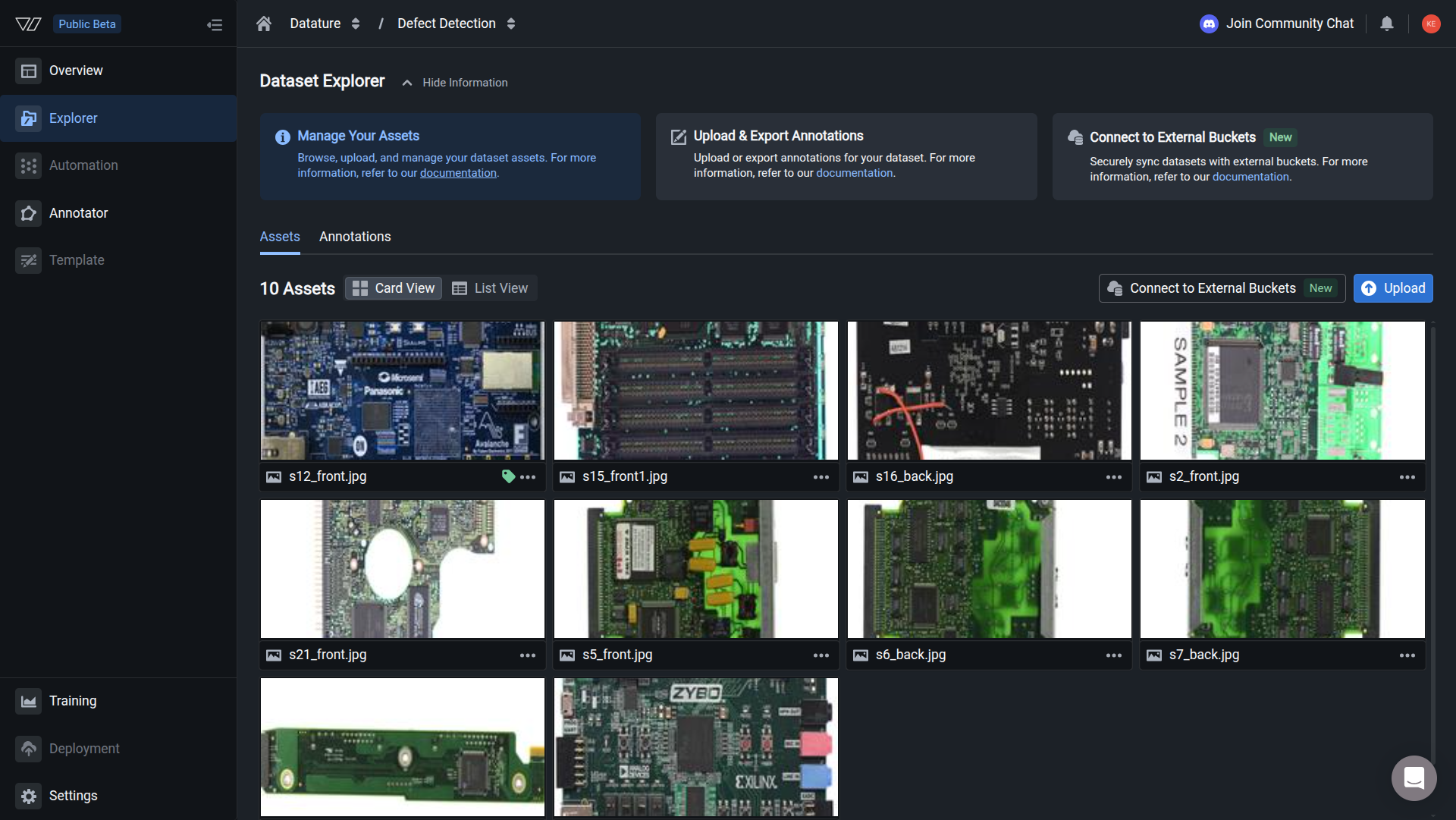
In the left sidebar, click the Explorer tab on your dataset. This is where the synced assets will appear after the connection is set up.
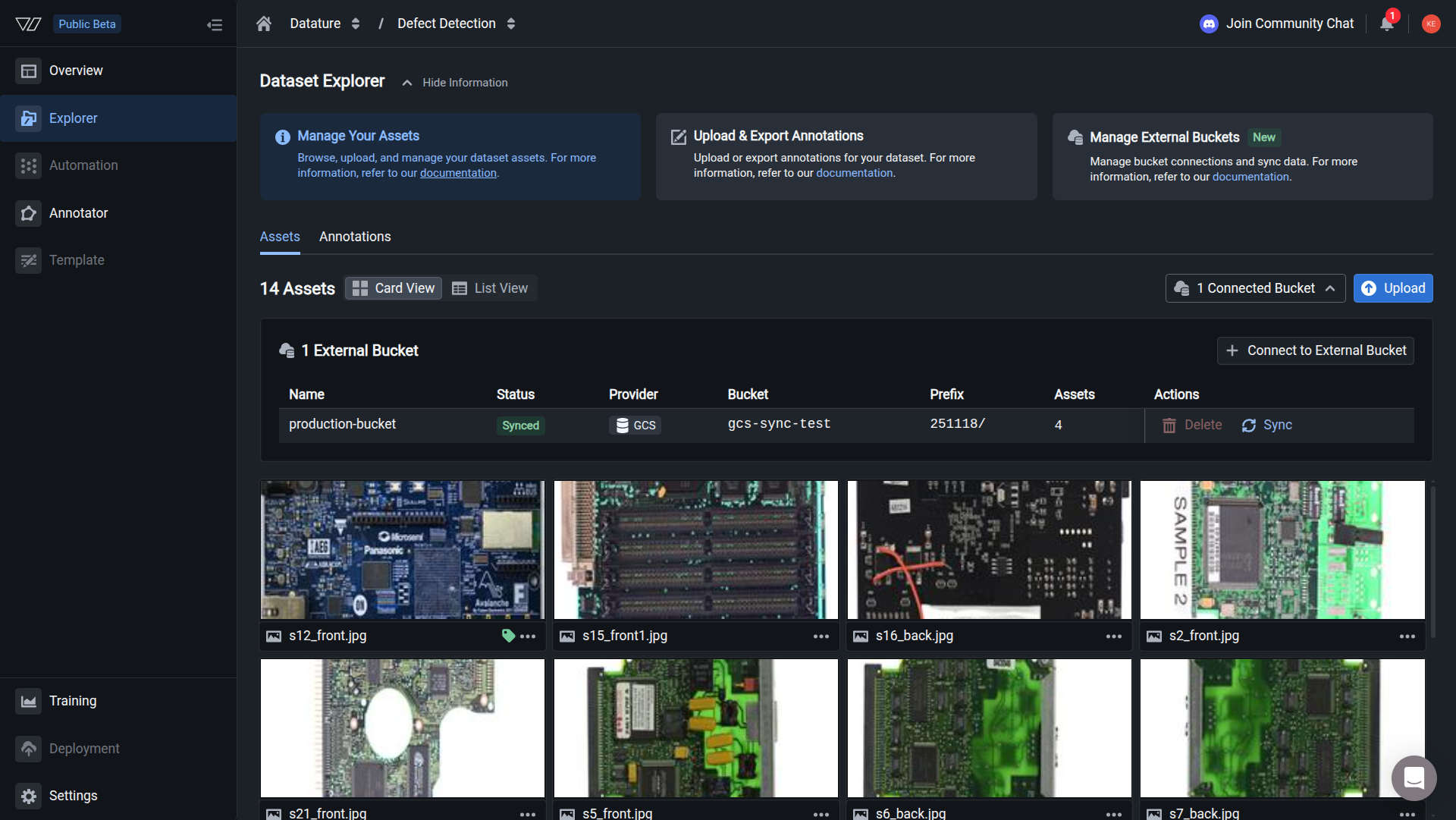
Synced images appear in the dataset Explorer. The asset count in the header reflects the GCS objects that passed the format checks.
Step 1: Enter the bucket details
Open your dataset, then walk through the wizard.
The Bucket Details tab asks for three fields:
Click Next. Vi shows you a service account email address for the next step.
Step 2: Grant Storage Object Viewer to the Vi service account
Run this command in Cloud Shell or a local terminal where gcloud is signed in. Replace {bucket name} with the bucket from Step 1.
The command grants the Vi service account read access to the bucket. The roles/storage.objectViewer role lets Vi list objects and read their content, but does not allow any write or delete actions.
The example email above is illustrative. The wizard shows you the exact service account email for your account; copy it from the UI before running the command.
Step 3: Configure CORS on the bucket
Vi loads thumbnails and previews from the bucket in the browser, so the bucket has to allow cross-origin GETs from the Vi web app.
New buckets
Create a file called CORS_CONFIG_FILE with this content:
[
  {
    "maxAgeSeconds": 3600,
    "method": ["GET"],
    "origin": [
      "https://vi.datature.com"
    ],
    "responseHeader": [
      "Content-Type",
      "Access-Control-Allow-Origin"
    ]
  }
]
Apply the configuration:
Existing buckets
If the bucket already has CORS rules, fetch the current configuration first, merge the vi.datature.com origin into the existing rule, then re-apply with the same gcloud storage buckets update command. Replacing the file wipes any rules that other applications rely on.
Step 4: Sync your assets
Back in the Vi wizard, click Next. Vi tests the connection, then offers Sync Now or Sync Later. If you pick Sync Now, Vi walks through three more screens before the sync starts in earnest.
- Preview Files to Sync. Vi scans the bucket prefix and shows the file count alongside a sample of object paths. Confirm the preview matches what you expect, then click Sync.
- Sync Started. A confirmation appears letting you know the job is running in the background. Click I Understand to dismiss the dialog; the sync continues even after you close the wizard or the browser tab.
- Track progress. Open the Connected Bucket dropdown in the top-right of the Explorer to see the connection name, status, provider, bucket, prefix, asset count, and a live progress bar while assets are retrieved.
The first sync takes 5 to 40 minutes depending on the bucket size.
Asset requirements
Objects in GCS must meet the same format rules as direct uploads.
Annotations are not part of the bucket sync. Vi reads only image and video metadata from GCS. If you have existing labels in COCO, YOLO, Pascal VOC, CSV, or Vi JSONL, upload them directly to Vi once the assets finish syncing.
Troubleshooting
Next steps
Updated 5 months ago