
Delete an Asset
Remove an individual image or video from your dataset using the asset action menu in Datature Vi.
Deleting an asset removes it from the dataset immediately. All annotations on that asset are deleted at the same time. Use this when you want to remove one specific image or video without affecting the rest of the dataset.
- Deleting an asset is irreversible.
- You need an existing dataset with at least one asset you want to remove.
- You need edit access to the dataset (Owner or Editor role).
- If the asset has annotations you want to preserve elsewhere, there is no export-single-asset option. Download the full dataset as a backup first.
Once you confirm, the asset and all its annotations are immediately and permanently removed. There is no undo. Re-upload from a local backup if you delete by mistake.
Open the Dataset Explorer
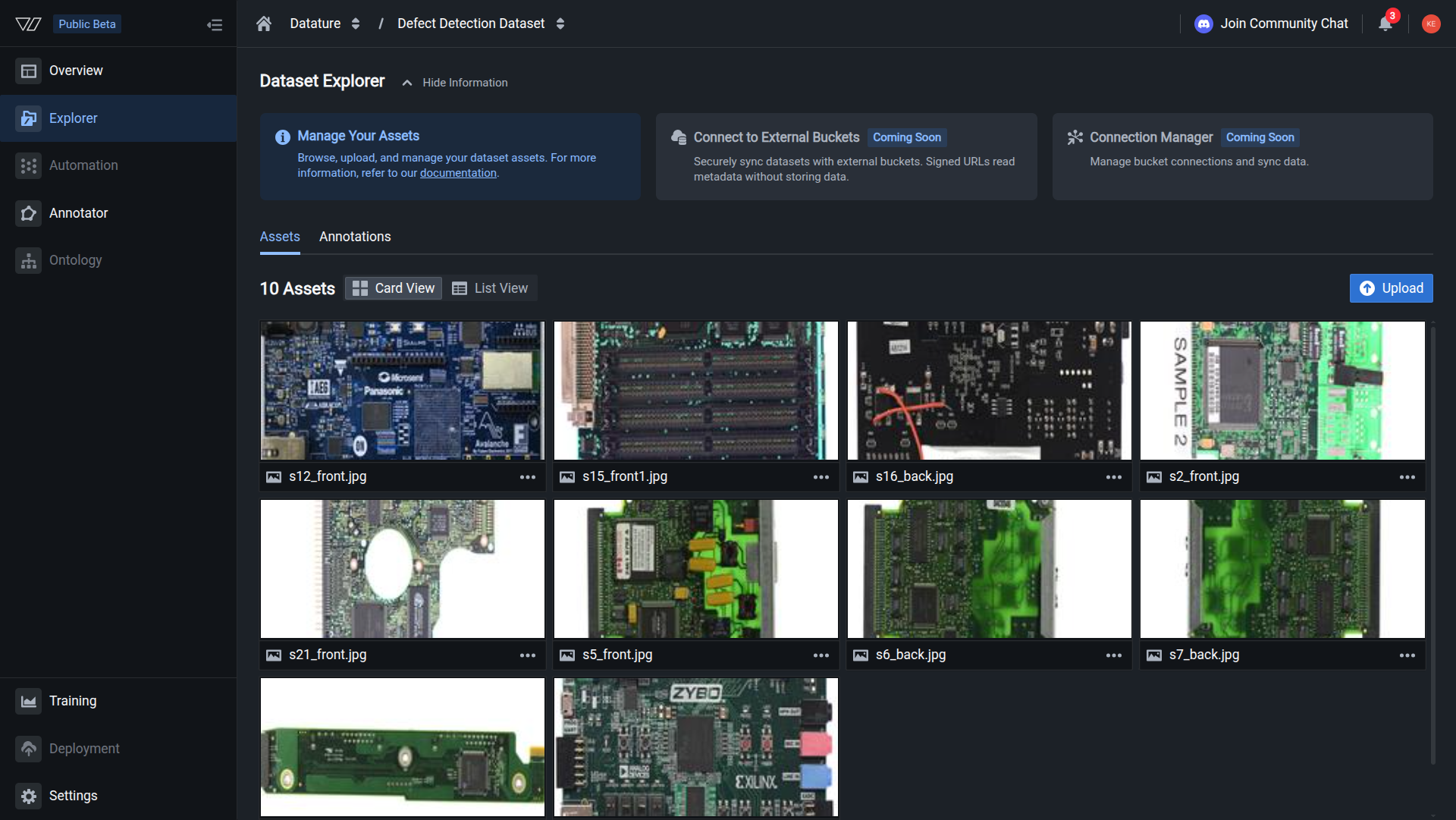
Click the Explorer tab in the sidebar to list the assets in your dataset. .
The asset is gone from the Explorer and the asset count reflects the deletion.
After deletion
- The asset is no longer visible in the Dataset Explorer.
- The total asset count decreases by one.
- All annotations on the deleted asset are permanently removed.
- The asset is no longer available for future training runs.
Check the dataset overview to confirm the updated count if needed.
Delete multiple assets at once
If you need to remove more than a few assets, use bulk actions instead of deleting them one by one.
Troubleshooting
Do this with the Vi SDK
import vi

client = vi.Client(
    secret_key="your-secret-key",
    organization_id="your-organization-id"
)

client.assets.delete(
    dataset_id="your-dataset-id",
    asset_id="your-asset-id"
)
For more details, see the full SDK reference.
Next steps
Updated 6 months ago