Create a Workflow

Configure a reusable training workflow with system prompts, dataset, and model settings.

Create a workflow

Workflows are reusable training configurations that define how your VLM learns from your data. Each workflow specifies the system prompt, dataset split, model architecture, and training parameters.

💡

Looking for a quick start?

This is the comprehensive guide. For a streamlined quickstart version, see:

📋

Prerequisites

Before creating a workflow, ensure you have:

What is a workflow?

A workflow is a saved training configuration that you can reuse across multiple training runs. Workflows define three key components:

  1. System Prompt — Instructions that guide your VLM's behavior
  2. Dataset Configuration — Data source and splitting strategy
  3. Model Selection — Architecture and training parameters

Once created, workflows can be:

  • Reused for multiple training runs
  • Modified to experiment with different settings
  • Shared across your organization
  • Duplicated as templates for similar projects

Steps to create a workflow

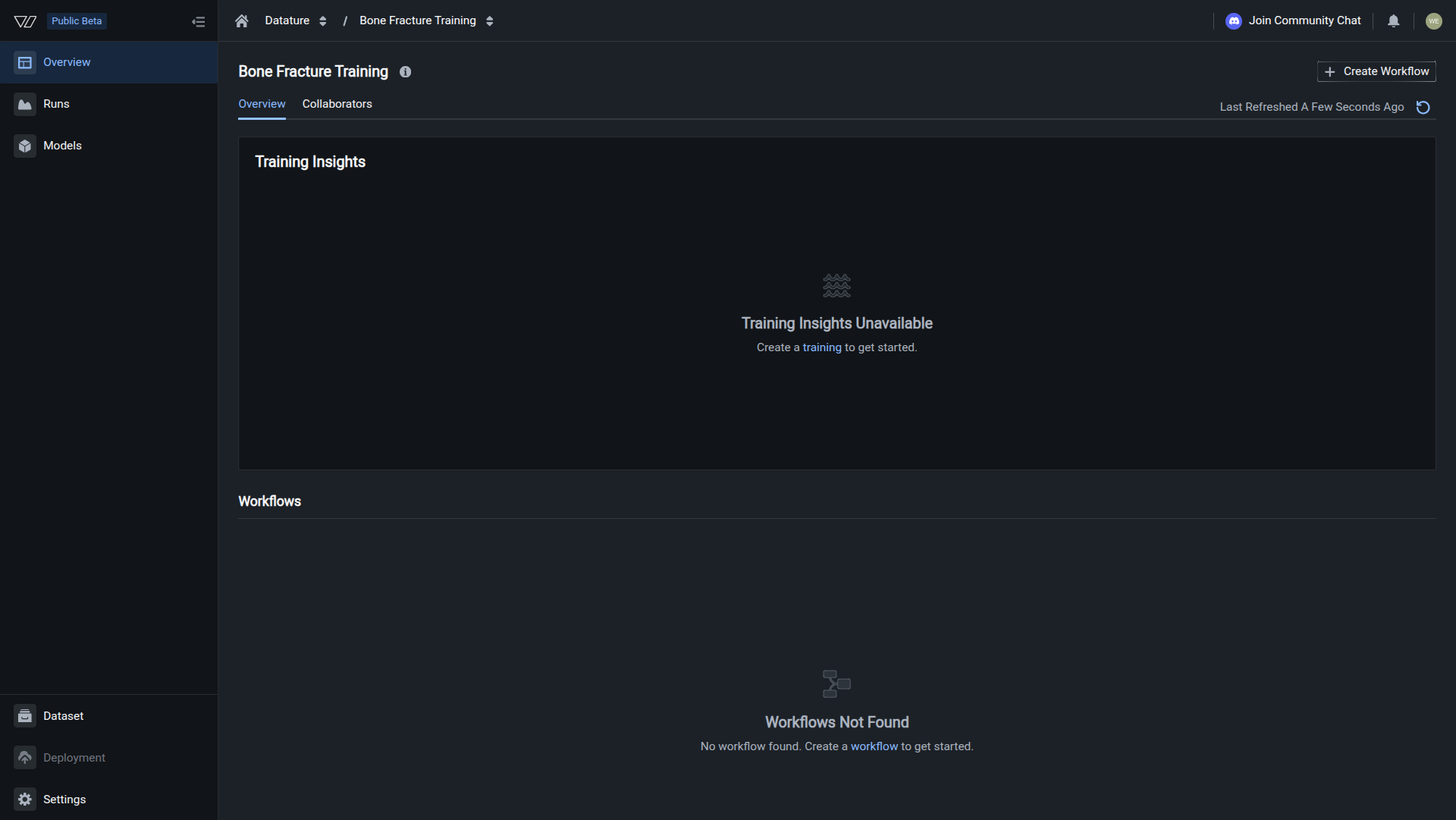
1. Open your training project

Navigate to the Training section and select the training project where you want to create a workflow.

2. Initiate workflow creation

From your project overview, click Create Workflow to open the workflow canvas.

The workflow canvas opens with a node-based interface showing three components arranged vertically:

  • System Prompt (top)
  • Dataset (middle)
  • Model (bottom)

3. Configure each component

Configure the three workflow components from top to bottom. Each node can be clicked to open its configuration panel.


Configure the system prompt

The system prompt is a critical instruction that defines your VLM's task and behavior during training and inference. This prompt guides how your model interprets images and formulates responses.

Click the System Prompt node at the top of the workflow canvas to open the configuration panel.

System prompt configuration

The system prompt defines instructions that guide your VLM's behavior during training and inference. It tells the model:

  • What to look for in images (objects, attributes, relationships)
  • How to respond (format, detail level, terminology)
  • What context to consider (domain knowledge, constraints)
  • Special behaviors (focus areas, edge cases)

When you create a new workflow, the system prompt is pre-filled with a default instruction optimized for phrase grounding tasks. You can use this default prompt, choose an alternative prompt for visual question answering or freeform datasets, or create custom prompts for domain-specific applications.

For comprehensive guidance on system prompts including:

  • Full default prompts for phrase grounding, VQA, and freeform
  • Domain-specific examples (manufacturing, retail, healthcare, etc.)
  • Best practices for writing effective prompts
  • Testing and iteration strategies
  • Preventing hallucinations

Learn more about configuring system prompts →


Configure the dataset

Click the Dataset node to select your data source and configure how data is split for training.

The dataset configuration includes:

  • Dataset source — Select which dataset to use
  • Train/validation/test split — Define data distribution
  • Shuffle options — Randomize data ordering

For detailed guidance on dataset configuration options, splitting strategies, and best practices:

Learn more about dataset configuration →


Select and configure the model

Click the model dropdown to choose from available VLM architectures.

After selecting a model, click the model node to access its configuration settings.

Model configuration includes:

  • Architecture selection — Choose the VLM backbone
  • Training parameters — Learning rate, batch size, epochs
  • Optimization settings — Optimizer type, learning rate schedule

For comprehensive information on model architectures, parameter tuning, and performance considerations:

Learn more about model configuration →


Save and run your workflow

Review the complete workflow

Once all three components are configured, your workflow canvas displays the complete pipeline:

Verify that:

  • All nodes are properly configured (no warning icons)
  • Connections between nodes are established
  • Settings match your intended training configuration

Monitor token usage

At the bottom of the workflow canvas, the Token Monitor displays character counts for your workflow configuration:

Token Monitor metrics:

  • System Prompt — Character count of your system prompt instructions
  • User Prompt — Character count of task-specific prompts (if applicable)
  • Dataset Context — Character count from dataset annotations and metadata
  • Total Context Window — Combined character count across all components
📘

Why token counts matter

VLMs have context window limits—the maximum amount of text they can process at once. The Token Monitor helps you:

  • Stay within limits — Ensure your prompts and data fit within model constraints
  • Optimize efficiency — Identify overly verbose prompts that could be simplified
  • Balance components — See how prompt length affects available space for data
  • Prevent errors — Catch context overflow issues before training starts

Understanding the counts:

The Token Monitor updates automatically as you configure workflow components:

  • System Prompt changes — Updates when you modify system prompt instructions
  • Dataset selection — Updates based on annotation complexity and metadata
  • Real-time feedback — Character counts refresh as you edit configurations

Typical character ranges:

ComponentTypical RangeNotes
System Prompt1,000-3,000 charsDefault prompts are ~2,000 characters
User Prompt0-500 charsTask-specific additions (optional)
Dataset Context100-5,000 charsVaries by annotation density
Total Context Window1,500-8,000 charsModel-dependent limits
⚠️

Context window limits

If your total character count approaches or exceeds your model's context window limit, consider:

  • Simplifying prompts — Remove redundant instructions
  • Shortening annotations — Use concise class names and descriptions
  • Selecting different model — Some architectures support larger context windows
  • Filtering data — Focus on essential annotations only

Save the workflow

Click Save Workflow to store your configuration. Provide a descriptive name:

  • ✅ "Product Detection - Default Prompt - ResNet50"
  • ✅ "Defect Inspection - Detailed v2 - EfficientNet"
  • ✅ "Safety Compliance - PPE Detection - YOLOv8"

Workflow saved!

Your workflow is now ready to use. You can start a training run immediately or save it as a template for future use.

Start a training run

To begin training with this workflow:

  1. Click Run Training from the workflow canvas, or
  2. Navigate to the Runs section and select this workflow

Learn how to start and monitor training runs →


Managing workflows

Edit an existing workflow

To modify a workflow:

  1. Go to the Workflows section in your training project
  2. Select the workflow you want to edit
  3. Make your changes in the workflow canvas
  4. Save the workflow (optionally as a new version)
📘

Workflow versions

Editing a workflow that's been used for training runs doesn't affect previous runs. Each run captures a snapshot of the workflow configuration at the time it was started.

Duplicate a workflow

To create variations for experimentation:

  1. Open the workflow you want to duplicate
  2. Click Duplicate in the workflow menu
  3. Modify the duplicated workflow as needed
  4. Save with a descriptive name

This is useful for:

  • Testing different system prompts
  • Comparing model architectures
  • Experimenting with dataset splits
  • A/B testing training parameters

Learn more about duplicating workflows →

Delete a workflow

To remove unused workflows:

  1. Navigate to the Workflows section
  2. Select the workflow to delete
  3. Click Delete and confirm

Learn more about workflow management →

❗️

Deletion warning

Deleting a workflow doesn't delete training runs that used it. However, you won't be able to view the workflow configuration details for historical runs.


Best practices

Start with defaults, then iterate

For your first workflow:

  1. Use the default system prompt
  2. Keep standard dataset splits (80/20 or 70/20/10)
  3. Select a recommended model architecture
  4. Use default training parameters

After your first training run:

  • Evaluate model performance
  • Identify areas for improvement
  • Create new workflows with refined settings
  • Compare results across runs
Use descriptive workflow names

Include key details in workflow names:

Format: [Task] - [Prompt Version] - [Model] - [Notable Settings]

Examples:

  • "Defect Detection - Detailed v1 - ResNet50"
  • "Product Recognition - Zero-shot - EfficientNet-B4"
  • "Safety PPE - Strict Compliance - YOLOv8 - High Res"

This helps you:

  • Quickly identify workflows
  • Track experiments systematically
  • Compare configurations easily
  • Maintain organized projects
Version your system prompts

Track system prompt iterations:

  1. Save each prompt variation as a separate workflow
  2. Name workflows with version numbers (v1, v2, v3)
  3. Document what changed between versions
  4. Keep a prompt library for successful configurations

Example progression:

  • "Product Detection - Basic v1"
  • "Product Detection - Add Context v2"
  • "Product Detection - Detailed Output v3"
Test small before scaling up

For large datasets or expensive training runs:

  1. Create a test workflow with a small data subset
  2. Run quick training (fewer epochs, smaller model)
  3. Verify configuration works as expected
  4. Scale up with full dataset and optimal settings

This prevents wasting compute resources on misconfigured workflows.

Document your experiments

Use the workflow description field to note:

  • Hypothesis: What are you testing?
  • Changes: What's different from previous versions?
  • Expected outcome: What should improve?
  • Actual results: Link to training runs and performance metrics

This creates an experiment log you can reference later.


Common questions

Can I reuse a workflow across different training projects?

No, workflows are specific to individual training projects. However, you can manually recreate similar workflows in different projects by copying the configuration settings.

How many workflows should I create?

Create as many as needed for your experiments. Common approaches:

  • Minimal: 1 workflow, iteratively edited
  • Organized: 3-5 workflows for major configuration variations
  • Experimental: 10+ workflows for systematic A/B testing

There's no limit on workflow count, so create as many as helpful for your process.

What happens if I change a workflow after starting a training run?

Training runs capture a snapshot of the workflow configuration when started. Editing the workflow afterwards doesn't affect in-progress or completed runs.

Can I see which runs used which workflow version?

Yes. Each training run records the workflow configuration used. You can view these details in the run history.

Should I create a new workflow or edit an existing one?

Edit existing workflow when:

  • Fixing errors or mistakes
  • Making minor parameter adjustments
  • Workflow hasn't been used for training yet

Create new workflow when:

  • Testing significantly different configurations
  • Comparing multiple approaches
  • Preserving successful configurations for reuse
  • Running systematic experiments
How does the system prompt affect training vs inference?

The system prompt influences both:

During training:

  • Guides how the model learns to interpret tasks
  • Shapes the model's understanding of objectives
  • Influences attention and feature learning

During inference:

  • Defines the model's behavior on new images
  • Must be consistent with training prompt for best results
  • Can be adjusted slightly for deployment needs

For optimal performance, keep inference prompts consistent with training prompts.

Can I use the same workflow with different datasets?

Yes, but you'll need to reconfigure the dataset node. The model and system prompt configurations remain the same, making it easy to train similar models on different data sources.

What happens if my token count is too high?

If your total context window exceeds the model's limit:

Immediate actions:

  • Simplify your system prompt by removing redundant instructions
  • Use shorter, more concise language
  • Remove example outputs from prompts (if not essential)

Dataset adjustments:

  • Use shorter class names in annotations
  • Reduce annotation metadata verbosity
  • Filter to include only essential annotations

Model considerations:

  • Select a model architecture with larger context window support
  • Check model specifications for context limits

The workflow validation will warn you if character counts exceed safe limits before training starts.

Do token counts affect training cost?

Token counts primarily affect:

Training feasibility:

  • Models have hard limits on context window size
  • Exceeding limits causes training failures

Training efficiency:

  • Longer contexts may slow down training slightly
  • More GPU memory required for larger contexts

Not directly related to cost:

  • Compute credits are based on GPU time, not token count
  • However, efficient prompts may train faster, reducing overall cost

The Token Monitor helps you optimize for both feasibility and efficiency.


Next steps

After creating your workflow:

1. Start a training run

Launch training using your configured workflow:

  • Select GPU resources
  • Configure checkpointing and evaluation
  • Monitor training progress in real-time

Learn how to start training →

2. Evaluate your model

Assess model performance after training:

  • Review training metrics and loss curves
  • Test predictions on validation data
  • Compare results across different runs

Learn about model evaluation →

3. Refine and iterate

Improve your workflow based on results:

  • Adjust system prompts for better task alignment
  • Experiment with different model architectures
  • Fine-tune training parameters for optimal performance

4. Deploy your model

Once satisfied with performance:

  • Download trained models
  • Deploy to production environments
  • Integrate with applications

Learn about model deployment →


Additional resources

Workflow configuration

Training guides

Quickstart

Resources

Related resources