
Advanced Evaluation
Compare ground truth annotations with model predictions side-by-side across training checkpoints.
- A training run in any state (predictions update in real time as new checkpoints are saved)
- Access to the training project that contains the run
- Advanced Evaluation enabled in your run configuration
New runs go through a cold start period (dataset preprocessing, instance startup, and pending first metrics) before any predictions appear on this tab.
The Advanced Evaluation tab in Datature Vi shows model predictions alongside ground truth annotations for each validation image. Where Training Metrics gives you numbers, Advanced Evaluation shows you the actual predictions so you can see exactly where the model succeeds and where it fails.
Open your training project
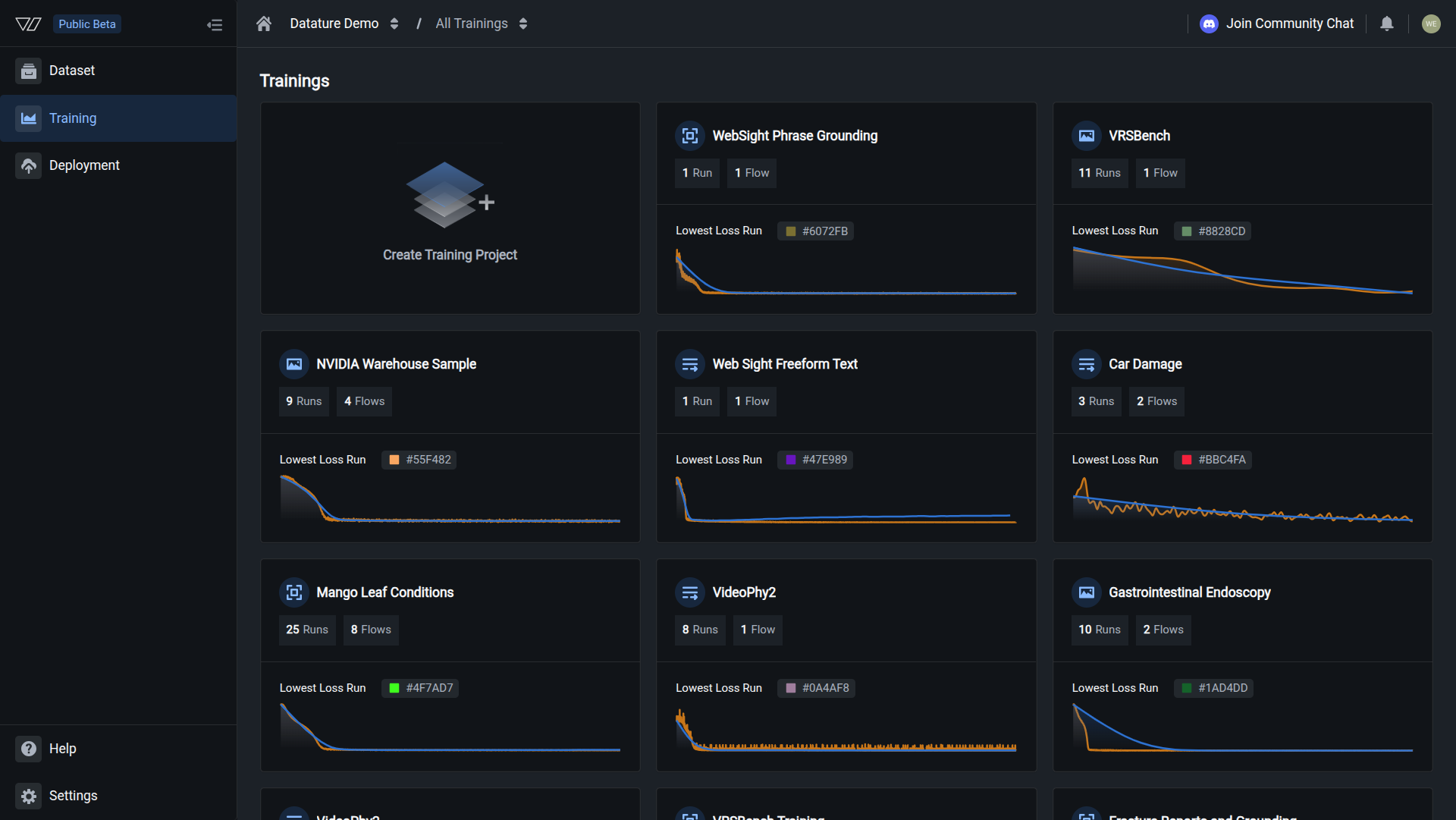
Go to Training in the sidebar and click the project containing the run you want to review.
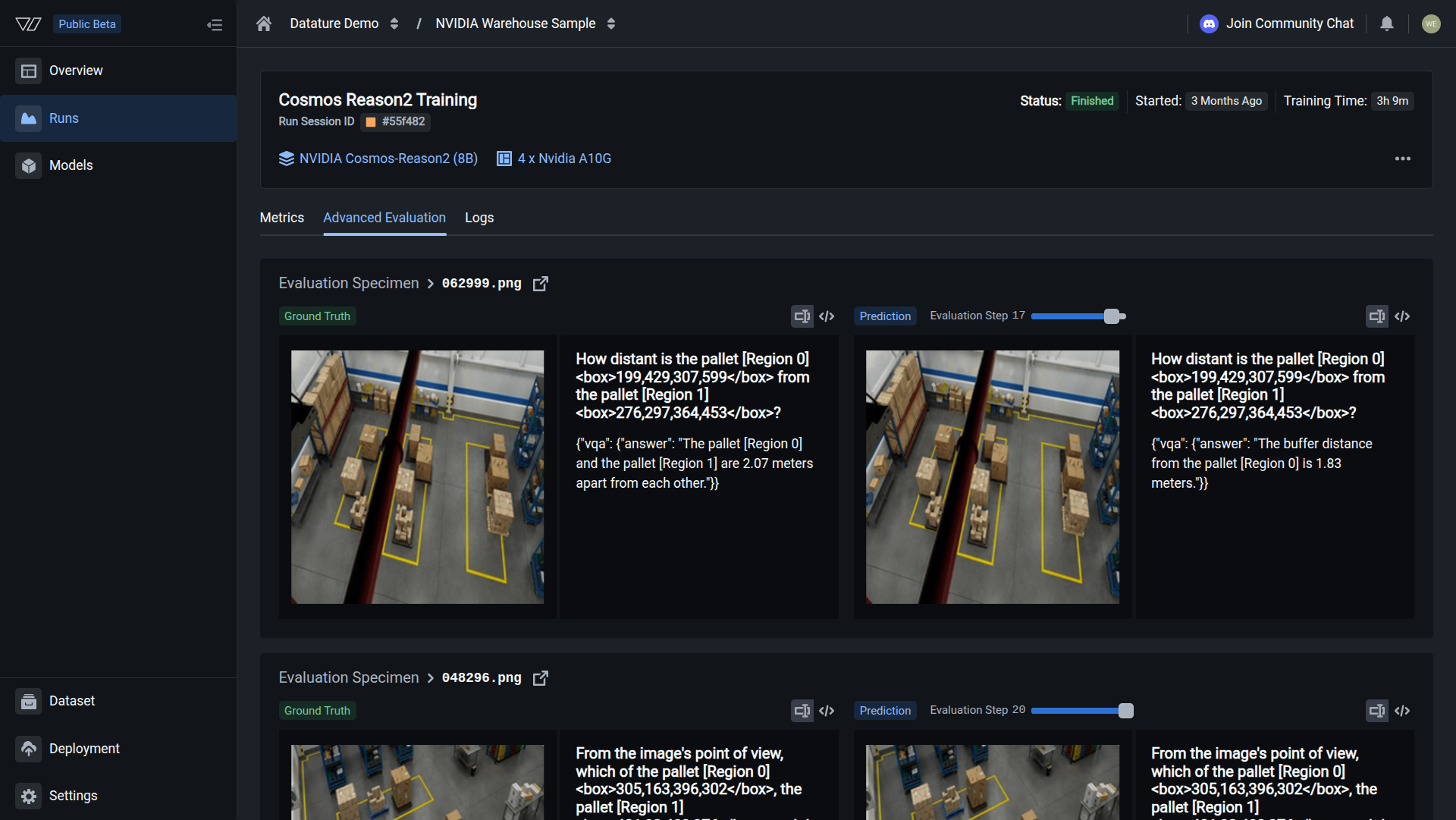
Your evaluation is complete when you can step through validation images and confirm that predicted bounding boxes or text answers align with ground truth across checkpoints.
What you see in the tab
Each validation image (called an evaluation specimen) appears with two panels side by side:
- Left panel (Ground Truth): your original annotations from the dataset
- Right panel (Prediction): the model's predicted annotations or generated text at the selected checkpoint
- Specimen identifier: the filename of the evaluation image
The image list on the side lets you scroll through all validation specimens. Click any one to load its comparison.
Step through evaluation checkpoints
Training saves evaluation results at multiple points during the run. The checkpoint slider lets you step through these snapshots to see how the model's predictions changed over time.
To change the checkpoint:
- Click the three dots (•••) in the top-right corner of the Advanced Evaluation tab
- An Evaluation Step slider appears
- Drag the slider to the checkpoint you want (for example, Step 0, 5, 10, 15, or 20)
- Both panels update to show predictions at that training stage
What the stages typically look like:
- Early checkpoints (Steps 0–5): predictions are often inaccurate or incomplete; the model has barely started learning
- Middle checkpoints (Steps 5–15): predictions improve progressively as training continues
- Final checkpoints (Steps 15–20): mature predictions at the end of training
How to interpret predictions
What counts as a good prediction depends on your task type.
Phrase grounding tasks
For phrase grounding tasks, you are comparing bounding boxes.
Visual question answering tasks
For visual question answering tasks, you are comparing generated text against reference answers.
Frequently asked questions
Next steps
Updated 6 months ago