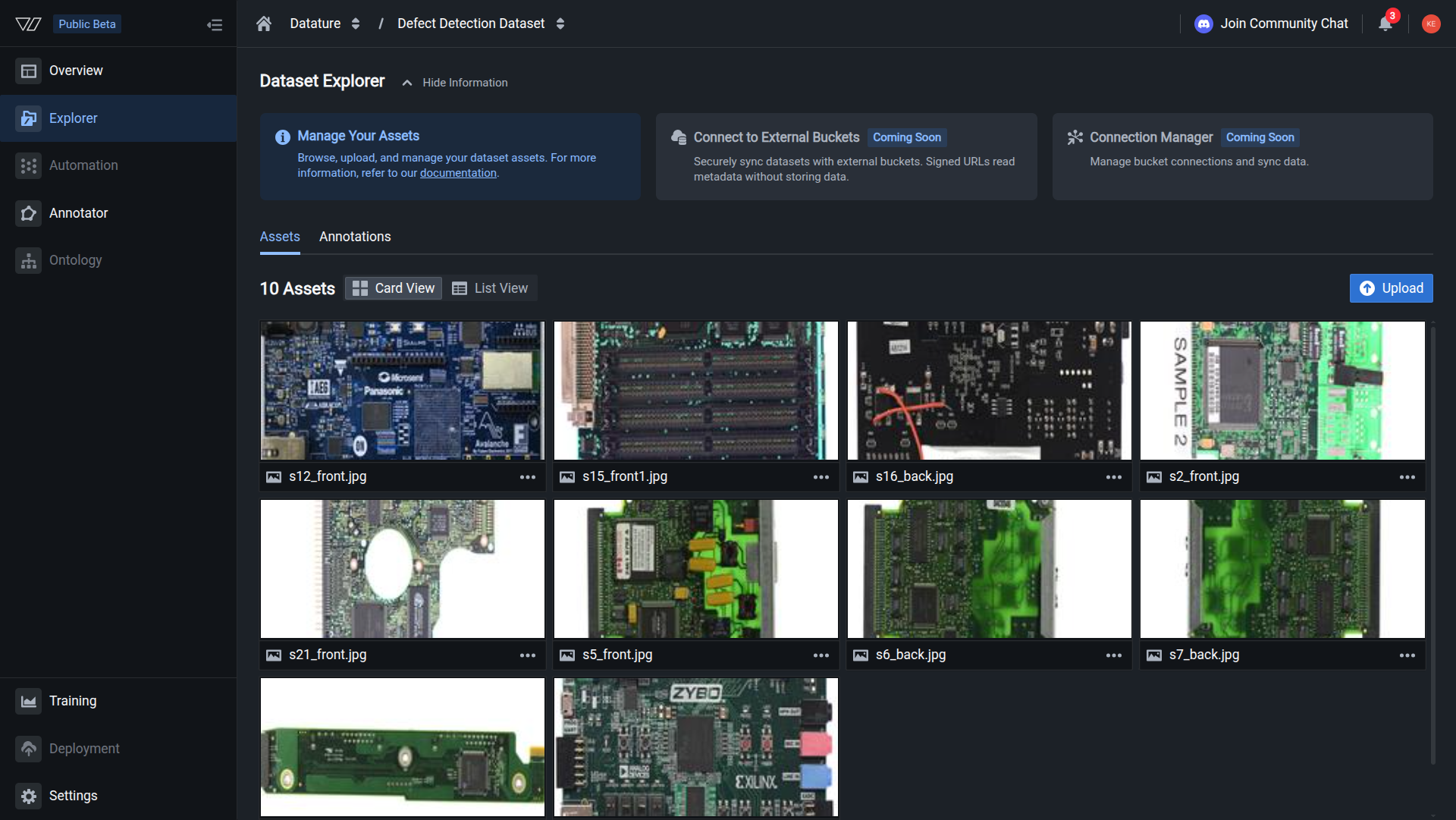
Bulk Actions
Perform actions on multiple assets simultaneously to efficiently manage large datasets.
Bulk actions allow you to perform operations on multiple assets simultaneously, making it efficient to manage large datasets. Currently, you can use bulk actions to delete multiple assets at once.
Before you perform bulk actions
- Deletion is permanent — Bulk deleted assets cannot be recovered
- All annotations removed — Every annotation on selected assets will be deleted
- Review your selection — Double-check the asset count before confirming
- Create a backup — Download your dataset before performing large-scale deletions
- Cannot be undone — There is no way to restore bulk deleted assets
Available bulk actions
Currently, the following bulk action is available:
- Bulk Delete — Remove multiple selected assets from your dataset at once
Select assets for bulk actions
Select individual assets
-
Navigate to your dataset in the Explorer tab
-
Ensure you're viewing the Assets tab
-
Click the checkbox in the bottom-left corner of each asset you want to select
-
Selected assets are highlighted with a blue border and a checked checkbox
-
A toolbar appears at the bottom of the screen showing the number of selected assets
Selecting individual assetsThe bottom toolbar displays:
- A checkbox to toggle selection
- Number of Assets: followed by the count of selected assets
- Bulk Actions dropdown menu
Select all assets
-
To select all assets in the dataset, click the checkbox in the bottom toolbar
-
This toggles between selecting all assets and deselecting all assets
-
The asset count updates to reflect the total number of assets in the entire dataset
Select all assetsWhen all assets are selected, the toolbar shows the total count (e.g., "Number of Assets: 20")
Selection tips
- The checkbox in the bottom toolbar acts as a Select All / Deselect All toggle
- Select All selects every asset in the entire dataset, not just those currently visible
- You can combine Select All with individual deselection to exclude specific assets
- The selection persists as you scroll through your dataset
- The asset count updates in real-time as you select or deselect assets
Bulk delete assets
Once you've selected the assets you want to remove:
-
With your assets selected, locate the Delete button or Bulk Actions dropdown in the bottom toolbar
-
Click Delete or select Delete from the Bulk Actions dropdown menu
-
A confirmation dialog appears showing the number of assets that will be deleted
-
Review the count carefully to ensure you're deleting the intended assets
-
Click Confirm or Delete to permanently remove all selected assets
Immediate and permanent deletionOnce confirmed, all selected assets and their associated annotations are immediately and permanently deleted. This action affects:
- All selected assets are removed from the dataset
- All annotations on those assets are deleted
- The total dataset size and asset count are updated
- Training history is preserved but assets cannot be accessed
This action cannot be undone.
Verify bulk deletion
After completing a bulk delete:
- All selected assets are removed from the Dataset Explorer
- The total asset count decreases by the number of deleted assets
- The selection toolbar disappears
- Your dataset view refreshes to show the remaining assets
Use cases for bulk actions
Bulk actions are particularly useful for:
- Initial dataset cleanup — Removing test uploads or placeholder data
- Quality control — Deleting multiple low-quality or corrupted images
- Data privacy — Removing batches of assets with sensitive information
- Dataset refinement — Removing entire categories or subsets of data
- Storage management — Clearing out large numbers of unnecessary assets
- Project restructuring — Cleaning up datasets during project reorganization
Best practices
Test with a small selection first to ensure you understand the process
Always download a backup before performing large-scale bulk deletions
Review the asset count in the confirmation dialog before proceeding
If available, use filters to refine your selection before bulk deletion
Remember that annotations are also deleted with their assets
Identify which assets to keep before starting the deletion process
Troubleshooting
Selection not working
- Ensure you're clicking on the checkbox, not the asset thumbnail
- Try refreshing the page if checkboxes aren't responding
- Check that you're in the correct dataset view
Cannot find bulk actions button
- Bulk actions only appear after you've selected at least one asset
- Look for the toolbar at the bottom of the screen
- Ensure your browser window is large enough to display the toolbar
Deleted wrong assets
- Unfortunately, bulk deletion is permanent and cannot be undone
- Restore from your backup if you downloaded the dataset beforehand
- Re-upload the assets and annotations if you have the original files
Limitations
- No undo — Deleted assets cannot be recovered through the interface
- Permanent deletion — All annotations are removed with the assets
- Single action — Currently, only bulk delete is available as a bulk action
Next steps
Learn how to delete individual assets one at a time
Create a backup before performing bulk deletions
Add new assets after cleaning up your dataset
Analyze your dataset composition after bulk operations
Need help?
We're here to support your VLMOps journey. Reach out through any of these channels:
Updated about 1 month ago