
Freeform Text
Select frame sequences with the video scrubber and write freeform text annotations to train a VLM on temporal reasoning tasks.
- A freeform text dataset with uploaded videos
- A plan for the text structure or schema you want to use across your dataset
Freeform text annotations for videos let you describe what happens across a sequence of frames. You use the timeline scrubber to select a frame range, then write text in any format (JSON, plain text, or custom schemas) that describes the action, event, or scene within that range. This guide walks through creating video freeform text annotations in Datature Vi.
Open the annotator
Go to your dataset, then click the Annotate tab. Click any video thumbnail in the bottom strip to load it into the Video Annotator.
Open the Annotator tab
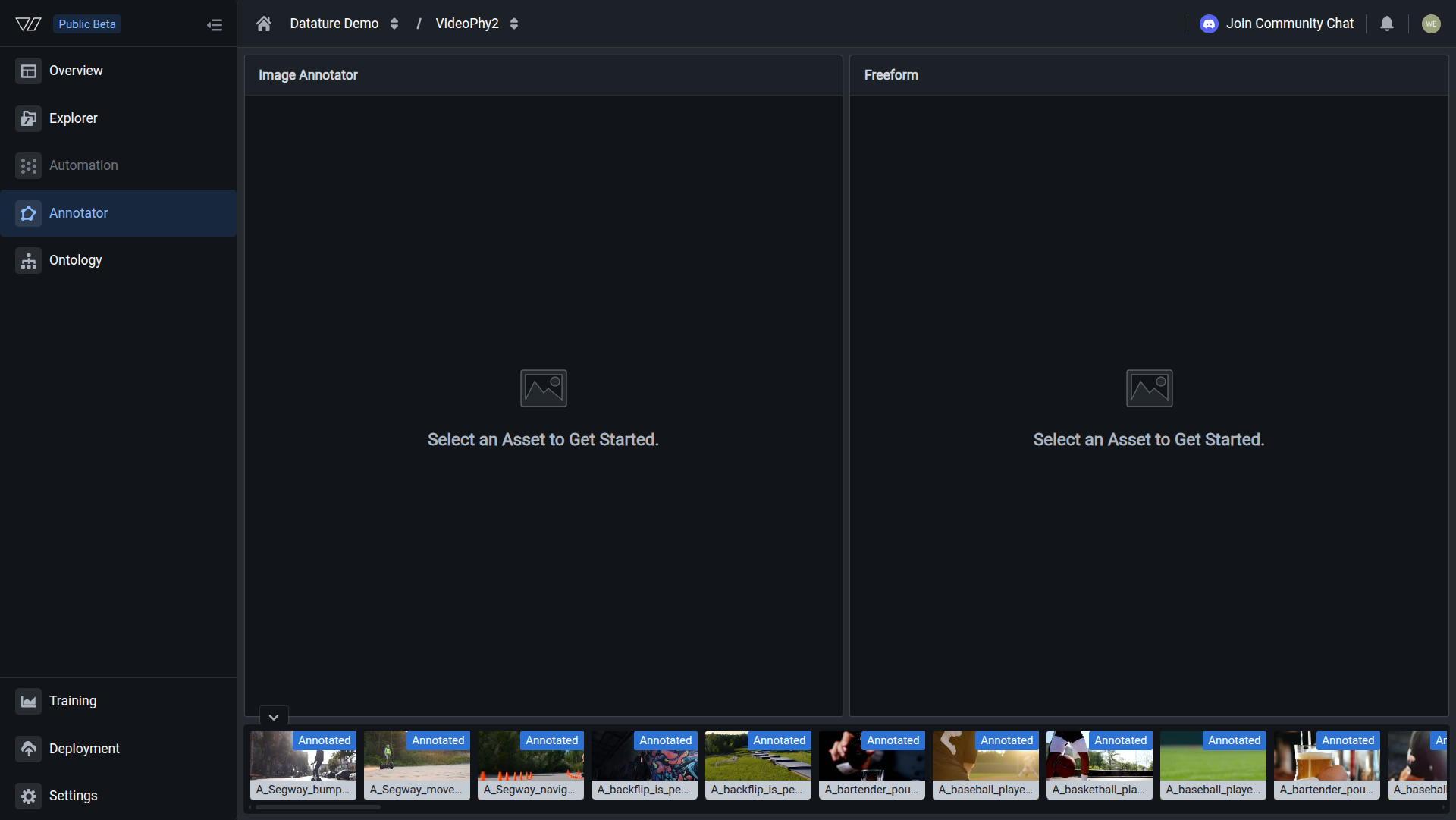
Go to the Dataset Overview page and click the Annotator tab to open the labeling interface.
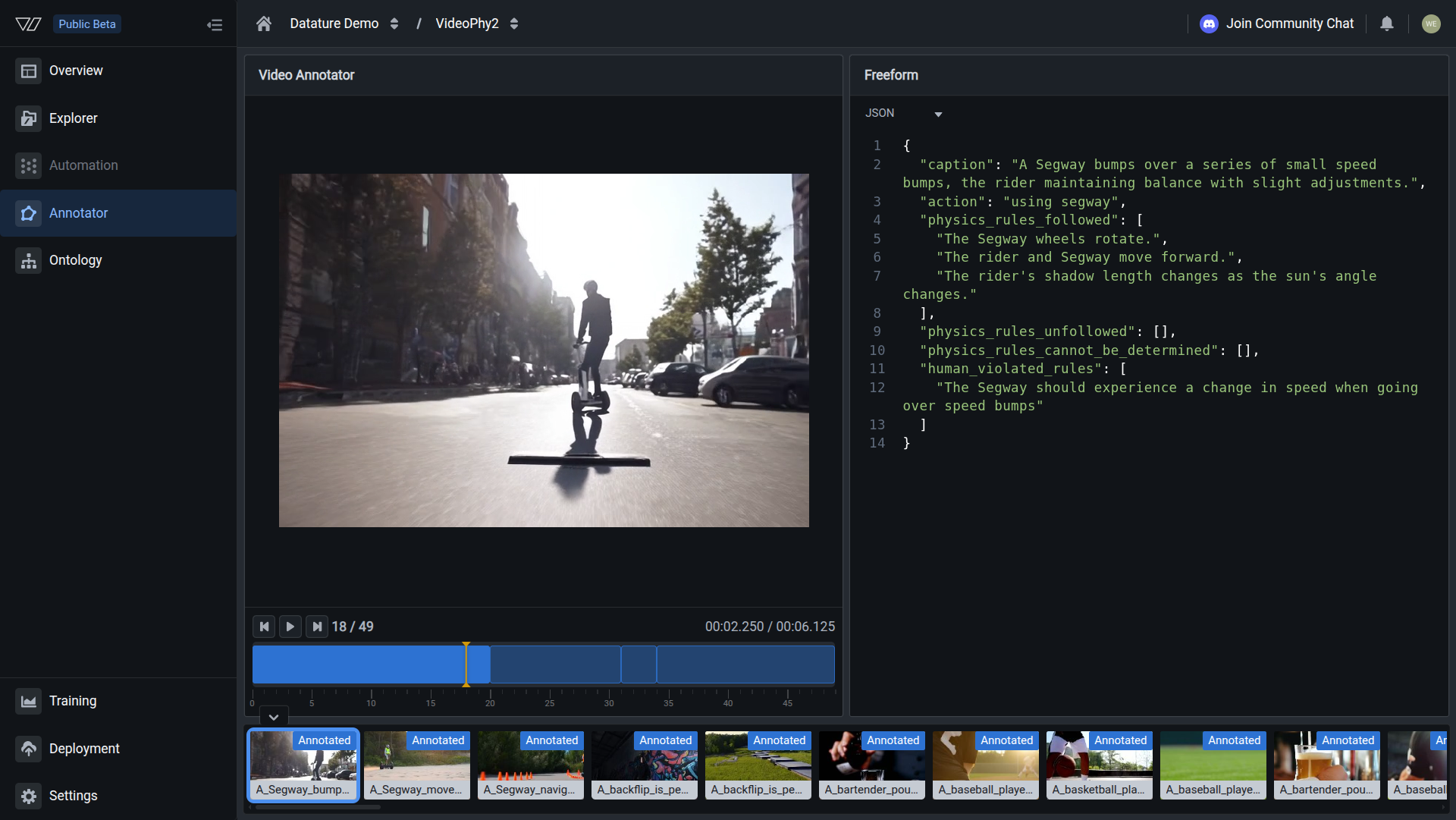
Your annotations are ready when you see annotation count matching the video count in the Dataset Overview.
The timeline scrubber
The timeline scrubber is the core tool for video annotation. It displays the video's frames as a horizontal timeline below the video player.
Frame selection: Drag the start and end handles on the timeline to define a frame sequence. The selected range highlights in color, and the video player shows the current frame within that range.
Playback controls: Use the play/pause button to preview the selected sequence. The frame counter shows your position (e.g., "13 / 49") and the timestamp shows the current time within the video.
Multiple sequences: Each annotation occupies a distinct segment on the timeline, shown as colored blocks. You can create multiple non-overlapping sequences per video, each with its own freeform text annotation.
Navigation: Click anywhere on the timeline to jump to that frame. Use the previous/next frame buttons to step through frames one at a time.
Keyboard shortcuts
Annotation guidelines
These guidelines produce annotations that train well for temporal reasoning tasks.
Define your schema first
- Pick a consistent structure (JSON or plain text) before you start
- Use the same fields and format across every video in the dataset
Describe temporal events, not static scenes
- Focus on actions: "The rider maintains balance" over "A person on a Segway"
- Capture changes: "The vehicle accelerates from stationary"
- Note cause and effect: "The speed bump causes posture adjustment"
Choose meaningful frame boundaries
- Capture complete actions from start to finish
- Avoid cutting mid-action or mixing unrelated events
- Keep sequences focused on a single scene or activity
Cover the full video
- Annotate all significant events; leave gaps only for static segments
- Aim for 3-5 sequences covering the key events (2-3 minimum)
- Dense annotation: every significant action or scene change
JSON example for action recognition:
{
  "caption": "A Segway bumps over a series of small speed bumps, the rider maintaining balance with slight adjustments.",
  "action": "using segway",
  "physics_rules_followed": [
    "The Segway wheels rotate.",
    "The rider and Segway move forward.",
    "The rider's shadow length changes as the sun's angle changes."
  ],
  "physics_rules_unfollowed": [],
  "physics_rules_cannot_be_determined": [],
  "human_violated_rules": [
    "The Segway should experience a change in speed when going over speed bumps"
  ]
}
Plain text example:
Caption: A Segway bumps over a series of small speed bumps
Action: Using segway
Physics followed: Wheels rotate, forward movement, shadow changes with sun angle
Physics violated: None
Human violated: No speed change over speed bumps
Edit or delete annotations
To edit an annotation: Click the corresponding segment on the timeline to select it, then modify the text in the Freeform panel. Changes save automatically.
To adjust frame boundaries: Click a segment on the timeline, then drag the start or end handle to resize it.
To delete an annotation: Click the segment on the timeline, then clear the text in the Freeform panel or use the delete option.
Deleted annotations and frame sequences cannot be recovered. Export your dataset regularly as a backup.
Chain-of-thought reasoning
Next steps
Updated 7 months ago