Team Settings
Manage your organization's members, roles, and settings
Team Settings
Manage your organization's team members, assign roles, control access to datasets and training projects, and configure organization settings. Team settings help you collaborate effectively while maintaining proper access controls.
Invite team members and set their access levels
Check project access and member information
Remove team members from your organization
Update your organization's display name
Understanding team roles
Your organization has different role levels that control what members can do:
Organization roles
| Role | Permissions | Use for |
|---|---|---|
| Owner | Full control of organization, billing, and all projects | Organization administrators |
| Admin | Manage members, create projects, access all resources | Team leads and managers |
| Member | Access assigned datasets and training projects only | Individual contributors |
Organization ID cannot be changedYour organization ID is a unique identifier used in API calls and URLs. It cannot be modified after creation. You can only change the organization's display name.
Project-level access
Beyond organization roles, you can grant members specific access to individual datasets and training projects:
Dataset access:
- Owner — Full control: edit, annotate, delete, and manage dataset settings
- Editor — Annotate and modify images and annotations
- Viewer — View dataset contents only
Training project access:
- Owner — Full control: create workflows, start runs, modify settings, and deploy models
- Editor — Create workflows and start training runs
- Viewer — View training progress and results only
Access all datasets or trainingsWhen adding members, you can grant access to All Datasets or All Trainings to give members organization-wide access to those resource types.
View member details
Check which datasets and training projects a team member can access.
- Click the Settings icon in the bottom left corner of your workspace dashboard
- Go to the organization settings menu (top navigation bar) and select your organization name
- Click Members in the left sidebar
- Find the member in the table and click the ⋮ (three dots) in the Actions column
- Select View Details

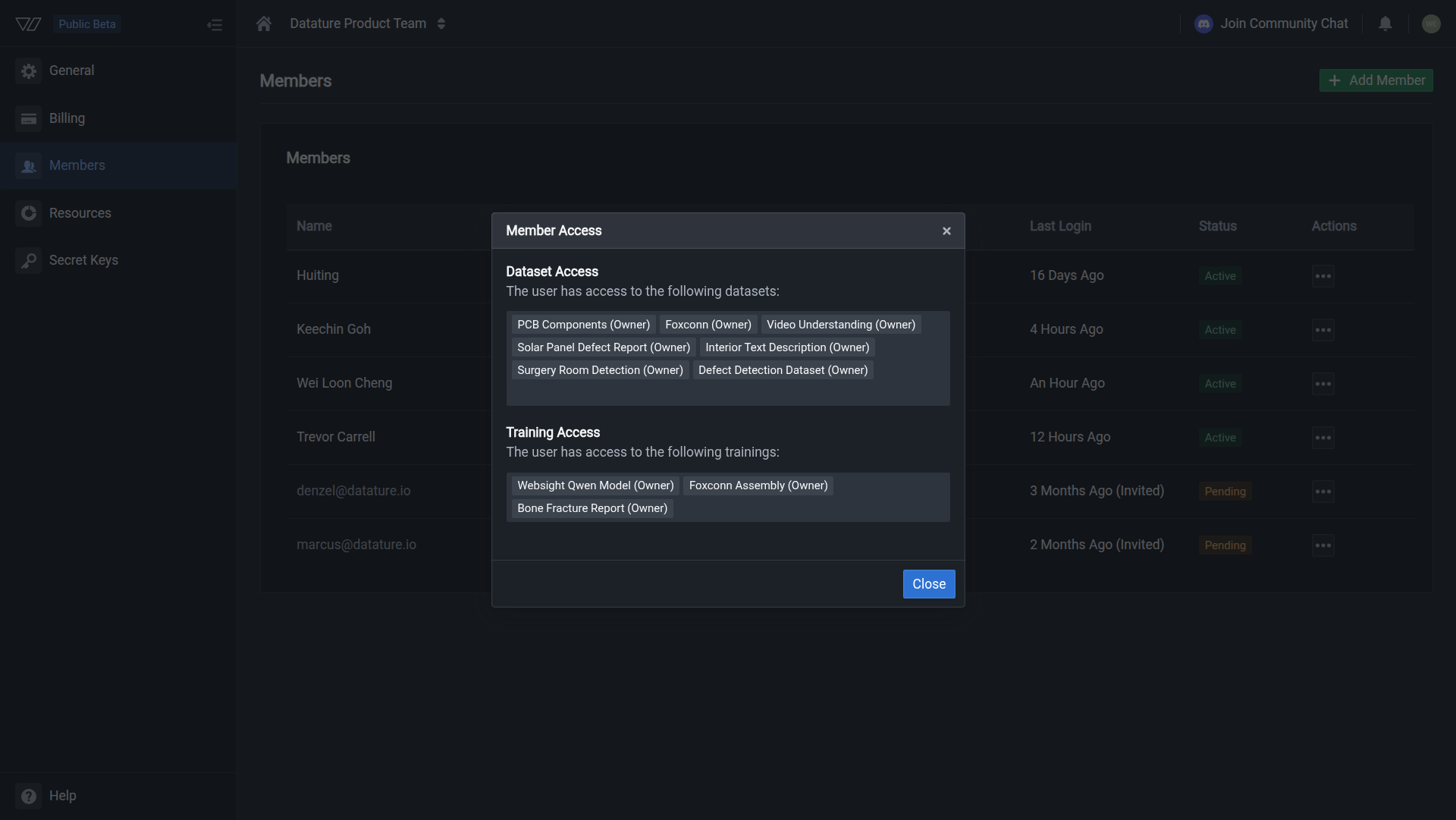
The Member Access dialog displays:
- Dataset Access — All datasets the member can access with their role (Owner, Editor, or Viewer)
- Training Access — All training projects the member can access with their role
Managing accessTo modify a member's access to specific projects, you need to remove the member and re-invite them with the updated access settings.
Accessing team settings
To access team settings:
- Click the Settings icon in the bottom left corner of your workspace dashboard
- Click your organization name in the top navigation bar of the settings panel
- This opens the organization settings with the left sidebar
- Select Members from the left sidebar to manage team members
- Select General from the left sidebar to configure organization settings
The left sidebar provides quick access to:
- General — Organization name and ID settings
- Billing — Subscription and payment management (see Resource Usage)
- Members — Team member management
- Resources — Usage tracking and limits
- Secret Keys — API authentication (see Secret Keys)
Common use cases
Adding contractors or temporary team members
When adding contractors or temporary members:
- Grant Member organization role (not Admin or Owner)
- Assign access only to specific datasets or training projects they need
- Assign appropriate project-level roles (typically Editor or Viewer)
- Remove them when their contract ends
This limits access to only what they need while maintaining security.
Setting up team leads
For team leads who manage projects but don't need billing access:
- Assign Admin organization role
- Grant access to All Datasets and All Trainings
- Set project roles to Owner for full project control
This gives them full project management capabilities without billing access.
Read-only access for stakeholders
For stakeholders who need to monitor progress without making changes:
- Assign Member organization role
- Select specific datasets or training projects they need to monitor
- Set project roles to Viewer
They can track progress and view results without accidentally modifying anything.
Checking who has access to sensitive data
To audit access to specific datasets or training projects:
- Go to Members in organization settings
- Click View Details for each member
- Check their Dataset Access and Training Access lists
- Remove unnecessary access if needed
Regular access audits help maintain data security and compliance.
Member management best practices
Regular access reviews
Review team access quarterly:
- Check active members and remove users who have left
- Verify project access matches current responsibilities
- Update roles as team members' responsibilities change
- Remove contractor access after project completion
Principle of least privilege
Grant minimal necessary access:
- Start with Member role and Viewer project access
- Upgrade access only when needed
- Use specific dataset/training access instead of "All Datasets" or "All Trainings" when possible
- Reserve Owner and Admin roles for leadership
Clear role definitions
Document your team's role conventions:
- Define what each role should be used for in your organization
- Communicate access levels when onboarding new members
- Create guidelines for when to escalate access
- Keep a record of who has elevated access and why
Common questions
Can I change a member's role without removing them?
Not directly. To change a member's organization role or project access, you need to:
- Remove the member
- Re-invite them with the new role and access settings
Their existing work and annotations remain intact—only their access level changes.
What happens to a member's work when they're removed?
All work (annotations, training runs, models) created by removed members remains in your organization. Only their access to the organization is revoked—no data is deleted.
See Remove Members for more details.
Can I limit access to specific datasets but all trainings?
Yes. When adding members, you can configure dataset and training access independently:
- Select specific datasets in the Dataset dropdown
- Select All Trainings in the Training dropdown
This gives flexible, granular access control for different resource types.
How do I transfer organization ownership?
To transfer organization ownership:
- Add the new owner as an Admin first (if they're not already a member)
- Contact Datature support at [email protected] to request the ownership transfer
- Provide the email address of the member who will become the new Owner
Organization ownership transfers must be handled by Datature support to ensure billing continuity and proper access management.
What's the maximum number of members I can add?
The number of collaborators (team members) you can add depends on your subscription plan. See Resource Usage for your plan's collaborator limits.
Can members see other members' names and emails?
Yes. All members can view the members list showing names, email addresses, roles, and last login times. This transparency helps team collaboration.
If you need more granular privacy controls, contact [email protected].
Need help?
We're here to support your VLMOps journey. Reach out through any of these channels:
Updated about 1 month ago