Upload Annotations

Learn how to import existing annotations from popular formats into Datature Vi datasets.

Annotations define the labels, bounding boxes, or question-answer pairs that teach your vision models what to recognize. If you already have annotated data from other tools or platforms, you can import it into Datature Vi to leverage your existing labeling work.

This document explains how to upload annotations to your datasets, covering supported formats, file requirements, and best practices.

💡

Quick workflow

Create datasetUpload imagesUpload annotations (you are here) → Train a model


📋

Prerequisites

Before uploading annotations, ensure you have:

  • A dataset with uploaded images in Datature Vi (Learn how)
  • Annotation files in a supported format
  • Image filenames in annotation files that exactly match uploaded asset filenames
📘

Important

Images must be uploaded to your dataset before uploading annotations. The system matches annotations to images by filename, so ensure filenames are identical.


Upload annotations

Follow these steps to import existing annotations:

📘

Don't have annotations yet?

You can create them manually using the visual annotator or with AI-assisted tools.

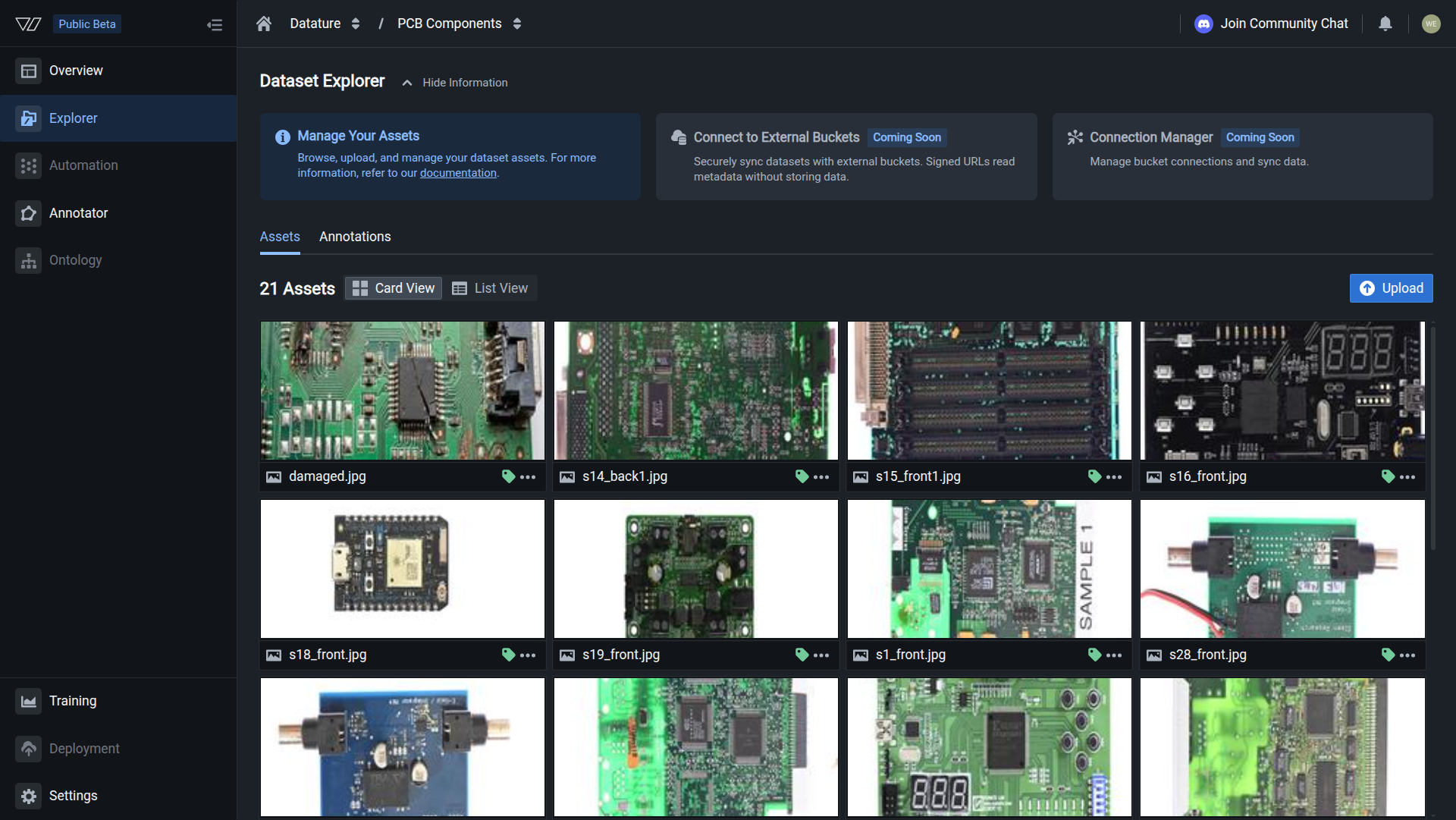
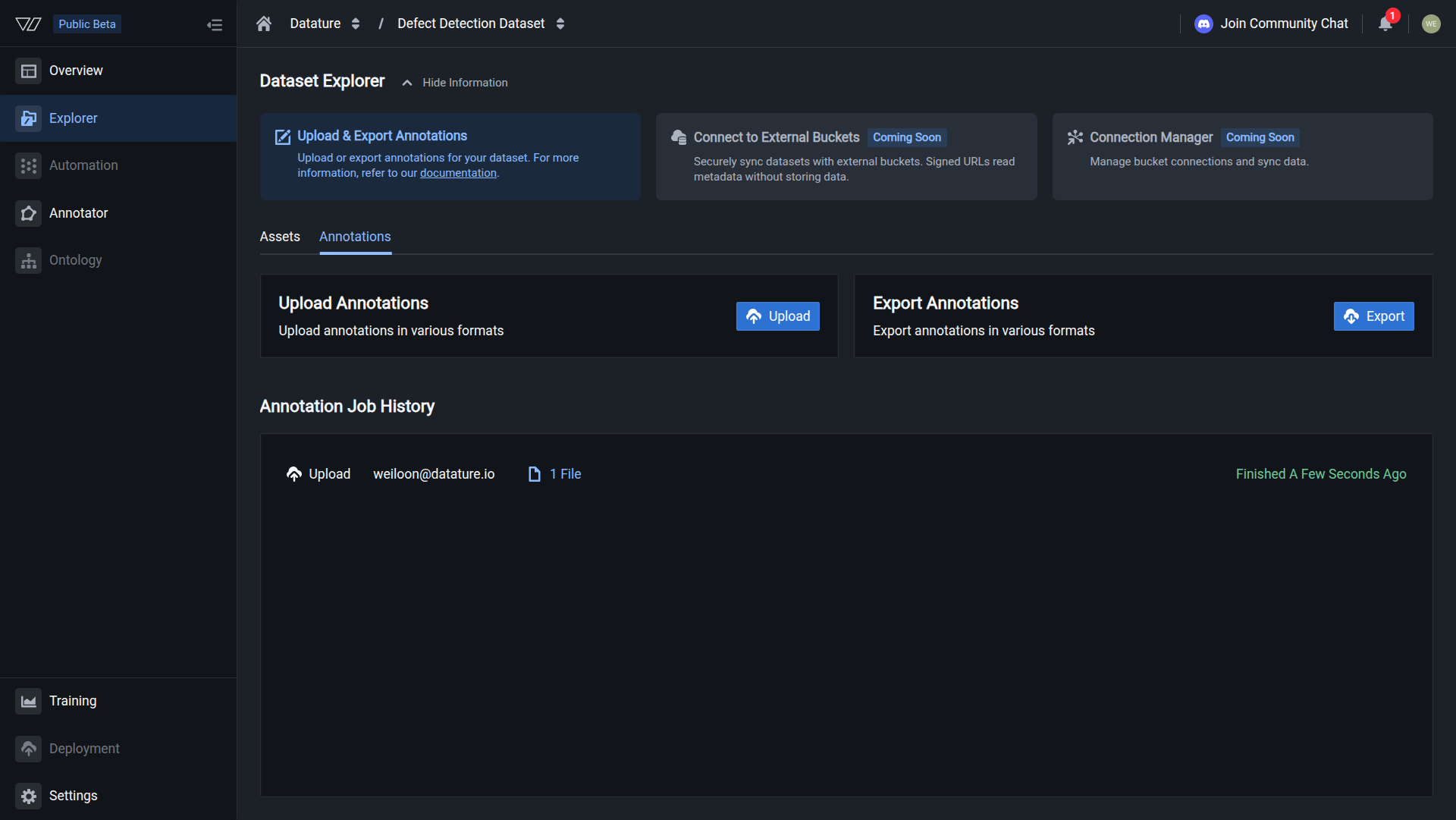
  1. Navigate to your dataset and click the Annotations tab
Annotations tab
  1. Click Upload in the Upload Annotations section
Upload Annotations button
  1. Select your annotation format from the dropdown
Annotation format selection
  1. Upload your annotation files by dragging and dropping or browsing your file system
Annotation file upload

The system will process your annotations and match them to the corresponding images in your dataset.


Supported annotation formats

Datature Vi supports different annotation formats depending on your dataset type.

Phrase Grounding datasets

For object detection and phrase grounding tasks, the following formats are supported:

FormatFile TypeDescription
Vi JSONL.jsonlDatature Vi native format
COCO.jsonCommon Objects in Context format
Pascal VOC.xmlVisual Object Classes XML format
YOLO Darknet.txtYOLO Darknet text format (with classes file)
YOLO Keras PyTorch.txtYOLO Keras/PyTorch text format (with class list)
CSV Four Corner.csvCSV with x1, y1, x2, y2 coordinates
CSV Width Height.csvCSV with x, y, width, height coordinates

Visual Question Answering datasets

For VQA tasks, only the Vi JSONL format is supported:

FormatFile TypeDescription
Vi JSONL.jsonlDatature Vi native format

Freeform datasets

🚧

Coming soon

Freeform annotation upload support is currently in development. This will allow you to upload custom annotation formats for specialized use cases.


Format specifications and examples

Detailed specifications for each supported annotation format. Expand the format you're using to see structure, examples, and field descriptions.

Vi JSONL

The native Datature Vi format supports both Phrase Grounding and Visual Question Answering annotations.

File structure:

Each line in the JSONL file represents one image's annotations. The format is structured and includes asset metadata and content-specific annotations.

Phrase Grounding example:

{"id": 0, "asset": {"type": "Image", "filename": "image1.jpg", "width": 1920, "height": 1080}, "contents": {"type": "PhraseGrounding", "caption": "A person standing next to a red car.", "groundedPhrases": [{"phrase": "person", "startCharIndex": 2, "endCharIndex": 8, "bounds": [[0.1, 0.2, 0.4, 0.9]]}, {"phrase": "red car", "startCharIndex": 28, "endCharIndex": 35, "bounds": [[0.5, 0.4, 0.9, 0.8]]}]}}
{"id": 1, "asset": {"type": "Image", "filename": "image2.jpg", "width": 1280, "height": 720}, "contents": {"type": "PhraseGrounding", "caption": "A brown dog sleeping on the couch.", "groundedPhrases": [{"phrase": "brown dog", "startCharIndex": 2, "endCharIndex": 11, "bounds": [[0.2, 0.3, 0.7, 0.8]]}]}}

Example formatted for readability:

{
  "id": 0,
  "asset": {
    "type": "Image",
    "filename": "image1.jpg",
    "width": 1920,
    "height": 1080
  },
  "contents": {
    "type": "PhraseGrounding",
    "caption": "A person standing next to a red car.",
    "groundedPhrases": [
      {
        "phrase": "person",
        "startCharIndex": 2,
        "endCharIndex": 8,
        "bounds": [[0.1, 0.2, 0.4, 0.9]]
      },
      {
        "phrase": "red car",
        "startCharIndex": 28,
        "endCharIndex": 35,
        "bounds": [[0.5, 0.4, 0.9, 0.8]]
      }
    ]
  }
}

Phrase Grounding field descriptions:

  • id — Unique identifier for the record
  • asset — Asset metadata
    • type — Asset type (always "Image")
    • filename — Image filename (must match uploaded asset exactly)
    • width — Image width in pixels
    • height — Image height in pixels
  • contents — Annotation content
    • type — Content type (must be "PhraseGrounding")
    • caption — Descriptive text caption for the image
    • groundedPhrases — Array of phrase groundings
      • phrase — The text phrase being grounded
      • startCharIndex — Start position of phrase in caption (character index)
      • endCharIndex — End position of phrase in caption (character index)
      • bounds — Array of bounding boxes for this phrase [[xmin, ymin, xmax, ymax]]
        • Coordinates are normalized (0-1)
        • Format: xmin, ymin (top-left), xmax, ymax (bottom-right)

Visual Question Answering example:

{"id": 0, "asset": {"type": "Image", "filename": "image1.jpg", "width": 1920, "height": 1080}, "contents": {"type": "Vqa", "interactions": [{"question": "What color is the car?", "answer": "red", "order": 1}, {"question": "Where is the person standing?", "answer": "next to the car", "order": 2}]}}
{"id": 1, "asset": {"type": "Image", "filename": "image2.jpg", "width": 1280, "height": 720}, "contents": {"type": "Vqa", "interactions": [{"question": "What is the dog doing?", "answer": "sleeping", "order": 1}, {"question": "Where is the dog?", "answer": "on the couch", "order": 2}]}}

Example formatted for readability:

{
  "id": 0,
  "asset": {
    "type": "Image",
    "filename": "image1.jpg",
    "width": 1920,
    "height": 1080
  },
  "contents": {
    "type": "Vqa",
    "interactions": [
      {
        "question": "What color is the car?",
        "answer": "red",
        "order": 1
      },
      {
        "question": "Where is the person standing?",
        "answer": "next to the car",
        "order": 2
      }
    ]
  }
}

Visual Question Answering field descriptions:

  • id — Unique identifier for the record
  • asset — Asset metadata
    • type — Asset type (always "Image")
    • filename — Image filename (must match uploaded asset exactly)
    • width — Image width in pixels
    • height — Image height in pixels
  • contents — Annotation content
    • type — Content type (must be "Vqa")
    • interactions — Array of question-answer pairs
      • question — The question about the image
      • answer — The answer to the question
      • order — Index of the question-answer pair, useful when sequence matters or if a question-answer pair is a follow-up of another question-answer pair
📘

Important notes

  • Each line in a .jsonl file contains one complete JSON object (see examples above)
  • All bounding box coordinates in Vi JSONL are normalized (values between 0 and 1)
  • The bounds field uses [xmin, ymin, xmax, ymax] format (top-left to bottom-right corners)
  • Character indices in groundedPhrases are zero-based and refer to positions in the caption
  • Multiple bounding boxes can be specified for a single phrase by adding multiple coordinate arrays
COCO format

The COCO (Common Objects in Context) format is widely used for object detection tasks.

File type: .json

Structure:

{
  "images": [
    {
      "id": 1,
      "file_name": "image1.jpg",
      "width": 640,
      "height": 480
    }
  ],
  "annotations": [
    {
      "id": 1,
      "image_id": 1,
      "category_id": 1,
      "bbox": [100, 150, 200, 250],
      "area": 50000,
      "iscrowd": 0
    }
  ],
  "categories": [
    {
      "id": 1,
      "name": "person",
      "supercategory": "object"
    }
  ]
}

Key fields:

  • images — List of image metadata
    • id — Unique image identifier
    • file_name — Image filename (must match uploaded asset)
    • width, height — Image dimensions
  • annotations — List of bounding box annotations
    • image_id — Reference to image ID
    • category_id — Reference to category ID
    • bbox — Bounding box as [x, y, width, height]
  • categories — List of object classes
    • id — Unique category identifier
    • name — Class name
📘

COCO bbox format

COCO uses [x, y, width, height] where (x, y) is the top-left corner of the bounding box.

Pascal VOC format

Pascal VOC uses XML files for each image's annotations.

File type: .xml (one file per image)

Structure:

<annotation>
  <folder>images</folder>
  <filename>image1.jpg</filename>
  <size>
    <width>640</width>
    <height>480</height>
    <depth>3</depth>
  </size>
  <object>
    <name>person</name>
    <bndbox>
      <xmin>100</xmin>
      <ymin>150</ymin>
      <xmax>300</xmax>
      <ymax>400</ymax>
    </bndbox>
  </object>
  <object>
    <name>car</name>
    <bndbox>
      <xmin>350</xmin>
      <ymin>200</ymin>
      <xmax>550</xmax>
      <ymax>450</ymax>
    </bndbox>
  </object>
</annotation>

Key elements:

  • filename — Image filename (must match uploaded asset)
  • size — Image dimensions
  • object — Each object annotation
    • name — Class name
    • bndbox — Bounding box coordinates
      • xmin, ymin — Top-left corner
      • xmax, ymax — Bottom-right corner
📘

Upload requirements

Upload all XML files together. Each XML file should be named to correspond with its image (e.g., image1.xml for image1.jpg).

YOLO Darknet format

YOLO Darknet uses normalized coordinates in text files.

File type: .txt (one file per image) + classes.txt

Annotation file structure (image1.txt):

0 0.5 0.5 0.3 0.4
1 0.7 0.3 0.2 0.25

Classes file (classes.txt):

person
car
truck

Format specification:

Each line represents one bounding box:

<class_id> <x_center> <y_center> <width> <height>
  • class_id — Zero-indexed class ID (corresponds to line in classes.txt)
  • x_center, y_center — Center point of box (normalized 0-1)
  • width, height — Box dimensions (normalized 0-1)

Normalization:

All coordinates are normalized by image dimensions:

  • x_center = (absolute_x_center) / image_width
  • y_center = (absolute_y_center) / image_height
  • width = (absolute_width) / image_width
  • height = (absolute_height) / image_height
📘

Upload requirements

Upload all .txt annotation files along with the classes.txt file that lists class names in order.

YOLO Keras PyTorch format

Similar to YOLO Darknet but with a different class file structure.

File type: .txt (one file per image) + class configuration

Annotation file structure:

Same as YOLO Darknet:

0 0.5 0.5 0.3 0.4
1 0.7 0.3 0.2 0.25

Differences from Darknet:

The class names are specified differently during upload. Follow the same normalization rules as YOLO Darknet format.

CSV Four Corner format

CSV format with four corner coordinates (bounding box corners).

File type: .csv

Structure:

filename,xmin,ymin,xmax,ymax,class
image1.jpg,100,150,300,400,person
image1.jpg,350,200,550,450,car
image2.jpg,50,75,250,350,truck

Column descriptions:

  • filename — Image filename (must match uploaded asset)
  • xmin, ymin — Top-left corner coordinates
  • xmax, ymax — Bottom-right corner coordinates
  • class — Object class name

Requirements:

  • Header row is required with exact column names shown above
  • Each row represents one bounding box
  • Multiple boxes for the same image require multiple rows
  • Coordinates can be normalized (0-1) or unnormalized (pixel values)
📘

Coordinate format

The system automatically detects whether coordinates are normalized or unnormalized based on the values. For more on coordinate systems, see Coordinate system below.

CSV Width Height format

CSV format with width and height dimensions.

File type: .csv

Structure:

filename,x,y,width,height,class
image1.jpg,100,150,200,250,person
image1.jpg,350,200,200,250,car
image2.jpg,50,75,200,275,truck

Column descriptions:

  • filename — Image filename (must match uploaded asset)
  • x, y — Top-left corner coordinates
  • width, height — Box dimensions
  • class — Object class name

Requirements:

  • Header row is required with exact column names shown above
  • Each row represents one bounding box
  • Coordinates can be normalized (0-1) or unnormalized (pixel values)
  • For more on coordinate systems, see Coordinate system below

Best practices

File preparation

Filename matching:

  • Ensure annotation filenames exactly match uploaded image filenames
  • File extensions must match (e.g., .jpg vs .jpeg)
  • Filenames are case-sensitive

Class names:

  • Use consistent class naming across all annotations
  • Avoid special characters in class names
  • Keep class names descriptive but concise

Coordinate validation:

  • Verify bounding boxes are within image boundaries
  • For normalized coordinates, ensure values are between 0 and 1
  • Check that width and height are positive values
Format selection

Choose the format based on your existing workflow:

  • COCO — Best for complex datasets with multiple images and categories (Official spec)
  • YOLO — Best for lightweight, normalized annotations (Official docs)
  • Pascal VOC — Best when working with XML-based pipelines (Official site)
  • CSV — Best for simple datasets or custom annotation tools
  • Vi JSONL — Best for Datature Vi native workflows or VQA tasks
💡

Need to convert formats?

If your annotations are in a different format, you can use conversion tools or the Vi SDK to transform them before uploading.

Upload strategies

For large annotation files:

  • Split large COCO JSON files if they exceed 100MB
  • Upload in batches for better error tracking
  • Test with a small subset before uploading entire dataset

For multiple format types:

  • Upload one format at a time
  • Verify successful import before uploading additional formats
  • Do not mix formats in a single upload session

Troubleshooting

Annotations not appearing after upload

Possible causes:

  • Image filenames in annotations don't match uploaded assets
  • Incorrect annotation format selected
  • Malformed annotation files

Solutions:

  • Verify image filenames match exactly (case-sensitive)
  • Check that you selected the correct format during upload
  • Validate annotation files against format specifications
  • Review upload error messages for specific issues
Some annotations missing

Possible causes:

  • Bounding boxes outside image boundaries
  • Invalid coordinate values
  • Missing class names in class files (YOLO)

Solutions:

  • Validate bounding box coordinates are within image dimensions
  • For normalized coordinates, ensure values are between 0 and 1
  • Verify all class IDs reference valid classes in your class file
  • Check for null or empty values in annotation fields
Format validation errors

Possible causes:

  • Incorrect file structure
  • Missing required fields
  • Invalid JSON or XML syntax

Solutions:

  • Compare your file structure to format examples
  • Validate JSON files using a JSON validator
  • Validate XML files using an XML validator
  • Ensure all required fields are present for your chosen format
Class name mismatches

Possible causes:

  • Class names differ between annotation files
  • Inconsistent naming conventions
  • Special characters in class names

Solutions:

  • Standardize class names across all annotation files
  • Remove special characters from class names
  • Use consistent capitalization

Common questions

Can I upload annotations for only some images?

Yes, you can upload annotations for a subset of images in your dataset. Images without annotations will remain unlabeled and can be annotated manually later.

What happens if I upload annotations multiple times?

Uploading annotations for the same images will replace existing annotations. Make sure you want to overwrite before uploading.

Can I mix different annotation formats?

No, you must choose one format per upload session. However, you can upload annotations in different formats at different times (though this will replace previous annotations).

Do I need to upload images before annotations?

Yes, images must be uploaded first. The annotation upload process matches annotations to existing images by filename.

Can I edit annotations after uploading?

Yes, you can edit annotations using the visual annotator after importing them. Navigate to the Annotator tab to modify existing annotations.

How do I know if my upload was successful?

After upload completes, you'll see a summary of successful and failed imports. Check the Annotations tab to verify your annotations appear correctly.


Programmatic annotation uploads

For large-scale annotation imports or automation workflows, use the Vi SDK to upload annotations programmatically.

SDK Resources:


Next steps

Now that your images are annotated, you're ready to train:


Related resources

External resources