
Freeform Text
Write open-ended text annotations for your images in any format, including JSON, plain text, or custom schemas for flexible VLM training.
- A freeform text dataset with uploaded images
- A plan for the text structure or schema you want to use across your dataset
Freeform text annotations give you full control over the annotation format for each image. Instead of predefined structures like bounding boxes or question-answer pairs, you write any text you want in a free-form editor. This is useful for custom JSON schemas, detailed descriptions, multi-attribute labels, or any format your training pipeline requires. This guide walks through creating freeform text annotations in Datature Vi.
Open the annotator
Go to your dataset, then click the Annotate tab. Click any image thumbnail in the bottom strip to load it onto the canvas.
Open the Annotator tab
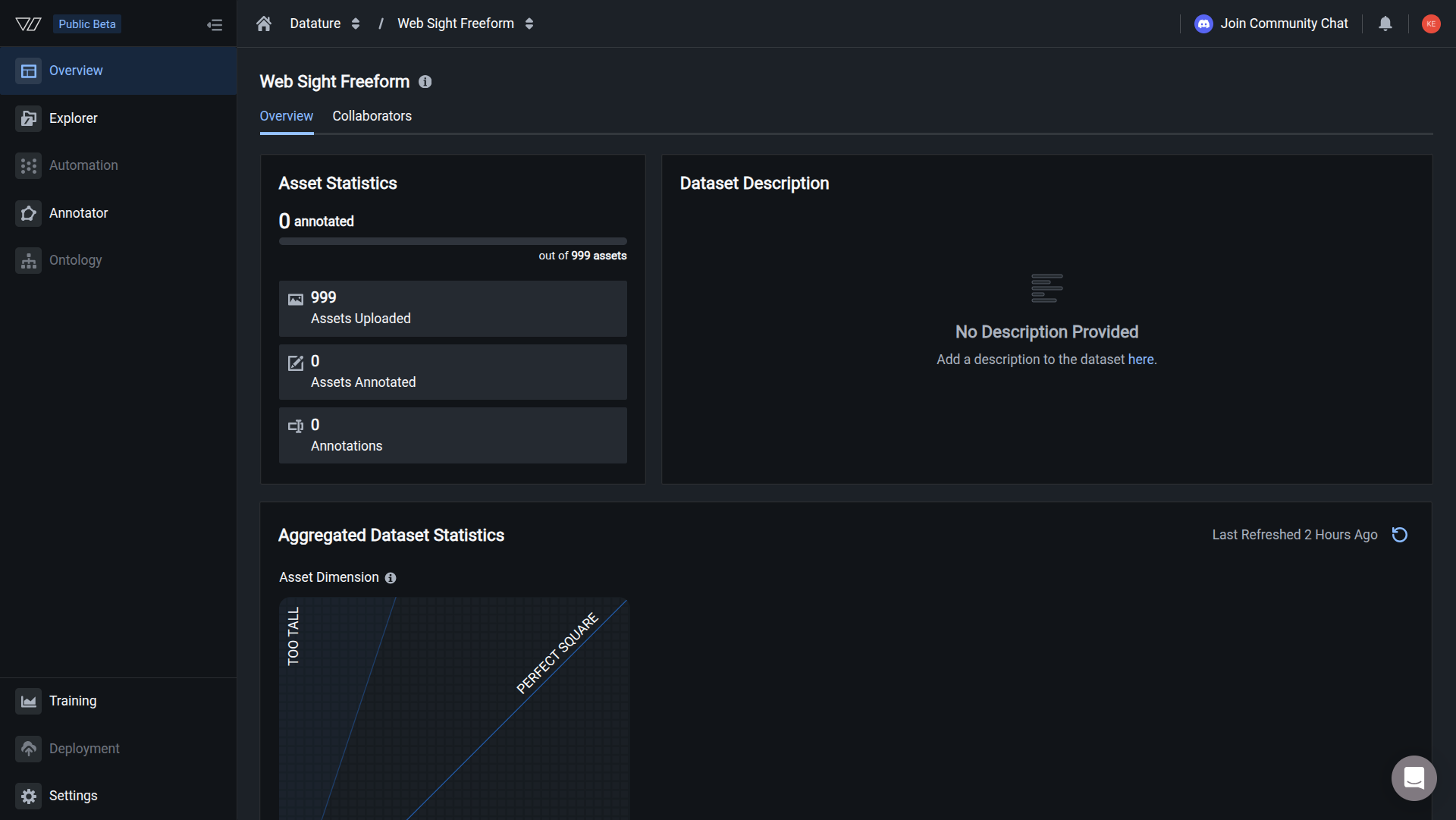
From the Dataset Overview page, click the Annotator tab to open the labeling interface.
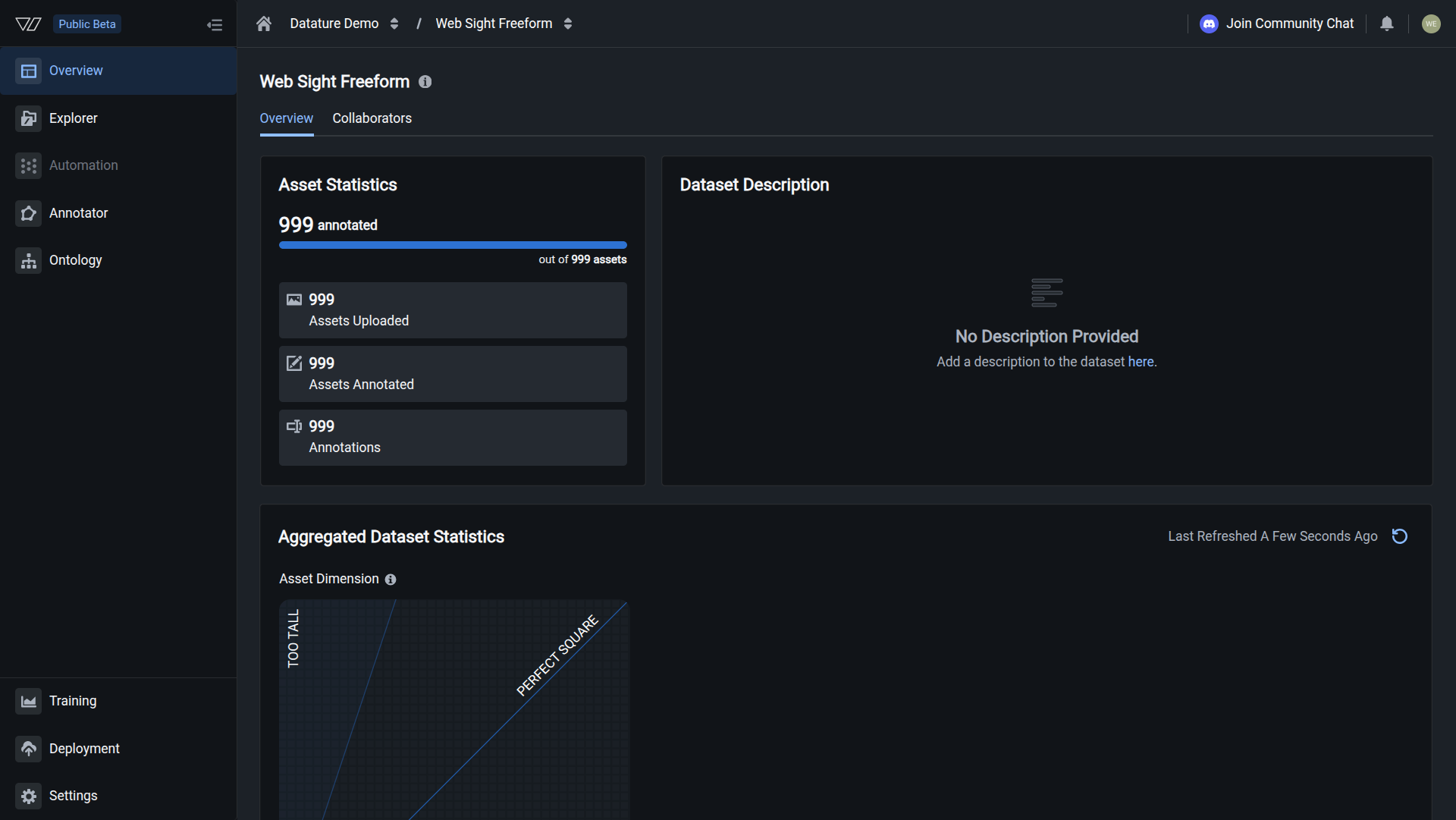
Your annotations are ready when you see annotation count matching the image count in the Dataset Overview.
Keyboard shortcuts
Annotation guidelines
These guidelines produce annotations that train well. Consistency across your dataset matters more than the format you choose.
Pick a schema and stick with it
- Define your text structure before you start annotating
- Use the same fields and format across every image
- JSON, plain text, or any format works as long as it stays consistent
Be specific and consistent
- Use the same terminology across your dataset
- Avoid vague descriptions: "2mm crack near connector" over "has damage"
- If you call it a "defect" on image 1, keep that term on image 200
Keep it structured
- Use consistent field names and value formats
- Models learn better from predictable patterns than varied prose
- Structure helps training even in freeform text
JSON example:
{
  "description": "A solar panel array on a residential rooftop",
  "condition": "good",
  "panel_count": 12,
  "issues": ["minor dust accumulation on panels 3 and 7"],
  "orientation": "south-facing"
}
Plain text example:
Description: A solar panel array on a residential rooftop
Condition: Good
Panel count: 12
Issues: Minor dust accumulation on panels 3 and 7
Orientation: South-facing
Edit or delete annotations
To edit an annotation: Click in the Freeform panel text area and make your changes. Changes save automatically.
To clear an annotation: Select all text in the editor and delete it. The annotation is removed when the text is empty.
Deleted annotations cannot be recovered. Export your dataset regularly as a backup.
Chain-of-thought reasoning
Next steps
Updated 7 months ago