Create a Secret Key
Generate API keys to authenticate your applications with Datature Vi's SDK.
Secret keys are API credentials that allow your applications to authenticate and interact with Datature Vi programmatically through the Vi SDK.
Security best practices
- Never share your secret keys with others or expose them in browser or client-side code
- Store keys securely in environment variables or secure credential stores
- Create separate keys for different applications or environments
- Regularly rotate keys and remove unused ones
- Each key is shown only once upon creation — save it immediately in a secure location
Navigate to secret keys
-
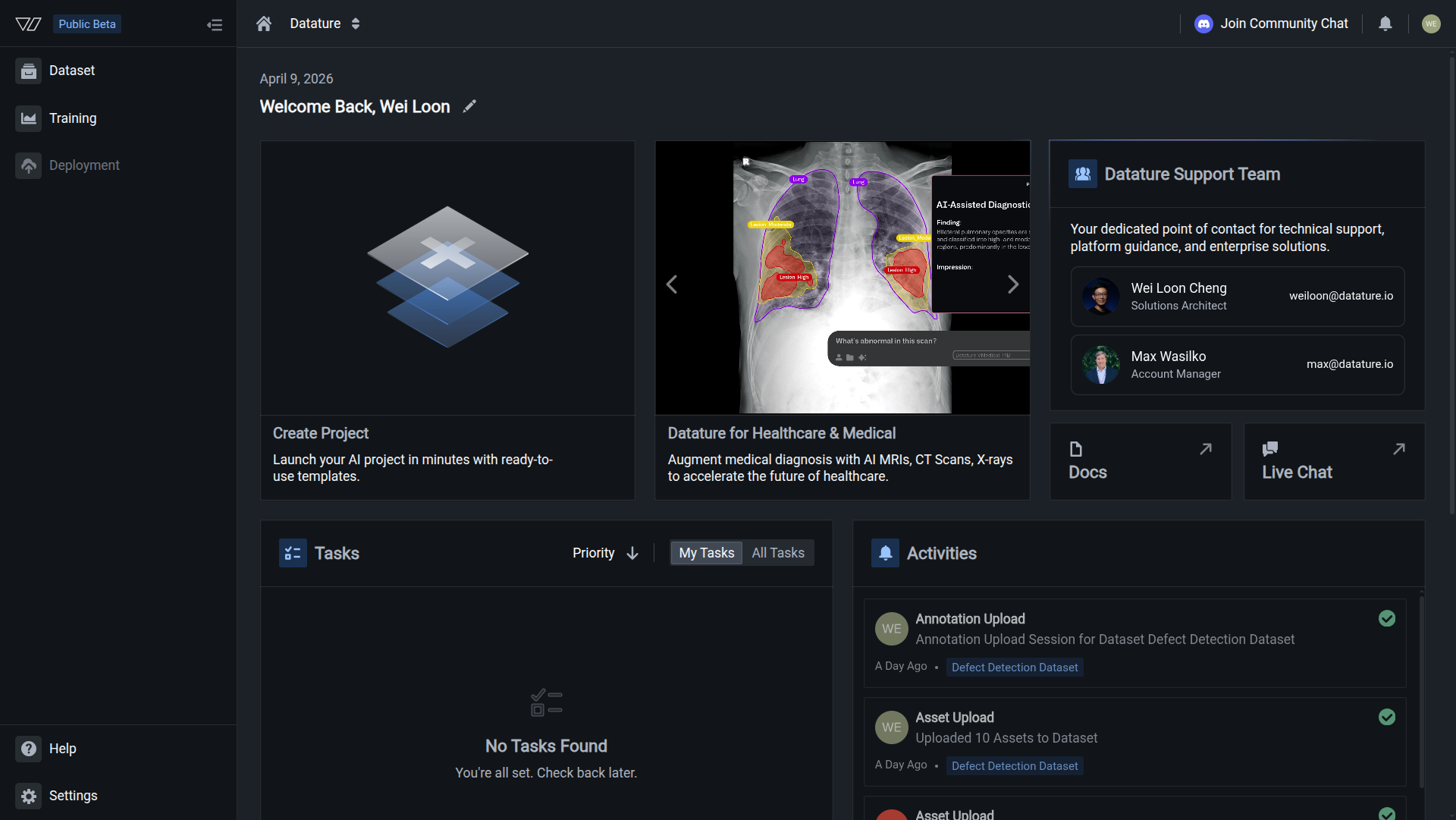
In your organization, click the Settings tab at the bottom of the sidebar menu
-
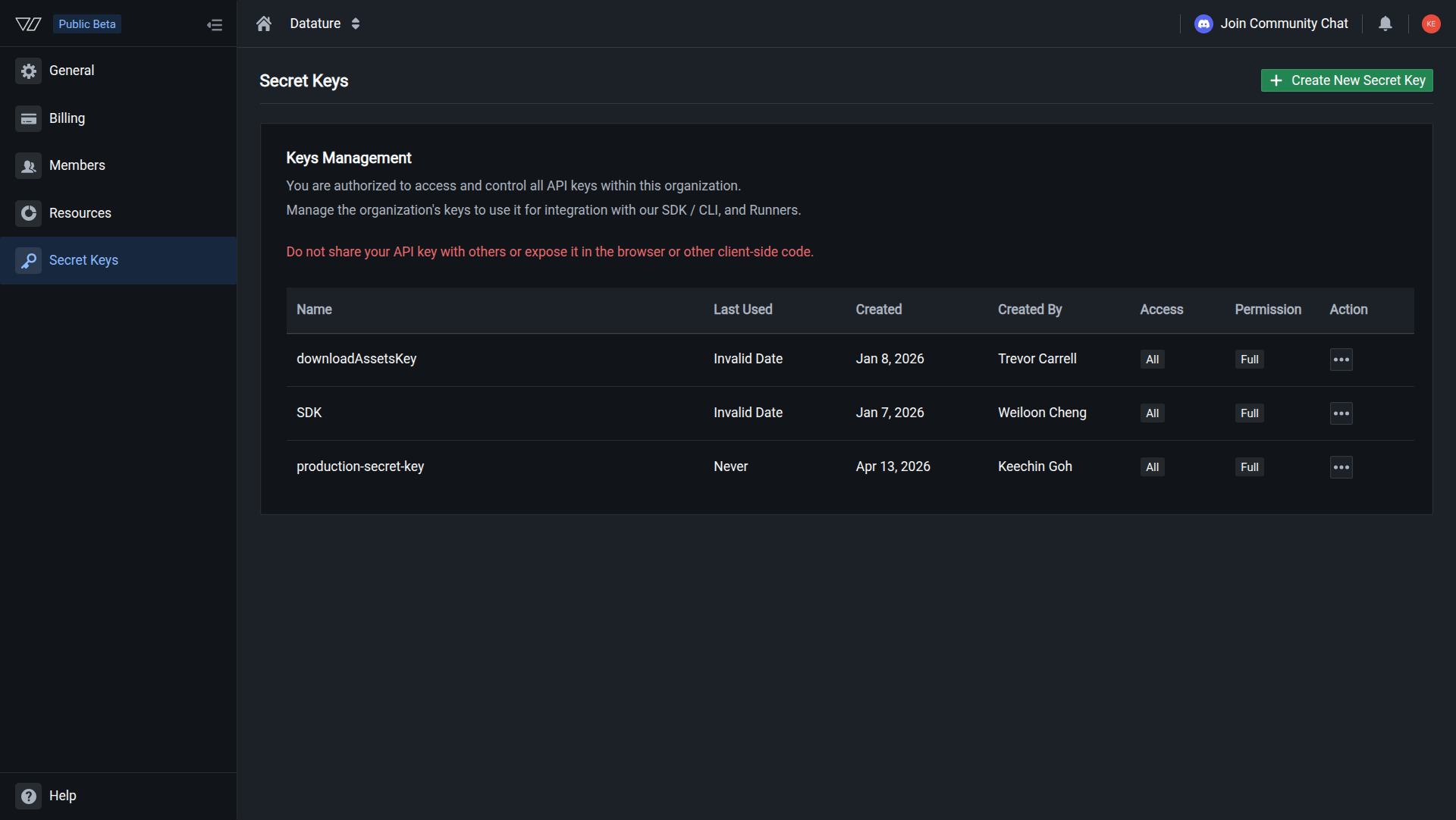
Select Secret Keys from the sidebar menu
-
The Secret Keys page displays all existing keys with their details:
- Name — Identifier for the key
- Last Used — When the key was last accessed
- Created — Creation date
- Created By — User who generated the key
- Access — Resource access scope (Dataset, Training, Deployment)
- Permission — Permission level (Full, Read Only, Labeler Only, Restricted)
- Action — Options to edit or remove the key
Keys managementThe warning message reminds you: "Do not share your API key with others or expose it in the browser or other client-side code."
Create a new secret key
-
Click the Create New Secret Key button in the top-right corner
-
The Generate Secret Key dialog opens with configuration options
Configure key name
Enter a descriptive name for your key in the Name field. Choose a name that identifies the key's purpose or application (e.g., production-deployment-key, training-automation, sdk-integration).
Configure access scope
Access scope configurationAccess scope configuration (Dataset Access, Training Access, Deployment Access) is currently not available for all organizations. If you need granular access control for your secret keys, contact your account manager to explore this feature.
By default, secret keys have access to all resources in your organization.
The access scope controls which resources the key can access across three categories:
Dataset Access
- Controls which datasets the key can access
- Currently set to All datasets in the organization
Training Access
- Controls access to training workflows and runs
- Currently set to All training resources
Deployment Access
- Controls access to model deployment resources
- Currently set to All deployments
Set permissions
The permission level controls what actions the key can perform. Available permission levels:
- Full — Complete read and write access to authorized resources
- Read Only — View-only access without modification rights
- Labeler Only — Annotation and labeling permissions
- Restricted — Custom restricted access
Configuration dialogAdvanced permission controls may not be available for all organizations. Contact your account manager if you need custom permission settings for your secret keys.
- Click Generate Key to create the secret key
Save your secret key
Critical: Save your key immediatelyThe secret key will be displayed only once. You cannot retrieve it again after closing the dialog. If you lose the key, you must delete it and create a new one.
After clicking Generate Key, a dialog displays your newly generated secret key:
-
The key appears in a code block for easy copying
-
Click the copy icon to copy the key to your clipboard
-
Store the key securely in your password manager, environment variables, or secure credential store
-
Click Close when you've saved the key
Secret key generatedThe warning states: "Remember to store your Organization Key somewhere safe. It will not be shown again."
Verify key creation
After closing the dialog, your new secret key appears in the keys table:
The table shows:
- Name — Your chosen key identifier
- Last Used — Initially shows "Never"
- Created — Current date
- Created By — Your username
- Access — Configured access scope (e.g., "All")
- Permission — Selected permission level (e.g., "Full")
- Action menu (⋯) — Options to edit permissions or remove the key
Use your secret key
Once created, use your secret key to authenticate with the Vi SDK.
Initialize Vi SDK with your secret key
import vi
# Initialize with credentials
client = vi.Client(
secret_key="your-secret-key-here",
organization_id="your-organization-id-here"
)For better security, use environment variables:
export DATATURE_VI_SECRET_KEY="your-secret-key"
export DATATURE_VI_ORGANIZATION_ID="your-organization-id"import os
import vi
client = vi.Client(
secret_key=os.getenv("DATATURE_VI_SECRET_KEY"),
organization_id=os.getenv("DATATURE_VI_ORGANIZATION_ID")
)Next steps
Integrate Datature Vi into your applications with the Python SDK
Remove keys that are no longer needed
View and organize all your API keys
Manage team members and permissions
Related resources
- Secret keys overview — Manage all your API keys in one place
- Delete a secret key — Remove keys that are no longer needed
- Vi SDK getting started — Quick start guide for the Vi SDK
- Vi SDK installation — Install and configure the SDK
- API resources — Complete SDK reference documentation
- Team settings — Add members, remove members, and manage roles
- Resource usage — Monitor storage, compute, and quota consumption
- Rename organization — Update organization settings
Need help?
We're here to support your VLMOps journey. Reach out through any of these channels:
Updated about 1 month ago