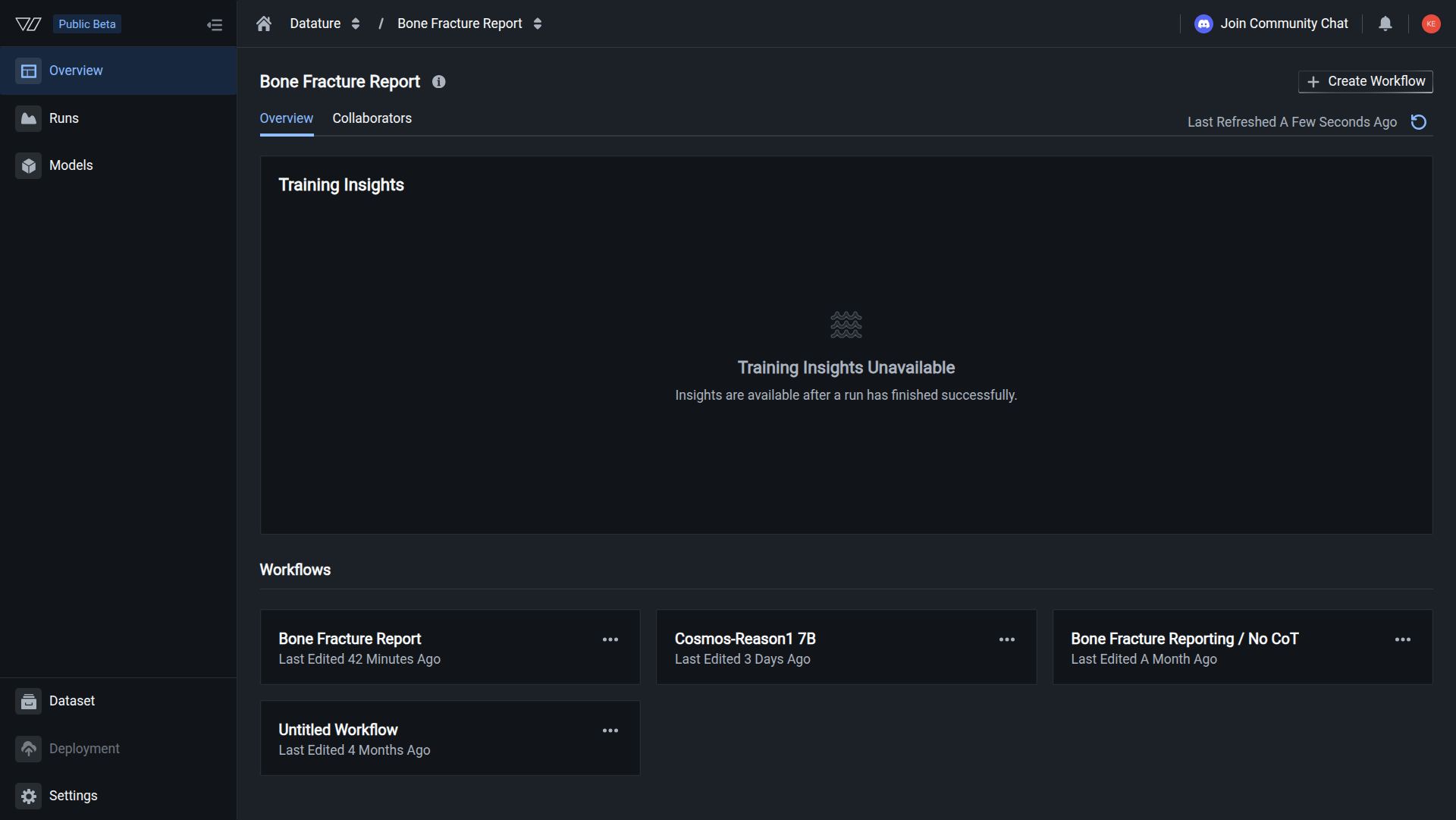
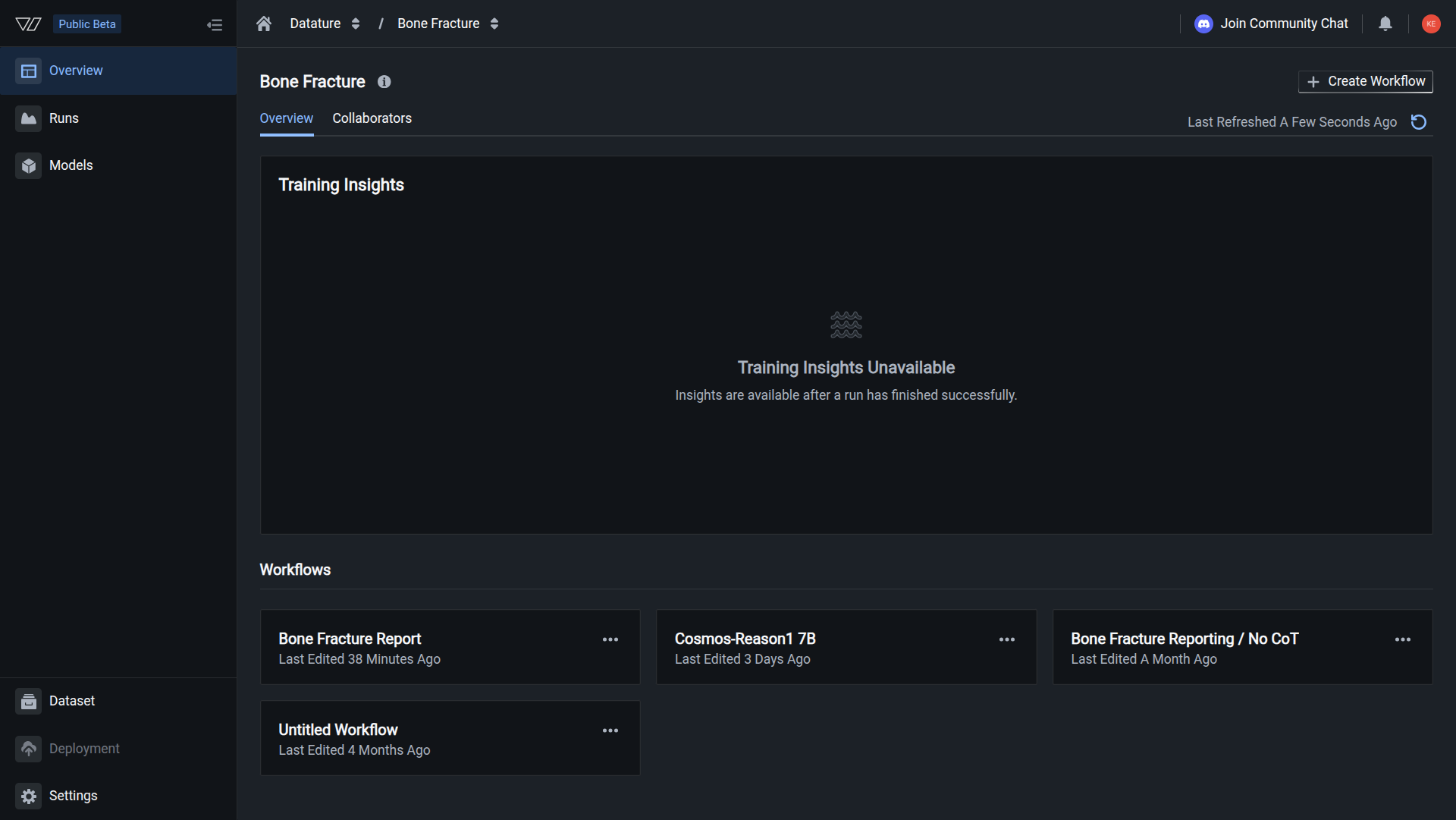
Rename a Training Project
Change your training project name to better reflect its purpose and keep your workspace organized.
Rename your training project to reflect its current purpose or improve organization. Renaming a project updates only the display name—all workflows, training runs, and the project ID remain unchanged.
Renaming is safe
- Project ID stays the same — API integrations and references continue to work
- All data preserved — Workflows, runs, models, and settings remain intact
- No downtime — Active training runs and workflows are unaffected
- Change anytime — You can rename projects as often as needed
When to rename a training project
Consider renaming your training project when:
- Purpose evolved — The project now addresses different tasks than originally planned
- Improved clarity — A more descriptive name helps team members understand its purpose
- Organizational standards — Applying consistent naming conventions across your projects
- Version management — Distinguishing between project versions (e.g., "PCB Detection v2")
- Stage designation — Indicating development stage (e.g., "Defect Detection - Production")
Navigate to project settings
Navigate to the Training section from the sidebar
-
Click on the training project you want to rename
-
Click the three-dot menu (⋮) in the top right corner of the project page
-
Select Rename Project from the dropdown menu
A rename dialog appears with the current project name pre-filled.
Rename your training project
-
In the Rename Project dialog, enter your new project name in the text field
Naming tips- Use descriptive names that explain the project's purpose (e.g., "PCB Defect Detection" instead of "Project 1")
- Include stage indicators if managing multiple environments (e.g., "Retail Detection - DEV")
- Add version numbers for major iterations (e.g., "Quality VQA v2")
- Follow your organization's naming conventions for consistency
- Keep names concise but informative (aim for 3-6 words)
-
Click the Rename button to confirm the change
The name updates immediately. Your training project now appears with the new name throughout the platform.
Name updated successfullyYour training project has been renamed. The new name appears in:
- Training projects list and navigation
- Project overview and tabs
- Workflow and run displays
- Team member notifications
- API responses (display name only, ID unchanged)
What changes when you rename
Updated:
- Display name in the platform UI
- Project name in navigation and search results
- Name shown in training project lists
- Name returned by API queries (display field)
Unchanged:
- Project ID (used for API calls and integrations)
- All workflows and their configurations
- All training runs, history, and metrics
- All trained models and artifacts
- Project description and settings
- Project localization (geographic region)
- Team member access and permissions
Project ID remains constantThe project ID never changes, even when you rename the project. This ensures your API integrations, SDK scripts, and internal references continue to work without requiring updates.
You can find your project ID in the URL when viewing the project.
What you cannot change
While you can rename projects freely, some project settings are permanent:
Project localization
The geographic region where training workloads execute cannot be changed after project creation. This includes:
- Multi-Region — Automatic distribution across regions
- Europe [EU-BELGIUM] — European Union data center
- North America [US-CENTRAL] — United States central region
- United Kingdom [UK-LONDON] — United Kingdom data center
- Asia [ASIA-SOUTHEAST] — Southeast Asia region
Need different localization?If you need to change the data processing region, you must:
- Create a new training project with the desired localization
- Recreate workflows in the new project (copy configurations from old project)
- Start new training runs in the new project
- Delete the old project after migrating (remember to download models first)
This ensures compliance with data residency requirements and regulatory constraints.
Update project description
While renaming, consider also updating your project description to provide context about its contents and purpose.
Access project description
- Navigate to your training project
- Click the Settings option from the project menu
- Locate the Project Description field
- Enter or update the description text
- Save changes
What to include in descriptions
Use the description field to document:
- Objective — What machine learning task this project addresses
- Datasets used — Which datasets are being trained on
- Model architecture — Which VLM architectures are being tested
- Use case — Intended application or deployment context
- Team ownership — Who is responsible for this project
- Version notes — Significant changes or milestones
Example description:
PCB component detection using Qwen2.5-7B VLM. Training on 5000+ annotated
PCB images with 15 component classes. Target: >95% mAP for production deployment.
Owner: Electronics Team. Status: Active development.Common questions
Will renaming break my workflows or training runs?
No. Workflows and training runs reference projects by their unique ID, not by name. Renaming a project doesn't affect:
- Existing workflows or their configurations
- Active or completed training runs
- Trained models or evaluation metrics
- API integrations using project ID
Everything continues to function normally after renaming.
Can I use special characters in project names?
Project names support most standard characters including:
- Letters and numbers
- Spaces and hyphens
- Underscores and parentheses
- Version indicators (v1, v2, v3)
- Stage markers (DEV, STAGING, PROD)
Avoid:
- Using only special characters
- Extremely long names (keep under 100 characters)
- Leading or trailing spaces
Best practice: Use alphanumeric characters with spaces or hyphens for readability.
Will my team be notified when I rename a project?
No automatic notification is sent to team members. If you're making significant naming changes to shared projects:
- Inform your team before renaming
- Communicate the new naming convention
- Update any team documentation that references project names
- Consider posting in team chat or collaboration tools
This prevents confusion, especially if team members reference projects in conversations or external documentation.
Can I rename a project while training is in progress?
Yes. You can rename a project at any time, even while training runs are active. The training process uses the project ID internally, so renaming doesn't interrupt or affect:
- Ongoing training runs
- Queued training jobs
- Training progress or metrics
- Model training quality
The rename updates immediately without any downtime.
Can I rename multiple projects at once?
Currently, training projects must be renamed one at a time through the web interface. For each project:
- Open the project
- Click the three-dot menu (⋮)
- Select Rename Project
- Enter new name and confirm
Bulk renaming workaround:
If you need to apply systematic naming across many projects:
- Plan your new naming convention
- Create a checklist of projects to rename
- Rename projects systematically following your list
- Document the new convention for team reference
While this takes time, it ensures each rename is intentional and correct.
How do I rename a project using the API?
Currently, project renaming is only available through the web interface. The Vi SDK does not expose project renaming functionality.
Recommended approach:
- Use the web interface to rename projects
- Focus on naming projects correctly during creation
- Plan naming conventions upfront to minimize rename needs
If you need programmatic project management, consider submitting a feature request to add SDK support for project renaming.
What if I accidentally renamed the wrong project?
You can immediately rename it back:
- Open the project (it now has the new name)
- Click the three-dot menu (⋮) again
- Select Rename Project
- Enter the original name
- Confirm the change
Project renaming doesn't have a history or undo feature, but you can change names as many times as needed. No data is lost during renaming.
Best practices for project naming
Naming conventions by use case
Development stage naming
Indicate project development stage in the name:
PCB-Detection-DEV
PCB-Detection-STAGING
PCB-Detection-PRODBenefits:
- Clear development stage visibility
- Prevents accidental deployment of development models
- Helps team understand project status
- Facilitates environment separation
When to use: Organizations with structured ML deployment pipelines
Version-based naming
Include version numbers for major iterations:
Defect-Detection-v1
Defect-Detection-v2
Defect-Detection-v3Benefits:
- Track project evolution over time
- Maintain historical project records
- Compare performance across major versions
- Communicate project maturity
When to use: Long-term projects with significant architecture or data changes
Task-descriptive naming
Clearly describe the machine learning task:
PCB-Component-Detection
PCB-Defect-Classification
PCB-Quality-VQA
PCB-Assembly-VerificationBenefits:
- Immediately clear what each project does
- Easy for new team members to understand
- Facilitates project discovery
- Reduces naming confusion
When to use: Multi-task projects or large teams
Team or owner naming
Include team or owner identifier:
Electronics-PCB-Detection
Robotics-Part-Recognition
QA-Visual-InspectionBenefits:
- Clear ownership and responsibility
- Helps route questions to right team
- Facilitates resource allocation
- Supports organizational structure
When to use: Large organizations with multiple ML teams
Hybrid naming strategy
Combine multiple elements for comprehensive naming:
[Team]-[Task]-[Model]-[Stage]-[Version]
Examples:
Electronics-PCB-Detection-Qwen-DEV-v2
QA-Defect-VQA-NVLM-PROD-v1
Robotics-Part-Recognition-InternVL-STAGING-v3Benefits:
- Maximum information density
- Self-documenting project names
- Clear project relationships
- Comprehensive organization
Caution: Can become verbose; use selectively for critical projects
When to use: Enterprise environments requiring detailed tracking
Next steps
Remove projects you no longer need
Organize and optimize training configurations
Monitor and control training sessions
Define new training configurations in your project
Related resources
- Create a Training Project — Set up new training workspaces
- Delete a Training Project — Remove projects permanently
- Manage Training Projects — Complete project management guide
- Manage Workflows — Organize training configurations
- Team Settings — Manage organization access
Need help?
We're here to support your VLMOps journey. Reach out through any of these channels:
Updated about 1 month ago