Duplicate a Workflow
Create copies of workflows to experiment with variations while preserving original configurations.
Why duplicate workflows?
Duplicating workflows is essential for systematic experimentation and configuration management:
- A/B testing — Compare different configurations side-by-side
- Preserve working configurations — Keep a backup before making changes
- Template creation — Create base workflows for similar experiments
- Parameter experimentation — Test variations of successful configurations
- Team collaboration — Give team members starting points for their work
Common duplication scenarios:
| Scenario | Original Workflow | Duplicated Workflow | Purpose |
|---|---|---|---|
| System prompt testing | PCB-Detection-v1 | PCB-Detection-Detailed-v2 | Test verbose prompts |
| Model comparison | Defect-Qwen2.5-7B | Defect-NVLM-8B | Compare architectures |
| Parameter tuning | Training-LR0.001 | Training-LR0.0001 | Optimize learning rate |
| Backup before edit | Production-Workflow | Production-Workflow-Backup | Preserve working config |
How duplication works
When you duplicate a workflow, Datature Vi creates an exact copy with all configuration preserved:
What gets copied:
- System Prompt — Complete prompt instructions
- Dataset Configuration — Data source and split settings
- Model Settings — Architecture, parameters, and optimization settings
- Token Monitor values — Context window calculations
- Workflow canvas layout — Node positions and connections
What changes:
- Workflow name — " (Copy)" is appended to the original name
- Workflow ID — New unique identifier is generated
- Training history — Duplicate starts with no associated training runs
- Creation timestamp — Shows current date/time
Independent workflowsThe duplicate and original are completely independent. Changes to one don't affect the other, and they maintain separate training run histories.
Duplicate a workflow
Step 1: Navigate to your workflow
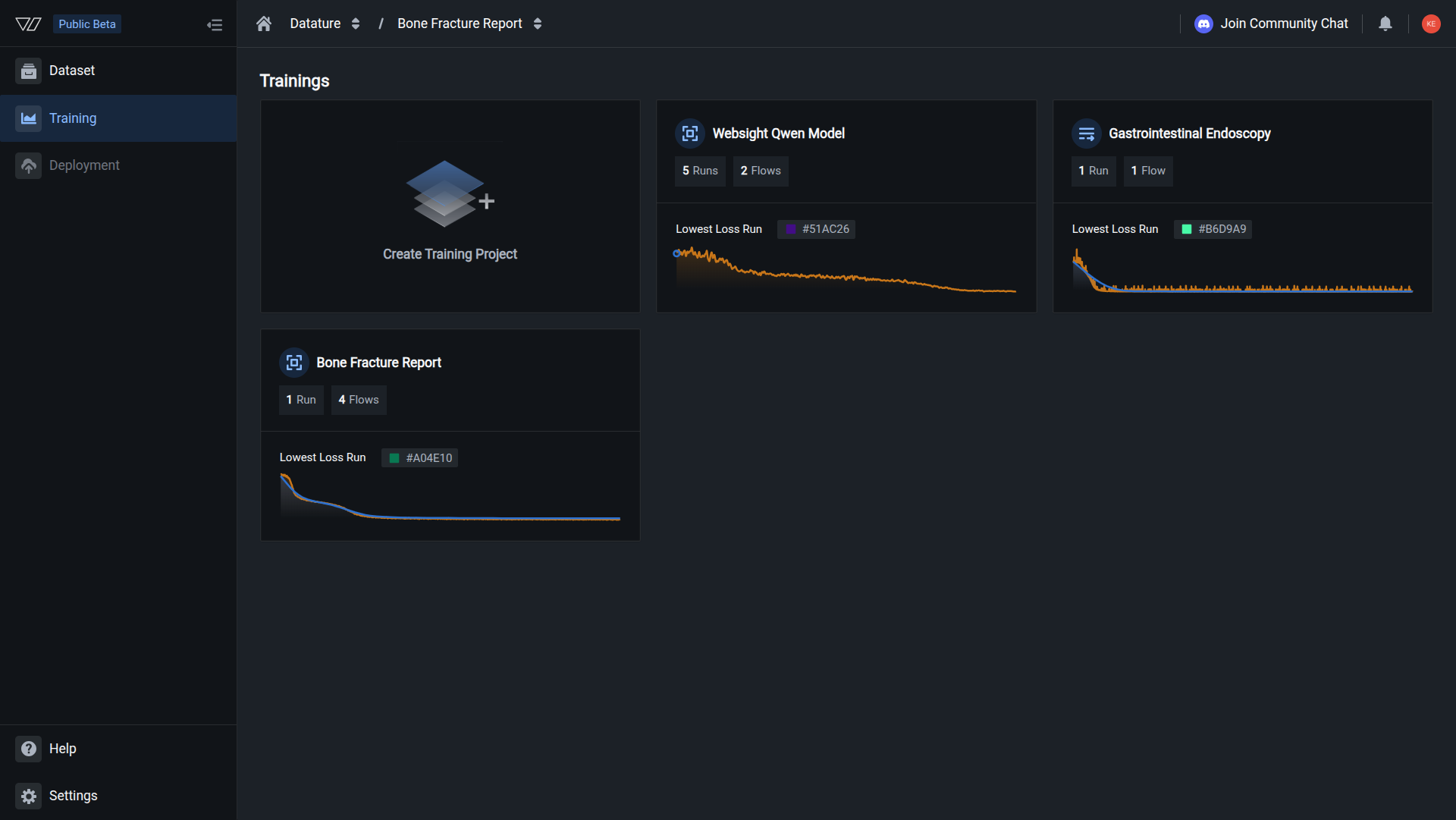
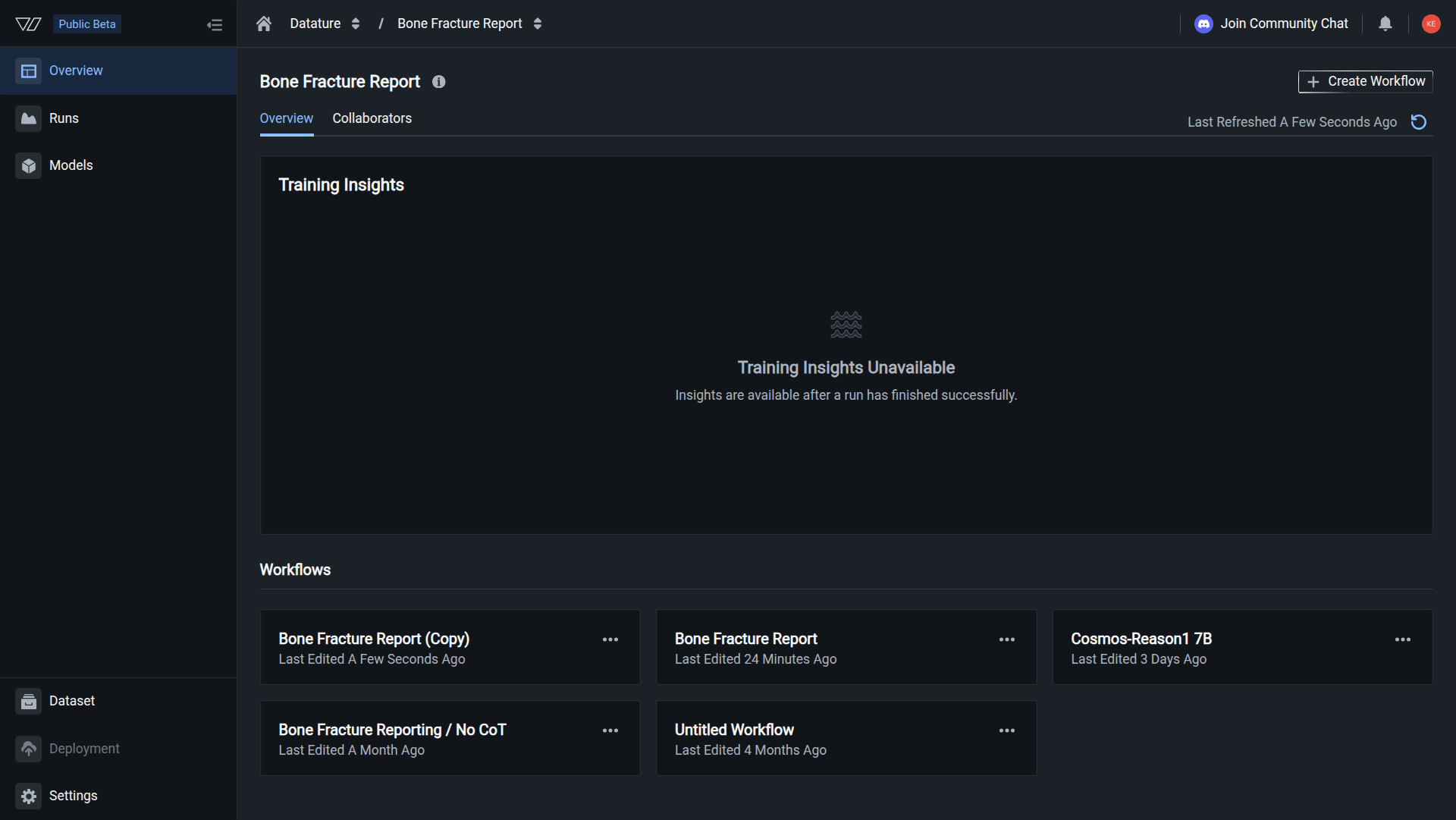
From your training project overview, locate the workflow you want to duplicate in the Workflows section.
Step 2: Open the workflow menu
Click the three-dot menu (⋮) on the right side of the workflow card to open the options menu.
The menu displays available actions:
- Duplicate — Create a copy of the workflow
- Delete — Permanently remove the workflow
Step 3: Select Duplicate
Click Duplicate from the menu.
The workflow is duplicated immediately without additional confirmation.
Workflow duplicated successfullyA new workflow appears in your Workflows section with " (Copy)" appended to the name. You can now modify this copy independently.
Step 4: Rename the duplicate (recommended)
The duplicated workflow is created with " (Copy)" appended to the original name:
- Original:
PCB-Component-Detection - Duplicate:
PCB-Component-Detection (Copy)
Best practice: Rename the duplicate immediately to reflect its purpose:
- ✅
PCB-Component-Detection-Detailed-Prompt-v2 - ✅
PCB-Component-Detection-NVLM-8B - ✅
PCB-Component-Detection-LR0.0001 - ❌
PCB-Component-Detection (Copy) - ❌
PCB-Component-Detection (Copy) (Copy)
Step 5: Modify the duplicate
Click the duplicated workflow to open the workflow canvas, then modify any component:
- System Prompt — Test different instruction styles or detail levels
- Dataset — Change data splits or select different datasets
- Model — Switch architectures or adjust training parameters
Save your changes when finished.
Step 6: Run training (optional)
Start a training run using the duplicated workflow to compare results with the original:
- Click Run Training from the workflow canvas, or
- Navigate to Runs and select the duplicated workflow
Learn how to start training runs →
Duplication strategies for experimentation
Use these systematic approaches to experiment with workflow variations:
Strategy 1: System prompt A/B testing
Create multiple duplicates with different prompt variations:
Baseline workflow:
Product-Detection-BaselineDuplicated variations:
Product-Detection-Brief-Prompt
Product-Detection-Detailed-Prompt
Product-Detection-Technical-Prompt
Product-Detection-Zero-Shot-PromptHow to execute:
- Duplicate baseline workflow 4 times
- Rename each duplicate with prompt identifier
- Edit each duplicate with different system prompt
- Run all workflows simultaneously
- Compare results to identify best prompt
Strategy 2: Model architecture comparison
Test different model architectures with identical prompts and data:
Baseline workflow:
Defect-Detection-BaselineDuplicated variations:
Defect-Detection-Qwen2.5-7B
Defect-Detection-NVLM-8B
Defect-Detection-InternVL2.5-4B
Defect-Detection-Molmo-7BHow to execute:
- Duplicate baseline workflow for each architecture
- Rename each duplicate with model name
- Edit model selection in each duplicate
- Keep system prompt and dataset identical
- Compare performance metrics across architectures
Strategy 3: Hyperparameter sweeps
Systematically test learning rates, batch sizes, or other parameters:
Baseline workflow:
Training-BaselineDuplicated variations:
Training-LR0.00001
Training-LR0.0001
Training-LR0.001
Training-LR0.01How to execute:
- Duplicate baseline for each parameter value
- Rename each duplicate with parameter value
- Edit training settings in each duplicate
- Run systematic parameter sweep
- Identify optimal hyperparameters
Strategy 4: Dataset experiment tracking
Test same model with different data configurations:
Baseline workflow:
PCB-Model-BaselineDuplicated variations:
PCB-Model-Dataset-v1
PCB-Model-Dataset-v2-Augmented
PCB-Model-Dataset-v3-Filtered
PCB-Model-Dataset-CombinedHow to execute:
- Duplicate baseline for each dataset version
- Rename each duplicate with dataset identifier
- Edit dataset selection in each duplicate
- Keep model and prompt consistent
- Evaluate impact of dataset changes
When to duplicate vs. edit
Understanding when to duplicate versus editing the original workflow:
Duplicate the workflow when:
✅ Testing variations — Comparing different configurations side-by-side ✅ A/B testing — Running systematic experiments ✅ Preserving working config — Keeping a backup before major changes ✅ Different experiments — Trying significantly different approaches ✅ Team experimentation — Giving team members their own versions ✅ Historical reference — Maintaining configuration snapshots
Edit the existing workflow when:
✅ Fixing errors — Correcting mistakes in configuration ✅ Minor adjustments — Small parameter tweaks ✅ Updating dataset — Pointing to refreshed data ✅ No comparison needed — Not running side-by-side tests ✅ Pre-training phase — Workflow hasn't been used for training yet ✅ Iterative refinement — Continuous improvement without branching
General guidelineIf you want to compare results, duplicate. If you just want to improve the existing workflow, edit.
Duplicate vs. rename vs. create new
Understand when to use each workflow management operation:
| Operation | When to use | Result | Time investment |
|---|---|---|---|
| Duplicate | Copy existing configuration for variations | Exact copy with all settings | <1 minute |
| Rename | Change workflow name without changing config | Same workflow, different name | <1 minute |
| Create new | Start from scratch with different requirements | Brand new workflow | 5-15 minutes |
Example scenarios:
I want to test a different system prompt
Recommended: Duplicate the workflow
Why: Preserves original configuration while letting you compare prompt performance
I want to fix a typo in the system prompt
Recommended: Edit the existing workflow
Why: No need to compare; just correcting an error
I want better workflow organization
Recommended: Rename the workflow
Why: Name change doesn't require duplication
I want to train a completely different model for a different task
Recommended: Create new workflow
Why: Starting fresh is clearer than heavily modifying a copy
Managing duplicated workflows
Naming duplicates effectively
Use descriptive names that indicate what's different:
Format: {Base-Name}-{Variation}-{Version}
Examples:
| Poor naming | Better naming | Best naming |
|---|---|---|
| Workflow (Copy) | PCB Detection Copy | PCB-Detection-Detailed-Prompt-v2 |
| Workflow (Copy) (Copy) | PCB Detection 2 | PCB-Detection-NVLM-8B-LoRA |
| Copy of Workflow | PCB Test | PCB-Detection-LR0.001-Experiment |
Learn more about workflow naming →
Organizing experiment series
Keep related duplicates organized with consistent naming:
Method 1: Version numbering
Product-Recognition-v1
Product-Recognition-v2
Product-Recognition-v3
Product-Recognition-v4Method 2: Variation identifiers
Defect-Detection-Brief
Defect-Detection-Standard
Defect-Detection-Detailed
Defect-Detection-TechnicalMethod 3: Parameter values
Training-Batch16-Epoch5
Training-Batch32-Epoch5
Training-Batch16-Epoch10
Training-Batch32-Epoch10Cleaning up after experiments
After completing your experiments:
- Identify the winner — Determine which duplicate performed best
- Rename the winner — Update name to indicate it's the chosen configuration (e.g., "PROD - Model Name")
- Archive alternatives — Rename unsuccessful duplicates with "ARCHIVED - " prefix
- Delete obvious failures — Remove configurations that clearly didn't work
- Keep interesting variations — Retain configurations that might be useful for future reference
Duplicating workflows via workflow canvas
You can also duplicate workflows when viewing the workflow canvas:
From the workflow canvas:
- Open the workflow you want to duplicate
- Click the workflow menu in the top-right corner
- Select Duplicate Workflow
- The duplicate is created and you're redirected to the new workflow canvas
This method is useful when you're already working within a workflow and decide you want to create a variation.
Common questions
How many times can I duplicate a workflow?
Unlimited. You can create as many duplicates as needed for your experiments. There's no restriction on the number of workflows in a project.
Best practice: While there's no technical limit, aim to keep your active workflows manageable (typically 3-10 active workflows per project). Archive or delete unsuccessful experiments to maintain clarity.
Can I duplicate a workflow from another training project?
No. Workflows cannot be directly duplicated across different training projects. Workflows are project-specific.
Workaround:
- Open the workflow in the source project
- Note all configuration details (system prompt, dataset, model settings)
- Create a new workflow in the target project
- Manually configure with the same settings
For teams that frequently need similar workflows across projects, consider maintaining documentation of successful configurations.
Does duplicating a workflow copy its training runs?
No. Duplicated workflows start with a clean slate:
Copied:
- System prompt
- Dataset configuration
- Model settings
- All parameter values
Not copied:
- Training run history
- Run metrics and results
- Checkpoint files
- Trained models
The duplicate is a fresh workflow with the same configuration but no training history.
What happens if I duplicate a workflow that has active training runs?
You can duplicate workflows at any time, even if they have active training runs.
The duplicate:
- Contains the same configuration as the original
- Starts with no training runs (not even the active ones from the original)
- Is completely independent of the original workflow
Duplicating does not affect the original workflow or its active runs in any way.
Can I undo a duplication?
There's no "undo duplication" button, but you can simply delete the duplicate if you created it by mistake.
Duplication is a low-risk operation—if you don't need the duplicate, just delete it.
Will the duplicate have the same workflow ID?
No. Each duplicated workflow receives a new unique workflow ID. This ensures:
- Workflows are independently tracked
- Training runs can distinguish between original and duplicate
- API calls and SDK queries target the correct workflow
The workflow name might be similar (with " (Copy)" appended), but the underlying ID is always unique.
Can team members see duplicated workflows?
Yes. Duplicated workflows are visible to all team members with access to the training project, just like any other workflow.
Collaboration tips:
- Rename duplicates clearly to indicate ownership or purpose
- Use prefixes like your name:
Wei-Experiment-PCB-Detection - Document purpose in workflow description field
- Communicate with team before running large experiments
Best practices for workflow duplication
Rename duplicates right after creation to avoid confusion
Use consistent naming conventions across experiment series
When A/B testing, change only one variable per duplicate
Use workflow descriptions to note what you're testing
Archive or delete failed experiments to keep project focused
Run training on all duplicates before deciding which to keep
Duplication workflows for common tasks
Task 1: Backup before major changes
Scenario: You have a working workflow but want to make significant changes.
Process:
- Duplicate the working workflow
- Rename duplicate to
[Original-Name]-Backup - Make changes to the original workflow
- Test the modified workflow
- If changes work: Delete the backup
- If changes fail: Revert to backup or continue working
Task 2: Progressive iteration
Scenario: Improving a workflow through multiple iterations.
Process:
- Start with baseline:
Model-v1 - Train and evaluate
Model-v1 - Duplicate
Model-v1→ rename toModel-v2 - Make improvements to
Model-v2 - Train and compare v1 vs v2
- Continue: Duplicate
Model-v2→Model-v3 - Keep successful versions, archive or delete unsuccessful ones
Task 3: Team experimentation
Scenario: Multiple team members testing different approaches.
Process:
- Create baseline workflow:
PCB-Detection-Baseline - Each team member duplicates the baseline
- Rename with owner prefix:
Wei-PCB-Prompt-Test,Sarah-PCB-Model-Test - Each member experiments independently
- Team compares results in meeting
- Choose best approach and create production workflow
Troubleshooting
Duplicate button is grayed out or missing
Potential causes:
- Insufficient permissions to create workflows
- Browser loading issues
- Temporary platform issue
Solutions:
- Verify you have edit access to the training project
- Refresh the page and try again
- Try duplicating from the workflow canvas instead of the overview page
Duplicate created but settings are different from original
This should not happen—duplication creates exact copies.
If you notice differences:
- Check if you accidentally opened the wrong workflow
- Verify you're comparing duplicate to the correct original
- Refresh both workflows to ensure latest state is loaded
If the issue persists, this may be a bug. Document the differences and contact support.
I duplicated the wrong workflow
Simply delete the unwanted duplicate and duplicate the correct workflow instead.
Duplication is quick, so it's easy to start over if needed.
Next steps
Give your duplicate a descriptive name
Run training to compare duplicate with original
Compare performance metrics across duplicates
Clean up workflows that didn't perform well
Related resources
- Create a Workflow — Set up new training workflows from scratch
- Rename a Workflow — Update workflow names for better organization
- Delete a Workflow — Remove workflows you no longer need
- Manage Workflows — Overview of all workflow management operations
- Manage Runs — Start and monitor training runs
Need help?
We're here to support your VLMOps journey. Reach out through any of these channels:
Updated about 1 month ago