Monitor a Run
Track real-time training progress, watch for errors, and review metrics as your model trains.
Monitor your active training runs in real-time to track progress, identify issues early, and ensure training proceeds as expected. Real-time monitoring helps you catch configuration errors before consuming excessive Compute Credits.
PrerequisitesBefore monitoring a run, you need:
- An active training run in progress (Running, Queued, or Starting status)
- Alternatively, a completed run to review historical progress
Access run monitoring
Open the monitoring view to track your training session:
-
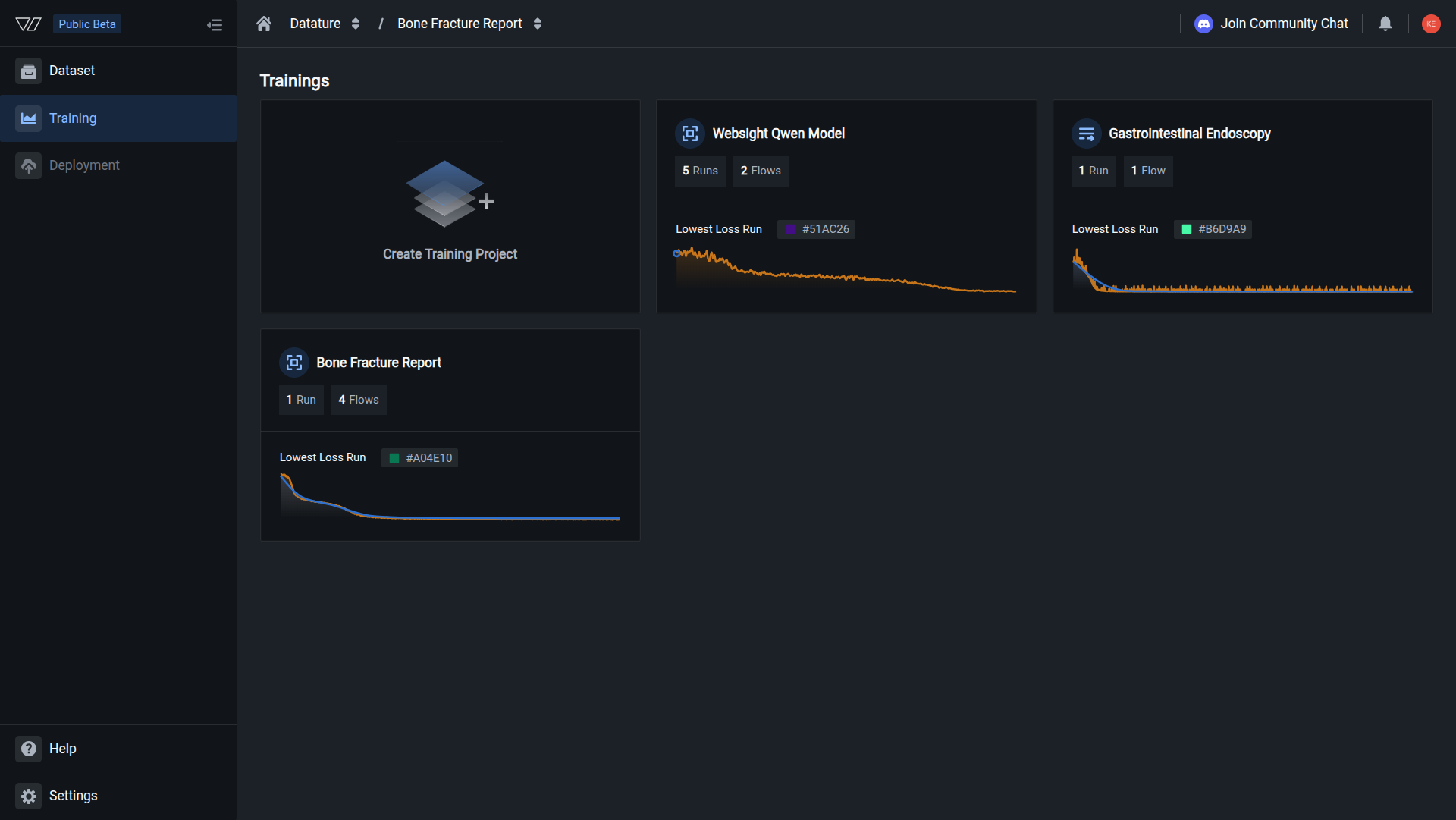
Navigate to the Training section from the sidebar
-
Click on your training project to open it
-
Click the Runs tab to view all training runs
-
Click on a running or completed run to open its monitoring page
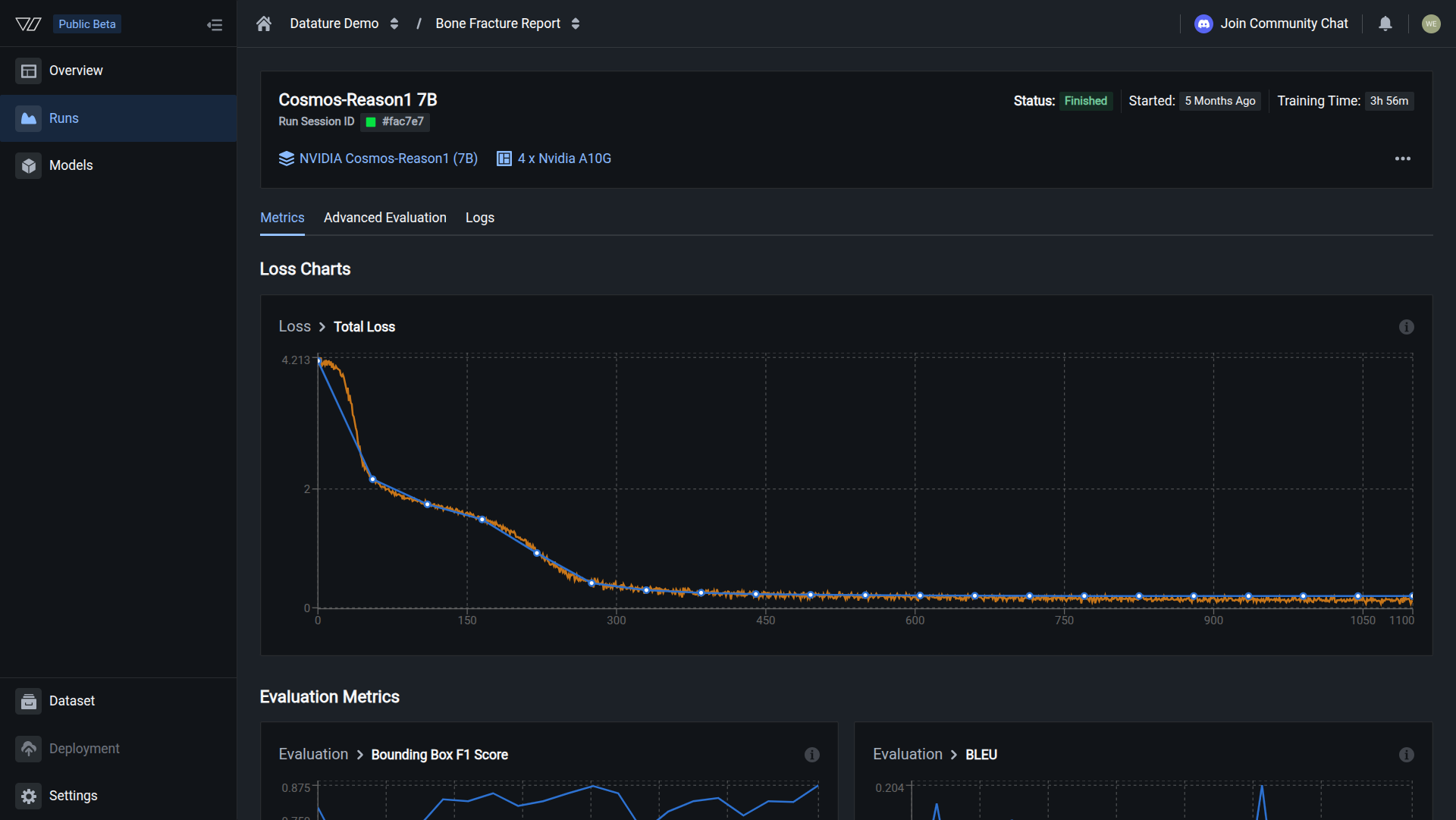
The monitoring page displays real-time progress, metrics, and logs as training proceeds.
Stay on page for real-time updatesThe monitoring page auto-refreshes to show current progress. You can safely navigate away—training continues in the background—but you'll need to return to see updated progress.
Review run configuration
View the workflow configuration used for any training run to understand its settings:
While viewing a run's monitoring page, click the three-dot menu (⋮) in the top right
-
Select View Workflow from the dropdown menu
-
The workflow configuration page opens, showing:
- Model architecture and parameters
- Dataset configuration and splits
- System prompt used for training
- Training settings including epochs and batch size
Why this is useful:
- Verify configuration — Ensure the run used correct settings
- Reproduce results — See exact settings used for successful runs
- Compare runs — Understand differences between run configurations
- Debug issues — Identify configuration problems causing failures
- Document experiments — Record settings for successful training
Quick access to workflow detailsThis is especially helpful when reviewing completed runs or investigating why different runs produced different results. You can instantly see all configuration details without searching through workflow lists.
Understand run statuses
Every training run has a status indicating its current state. Understanding these statuses helps you identify issues and take appropriate action.
Finished
Meaning: Training completed successfully through all configured epochs.
What you can do:
- View metrics to assess model performance
- Compare predictions against ground truth
- Download the trained model for deployment
- Start a new run to iterate on configuration
Appearance: Green status indicator
Running
Meaning: Training is currently in progress.
What you can do:
- Monitor training progress in real-time (see sections below)
- View partial metrics as they become available
- Kill the run if needed
- Wait for completion before accessing full evaluation results
Note: Metrics and evaluation results update periodically as training progresses.
Queued
Meaning: Training is waiting for GPU resources to become available.
Common reasons:
- All GPUs currently in use by other runs
- Waiting for previous run to release resources
- System scheduling priorities
What you can do:
- Wait for GPUs to become available (usually minutes)
- Training will start automatically when resources ready
- Kill queued run if no longer needed
- Check resource usage for organization-wide GPU allocation
Typical wait times:
- 1-5 minutes: Normal during peak usage
- 5-15 minutes: High demand; consider scheduling runs during off-peak hours
- >15 minutes: Unusual; contact support if queue time exceeds 30 minutes
Starting
Meaning: Training is allocating resources and preparing the environment.
What's happening:
- GPU resources being allocated
- Training environment being set up
- Base model weights being loaded
- Infrastructure initialization in progress
Typical duration: 2-5 minutes
What to watch for: If stuck in "Starting" for more than 10 minutes, there may be resource allocation issues.
Out of Memory
Meaning: Training failed because the GPU ran out of memory (CUDA OOM error).
Common causes:
- Batch size too large for available GPU memory
- Model architecture too large for selected GPU
- Image resolution too high
- Insufficient GPU memory for model + data combination
How to fix:
-
Reduce batch size in model settings
- Try cutting current batch size in half
- Example: 16 → 8, or 8 → 4
-
Select larger GPU in hardware configuration
- Upgrade from T4 (16 GB) → A10G (24 GB)
- Or A10G (24 GB) → A100 (40 GB or 80 GB)
-
Use smaller model architecture
- Switch from 7B → 2B parameters
- Compare model sizes
-
Reduce image resolution (if configurable)
- Smaller images require less GPU memory
- Check dataset configuration
Troubleshooting checklist:
- Check Logs tab for exact OOM error message
- Note current batch size and GPU type
- Calculate GPU memory requirement (model size + batch size × image size)
- Adjust one parameter and retry
Failed
Meaning: Training encountered an error and stopped unexpectedly.
Common causes:
- Dataset errors (corrupted images, missing annotations)
- Configuration errors (invalid hyperparameters)
- Infrastructure issues (network problems, hardware failures)
How to diagnose:
- Check Training Progress section for error details
- Look for "Additional Errors" indicator with error information
- Review Logs tab for complete error traceback
- Identify error type and follow specific troubleshooting steps
Common error patterns:
- CUDA errors: GPU driver or hardware issue — Retry training; contact support if persists
- Invalid annotation errors: Corrupted or malformed annotations — Validate dataset; fix or remove invalid data
- File not found errors: Missing dataset files — Re-upload missing files; verify dataset integrity
- Connection timeouts: Network or storage issue — Retry training; issue is usually temporary
Next steps:
- Review error details in Training Progress section
- Check Logs tab for full error message
- Apply fix based on error type
- Create new run with corrected configuration
- Contact support if error persists after troubleshooting
Killed
Meaning: Training was manually stopped by user before completion.
When this happens:
- User clicked Kill run to stop training
- Training stopped immediately
- Partial progress is saved for review
What you can do:
- View partial results up to the point training was killed
- Review metrics available for completed checkpoints
- Create new run to restart with different settings
- Delete the killed run to clean up project
Note: Killed runs still consume Compute Credits for time used before stopping.
Out of Quota
Meaning: Training stopped because Compute Credits were depleted.
What happened:
- Your organization ran out of Compute Credits during training
- Training paused automatically at the last checkpoint
- No progress is lost
How to resume:
- Refill Compute Credits for your organization
- Training resumes automatically from the last saved checkpoint once credits are available
- No need to reconfigure or restart the run
What you can do:
- View partial results up to the point credits ran out
- Check resource usage to see credit consumption
- Add more Compute Credits to resume training
- Training will continue from where it stopped (no wasted progress)
Note: Runs with "Out of Quota" status don't consume additional credits until resumed.
View error details
When a run shows "Additional Errors," you can view detailed error information:
- Look for the red error indicator next to the run status
- Hover over "Additional Errors" to see error details in a tooltip
- Error information includes:
- condition — Error type (e.g., "LatticeExecutionFinished")
- status — Status code (e.g., "FailedReach")
- reason — Primary error cause (e.g., "OutOfGpuMemory")
- lastTransitionTime — When the error occurred (Unix timestamp in milliseconds)
Example error details:
{
"condition": "LatticeExecutionFinished",
"status": "FailedReach",
"reason": "OutOfGpuMemory",
"lastTransitionTime": 1764320567481
}This indicates the run failed due to GPU memory exhaustion.
Training progress stages
Training runs progress through distinct preparation stages before active model training begins. Monitor these stages to ensure training starts correctly.
Stage 1: Preprocessing dataset
The platform prepares your dataset for training:
- Loads annotations from your configured dataset
- Applies dataset splits according to train/validation/test ratios
- Validates data format to ensure compatibility with the model
- Preprocesses images as needed for model architecture
Typical duration: 1-5 minutes depending on dataset size
What to watch for:
- Progress should advance within a few minutes
- Extended delays may indicate dataset access issues
Stage 2: Spinning up instance
The platform allocates GPU resources and prepares the training environment:
- Allocates GPU hardware based on model architecture requirements
- Sets up training environment with required libraries and dependencies
- Loads base model weights from the selected VLM architecture
- Initializes training infrastructure for distributed training if needed
Typical duration: 2-5 minutes
What to watch for:
- Status should move to "Instance Ready" within several minutes
- If stuck here, GPU resources may be fully allocated (run will queue)
Stage 3: Pending first metrics
Training begins and processes the first epoch:
- Starts model training on your annotated data
- Processes first training epoch through all training images
- Generates initial metrics including loss and validation scores
- Updates progress indicators with training statistics
Typical duration: Varies by dataset size and model architecture (5-30 minutes for first epoch)
What to watch for:
- First metrics should appear after completing one epoch
- Training time estimate updates as first epoch progresses
- Logs show detailed training progress
Active training
Once first metrics appear, training proceeds through all configured epochs:
- Loss charts update in real-time as training progresses
- Evaluation metrics refresh after each validation cycle
- Progress percentage increases toward completion
- Estimated time remaining updates based on actual training speed
Training is progressing normallyWhen you see metrics updating regularly and loss decreasing over time, training is proceeding as expected. You can safely navigate away and return later to check progress. After completion, evaluate your model for detailed performance analysis.
Progress stage indicators
The Training Progress section visually shows your run's journey through different stages:
| Stage | Icon | Meaning | What happens |
|---|---|---|---|
| Dataset Ready | 📊 | Dataset validation complete | Files verified, annotations loaded |
| Instance Ready | ⚙️ | GPU resources allocated | Hardware provisioned, environment set up |
| Training Running | 📈 | Model training in progress | Actively training through epochs |
| Training Failed | ❌ | Error occurred during training | See status for error type |
Status colors:
- Green (✓) — Stage completed successfully
- Red (×) — Error occurred at this stage
- Gray — Stage not yet reached
- Animated — Currently in progress
Quick troubleshooting tipIf training fails at "Instance Ready," the issue is usually GPU-related (Out of Memory). If it fails at "Dataset Ready," check your dataset for errors.
View training metrics
The Metrics tab displays real-time training progress and model performance data as training proceeds. For comprehensive analysis of completed runs, see Evaluate a Model.
Loss charts
Track how well the model is learning:
- Total Loss — Overall training loss decreasing over time
- Training Loss — Loss on training dataset (orange line)
- Validation Loss — Loss on validation dataset (blue line) helps detect overfitting
Healthy training pattern
Good indicators:
- Loss decreases steadily over epochs
- Training and validation loss remain close (not diverging significantly)
- Loss curve smooths out as training progresses
- Both curves trending downward together
Underfitting or problematic training
Critical issues:
- Loss not decreasing after initial epochs
- Loss staying flat across many epochs
- Model not learning from the data
- May indicate learning rate too low or configuration problems
Evaluation metrics
Review task-specific performance indicators:
For object detection:
- Bounding Box F1 Score — Balance of precision and recall
- BLEU — Text generation quality (for VQA tasks)
- BERTScore Recall — Semantic similarity to ground truth
For other tasks:
- Metrics vary based on your task type and model architecture
- All metrics update after each validation cycle
Learn more about training metrics →
Learn how to evaluate completed models →
Understanding metric trends
Good indicators:
- Metrics improve consistently over epochs
- Validation metrics track training metrics closely
- Metrics stabilize near end of training
Warning indicators:
- Metrics not improving or degrading
- Large gap between training and validation metrics
- Erratic metric fluctuations without clear trend
Once training completes, use advanced evaluation tools to analyze model performance in depth.
Identify training errors
Watch for error indicators that signal training issues requiring intervention.
Error notifications
When training encounters errors:
- Status changes to "Failed" in red
- Error count displayed next to status (e.g., "1 Additional Errors")
- Training progress indicator shows where failure occurred
- Error messages appear in training logs
Common error types
Out of memory (OOM) errors
Symptoms:
- Training fails during early epochs
- Error messages mention "CUDA out of memory" or similar
Causes:
- Model architecture too large for allocated GPU
- Batch size too high
- Images in dataset too large
Solutions:
- Reduce batch size in training settings
- Select smaller model variant (e.g., 3B instead of 7B parameters)
- Resize images in your dataset to lower resolution
- Contact support if issue persists
Dataset errors
Symptoms:
- Training fails in "Preprocessing Dataset" stage
- Error messages mention data loading or format issues
Causes:
- Dataset not properly configured
- Missing or corrupted annotations
- Incompatible annotation format for model type
- Empty dataset splits
Solutions:
- Verify dataset has annotations in correct format
- Check dataset splits have sufficient data (minimum 10 images per split)
- Review dataset selection in workflow configuration
- Validate annotations are properly formatted
Configuration errors
Symptoms:
- Training fails immediately or during instance setup
- Error messages mention invalid parameters or settings
Causes:
- Invalid training parameters
- Incompatible system prompt for model
- Mismatched model and task type
Solutions:
- Review all workflow settings for typos or invalid values
- Check system prompt follows model-specific format requirements
- Verify model architecture supports your task type
- Start from default settings and adjust incrementally
Infrastructure errors
Symptoms:
- Training fails unexpectedly during active training
- Error messages mention system or hardware issues
Causes:
- Temporary infrastructure issues
- GPU hardware failures
- Network connectivity problems
Solutions:
- Kill the failed run
- Start a new run with same configuration (often succeeds)
- Contact support if failures persist
Review detailed logs
Access comprehensive training logs for detailed debugging:
-
Open the run monitoring page
-
Click the Logs tab next to Metrics
-
Review timestamped log entries showing:
- Initialization and setup steps
- Training progress per epoch
- Loss values and metric calculations
- Warning and error messages
- Resource usage information
Learn more about training logs →
Monitor resource usage
Track Compute Credits and GPU time as training progresses:
Displayed information:
- Training Time — Elapsed time since run started
- GPU Type — Allocated hardware (e.g., "1 x Nvidia A10G")
- Estimated remaining time — Predicted time to completion
Credit consumption:
- Credits consumed based on actual GPU time used
- Training time updates in real-time as run progresses
- Longer training consumes more credits
Kill runs early to save creditsIf you notice configuration errors or training not progressing correctly, kill the run immediately to avoid consuming additional Compute Credits on failed training.
When to take action
Monitor your runs and take appropriate action based on what you observe:
Let training continue when:
- ✅ Loss decreasing steadily over epochs
- ✅ Metrics improving consistently
- ✅ Training and validation metrics tracking closely
- ✅ No error messages in logs
- ✅ Progress advancing through epochs normally
Kill training immediately when:
- ❌ Configuration clearly wrong (wrong dataset, model, or settings)
- ❌ Out of memory errors appearing repeatedly
- ❌ Loss not decreasing after several epochs
- ❌ Metrics show NaN or infinite values
- ❌ Training stuck at same progress point for extended time
- ❌ Want to adjust settings and restart fresh
Review logs when:
- ⚠️ Training slower than expected
- ⚠️ Warnings appearing in progress indicators
- ⚠️ Metrics behaving unexpectedly
- ⚠️ Want to understand training behavior in detail
Best practices for monitoring
Monitor closely during initial stages
First 10-15 minutes are critical for catching configuration issues:
- Stay on monitoring page during preprocessing and instance setup
- Watch for error messages as stages progress
- Verify first metrics appear after first epoch
- Check loss curves start with reasonable values
- Confirm training time estimate aligns with expectations
Early detection prevents wasting Compute Credits on misconfigured training.
Check in periodically during long training
For training runs lasting several hours:
- Check progress every 1-2 hours during initial phases
- Review loss curves for expected decreasing trend
- Monitor metrics for consistent improvement
- Watch for warnings or anomalies in logs
- Verify estimated completion time remains reasonable
Long-running training can develop issues mid-session; periodic checks help catch problems early.
Watch resource consumption
Keep track of Compute Credit usage:
- Note training time estimates at run start
- Compare actual vs. estimated time as training progresses
- Kill early if training significantly slower than expected
- Monitor GPU utilization in logs to ensure efficient resource use
Understanding credit consumption helps optimize future training runs.
Document successful configurations
When training succeeds:
- Note all workflow settings used for successful run
- Record training time and resource requirements
- Evaluate model performance using comprehensive metrics
- Save final metrics for comparison with future runs
- Document any issues encountered and solutions
Documentation helps replicate successful training and troubleshoot future issues.
Use logs for troubleshooting
When training behavior seems unusual:
- Open detailed logs to see full training output
- Search for warning messages that explain behavior
- Check resource utilization for bottlenecks
- Compare with successful runs if available
- Copy relevant log sections when contacting support
Logs provide detailed context for understanding training issues.
Common questions
Do I need to stay on the monitoring page?
No. Training continues in the background even if you navigate away or close the browser.
However, monitoring is recommended during:
- First 10-15 minutes to catch configuration errors early
- First few epochs to verify training progresses correctly
- Any time you're testing new configurations or model architectures
You can safely:
- Navigate to other pages within Datature Vi
- Close your browser and return later
- Work on other tasks while training runs
Returning to check progress:
- Click the Runs tab in your training project
- Click the active run to see current status
- Metrics and progress update automatically when you view the page
How often do metrics update?
Metric update frequency depends on training configuration:
- Loss charts: Update after each logged training step (typically every few batches)
- Evaluation metrics: Update after each validation cycle (typically after each epoch)
- Training progress: Updates continuously throughout training
Typical update intervals:
- Small datasets (< 1000 images): Every few minutes
- Large datasets (10,000+ images): Every 10-30 minutes
- Validation metrics: Once per epoch completion
Refresh the page if metrics appear stale or not updating. The page auto-refreshes but manual refresh ensures latest data.
What does 'Training Time' represent?
Training Time shows elapsed GPU time since the run started actively training:
Includes:
- Active model training time
- Validation and metric computation
- Checkpointing and logging overhead
Excludes:
- Queue time waiting for GPU resources
- Dataset preprocessing time
- Instance setup time
This is the time used to calculate Compute Credit consumption.
Estimated remaining time predicts total training duration based on current progress rate.
Can I download the model while training is in progress?
No. Models can only be downloaded after training completes successfully.
During active training:
- Model checkpoints are saved automatically
- You can monitor metrics to assess progress
- You can review logs for detailed information
- You cannot download partial or in-progress models
After successful completion:
- Run status changes to "Completed"
- Trained model becomes available for download
- Evaluate model performance with detailed metrics
- You can download model files for deployment
If you kill training:
- Run status changes to "Killed"
- No trained model is available (training incomplete)
- You must start a new run to obtain a trained model
What if training is much slower than estimated?
Several factors can cause training to run slower than initial estimates:
Common causes:
- Large dataset: More images than expected increase epoch time
- Complex model: Larger VLM architectures train slower
- High resolution: Large images increase processing time
- Shared resources: Other concurrent training may impact speed
- Validation overhead: Extensive validation adds time between epochs
What to do:
- Check logs for resource utilization information
- Review dataset size and image resolutions
- Consider smaller model for faster training iterations
- Reduce batch size if memory constrained
- Let training complete if progressing correctly (just slower)
- Contact support if dramatically slower than expected
For future runs:
- Use smaller dataset for initial experiments
- Test configurations with shorter epoch counts
- Scale up gradually after validating setup
Should I worry if loss jumps around between epochs?
Some loss fluctuation is normal, but patterns matter:
Normal fluctuations:
- Small variations between epochs (±10-20% of current value)
- Occasional small increases followed by continued decrease
- Smoothing out over time as training progresses
Concerning patterns:
- Large spikes or drops (2x or more)
- Consistently increasing loss over multiple epochs
- Erratic, unpredictable fluctuations throughout training
- Loss becoming NaN (not a number) or infinite
What to do:
For normal fluctuations: Continue training and monitor overall trend
For concerning patterns:
- Check logs for error messages or warnings
- Review learning rate settings in training configuration
- Consider reducing learning rate if loss unstable
- Verify dataset quality and annotation consistency
- Kill and restart with adjusted settings if needed
General principle: Focus on overall trend across multiple epochs rather than epoch-to-epoch changes.
How do I know if my model is overfitting?
Overfitting occurs when the model memorizes training data instead of learning general patterns. Watch for these signs:
Key indicators:
- Training loss continues decreasing while validation loss increases or plateaus
- Large gap between training and validation metrics (e.g., training F1 = 0.95, validation F1 = 0.65)
- Validation metrics stop improving or degrade after initial improvement
Visual patterns in loss charts:
- Training and validation loss start together
- Both decrease initially
- Validation loss levels off or increases while training loss continues down
- Gap widens over epochs
Prevention strategies:
- Use appropriate dataset splits (typical: 70% train, 20% validation, 10% test)
- Ensure sufficient training data (more data reduces overfitting)
- Use regularization techniques (configured in training settings)
- Stop training earlier (before validation metrics degrade)
- Add more diverse training examples
How do I recover from Out of Memory errors?
Immediate fix:
- Note your current configuration (model size, batch size, GPU type)
- Reduce batch size by 50% as first attempt
- Kill the failed run if it's still active
- Create new run with reduced batch size
If still failing:
- Upgrade to larger GPU (T4 → A10G → A100)
- Switch to smaller model architecture
- Reduce image resolution in dataset
Prevention:
Check GPU memory requirements before starting training to select appropriate hardware for your model size. Refer to your model's documentation for recommended GPU specifications.
Can I resume a Killed run?
No, killed runs cannot be resumed. When you kill a run, it stops permanently.
However:
- Saved checkpoints are preserved for review
- You can view partial results and metrics
- Create a new run with the same configuration to continue training
- Progress from checkpoints can inform your next run
Best practice: Only kill runs when certain you want to stop permanently. Use monitoring to track progress before deciding to kill.
What's the difference between Failed and Killed statuses?
| Status | Cause | Can Resume? | Action Required |
|---|---|---|---|
| Failed | System error or configuration issue | No | Fix error and create new run |
| Killed | User manually cancelled | No | Create new run if needed |
| Out of Quota | Credits depleted | Yes, automatically | Refill credits |
Failed runs indicate a problem that needs fixing. Killed runs were intentionally stopped by you. Out of Quota runs can resume automatically once you add more Compute Credits.
Why is my run queued for so long?
Common reasons:
- High demand: Many runs using GPUs simultaneously
- Large GPU request: Requesting 4× A100s takes longer than 1× T4
- Organization limits: Check if you've hit concurrent run limits
- Resource constraints: Available GPU capacity currently allocated
Actions:
- Wait 5-10 minutes (most queues resolve quickly)
- Check resource usage for organization GPU allocation
- Consider using smaller GPU configurations for faster queue times
- Schedule runs during off-peak hours if possible
- Kill the queued run if no longer needed
Contact support if queued >30 minutes without explanation.
Next steps
Stop training runs that have errors or incorrect configuration
Review detailed logs for debugging and troubleshooting
Analyze completed training metrics and model performance
Clean up completed, failed, or killed runs
Related resources
- Manage Runs — Complete run management overview
- Kill a Run — Stop active training runs
- Delete a Run — Clean up completed or killed runs
- Train a Model — Start new training runs
- Training Metrics — Understand performance indicators
- Training Logs — Detailed log analysis
- Evaluate a Model — Comprehensive model evaluation
- Resource Usage — Monitor Compute Credits
- Configure Training Settings — Optimize training parameters
Need help?
We're here to support your VLMOps journey. Reach out through any of these channels:
Updated about 1 month ago