Delete a Dataset
Permanently remove datasets you no longer need to keep your workspace organized and manage storage.
Delete datasets that are no longer needed to keep your workspace organized and manage storage. Deletion permanently removes the dataset along with all its images, annotations, and associated data.
This action cannot be undone
- Permanent deletion — All images, annotations, and metadata are removed immediately
- Cannot be recovered — There is no way to restore a deleted dataset
- Affects training — Training runs using this dataset will no longer have access to the source data
- Breaks references — API calls and SDK queries for this dataset ID will fail
- Consider exporting first — Download your dataset if you might need it later
Before you delete
Review these considerations before permanently deleting a dataset:
Create a backup
If you might need this data in the future, create a backup first:
- Download the full dataset — Export images and annotations
- Download annotations only — Create a lightweight backup
- Store the export in cloud storage or version control
Check for dependencies
Verify that the dataset is not actively used:
- Training workflows — Check if any workflows reference this dataset
- Active training runs — Ensure no training is currently in progress
- Team workflows — Confirm team members aren't actively annotating
- Production models — Verify deployed models don't need this data for retraining
Alternative to deletion
Consider these options instead of deleting:
- Archive locally — Export and delete to free up cloud storage while keeping a local copy
- Rename for clarity — Rename the dataset to indicate it's deprecated (e.g., "ARCHIVED - Old Dataset")
- Remove excess images — Delete specific assets instead of the entire dataset
- Keep for reference — Retain the dataset for training history and model reproducibility
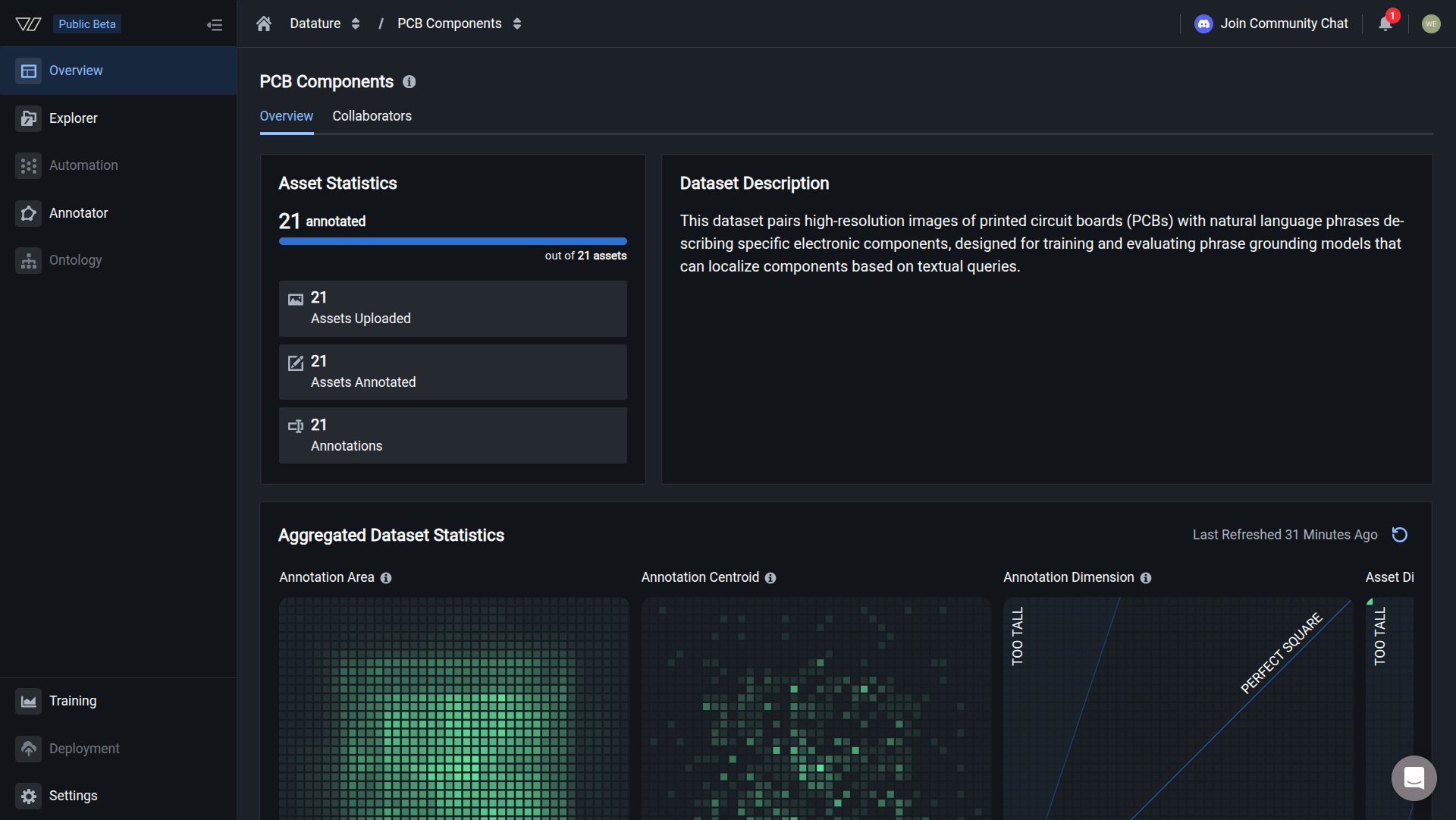
Navigate to dataset settings
- Open the dataset you want to delete
- Click the Settings tab at the bottom of the sidebar menu
- Scroll down to the Delete Dataset section at the bottom of the Settings page
Delete your dataset
Danger ZoneThe Delete Dataset section is marked as a "Danger Zone" to indicate the irreversible nature of this action.
-
In the Delete Dataset section, click the red Delete button
The warning message states: "Deleting your dataset will permanently remove it from the platform. This action cannot be undone. Are you sure you want to delete this dataset?"
-
A confirmation dialog appears asking you to confirm the deletion
-
Read the confirmation message carefully:
"You are about to delete [Dataset Name]. All information of the dataset, including image and annotation files will be permanently deleted. Are you sure you want to delete this dataset?"
-
Type the exact dataset name in the confirmation field to verify your intent
The placeholder text reads: "Type [Dataset Name] to confirm."
Safety confirmationYou must type the exact dataset name to proceed. This prevents accidental deletions and ensures you're deleting the correct dataset.
-
Once you've typed the dataset name correctly, the Delete button becomes enabled
-
Click the red Delete button to permanently remove the dataset
-
The dataset is deleted immediately and you're redirected to your datasets list
What gets deleted
When you delete a dataset, the following are permanently removed:
Deleted immediately:
- All images and videos in the dataset
- All annotations (bounding boxes, polygons, keypoints, classifications)
- Dataset metadata and settings
- Dataset description and configuration
- Asset tags and categorizations
- Annotation history and versions
- Dataset insights and statistics
Not affected:
- Completed training runs — Training history and metrics remain viewable
- Trained models — Deployed models continue to function
- Exported data — Any previously downloaded backups are unaffected
- Organization settings — Your organization and team settings remain intact
- Other datasets — All other datasets are completely unaffected
Training runs remain viewableCompleted training runs that used this dataset remain in your Training section with their metrics and results. However, you cannot view the original training data or re-run training with the deleted dataset.
Verify deletion
After deletion:
-
The dataset no longer appears in your datasets list
-
Attempts to access the dataset via direct link show a "not found" error
-
API calls to the dataset ID return 404 errors
-
The dataset ID cannot be reused for new datasets
Delete a dataset via Vi SDK
You can programmatically delete datasets using the Vi SDK:
Delete dataset using Vi SDK
import vi
# Initialize client
client = vi.Client(
secret_key="your-secret-key",
organization_id="your-organization-id"
)
# Get the dataset
dataset = client.datasets.get(dataset_id="your-dataset-id")
# Delete the dataset
dataset.delete()
# The dataset is now permanently deletedDelete without retrieving first:
# Delete directly by ID
client.datasets.delete(dataset_id="your-dataset-id")Confirm before deleting (best practice):
# Get dataset information
dataset = client.datasets.get(dataset_id="your-dataset-id")
# Display information and confirm
print(f"About to delete: {dataset.name}")
print(f"Total assets: {dataset.asset_count}")
# Require manual confirmation
confirm = input(f"Type '{dataset.name}' to confirm deletion: ")
if confirm == dataset.name:
dataset.delete()
print("Dataset deleted successfully")
else:
print("Deletion cancelled")Common questions
Can I recover a deleted dataset?
No. Dataset deletion is permanent and cannot be undone. Once deleted, all images, annotations, and metadata are immediately and permanently removed from the platform.
Best practice: Always export your dataset before deletion if there's any chance you might need it in the future.
What happens to models trained on a deleted dataset?
Deployed models continue to work normally. They don't need access to the training data to make predictions.
However:
- You cannot retrain or fine-tune using the deleted dataset
- The training run history remains viewable but you cannot access the original training images
- Model versioning and replication require the training data to be available
Will deletion free up my storage quota?
Yes. Deleting a dataset immediately frees up storage space in your organization. The freed storage becomes available for new uploads right away.
Check your storage usage in Organization > Resource Usage.
Can I delete a dataset while training is in progress?
The platform prevents you from deleting a dataset that's actively being used by a running training job. You must:
- Cancel the training run first
- Wait for the cancellation to complete
- Then delete the dataset
This safeguard prevents corrupting active training runs.
What if I only want to remove some images, not the entire dataset?
Instead of deleting the entire dataset, you can:
- Delete specific assets — Remove individual images or videos
- Use bulk actions — Delete multiple assets at once using filters
- Keep the dataset structure while removing unwanted data
This approach preserves your annotations and dataset configuration for the remaining images.
Can I delete multiple datasets at once?
Currently, datasets must be deleted one at a time through the web interface. Each deletion requires typing the dataset name as a safety measure.
For bulk deletions, you can use the Vi SDK to script the deletion process, but you should still implement confirmation prompts to avoid accidental deletions.
Will my team be notified when I delete a dataset?
No automatic notification is sent to team members. If you're deleting a shared dataset:
- Inform your team before deletion
- Ensure no one is actively working with the data
- Verify no automated workflows depend on the dataset
- Consider providing a backup export to team members who might need it
Best practices for dataset management
Export important datasets periodically to maintain local backups before cleanup
Download and archive datasets locally before deletion if you might need historical data
Rename datasets to "ARCHIVED - [Name]" instead of deleting if you need to retain training history
Check training workflows and team usage before deleting shared datasets
Next steps
Export your dataset before deletion to create a backup
Remove specific images instead of the entire dataset
Set up a new dataset for your next project
Monitor your organization's storage and compute resources
Need help?
We're here to support your VLMOps journey. Reach out through any of these channels:
Updated about 1 month ago