
Create a Training Project
Set up a training project in Datature Vi to organize your workflows, runs, and trained models.
A dataset with images and annotations (complete stage 1 first).
A training project in Datature Vi is a container. It holds all the workflows, runs, and model checkpoints for a given task. Keeping one project per task (for example, one for defect detection and a separate one for product classification) makes it easier to compare runs and track progress over time. For all configuration options and project management features, see the full training project guide.
Open the Training page
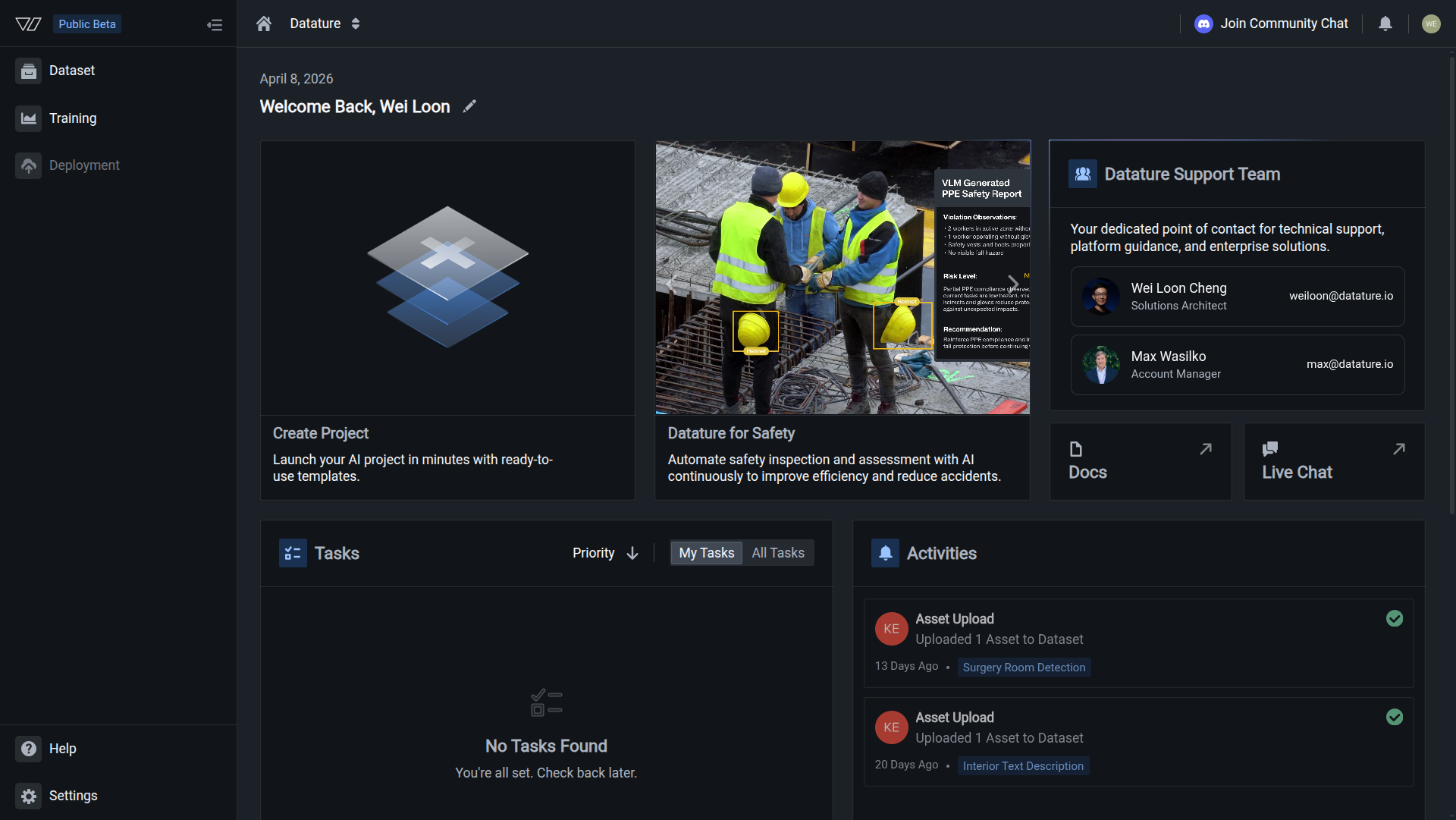
In your Datature Vi dashboard, click Training in the left sidebar to open the Training page.
Your project is created when you see the project overview page with a workflows section. The project is empty at this point; you will add workflows in the next step.
Next steps
Next: Create A Workflow
Configure your model, dataset, and training parameters on the visual workflow canvas.
Manage Training Projects
Learn how to rename, duplicate, and delete training projects.
Resource Usage and Quotas
Understand Compute Credits, data row limits, GPU options, and plan allowances.
Plans and Pricing
Compare plan tiers and see what is included for training, storage, and team features.
Updated 5 months ago