
Start a Training Run
Configure hardware, validate your dataset, and launch a VLM training run in Datature Vi.
A workflow configured, Compute Credits available, and a dataset that passed format checks.
Clicking Run Training on the workflow canvas opens a four-step dialog. You configure advanced settings and hardware, wait for dataset validation, then review a summary before the run launches. The whole process takes about 2 minutes. This guide uses default settings; for checkpointing strategies, evaluation intervals, and all hardware options, see the full training run guide.
Open the run configuration dialog
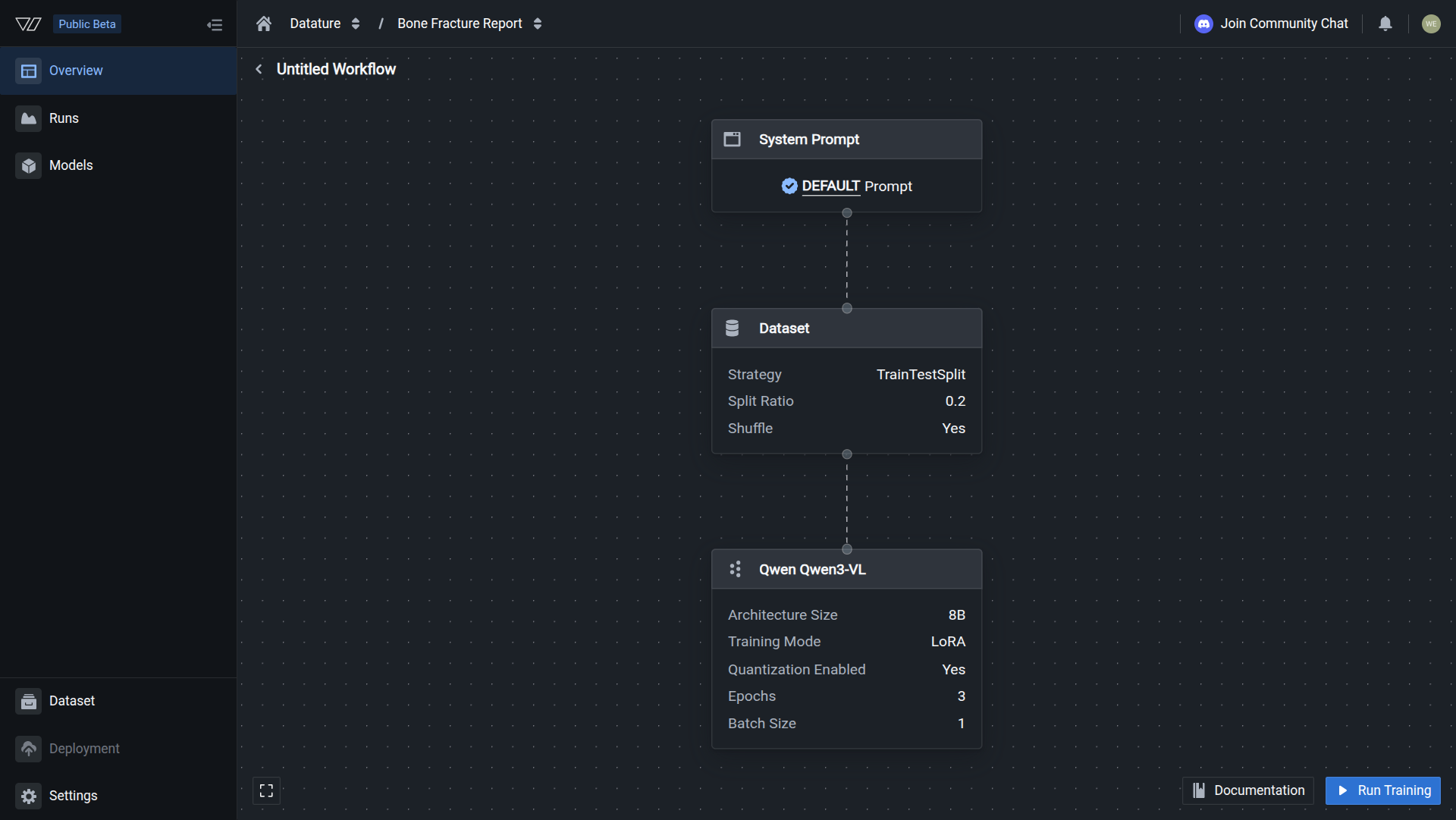
On the workflow canvas, click Run Training. The dialog opens at step 1 of 4: Advanced Settings.
What happens after launch
Training starts immediately. The run dashboard updates every few minutes with loss curves and validation metrics. A typical run takes 1–3 hours depending on dataset size, model architecture, number of epochs, and GPU type.
You can close the browser. The run continues on Vi's infrastructure, and you receive a notification when it finishes.
If training fails: Check the run logs for the error message. Common causes are insufficient GPU memory (reduce batch size or choose a GPU with more VRAM), annotation format errors (recheck your dataset), or a configuration issue in the workflow. You can cancel and restart a run from the training dashboard.
Your run launched successfully when the dashboard shows a Running status and the loss curve starts plotting values.
Next steps
Next: Deploy And Test
Download your trained VLM and run inference on new images using the Vi SDK.
Monitor Your Run
Track loss curves, validation metrics, and resource usage as training progresses.
Training Metrics
Understand loss curves, validation scores, and how to interpret training progress.
Start A Training Run
Configure checkpointing, evaluation intervals, and start a training run.
Updated 6 months ago