
Upload Images
Add images to your Datature Vi dataset using drag-and-drop in the web interface.
A dataset created and your image files ready to upload (JPEG, PNG, TIFF, BMP, or WebP, up to 256 MB each).
Images are the raw material your VLM trains on. Datature Vi stores them in your dataset, where you can browse, filter, and annotate them. Each uploaded image consumes Data Rows from your organization's quota. You need at least 20 images for a training run, though 100 or more produces more reliable results. This guide covers drag-and-drop uploads; for programmatic uploads, batch imports, and all supported formats, see the full upload guide.
Open your dataset's Explorer tab
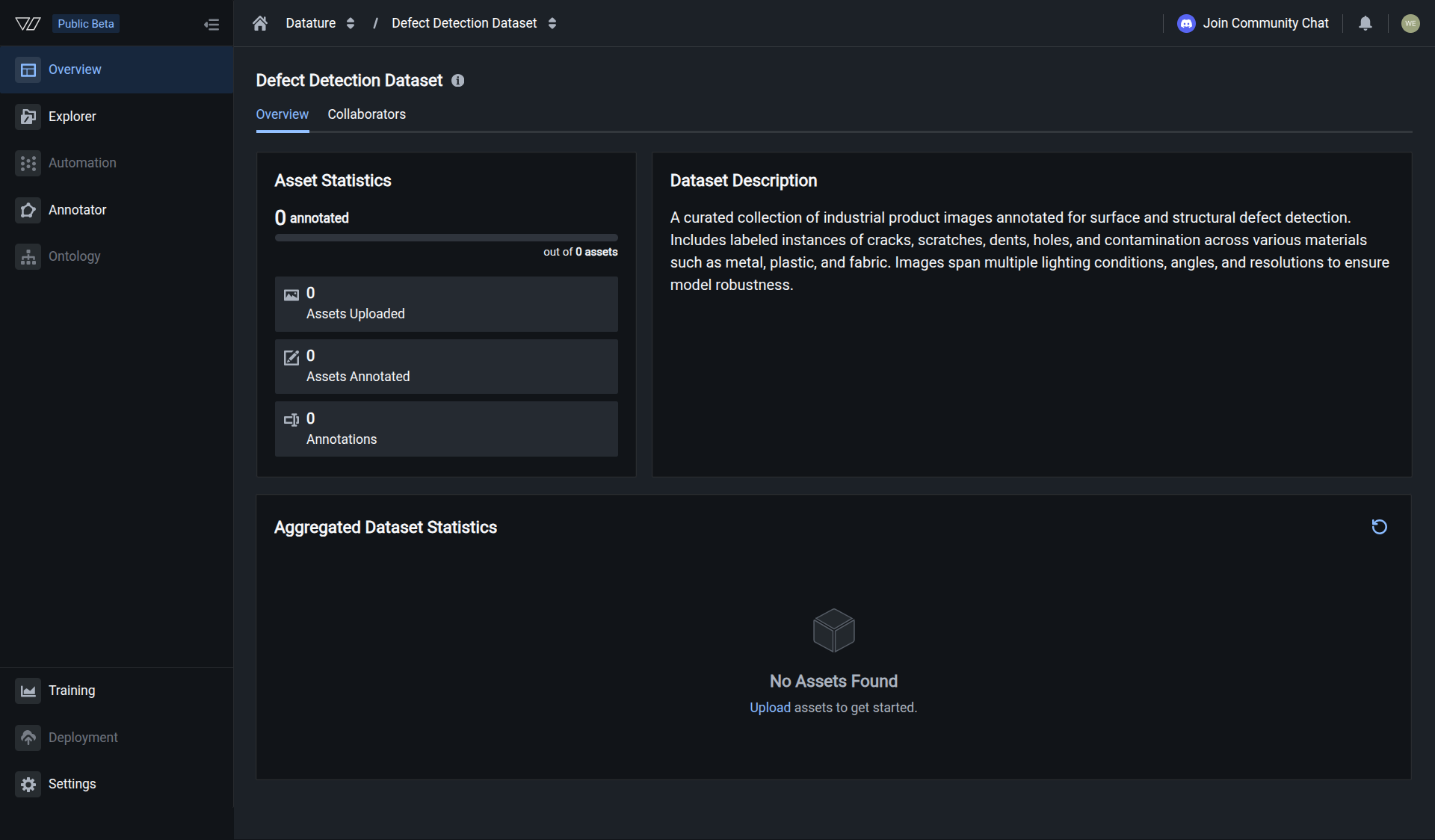
Open your dataset and click the Explorer tab. This is where your uploaded images will appear.
Slow uploads or failures? If uploads stall or fail, try uploading in batches under 1000 images at a time, confirm each file is under 256 MB, check that your connection is stable, and refresh the page if the progress indicator freezes.
Your images are uploaded when they appear as thumbnails in the Explorer and the asset count in the header matches what you uploaded.
Next steps
Next: Add Annotations
Upload existing annotation files or label your images using the built-in annotator.
Full Upload Guide
Learn about all supported formats, SDK uploads, and bulk import options.
Upload via the Vi SDK
Upload images programmatically using the Vi SDK for large-scale or automated pipelines.
Manage Your Assets
Bulk actions, filtering, deletion, and other asset management operations after upload.
Updated 5 months ago