
Create a Dataset
Create a new dataset in Datature Vi by choosing a task type, selecting a data type, and configuring storage.
A clear idea of your vision task (phrase grounding, visual question answering, or freeform text).
A dataset in Datature Vi holds your images, annotations, and task configuration. The task type you pick here determines which annotation formats you can upload and which VLM architectures you can train. You cannot change the task type after creation, so pick the right one now. For a full breakdown of all dataset options including storage regions and advanced configuration, see the complete dataset creation guide.
Open the Datasets page
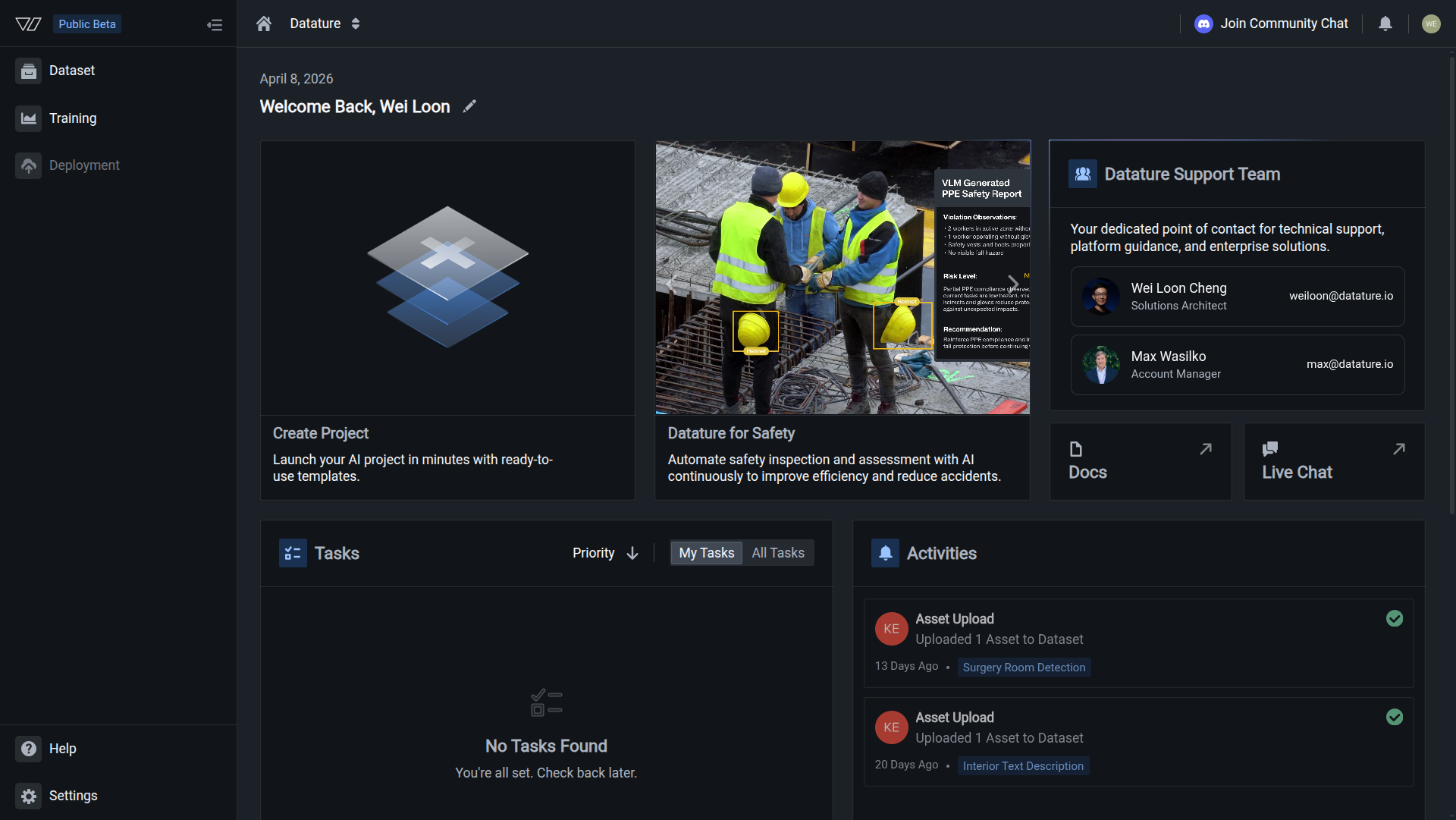
In your Datature Vi dashboard, click Dataset in the left sidebar to open the Datasets page.
Your dataset is created when you see the dataset page with empty statistics.
Next steps
Next: Upload Images
Add images to your dataset using drag-and-drop or the Vi SDK.
Learn About Dataset Types
Understand the differences between phrase grounding, VQA, and freeform text datasets.
Full Dataset Creation Guide
All configuration options including storage regions, naming conventions, and data residency settings.
Manage Your Datasets
Rename, view insights, download data, and organize datasets after creation.
Updated 5 months ago