
Create a Dataset
Set up a new dataset in Datature Vi by choosing a vision task type, configuring storage, and naming it before you upload data.
A dataset is the container that holds your images and annotations together. Every model you train in Datature Vi starts with one. This guide walks you through the four-step creation wizard: picking a task type, selecting your data format, naming the dataset, and confirming your settings.
A clear idea of your vision task (object detection, image Q&A, or other).
New to Datature Vi? Learn what it does or follow the quickstart.
Open the Dataset page
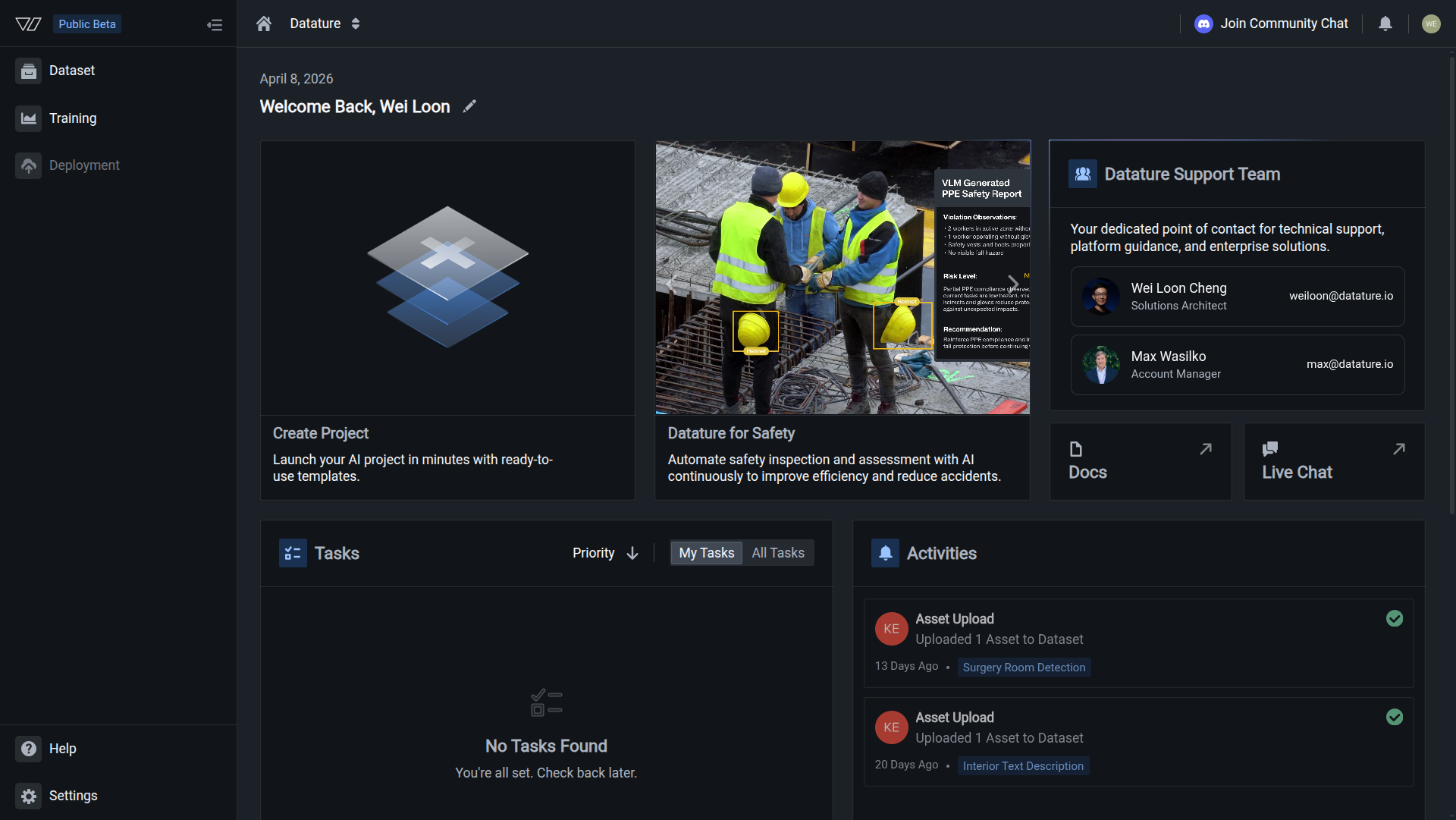
Click Dataset in the left sidebar. The list shows all datasets in your current workspace.
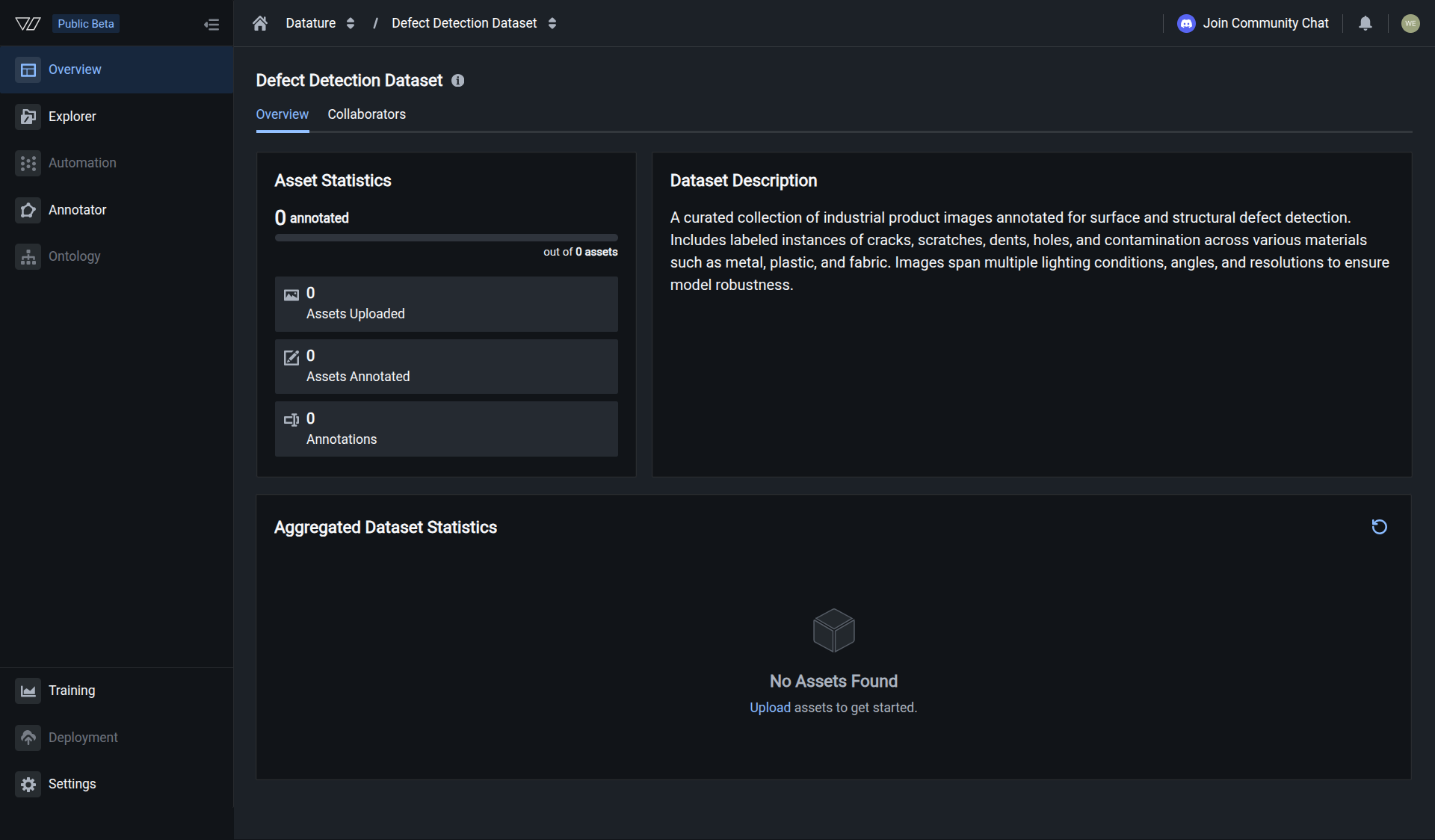
Your dataset is created when you see the dataset page with empty statistics.
Task types
The task type is permanent. If you need a different task type, you must create a new dataset.
The task type determines what kind of annotations your dataset holds and which training workflows it supports. You choose this once during creation and cannot change it afterward.
Phrase grounding pairs natural language descriptions with bounding boxes on images. Each annotation links a text phrase like "the red car on the left" to a rectangular region in the image. Use this for object detection tasks where you want the model to locate objects described in free-form text.
Visual question answering (VQA) pairs questions with answers about image content. Each annotation contains a question ("What color is the helmet?") and a reference answer ("Yellow"). Use this when you want the model to respond to natural language queries about what it sees.
Freeform text associates open-ended text with images. Unlike phrase grounding (which ties text to bounding boxes) and VQA (which uses question-answer pairs), freeform text lets you write any descriptive content. Use this for image captioning, report generation, or other tasks where the output format does not fit the other two types. Video datasets only support freeform text, so you must select this task type if your data type is video.
Storage region
The storage region is permanent. If you need a different region, you must create a new dataset.
The storage region controls where your image and annotation data is physically stored. You choose this during creation and cannot change it afterward.
Multi-Region distributes data across multiple geographic locations. This provides lower latency for globally distributed teams and higher redundancy. It is the recommended default for most projects.
Single Region stores data in one geographic location. Choose this when data sovereignty requirements or compliance policies mandate that data stays within a specific jurisdiction (for example, EU data residency rules). The available single region locations are:
The storage region does not affect annotation speed, training performance, or model quality. It only affects where the raw files are stored at rest.
Next steps
Updated 6 months ago