Delete a Workflow

Remove unused training workflows to keep your project organized and focused on active configurations.

💡

Runs and models remain unaffected

Deleting a workflow does not delete training runs or trained models that used it. Your training history and deployed models remain intact.

When to delete workflows

Consider deleting workflows in these situations:

  • Experimental configurations — Test workflows that didn't produce useful results
  • Duplicate workflows — Accidentally created duplicates or unused copies
  • Outdated configurations — Old workflows replaced by improved versions
  • Failed experiments — Workflows with invalid or incorrect settings
  • Project cleanup — Removing obsolete workflows from completed projects

Before you delete

Review these considerations before permanently deleting a workflow:

Check training history

Verify whether the workflow has associated training runs:

  • No training runs — Safe to delete without affecting any history
  • Completed training runs — Runs remain viewable, but workflow configuration details may be limited
  • Active training runs — You cannot delete workflows with training runs currently in progress
⚠️

Active runs must complete first

If a training run is currently using the workflow, you must either:

  • Wait for the run to complete
  • Cancel the run before deleting the workflow

The platform prevents deletion of workflows with active runs to avoid corrupting training jobs.

Consider duplicating instead

If the workflow might be useful later, consider these alternatives:

  • Duplicate the workflow — Create a copy as a backup before deletion
  • Rename for archival — Add "ARCHIVED - " prefix to indicate it's no longer active
  • Keep for reference — Retain the workflow to review configuration details for completed runs

Delete a workflow

Step 1: Navigate to your workflow

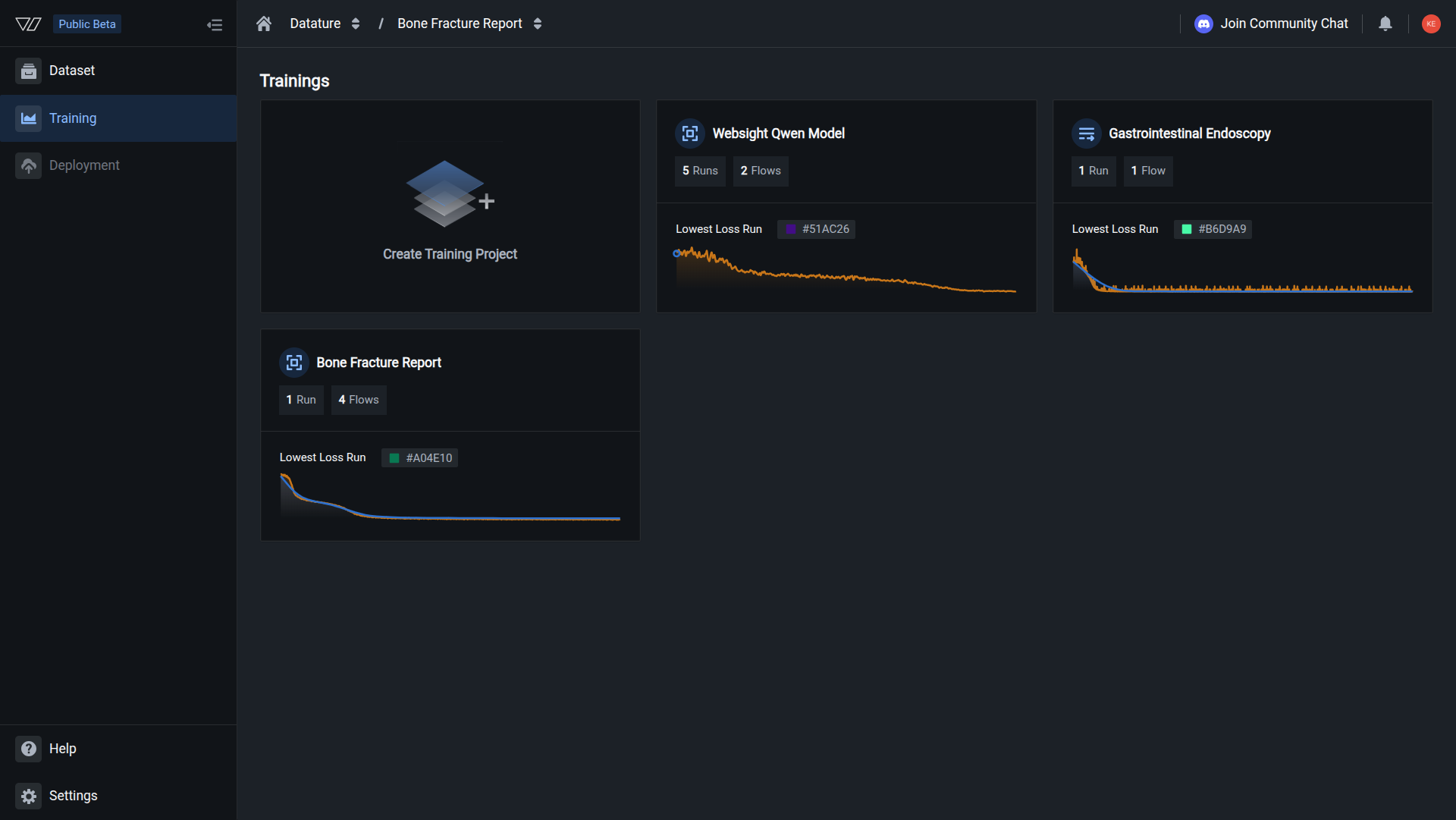
From your training project overview, locate the workflow you want to delete in the Workflows section.

Step 2: Open the workflow menu

Click the three-dot menu (⋮) on the right side of the workflow card to open the options menu.

The menu displays available actions:

  • Duplicate — Create a copy of the workflow
  • Delete — Permanently remove the workflow

Step 3: Select Delete

Click Delete from the menu.

A confirmation dialog appears with a warning message.

Step 4: Confirm deletion

The confirmation dialog displays:

"This action will permanently delete '[Workflow Name]' from your training project. Are you sure you want to delete this workflow?"

🔐

Safety confirmation

The dialog shows the exact workflow name to help you verify you're deleting the correct workflow. Review the name carefully before confirming.

Click the red Confirm button to permanently delete the workflow.

Step 5: Deletion complete

The workflow is removed immediately:

  • Disappears from your workflows list
  • No longer available for new training runs
  • Cannot be recovered

Workflow deleted successfully

The workflow has been permanently removed from your training project. Any training runs that used this workflow remain viewable in your run history.


What gets deleted

When you delete a workflow, the following are permanently removed:

Deleted immediately:

  • Workflow configuration (system prompt, dataset settings, model parameters)
  • Workflow name and description
  • Workflow canvas layout and node connections
  • Token count and validation settings
  • Workflow metadata and creation timestamp

Not affected:

  • Completed training runs — All runs that used this workflow remain viewable with their metrics and results
  • Active training runs — Cannot delete workflows with runs in progress (deletion blocked by platform)
  • Trained models — Deployed models continue to function normally
  • Dataset — The source dataset used by the workflow remains intact
  • Other workflows — All other workflows in your project are unaffected
💡

Training history remains accessible

Deleted workflows don't remove training runs from your project. You can still view run history, metrics, logs, and trained models. However, the workflow configuration details may have limited visibility in the run details.


Verify deletion

After deleting a workflow:

  1. The workflow no longer appears in your Workflows section

  2. You cannot select the deleted workflow when starting new training runs

  3. Training runs that used the workflow still appear in Runs section with their results

  4. The workflow name cannot be reused (though you can create a new workflow with the same name)


Common questions

Can I recover a deleted workflow?

No. Workflow deletion is permanent and cannot be undone. Once deleted, the workflow configuration is removed immediately.

Best practice: Duplicate the workflow before deletion if you might need it later. This creates a backup copy you can reference or modify.

What happens to models trained with a deleted workflow?

Trained models continue to work normally. Deleting a workflow has no effect on:

  • Models already trained using the workflow
  • Deployed models in production
  • Model predictions and inference
  • Model downloads and exports

The workflow configuration is only needed to create new training runs, not to use existing models.

Can I see the configuration of a deleted workflow?

Partially. After deletion:

  • Training runs retain some workflow information (model architecture, dataset used, training parameters)
  • Complete workflow details (system prompt, token counts, node configurations) may have limited visibility
  • Workflow canvas cannot be viewed since the workflow no longer exists

Best practice: Before deleting, document important workflow settings or duplicate the workflow for future reference.

Can I delete a workflow while a training run is in progress?

No. The platform prevents you from deleting workflows that have active training runs.

To delete the workflow:

  1. Wait for the training run to complete naturally, or
  2. Cancel the training run first
  3. Wait for the cancellation to complete
  4. Then delete the workflow

This safeguard prevents corrupting active training jobs and ensures run integrity.

Will deleting a workflow affect my team members?

If you delete a workflow in a shared training project:

  • No automatic notification is sent to team members
  • Workflow disappears for all team members immediately
  • Active runs are unaffected (completed runs remain viewable)
  • Cannot start new runs using the deleted workflow

Best practice: Communicate with your team before deleting shared workflows to ensure no one is planning to use the configuration.

Can I delete multiple workflows at once?

Currently, workflows must be deleted one at a time through the web interface. Each deletion requires confirmation to prevent accidental deletions.

For projects with many obsolete workflows, delete them individually with confirmation at each step.

What if I only want to temporarily disable a workflow?

There's no "archive" or "disable" feature for workflows. Consider these alternatives:

  • Rename the workflow — Add "ARCHIVED - " or "DEPRECATED - " prefix to the name (e.g., "ARCHIVED - Old PCB Model")
  • Leave it inactive — Simply don't use it for new training runs; inactive workflows don't consume resources
  • Duplicate before deleting — Create a backup copy for potential future use
Does deleting workflows free up storage or resources?

No. Workflows are lightweight configurations that don't consume significant storage or resources.

To free up actual storage and compute resources:

  • Delete training runs — Remove run logs, checkpoints, and temporary files
  • Delete datasets — Free up image and annotation storage
  • Keep workflows for reference—they have negligible impact on your resource usage

Check your resource usage in Organization > Resource Usage.


Best practices for workflow management

Duplicate before deleting

Create a backup copy of workflows that might be useful later

Use descriptive names

Name workflows clearly so you know which ones are safe to delete

Archive instead of delete

Rename workflows to "ARCHIVED - [Name]" to mark them inactive without deletion

Document key configurations

Save important workflow settings externally before deleting


Next steps