Rename a Workflow
Change your workflow name to better organize and identify training configurations.
Why rename workflows?
Clear, descriptive workflow names help you:
- Identify purpose — Quickly understand what each workflow trains
- Organize configurations — Distinguish between experimental and production workflows
- Track experiments — Use naming conventions for systematic testing
- Collaborate effectively — Help team members understand workflow objectives
Example naming conventions:
| Poor Name | Better Name | Best Name |
|---|---|---|
| Untitled Workflow | PCB Model | PCB-Qwen2.5-7B-LoRA-v1 |
| Workflow 1 | VQA Model | Manufacturing-VQA-NVLM-8B |
| Test | Test Run | PCB-Detection-Experiment-LR0.001 |
Rename a workflow
Step 1: Open your workflow
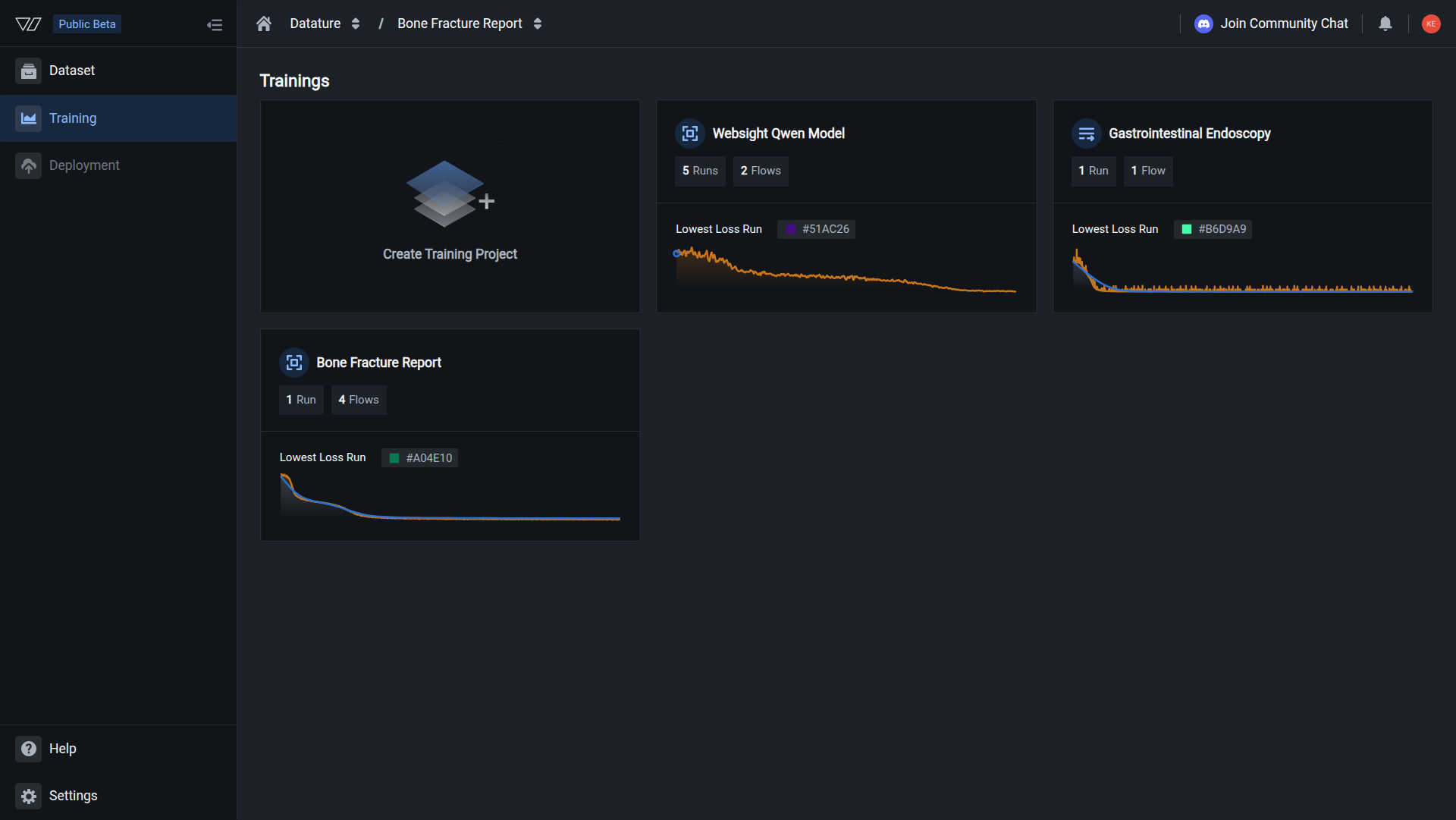
Navigate to the Training project containing your workflow.
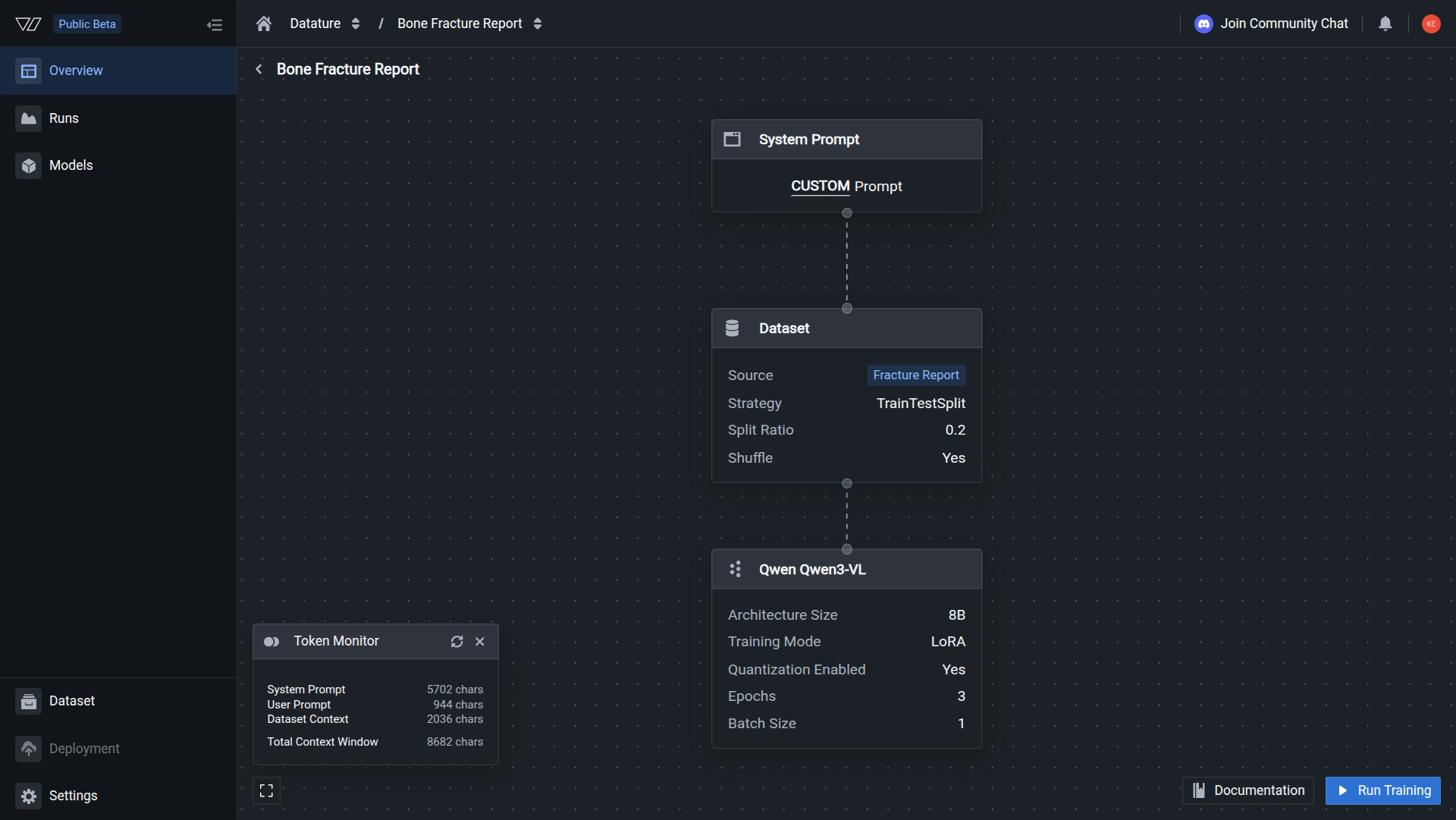
From the Workflows section, click the workflow you want to rename to open the workflow canvas.
Quick accessYou can also access workflows from the Runs section by clicking on any run, then selecting View Workflow.
Step 2: Click the workflow name
At the top of the workflow canvas, click on the current workflow name (e.g., "Untitled Workflow").
The name becomes editable with a text input field.
Step 3: Enter new name
Type your new workflow name in the text field.
Naming best practices:
- ✅ Use descriptive names that indicate purpose:
PCB-Component-Detection - ✅ Include key details: model architecture, task, or version:
Vehicle-VQA-Qwen2.5-7B-v2 - ✅ Use consistent naming conventions across workflows:
{Domain}-{Task}-{Model}-{Version} - ❌ Avoid generic names:
Workflow 1,Test,My Model - ❌ Don't use special characters that may cause issues:
/ \ : * ? " < > |
Step 4: Save the new name
Press Enter or click outside the text field to save your changes.
The workflow name updates immediately across:
- Workflow canvas header
- Workflows list
- Associated training runs
- Run history and logs
Changes saved automaticallyYour new workflow name is saved instantly. No additional confirmation required.
Workflow name requirements
| Requirement | Details | |
|---|---|---|
| Length | 1-100 characters recommended | |
| Characters | Letters, numbers, spaces, hyphens, and underscores | |
| Uniqueness | Names don't have to be unique (but recommended for clarity) | |
| Special characters | Avoid: `/ \ : * ? " < > | ` |
Naming strategies
Strategy 1: Descriptive purpose-based names
Use clear descriptions of what the workflow trains:
Format: {Domain/Use-Case}-{Task-Type}
Examples:
PCB-Component-DetectionAutomotive-Quality-InspectionMedical-Image-VQAWarehouse-Inventory-TrackingDocument-Understanding
When to use: General organization and team collaboration
Strategy 2: Technical specification names
Include model architecture and training mode details:
Format: {Domain}-{Model}-{Size}-{Training-Mode}
Examples:
PCB-Qwen2.5-7B-LoRADefects-NVLM-8B-FullFTVQA-InternVL2.5-4B-LoRAGrounding-Molmo-7B-LoRA
When to use: Comparing different model architectures or training approaches
Strategy 3: Experiment versioning names
Use versioning for systematic experimentation:
Format: {Base-Name}-{Experiment-Variable}-v{Version}
Examples:
PCB-Detection-LR0.001-v1PCB-Detection-LR0.0001-v2Vehicle-VQA-Batch16-v1Vehicle-VQA-Batch32-v2Manufacturing-3Epochs-v1Manufacturing-5Epochs-v2
When to use: A/B testing and hyperparameter optimization
Strategy 4: Date-based versioning
Include dates for chronological tracking:
Format: {Domain}-{Task}-YYYYMMDD or {Domain}-{Task}-v{Version}-YYYYMMDD
Examples:
PCB-Detection-20250101Defects-VQA-v3-20250115Warehouse-Grounding-20250201
When to use: Long-term projects with frequent iterations
Common questions
Does renaming affect training runs?
No. Renaming a workflow doesn't affect:
- Existing training runs (past or active)
- Saved models and checkpoints
- Run history or metrics
- Associated datasets or configurations
All runs maintain their connection to the workflow regardless of name changes.
Can multiple workflows have the same name?
Yes. Workflow names don't have to be unique within a project.
However, we strongly recommend using unique names to:
- Avoid confusion when selecting workflows
- Make run history easier to navigate
- Prevent accidental training with wrong configuration
If you need similar workflows, use versioning: PCB-Detection-v1, PCB-Detection-v2, etc.
Can I undo a rename?
Yes. Simply rename the workflow again to revert to the previous name.
There's no rename history, so if you want to track name changes, document them externally or include version numbers in your naming convention.
What happens if I use special characters?
The system accepts most characters, but certain special characters may cause issues:
Avoid these characters: / \ : * ? " < > |
These can cause problems with:
- File system compatibility when downloading models
- API integrations
- Automated scripts and workflows
Safe to use: Letters, numbers, spaces, hyphens (-), and underscores (_)
Best practices
Use consistent naming conventions
Establish naming standards for your team or project:
Standard convention example:
{Project}-{Task}-{Model}-{TrainingMode}-v{Version}
PCB-Grounding-Qwen2.5-7B-LoRA-v1
PCB-Grounding-Qwen2.5-7B-LoRA-v2
PCB-VQA-NVLM-8B-FullFT-v1Include key identifying information
Make it clear what makes this workflow unique:
- Task type: Phrase grounding vs. VQA
- Domain or use case: PCB inspection, defect detection, etc.
- Model architecture: Qwen2.5, NVLM, InternVL2.5
- Key parameters: Training mode, learning rate, batch size (for experiments)
- Version or iteration: v1, v2, v3 or date stamps
Rename before starting runs
Rename workflows from "Untitled Workflow" before starting your first training run for clearer run history:
Poor workflow:
Untitled Workflow → Run 1, Run 2, Run 3Good workflow:
PCB-Detection-Qwen2.5-7B-v1 → Run 1, Run 2, Run 3This makes it immediately clear which configuration produced each run.
Update names when configuration changes significantly
If you modify a workflow substantially (e.g., changing model architecture or completely rewriting the system prompt), consider updating the name or incrementing the version:
Example evolution:
PCB-Detection-v1 (Original)
↓ (Changed model from Qwen 2B to 7B)
PCB-Detection-Qwen7B-v2
↓ (Switched to full fine-tuning)
PCB-Detection-Qwen7B-FullFT-v3Related resources
- Create a Workflow — Set up new training workflows
- Delete a Workflow — Remove workflows you no longer need
- Manage Workflows — Overview of workflow management options
- Start a Training Run — Launch training with your workflow
Need help?
We're here to support your VLMOps journey. Reach out through any of these channels:
Updated about 1 month ago