Delete a Training Project

Permanently remove training projects you no longer need to keep your workspace organized.

Delete training projects that are no longer needed to keep your workspace organized and focused on active work. Deletion permanently removes the project along with all workflows, training runs, models, and associated data.

❗️

This action cannot be undone

  • Permanent deletion — All workflows, runs, and models are removed immediately
  • Cannot be recovered — There is no way to restore a deleted training project
  • Breaks references — API calls and URLs for this project ID will fail
  • Loses training history — All experiment metrics and results are permanently deleted
  • Consider exporting firstDownload trained models if you might need them later

Before you delete

Review these considerations before permanently deleting a training project:

Download trained models

If you might need the trained models in the future, export them before deletion:

  • Download trained models — Export model artifacts for deployment or archival
  • Save model configurations — Document workflow settings and training parameters
  • Export evaluation metrics — Capture performance data for future reference
  • Store locally or in registry — Keep models in version control or model registry
💡

Models are permanently deleted

Unlike datasets, which only serve as training data, trained models from deleted projects cannot be recovered. Always export important models before project deletion.

Check for dependencies

Verify that the project is not actively used or referenced:

  • Active training runs — Ensure no training is currently in progress
  • Deployed models — Check if any models from this project are deployed to production
  • Team workflows — Confirm team members aren't actively working with this project
  • Documentation — Update any documentation that references this project
  • API integrations — Verify no automated systems depend on this project ID

Alternative to deletion

Consider these options instead of permanently deleting:

  • Archive with namingRename the project to indicate it's archived (e.g., "ARCHIVED - Old Detection Project")
  • Export models and delete — Download trained models, then delete the project to free up workspace
  • Keep for reference — Retain completed projects for training history and reproducibility
  • Delete workflows only — Remove individual workflows instead of the entire project

Navigate to project deletion

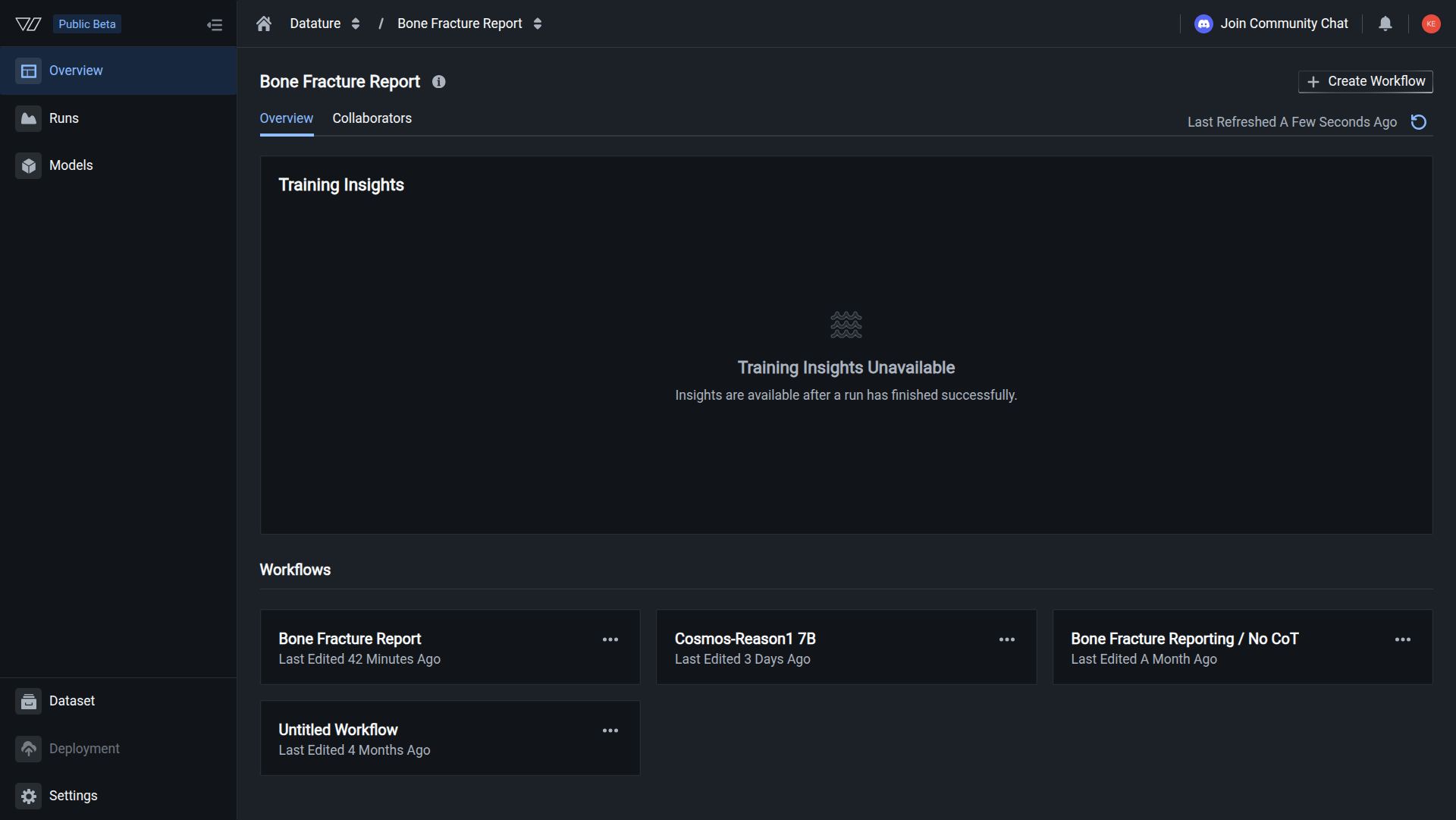
Navigate to the Training section from the sidebar

  1. Click on the training project you want to delete

  2. Click the three-dot menu (⋮) in the top right corner of the project page

  3. Select Delete Project from the dropdown menu

A deletion confirmation dialog appears with important warnings.


Delete your training project

🚨

Danger Zone

Project deletion is irreversible and removes all associated data permanently.

  1. In the Delete Project confirmation dialog, carefully read the warning message:

    "You are about to delete [Project Name]. All workflows, training runs, and trained models will be permanently deleted. This action cannot be undone."

  2. Type the exact project name in the confirmation field to verify your intent

    The placeholder text reads: "Type [Project Name] to confirm."

    🔐

    Safety confirmation

    You must type the exact project name to proceed. This prevents accidental deletions and ensures you're deleting the correct project.

  3. Once you've typed the project name correctly, the Delete button becomes enabled

  4. Click the red Delete button to permanently remove the project

  5. The project is deleted immediately and you're redirected to your training projects list


What gets deleted

When you delete a training project, the following are permanently removed:

Deleted immediately:

  • All workflows — Every training configuration in the project
  • All training runs — Complete training history, metrics, and logs
  • All trained models — Model artifacts and checkpoints
  • Project metadata — Name, description, settings, and configuration
  • Evaluation results — Performance metrics, confusion matrices, and analysis
  • Run history — Training progress logs and resource usage data
  • Workflow configurations — System prompts, dataset settings, and model parameters

Not affected:

  • Source datasetsDatasets remain intact and usable
  • Organization settings — Your organization and team settings remain unchanged
  • Other training projects — All other projects are completely unaffected
  • Compute Credit balance — Credits already consumed remain in usage history
  • Team member access — Organization permissions and roles are unchanged
💡

Cannot recover training history

Once deleted, all training runs, metrics, and models from this project are permanently lost. This includes:

  • Training curves and loss graphs
  • Validation metrics and evaluation results
  • Model comparison data
  • Resource usage logs
  • Experiment notes and configurations

There is no backup or recovery mechanism.


Cannot delete projects with active runs

The platform prevents deletion of training projects that have active training runs.

Why this safeguard exists

  • Prevents data corruption — Ensures training runs complete cleanly
  • Avoids wasted resources — Prevents losing Compute Credits from interrupted training
  • Maintains data integrity — Ensures training logs and metrics are properly saved

How to proceed

If you try to delete a project with active runs, you must:

  1. Monitor active runs to see their progress and estimated completion time

  2. Choose one option:

    Option A: Wait for completion

    • Let training runs finish naturally
    • Training history and models will be saved
    • Then proceed with project deletion

    Option B: Cancel active runs

    • Cancel the training runs immediately
    • Cancellation stops training and saves current state
    • Then proceed with project deletion
  3. Verify no active runs — Check the Runs tab to confirm all runs are completed or cancelled

  4. Delete the project — Proceed with deletion once all runs are inactive

⏱️

Queued runs also prevent deletion

Projects with queued (not yet started) training runs also cannot be deleted. You must cancel queued runs before deletion.


Verify deletion

After deletion:

  1. Project removed from list — The project no longer appears in your training projects list

  2. Direct links fail — Attempts to access the project via URL show a "not found" error

  3. API calls fail — API requests to the project ID return 404 errors

  4. Project ID retired — The project ID cannot be reused for new projects

  5. References broken — Any bookmarks, documentation links, or integrations referencing this project will fail


Common questions

Can I recover a deleted training project?

No. Training project deletion is permanent and cannot be undone. Once deleted, all workflows, training runs, and models are immediately and permanently removed from the platform.

There is no:

  • Undo functionality
  • Trash bin or recycle bin
  • Backup or restore option
  • Recovery period or grace window
  • Support recovery process

Best practice: Always download trained models before deletion if there's any chance you might need them.

What happens to models already deployed from this project?

If you deployed models externally:

Models that were downloaded and deployed outside Datature Vi continue to work normally. They are independent files that don't need ongoing connection to the training project.

If you were using Datature deployment:

Deployments directly linked to project models may be affected. Before deleting:

  1. Document deployment configurations
  2. Download model files
  3. Update deployments to use exported model files
  4. Verify deployments work independently

Best practice: Always deploy using exported model files rather than direct project references.

Will deletion free up my Compute Credits?

No. Deleting a training project does not refund Compute Credits.

What happens:

  • Credits already consumed by training runs remain spent
  • Past training run costs stay in your usage history
  • Deletion doesn't affect your current credit balance
  • Future training in other projects still consumes credits normally

Credits are consumed when:

  • Training runs execute on GPU hardware
  • Regardless of whether the project is later deleted

View your resource usage →

Can I delete multiple projects at once?

Currently, training projects must be deleted one at a time through the web interface. Each deletion requires typing the project name as a safety measure.

For bulk deletions:

  1. Create a deletion checklist — List projects to delete
  2. Download models — Export any needed models from all projects first
  3. Verify each project — Confirm no active dependencies
  4. Delete systematically — Work through your list one project at a time
  5. Track progress — Check off completed deletions

Best practice: Schedule a cleanup session to handle multiple deletions efficiently rather than spreading them out.

Will my team be notified when I delete a project?

No automatic notification is sent to team members. For shared projects:

Before deletion:

  1. Inform your team about planned deletion
  2. Ensure no one is actively working with the project
  3. Verify no automated workflows depend on the project
  4. Share exported models with team members who might need them
  5. Update shared documentation that references the project

Communication channels:

  • Team chat or collaboration tools
  • Project management systems
  • Email notifications
  • Team meetings or standups

Best practice: Get team consensus before deleting shared training projects.

What if I only want to remove some workflows, not the entire project?

Instead of deleting the entire project, you can:

Benefits:

  • Preserves project organization and ID
  • Maintains training history for successful experiments
  • Keeps team access and permissions
  • Allows future work in the same project

When to use: You want to clean up failed experiments but continue working in the project.

Learn about workflow management →

Can I export my entire project before deleting?

Currently, there is no "export entire project" feature. You must export components individually:

Export checklist:

  1. Trained models:

  2. Workflow configurations:

    • Document system prompts (copy text)
    • Screenshot or note dataset settings
    • Record model parameters and training settings
  3. Training metrics:

    • Screenshot evaluation results
    • Export metrics if available
    • Document best-performing configurations
  4. Project documentation:

    • Copy project name and description
    • Note project localization setting
    • Document team decisions and learnings

Best practice: Create a project archive folder locally with all exported components before deletion.

I accidentally deleted the wrong project. What can I do?

Unfortunately, deletion is permanent and irreversible.

No recovery options:

  • Cannot restore through support
  • No server-side backups available
  • No undo or rollback functionality

Your only options:

  1. Recreate from local backups (if you have them):

    • Re-create training project
    • Re-create workflows with same configurations
    • Re-upload models if you exported them
  2. Retrain from scratch (if you have datasets):

  3. Accept the loss (if no backups exist):

    • Training history is permanently lost
    • Models must be retrained
    • Experiment data cannot be recovered

Prevention:

  • Always download models before deletion
  • Double-check project name in confirmation dialog
  • Use careful naming to avoid confusion
  • Get team confirmation before deleting shared projects
  • Consider archiving (renaming) instead of deleting

Best practices for project cleanup

Regular audits

Review training projects quarterly to identify cleanup candidates

Download first

Always export trained models before deleting projects

Team coordination

Coordinate with team before deleting shared projects

Archive naming

Rename to "ARCHIVED - [Name]" instead of deleting for reference

Document decisions

Keep notes on why projects were deleted for future reference

Verify dependencies

Check for deployed models and active integrations first


When to delete vs. archive

Choose between deletion and archiving based on your needs:

Delete when:

  • Test project — Created for learning or experimentation only
  • Duplicate project — Accidentally created or redundant
  • Failed initiative — Project didn't produce viable results and won't be referenced
  • No valuable models — Training runs didn't produce models worth keeping
  • Clean workspace needed — You want to focus on active projects only
  • Models exported — You've downloaded all models and don't need training history

Archive (rename with "ARCHIVED - " prefix) when:

  • Successful completion — Project produced models now deployed to production
  • Reference value — Training configurations might be useful for future projects
  • Team learning — Experiments contain valuable insights for team
  • Regulatory compliance — Need to maintain training history for audits
  • Model versioning — Want to track model evolution over time
  • Uncertain future — Might need to reference or continue work later
💡

Archiving preserves history

Renaming projects with "ARCHIVED - " prefix keeps training history accessible while clearly marking projects as inactive. This is often better than permanent deletion.


Deletion workflow

Follow this recommended workflow for safe project deletion:

1. Identify deletion candidates

Review training projects and categorize:

  • Active development — Keep
  • Production models — Archive or keep
  • Completed successful projects — Export models, then delete or archive
  • Failed experiments — Delete
  • Test/learning projects — Delete

2. Prepare for deletion

For each project to delete:

  1. Download trained models you want to keep
  2. Document configurations — Screenshot or note important settings
  3. Export metrics — Save evaluation results
  4. Check dependencies — Verify no active deployments

3. Coordinate with team

For shared projects:

  1. Notify team — Announce planned deletions
  2. Confirm no blockers — Ensure no one needs the project
  3. Share exports — Distribute downloaded models to team
  4. Update documentation — Remove project references

4. Delete the project

  1. Navigate to the project
  2. Select Delete Project from menu
  3. Read warning carefully
  4. Type project name to confirm
  5. Click Delete

5. Verify and document

After deletion:

  1. Verify removal — Confirm project no longer appears
  2. Update references — Fix broken links in documentation
  3. Document decision — Note why project was deleted
  4. Confirm exports — Verify model files are safely stored

Next steps


Related resources