Resource Usage

Monitor and manage your organization's Data Rows, Compute Credits, and Collaborator usage on Datature Vi.

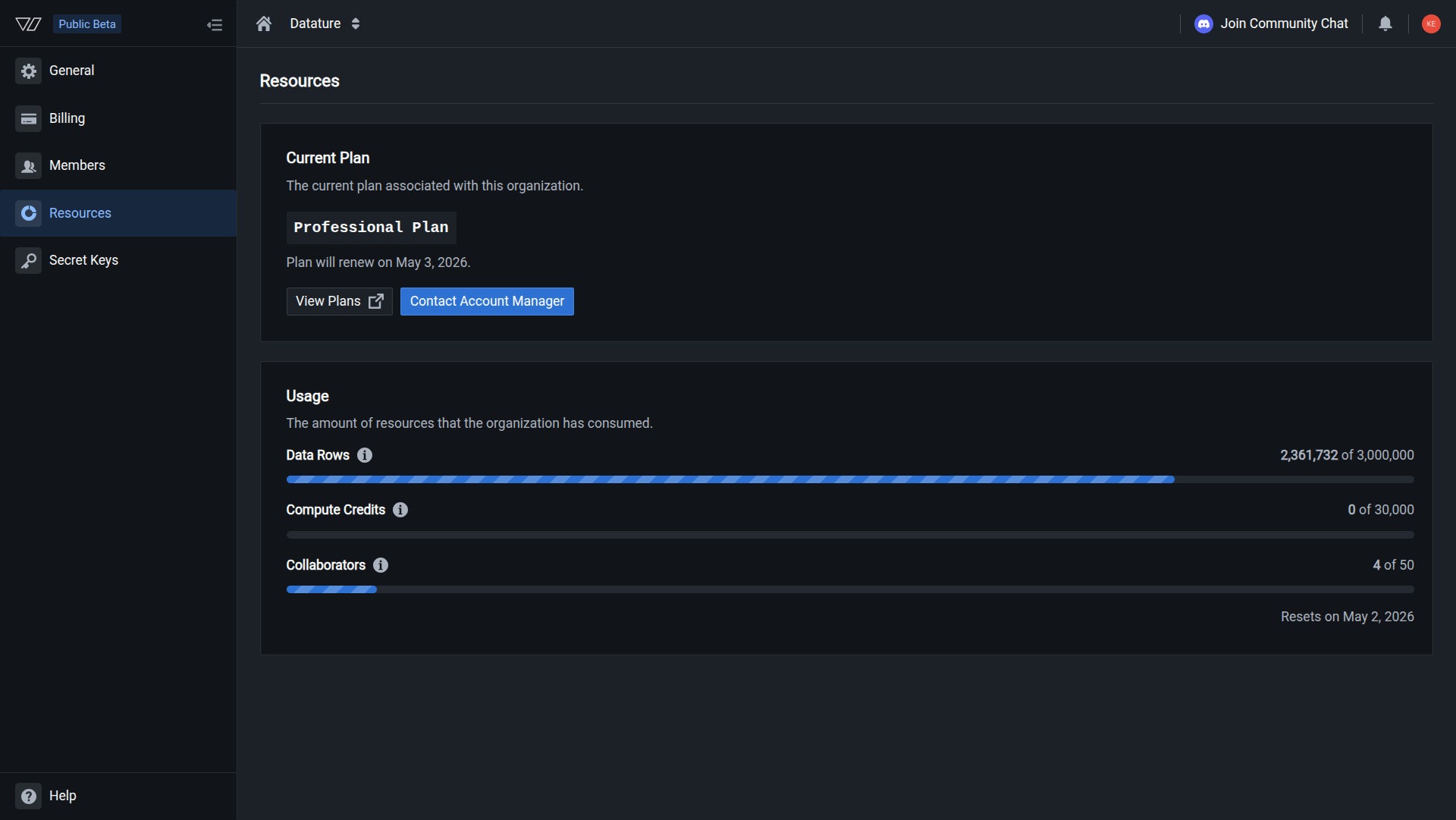
Understanding your resource usage is essential for managing your organization effectively on Datature Vi. The Resources page provides real-time visibility into your consumption of Data Rows, Compute Credits, and Collaborators, helping you optimize costs and plan capacity.

📊

Access the Resources page

Resources page

Navigate to the Resources page from anywhere in your workspace:

  1. Click Settings at the bottom of the left sidebar
  2. Select the Resources tab

You'll see current usage, limits, and renewal dates for all resource types.


What are resources?

Resources are the base currencies that power different capabilities on Datature Vi. Each resource type serves a specific purpose and is consumed by different activities:

Data Rows

Currency for storing assets and creating annotations

Compute Credits

Currency for running training workflows and deployments

Collaborators

Currency for inviting team members to your organization


Data Rows

Data Rows are the base currency for asset ingestion and annotation on Vi. Every asset you upload and every phrase grounding or VQA annotation pair you create consumes Data Rows from your organization's quota.

What consumes Data Rows?

ActivityData Rows consumedDetails
Upload an image5 Data RowsStandard consumption for image assets (JPEG, PNG, etc.)
Create a phrase grounding pair1 Data RowEach text-bounding box pair for phrase grounding
Create a VQA pair1 Data RowEach question-answer pair for visual question answering
Other file typesVariesVideo and future formats may consume more

How Data Rows work

Example calculation for a phrase grounding dataset:

Upload 100 images:
  100 images × 5 Data Rows = 500 Data Rows

Create 50 text-bounding box pairs:
  50 phrase grounding pairs × 1 Data Row = 50 Data Rows

Total consumption: 550 Data Rows

Optimization strategies

Review before uploading

Remove low-quality or duplicate assets before upload to avoid wasting Data Rows

Batch uploads efficiently

Organize and filter your dataset before uploading to minimize rework

Use AI-assisted tools

Leverage AI-assisted annotation tools to speed up phrase grounding without increasing consumption

Delete unused assets

Data Rows are consumed at upload; deleting assets doesn't return them

💡

Note: Data Rows are consumed when assets are uploaded and annotation pairs are created. Deleting assets or annotation pairs does not refund Data Rows—they remain consumed for accounting purposes.


Compute Credits

Compute Credits are the base currency for running training and deployments on Vi. They measure GPU time consumed by your training workflows, with usage scaling based on GPU configuration and duration.

How Compute Credits work

One Compute Credit represents one minute of compute time on a single NVIDIA T4 GPU. Usage scales based on GPU type and count:

ConfigurationCompute Credits per minuteCalculation
1× T4 GPU1 creditBase rate: 1.0 multiplier × 1 minute
2× T4 GPUs2 creditsMulti-GPU: 2.0 multiplier × 1 minute
4× T4 GPUs4 creditsMulti-GPU: 4.0 multiplier × 1 minute
1× A100 (40GB)4 creditsAdvanced GPU: 4.0 multiplier × 1 minute
2× A100 (40GB)8 creditsAdvanced GPU: 8.0 multiplier × 1 minute
1× H100 GPU12 creditsHigh-performance: 12.0 multiplier × 1 minute

GPU multipliers

View complete GPU multiplier table

Different GPU types have different multipliers based on performance and capabilities:

GPU typeSingle GPU multiplierMulti-GPU optionsPerformance tier
NVIDIA T41.0×1, 2, 4, 8 GPUsEntry-level, cost-effective
NVIDIA L42.0×1, 2, 4, 8 GPUsBalanced performance
NVIDIA A10G2.5×1, 4, 8 GPUsMid-range training
NVIDIA A100 (40GB)4.0×1, 2, 4, 8, 16 GPUsHigh-performance training
NVIDIA A100 (80GB)6.0×1, 2, 4, 8 GPUsLarge model training
NVIDIA H10012.0×1, 2, 4, 8 GPUsCutting-edge performance
NVIDIA H20010.0×8 GPUs onlyUltra high-performance
NVIDIA B20014.0×8 GPUs onlyNext-generation training

Example usage calculation

Training run configuration:
  - 4× NVIDIA A10G GPUs
  - 45 minutes duration

Calculation:
  10.0 multiplier (for 4× A10G) × 45 minutes = 450 Compute Credits

Note: Multi-GPU configurations have their own specific multipliers. The multiplier for 4× A10G GPUs is 10.0, which accounts for the combined compute power.

Common GPU configurations

View credit costs for popular GPU configurations

Here are the Compute Credit costs per minute for popular configurations:

GPU configurationCredits per minuteBest for
1× T41.0Small models, experimentation
4× T44.0Standard training workflows
1× L42.0Balanced performance and cost
1× A10G2.5Mid-sized models
1× A100 (40GB)4.0Large models, faster training
4× A100 (40GB)16.0Distributed training, large datasets
1× A100 (80GB)6.0Very large models
4× A100 (80GB)24.0Foundation models
1× H10012.0Maximum single-GPU performance
4× H10048.0Cutting-edge distributed training
8× H10096.0Ultra-large scale training

What consumes Compute Credits?

ActivityCredit consumptionDetails
Model trainingPer minute of GPU timePrimary consumption; scales with GPU count and type
Model deploymentsPer minute of inferenceReal-time model serving for predictions

Optimization strategies

Choose appropriate GPUs

Use T4 or L4 for experimentation, A100 for production, H100/H200/B200 for premium workloads

Optimize training duration

Use early stopping and checkpoint strategies to avoid unnecessary epochs

Single GPU first

Test with 1 GPU before scaling to multi-GPU configurations

Monitor active runs

Cancel runs that aren't converging to save credits

Learn more about GPU resources →

Planning your Compute Credit usage

30-minute training run estimates

Credit consumption by GPU configuration:

  • 1× T4: 30 credits
  • 4× T4: 120 credits
  • 1× A100 (40GB): 120 credits
  • 4× A100 (40GB): 480 credits
  • 1× H100: 360 credits
2-hour training run estimates

Credit consumption by GPU configuration:

  • 1× T4: 120 credits
  • 4× T4: 480 credits
  • 1× A100 (40GB): 480 credits
  • 4× A100 (40GB): 1,920 credits
  • 1× H100: 1,440 credits
8-hour training run estimates

Credit consumption by GPU configuration:

  • 1× T4: 480 credits
  • 4× T4: 1,920 credits
  • 1× A100 (40GB): 1,920 credits
  • 4× A100 (40GB): 7,680 credits
  • 1× H100: 5,760 credits
💡

Tip: Start with a single T4 GPU to validate your training configuration and estimate the time needed. Then scale up to faster GPUs or multi-GPU setups for production runs.


Collaborators

Collaborators are the base currency for inviting unique members to your organization. Each person you invite—whether team members, clients, or external partners—consumes one Collaborator from your quota.

What consumes Collaborators?

ActivityCollaborators consumedDetails
Invite a new member1 CollaboratorEach unique email address counts as one Collaborator
Remove a memberReturns 1 CollaboratorRemoving members frees up slots for new invites

How Collaborators work

Your organization has 10 Collaborator slots:

Current members: 7 people
  → 7 Collaborators consumed
  → 3 Collaborators available

Invite 2 new members:
  → 9 Collaborators consumed
  → 1 Collaborator available

Remove 1 member:
  → 8 Collaborators consumed
  → 2 Collaborators available

Managing your team

👥

Note: Removing a member immediately frees up one Collaborator slot, which can be used to invite a new member. Member removal does not affect historical activity or attribution.


Monitoring resource usage

The Resources page provides real-time visibility into your consumption and availability:

Usage indicators

Each resource displays:

  1. Current consumption — How much you've used
  2. Total quota — Your organization's limit
  3. Progress bar — Visual representation of usage percentage
  4. Renewal date — When Compute Credits reset (Data Rows and Collaborators are persistent allocations)

Usage status indicators

StatusMeaningAction needed
Green (0-70%)Normal usageContinue regular operations
Yellow (70-90%)Approaching limitPlan resource optimization or upgrade
Red (90-100%)Critical or depletedUpgrade plan or reduce consumption

Real-time updates

Resource usage updates in real-time as you:

  • Upload assets to datasets
  • Create or import phrase grounding or VQA annotation pairs
  • Start training runs
  • Deploy models
  • Invite or remove team members

Understanding quotas and limits

Plan-based allocations

Resource quotas are determined by your organization's subscription plan:

PlanData RowsCompute CreditsCollaborators
Free3,00030010
Starter10,0001,00025
Professional50,0005,00050
EnterpriseCustomCustomCustom
📋

Note: The table above shows example allocations. Your actual quotas depend on your specific subscription. View your current plan and quotas on the Resources page.

Renewal periods

Different resources have different renewal behaviors:

  • Data Rows — Persistent allocation; do not renew but are fixed to your plan
  • Compute Credits — Renew monthly on your plan anniversary date
  • Collaborators — Persistent slots; do not renew but are fixed to your plan

Overages and restrictions

When you reach your resource limits:

ResourceWhat happensHow to resolve
Data RowsCannot upload assets or create annotation pairsUpgrade plan or purchase add-ons
Compute CreditsCannot start new training runs or deploymentsWait for renewal or purchase add-ons
CollaboratorsCannot invite new membersRemove inactive members or upgrade plan

Best practices

Monitor proactively
  • Check weekly — Review usage weekly to avoid unexpected limit hits
  • Track trends — Monitor consumption patterns to predict future needs
  • Plan ahead — Upgrade before reaching limits if planning large projects
  • Set internal alerts — Create team processes to notify at 80% usage thresholds
Optimize consumption

Data Rows:

  • Review assets for quality before uploading
  • Remove duplicates in your local dataset
  • Import pre-labeled phrase grounding or VQA annotations to save time

Compute Credits:

  • Choose appropriate GPU types for your workload
  • Implement early stopping in training configurations
  • Cancel underperforming runs promptly

Collaborators:

  • Audit team membership quarterly
  • Remove inactive or former members
  • Use guest access for temporary collaborators (if available)
Plan for growth

Anticipate your resource needs:

  1. Calculate project requirements — Estimate Data Rows and Compute Credits before starting
  2. Review historical usage — Analyze past consumption patterns
  3. Plan for scale — Consider upgrading if consistently near limits
  4. Contact sales early — Discuss Enterprise plans for large-scale projects

Upgrading and purchasing resources

When to upgrade

Consider upgrading your plan when:

  • Consistently reaching 80%+ of any resource quota
  • Planning larger projects that exceed current allocations
  • Growing team requires more Collaborator slots
  • Training larger models or more frequent iterations

How to upgrade

Contact options:

View plans

Click Change Plan on the Resources page to explore options

Contact sales

Email [email protected] for Enterprise plans and custom quotas

Live support

Use the in-app chat for immediate assistance

Schedule a call

Book a consultation to discuss your organization's needs

Add-on resources

Some plans allow purchasing additional resources:

  • Data Row packs — Add extra Data Rows to your monthly allocation
  • Compute Credit bundles — Purchase additional GPU time
  • Collaborator seats — Expand team capacity without full plan upgrade
💼

Enterprise customers: Contact your account manager for custom resource allocations, volume discounts, and flexible billing arrangements.


Common scenarios

Scenario 1: Running out of Data Rows mid-project

Situation: You're at 95% Data Rows with 200 more images to annotate for phrase grounding.

Options:

  1. Upgrade plan — Purchase a higher tier for immediate allocation increase
  2. Buy add-on pack — Purchase additional Data Rows if available on your plan
  3. Optimize dataset — Review and remove any unnecessary assets (note: this won't refund Data Rows but can help you understand actual usage)
  4. Contact support — Discuss temporary allocation increases or plan options
Scenario 2: Compute Credits depleted during training

Situation: No Compute Credits remaining with 3 more training experiments planned.

Example calculation:

Completed run: 4× A100 (40GB), 2 hours
  16.0 credits/min × 120 minutes = 1,920 credits consumed

Remaining experiments:
  - Experiment 1: 1× T4, estimated 3 hours = 180 credits
  - Experiment 2: 2× L4, estimated 2 hours = 480 credits
  - Experiment 3: 1× A100 (40GB), estimated 1 hour = 240 credits
  Total needed: 900 credits

Options:

  1. Wait for renewal — Pause training until next billing cycle
  2. Optimize training — Use 1× T4 (1 credit/min) instead of multi-GPU setups
  3. Purchase credits — Buy Compute Credit add-ons if available
  4. Upgrade plan — Move to a higher tier with more monthly credits
  5. Cancel low-priority runs — Focus on the most important experiment
Scenario 3: Need to invite more team members

Situation: All 10 Collaborator slots filled, need to add 5 contractors.

Options:

  1. Remove inactive members — Audit and remove former team members
  2. Upgrade plan — Select a plan with higher Collaborator limits
  3. Share credentials — Use shared accounts (not recommended for security)
  4. Rotate access — Add/remove contractors as needed per project phase

Troubleshooting

Cannot upload assets

Issue: Upload button is disabled or shows error.

Potential causes:

  • Data Rows quota reached
  • Network connectivity issues
  • File format not supported

Solutions:

  • Check Data Rows availability on Resources page
  • Upgrade plan or purchase Data Row add-ons
  • Verify file formats are supported
Training run won't start

Issue: "Start Training" fails with resource error.

Potential causes:

  • Compute Credits depleted
  • GPU configuration exceeds available credits
  • Active runs consuming all credits

Solutions:

  • Check Compute Credits on Resources page
  • Cancel unnecessary active runs
  • Reduce GPU count or select lower GPU tier
  • Wait for renewal or purchase add-ons
Cannot invite new members

Issue: Invite button disabled or shows limit error.

Potential causes:

  • All Collaborator slots consumed
  • Pending invitations counting toward limit

Solutions:

  • Remove inactive or former members
  • Revoke unused pending invitations
  • Upgrade to plan with more Collaborators

Frequently asked questions

Do unused resources roll over?

Data Rows: Persistent allocation that does not renew or roll over. Your total Data Rows are fixed to your plan.

Compute Credits: Typically do not roll over; unused allocations reset at renewal. Check your specific plan terms.

Collaborators: Are persistent slots, not monthly renewals.

Can I purchase resources individually?

Depends on your plan. Some plans offer add-on purchases for Data Rows and Compute Credits. Contact support to explore options.

What happens to my data if I exceed limits?

Your existing data remains safe and accessible. You simply cannot perform new operations that consume the depleted resource until renewal or upgrade.

Do deleted assets refund Data Rows?

No. Data Rows are consumed at the time of upload and annotation pair creation. Deleting assets or annotation pairs does not refund Data Rows.

How accurate is the usage tracking?

Usage is tracked in real-time and reflects actual consumption. Minor delays (seconds) may occur during bulk operations.

Can I share resources across multiple organizations?

No. Resources are organization-specific and cannot be transferred or shared between organizations.


Next steps