
Phrase Grounding
Draw bounding boxes and link them to text descriptions to build phrase grounding training data for your VLM.
- A phrase grounding dataset with uploaded images
- A plan for which objects you want to annotate and how you will describe them
Phrase grounding annotations teach your vision-language model (VLM) to locate objects by their text description. Each annotation pairs a written caption with bounding boxes, where specific phrases in the caption link to the boxes they describe. This guide walks through creating those annotations in Datature Vi.
Open the annotator
Go to your dataset, then click the Annotate tab. Click any image thumbnail in the bottom strip to load it onto the canvas.
Open the Annotator tab
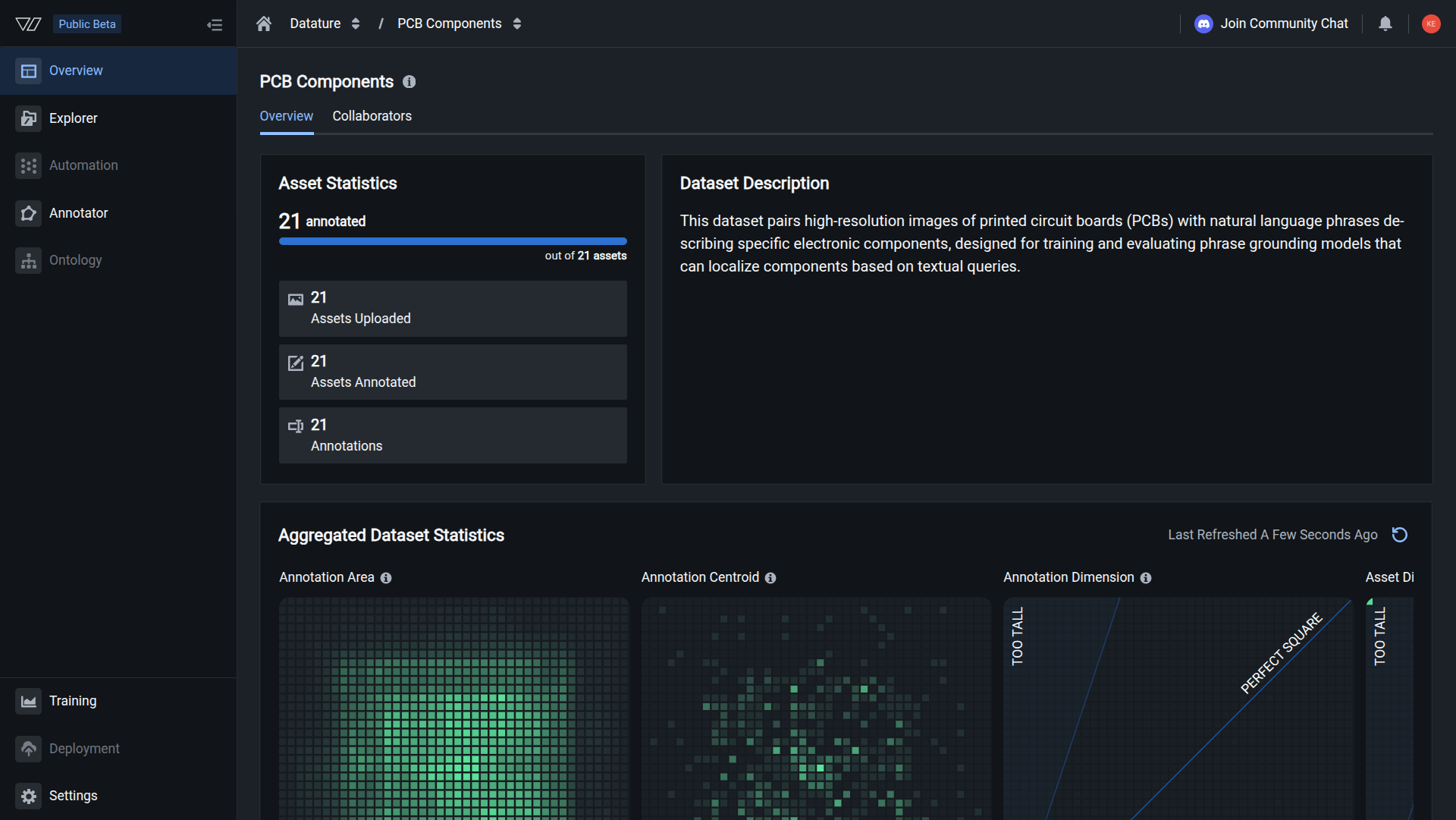
From the Dataset Overview page, click the Annotator tab to open the labeling interface.
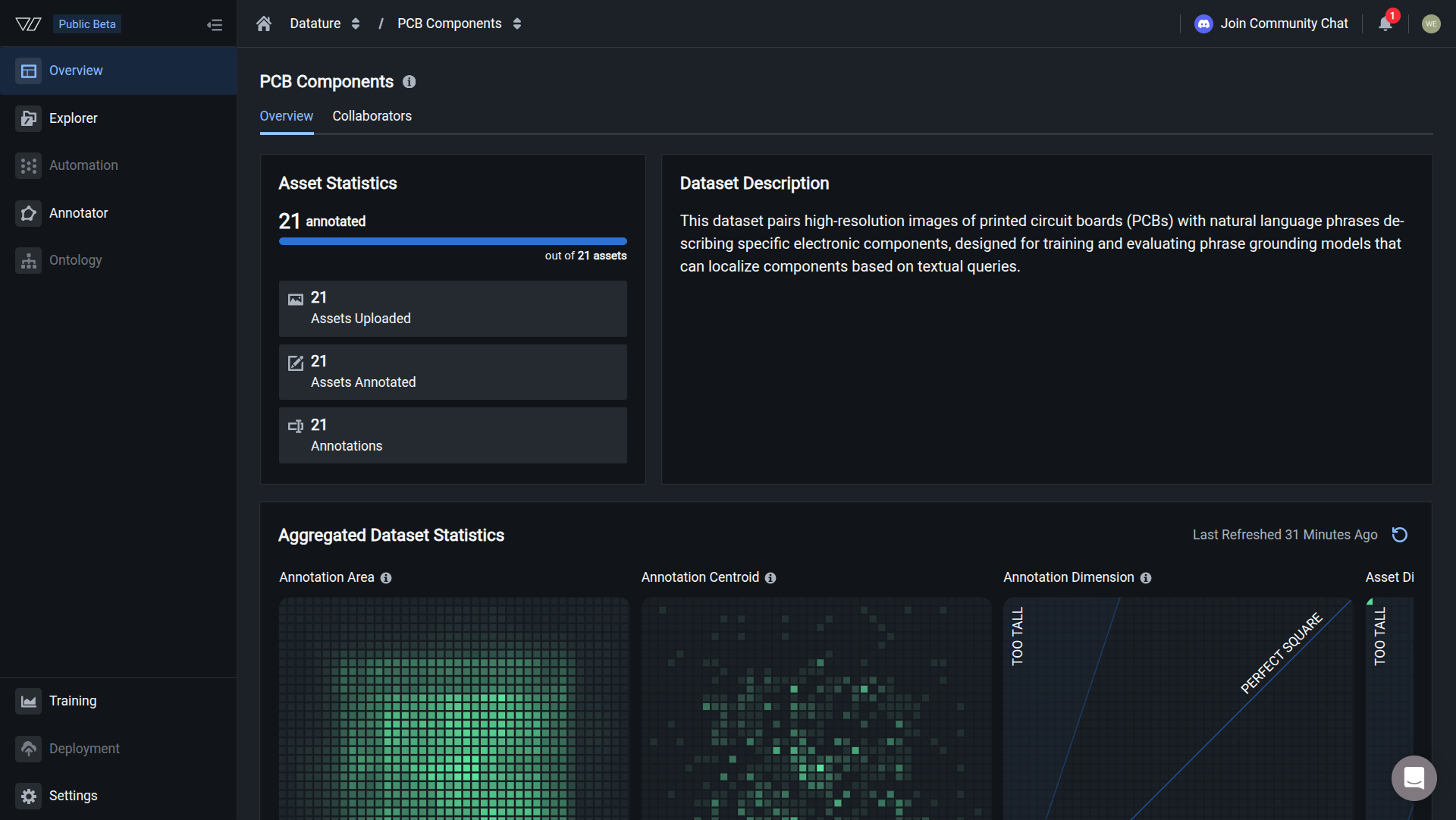
Your annotations are ready when you see annotation count matching the image count, and heatmaps showing annotation patterns.
Keyboard shortcuts
Annotation guidelines
These guidelines produce annotations that train well. Inconsistent annotations train poorly regardless of quantity.
Captions
- Be specific: "FPGA chip" over "chip", "blue safety helmet" over "helmet"
- Include spatial info: "in the center", "on the left edge", "above the connector"
- Use consistent terminology across your entire dataset
Bounding boxes
- Include the full object with minimal empty space
- Stay consistent about box tightness across images
- For partial objects, box the visible portion and note it in the caption
Phrase links
- Each highlighted phrase must be a distinct, non-overlapping region
- One phrase per box; split complex descriptions into separate pairs
- Aim for 5-10 phrase-box pairs per image (3-5 minimum, up to 15 for complex scenes)
Edit or delete annotations
You can modify or remove annotations at any time.
To edit a caption: Press T, click in the text area, make your changes. Changes save automatically.
To resize or reposition a box: Click the box, then drag it or drag a handle. The phrase link stays connected.
To delete a box: Press D, then click the box. The box and its phrase link are removed. The caption text remains.
To unlink a phrase: Press D, then click the highlighted phrase in the caption. The highlight and link are removed, but the box and caption text remain.
Deleted boxes and phrase links cannot be recovered. Export your dataset regularly as a backup.
Chain-of-thought reasoning
Next steps
Updated 7 months ago