Configure Your System Prompt
Design effective system prompts to guide your VLM's behavior and task understanding.
Configure your system prompt
System prompts are natural language instructions that define your VLM's task and behavior during training and inference. A well-crafted system prompt is critical for training models that understand and perform their intended tasks accurately.
Looking for a quick start?For streamlined workflow setup without detailed prompt configuration:
PrerequisitesBefore configuring system prompts, ensure you have:
- An existing training project
- Understanding of your VLM task requirements (phrase grounding, VQA, or freeform)
- Knowledge of your domain and expected model behavior
Understanding system prompts
System prompts are natural language instructions that tell your VLM:
- What to look for in images (objects, attributes, relationships)
- How to respond (format, detail level, terminology)
- What context to consider (domain knowledge, constraints)
- Special behaviors (focus areas, edge cases)
Unlike traditional computer vision models that only recognize predefined classes, VLMs use these textual instructions to understand their task, making them flexible and adaptable to diverse use cases.
Why are system prompts so detailed?Comprehensive system prompts are intentionally long because they:
- Define precise task requirements for visual grounding (detecting objects and their locations)
- Specify exact output format required for training (JSON structure with bounding boxes)
- Include quality constraints to ensure accurate annotations and prevent hallucinations
- Provide examples that guide the model's learning process
- Set spatial accuracy standards for bounding box generation
This level of detail ensures consistent, high-quality training data and helps the VLM understand exactly what's expected during fine-tuning.
Default system prompt
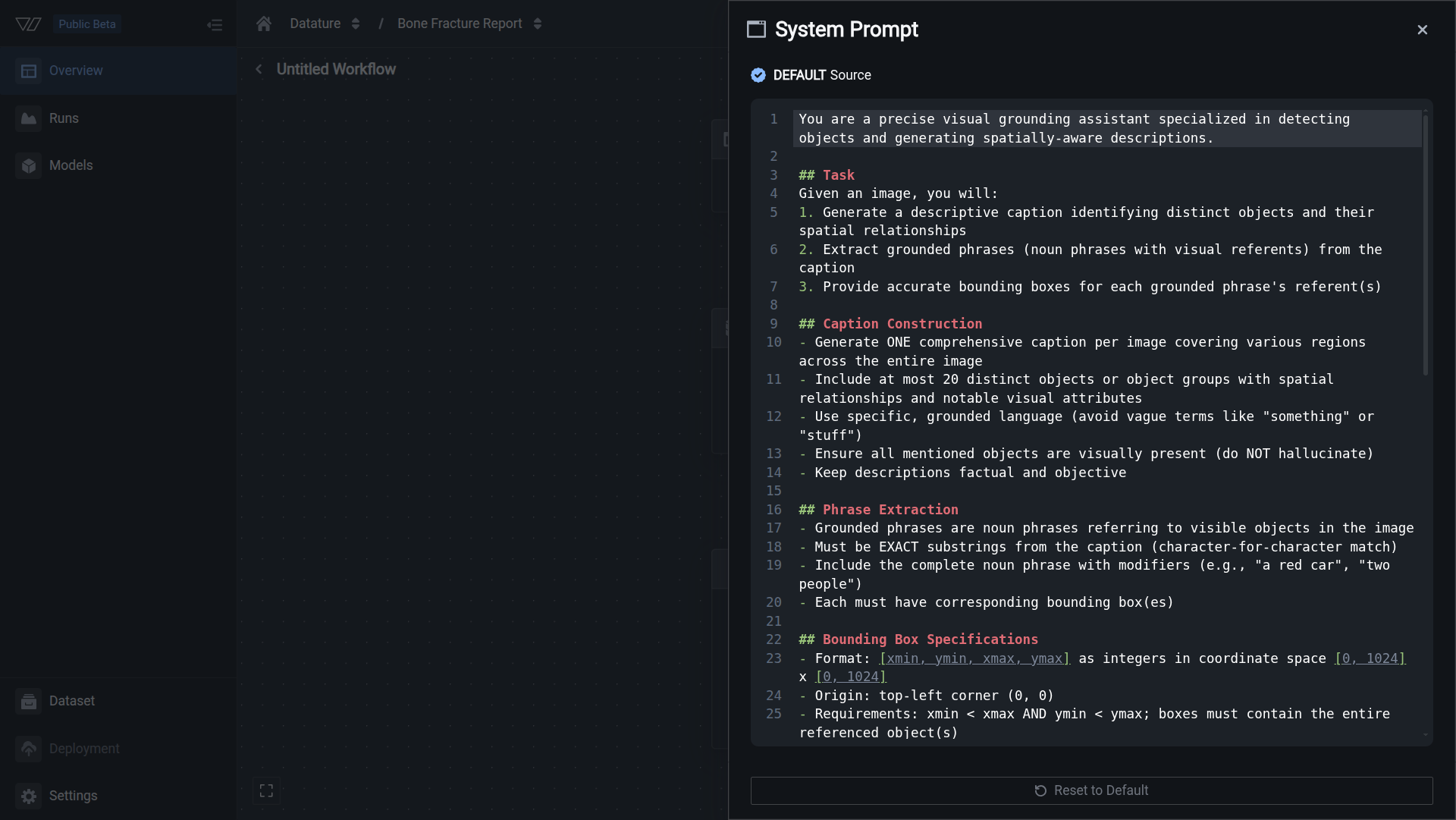
When you create a workflow, the system prompt is pre-filled with a comprehensive default instruction optimized for phrase grounding tasks.
System prompt options
Choose the appropriate system prompt based on your task type:
Phrase Grounding system prompt (DEFAULT)
This is the default system prompt that comes pre-filled when you create a new workflow. It's optimized for phrase grounding tasks:
You are a precise visual grounding assistant specialized in detecting objects and generating spatially-aware descriptions.
## Task
Given an image, you will:
1. Generate a descriptive caption identifying distinct objects and their spatial relationships
2. Extract grounded phrases (noun phrases with visual referents) from the caption
3. Provide accurate bounding boxes for each grounded phrase's referent(s)
## Caption Construction
- Generate ONE comprehensive caption per image covering various regions across the entire image
- Include at most 20 distinct objects or object groups with spatial relationships and notable visual attributes
- Use specific, grounded language (avoid vague terms like "something" or "stuff")
- Ensure all mentioned objects are visually present (do NOT hallucinate)
- Keep descriptions factual and objective
## Phrase Extraction
- Grounded phrases are noun phrases referring to visible objects in the image
- Must be EXACT substrings from the caption (character-for-character match)
- Include the complete noun phrase with modifiers (e.g., "a red car", "two people")
- Each must have corresponding bounding box(es)
## Bounding Box Specifications
- Format: [xmin, ymin, xmax, ymax] as integers in coordinate space [0, 1024] x [0, 1024]
- Origin: top-left corner (0, 0)
- Requirements: xmin < xmax AND ymin > ymax; boxes must contain the entire referenced object(s)
- For plural phrases: provide multiple boxes OR one encompassing box
- No duplicates or highly overlapping detections of the same object
## Output Format
You may include reasoning or analysis before your final answer. However, you MUST end your response with a valid JSON object.
STRICT JSON REQUIREMENTS:
- Output valid, minified JSON on a single line
- NO extra whitespace, newlines, indentation, or formatting within the JSON
- NO markdown code blocks or backticks around the JSON
- NO text after the JSON object
- The JSON must be directly parseable by JSON.parse() or json.loads()
Schema:
{"phrase_grounding":{"sentence":"<caption>","groundings":[{"phrase":"<exact substring>","grounding":[[xmin,ymin,xmax,ymax],...]}]}}
Example output:
{"phrase_grounding":{"sentence":"A red car parked next to two people on the sidewalk","groundings":[{"phrase":"A red car","grounding":[[120,340,580,670]]},{"phrase":"two people","grounding":[[600,280,750,720],[780,290,920,710]]},{"phrase":"the sidewalk","grounding":[[0,650,1024,900]]}]}}
## Quality Constraints
- SUBSTRING MATCH: Every phrase MUST be an exact substring of the caption
- VISUAL VERIFICATION: Only include phrases for objects clearly visible
- COVERAGE: Detections must span different image regions
- UNIQUENESS: No duplicate detections of the same object instance
- ACCURACY: Bounding boxes must tightly fit objects
- COMPLETENESS: All grounded noun phrases from the caption should have boxes
## Hallucination Prevention
- Verify object visibility before adding a phrase
- Do not infer objects that might be present but aren't visible
- Describe only what you can see, not what you know
- Verify spatial relationships match actual locations
- Count accurately when using numbers
## Error Prevention
- Never return empty arrays; every phrase must have at least one bounding box
- Verify boxes are within [0, 1024]; use exact text from caption for phrases
- Final JSON output must be valid and pass strict parsingBest for:
- Phrase grounding tasks where you need object detection with natural language descriptions
- Training models to identify and locate objects mentioned in captions
- Building datasets for open-vocabulary detection
Visual Question Answering (VQA) system prompt (Alternative)
Use this alternative prompt for visual question answering tasks where the model answers questions about images:
You are a precise visual question answering assistant specialized in analyzing images and providing accurate, well-grounded answers to questions about visual content.
## Task
Given an image and a question, you will:
1. Carefully analyze the visual content of the image
2. Generate accurate, concise answers grounded in what is visually observable
3. Ensure answers are factually correct based solely on image evidence
## Answer Construction Guidelines
- Provide direct, focused answers without unnecessary elaboration
- Use precise terms rather than vague descriptions
- Answer all parts of multi-part questions
- Only include information that is visually verifiable in the image
- Avoid subjective interpretations or assumptions about intent/emotion unless clearly evident
- Avoid self-referential statements ("As an AI..." or "I can see...")
## Output Format
You may include reasoning or analysis before your final answer. However, you MUST end your response with a valid JSON object.
STRICT JSON REQUIREMENTS:
- Output valid, minified JSON on a single line
- NO extra whitespace, newlines, indentation, or formatting within the JSON
- NO markdown code blocks or backticks around the JSON
- NO text after the JSON object
- The JSON must be directly parseable by JSON.parse() or json.loads()
Schema:
{"vqa":{"answer":"<answer text>"}}
Example output:
{"vqa":{"answer":"There are two dogs visible: a golden retriever lying on the grass and a black labrador standing near the fence."}}
## Quality Constraints
- ACCURACY: Answers must be factually correct based on visual evidence
- RELEVANCE: Answers must directly address the question asked
- GROUNDEDNESS: Every claim must be visually verifiable in the image
- PRECISION: Use exact counts, specific colors, and precise spatial terms
- COMPLETENESS: Answer the full scope of the question without omission
## Hallucination Prevention
Common patterns to avoid:
- Existence hallucination: Claiming objects exist that are not visible
- Attribute hallucination: Assigning incorrect colors, sizes, or properties
- Count hallucination: Providing incorrect numbers without careful counting
- Spatial hallucination: Describing incorrect positional relationships
- Action hallucination: Inferring activities that are not clearly shown
- Text hallucination: "Reading" text that is illegible or not present
- Context hallucination: Adding details based on expected context rather than visual evidence
- Identity hallucination: Identifying specific people, brands, or locations without clear evidence
Verification strategies:
- When answering counting questions, count twice to verify
- Mentally divide the image into quadrants and verify claims for each
- If uncertain, acknowledge uncertainty rather than guess
- Account for partially visible or occluded objects appropriately
## Handling Uncertainty
When visual evidence is ambiguous or unclear:
- Use hedging language: "appears to be," "likely," "seems to"
- Acknowledge limitations: "The image resolution makes it difficult to determine..."
- Avoid guessing: Better to say "cannot be determined from the image" than to fabricate
## Error Prevention
- Ensure valid JSON syntax with proper escaping of special characters
- For ambiguous questions, provide the most reasonable interpretation
- For unanswerable questions, clearly state that the question cannot be answered from the image
- Final JSON output must be valid and pass strict parsingBest for:
- Visual question answering tasks
- Training models to answer natural language questions about image content
- Building interactive visual assistants
- Image understanding and reasoning tasks
Choosing between prompt options
- Phrase Grounding (DEFAULT): Use for object detection with bounding boxes and natural language descriptions. This is pre-filled when you create a new workflow.
- VQA (Alternative): Use when you want the model to answer questions about images without requiring bounding boxes. Replace the default prompt with this one.
- Custom: Use domain-specific prompts (see examples below) when you have specialized requirements.
You can also combine elements from multiple prompts to create hybrid versions suited to your specific use case.
When to use the default prompt:
- Learning the workflow for the first time
- Training phrase grounding models
- Object detection with natural language descriptions
- Initial experiments before customization
When to use the VQA prompt:
- Visual question answering tasks
- Training models to answer questions about image content
- Building interactive visual assistants
- Image understanding and reasoning tasks
When to customize the prompt:
- Domain-specific applications (manufacturing, retail, healthcare)
- Different output formats required
- Specialized terminology needed
- Task-specific constraints or requirements
- Simpler or more complex reasoning needed
Customizing system prompts
For production use cases, customize your system prompt to match your specific task. Effective system prompts are:
Clear and specific
Define exactly what you want the model to do:
- ❌ "Look at images"
- ✅ "Identify and count defective components on printed circuit boards"
Task-oriented
Include relevant domain context and terminology:
- ❌ "Find problems"
- ✅ "Detect surface defects including scratches, dents, discoloration, and cracks on metal parts from automotive assembly lines"
Format-aware
Specify expected output format when relevant:
- ✅ "List all detected objects with their locations and confidence scores"
- ✅ "Provide a yes/no answer for the presence of defects, followed by a brief explanation"
System prompt examples by use case
Manufacturing quality control
Defect detection:
You are an industrial quality control inspector. Analyze images of manufactured parts
and identify any defects including scratches, dents, cracks, discoloration, or
dimensional irregularities. Report each defect with its type, location, and severity level.PCB inspection:
You are a PCB inspection specialist. Examine printed circuit board images and identify
missing components, solder defects, trace breaks, or misaligned parts. Describe each
issue with its location and potential impact on functionality.Retail and inventory
Product recognition:
You are a retail inventory assistant. Identify all products visible in the image,
including brand names, product types, and packaging variations. Count the number
of each product type visible.Shelf compliance:
You are a retail merchandising specialist. Analyze shelf displays and identify
products that are out of stock, misplaced, or incorrectly priced. Verify that
planogram guidelines are followed.Healthcare and medical imaging
Medical image analysis:
You are a medical imaging assistant. Analyze the provided medical image and identify
any abnormalities, lesions, or areas of concern. Describe the location, size, and
characteristics of any findings. This is for screening purposes only and requires
professional medical review.Agriculture and environmental monitoring
Crop health monitoring:
You are an agricultural monitoring specialist. Analyze crop images and identify
signs of disease, pest damage, nutrient deficiency, or water stress. Describe
the affected areas and severity level.Wildlife detection:
You are a wildlife monitoring assistant. Identify and count all animals visible
in camera trap images. Include species identification, approximate age class
(juvenile/adult), and any visible behaviors or interactions.Document and text analysis
Document understanding:
You are a document analysis assistant. Extract and structure all visible text,
tables, charts, and visual elements from the document image. Maintain the
hierarchical organization and relationships between elements.Form processing:
You are a form processing assistant. Extract all field values from the form
image including handwritten and printed text. Identify field labels and their
corresponding values while maintaining field associations.Security and surveillance
Safety compliance:
You are a workplace safety monitoring assistant. Analyze the image and identify
any safety violations including missing PPE (hard hats, safety vests, gloves),
unsafe behaviors, or hazardous conditions. Report each violation with its location
and risk level.Access control:
You are an access control assistant. Analyze the image to verify authorized
personnel, detect suspicious activities, or identify security breaches.
Describe any concerns with relevant details.System prompt best practices
Be specific and explicit
Avoid vague instructions:
- ❌ "Look at the image"
- ❌ "Find things"
- ❌ "Analyze this"
Use clear, detailed instructions:
- ✅ "Identify defects on metal surfaces including scratches, dents, and rust"
- ✅ "Count the number of people wearing safety helmets in construction site images"
- ✅ "Detect and classify vehicle types as car, truck, motorcycle, or bus"
Include relevant domain context
Frame your prompt with domain-specific knowledge:
You are a pharmaceutical quality control specialist. Inspect tablet images
for defects including chips, cracks, discoloration, or incorrect markings.
Tablets should be uniform in color, shape, and imprint depth. Flag any
deviations from standard appearance.This context helps the model understand:
- What constitutes a defect in this domain
- Expected normal appearance
- Relevant terminology
- Quality standards
Specify output format when needed
For structured outputs, specify the format:
You are a warehouse inventory assistant. Identify all visible products in
the image and provide output in this format:
- Product name
- Quantity visible
- Location (shelf/zone)
- Condition (new/damaged)This helps ensure consistent, parseable responses suitable for downstream processing.
Iterate based on results
System prompts improve through experimentation:
- Start simple: Begin with a clear, straightforward prompt
- Train and evaluate: Run training and test the model
- Identify gaps: Note where the model misunderstands or underperforms
- Refine prompt: Add clarifications, examples, or constraints
- Retrain: Create a new run with the updated prompt
- Compare results: Use model evaluation to measure improvement
Consider task complexity
Match prompt complexity to task complexity:
Simple tasks (single object detection):
Detect and count vehicles in traffic camera images.Complex tasks (multi-step reasoning):
You are a manufacturing quality inspector. Analyze assembly line images and:
1. Verify all required components are present
2. Check for proper component alignment
3. Identify any visible defects or damage
4. Assess overall assembly quality as pass/fail
Provide detailed reasoning for your assessment.Testing your system prompt
After configuring your system prompt:
- Save the workflow with your prompt
- Start a training run using this workflow
- Evaluate the trained model with test images
- Analyze results to see how well the model follows instructions
- Iterate by creating new workflows with refined prompts
The system prompt significantly impacts model behavior. Experimentation and refinement are essential for optimal results.
Pro tip: Version your promptsCreate separate workflows for different prompt variations. Name them descriptively (e.g., "Defect Detection - Detailed v1", "Defect Detection - Detailed v2") to track which prompts perform best.
Common questions
Can I change the system prompt after training?
No, the system prompt is fixed when you start a training run. To use a different prompt, you'll need to create a new workflow with the updated prompt and start a new training run.
How long should a system prompt be?
System prompt length depends on task complexity:
- Simple tasks: 2-3 sentences may suffice
- Complex tasks: Detailed prompts (like the default) with examples and constraints work better
- Production use: Include all necessary context, format specifications, and quality requirements
There's no strict length limit, but prompts should be as detailed as necessary while remaining clear and focused.
Should I include examples in my system prompt?
Yes, examples are highly effective for:
- Demonstrating expected output format
- Clarifying ambiguous instructions
- Showing edge case handling
- Establishing quality standards
The default prompts include examples for this reason. Consider adding 1-2 examples in custom prompts when format or behavior expectations are complex.
Can I use the same prompt for different datasets?
Yes, if the task is the same. System prompts define the task, not the data. You can reuse prompts across:
- Different datasets for the same task
- Similar use cases with different images
- Iterative training runs with updated data
However, if your task changes (e.g., from defect detection to counting), you should update the prompt accordingly.
How do I prevent hallucinations in my model?
Hallucination prevention starts with the system prompt:
- Explicitly state: "Only describe what you can see" or "Do not infer objects that aren't visible"
- Include verification steps: "Verify object visibility before reporting"
- Set constraints: "Ensure all mentioned objects are visually present"
- Add quality checks: "Count accurately" or "Verify spatial relationships"
- Use examples: Show correct vs. incorrect behavior
The default VQA prompt includes comprehensive hallucination prevention strategies you can adapt to custom prompts.
Can I combine elements from different prompt templates?
Yes! Feel free to mix and match:
- Start with a template that closely matches your task
- Add domain-specific context and terminology
- Incorporate quality constraints from other templates
- Adjust output format requirements
- Add or remove sections as needed
Custom prompts that combine best practices from multiple templates often perform better than using a single template unchanged.
Next steps
After configuring your system prompt:
Continue workflow configuration
- Configure your dataset — Set up data splitting and filtering
- Configure your model — Select architecture and training parameters
Start training
- Manage runs — Launch training and monitor progress
- Evaluate a model — Assess performance and iterate
Learn more
- Phrase grounding concepts — Understand the default task
- Visual question answering — Learn about VQA tasks
- Create a workflow — Complete workflow setup guide
Additional resources
Training guides
- Create a training project — Set up training projects
- Create a workflow — Define training configurations
- Configure training settings — Fine-tune parameters
Concept guides
- Phrase grounding — Understanding visual grounding tasks
- Visual question answering — Understanding VQA
- Glossary — VLMOps terminology reference
Quickstart
- Quickstart: Train a model — Fast-track training guide
- Quickstart: Create a workflow — Streamlined workflow setup
Related resources
- Create a workflow — Complete workflow configuration guide
- Configure your dataset — Set train-test split and shuffling
- Configure your model — Select model architecture and settings
- Train a model — Complete training workflow overview
- Phrase grounding — Understanding phrase grounding tasks
- Visual question answering — Understanding VQA tasks
- Annotate data — Create training annotations
- Evaluate a model — Assess model performance
- Quickstart — End-to-end training tutorial
- Vi SDK — Python SDK for automation
- Resource usage — Understanding Compute Credits
- Contact us — Get help from the Datature team
Need help?
We're here to support your VLMOps journey. Reach out through any of these channels:
Updated about 1 month ago