Download Full Dataset

Download your complete dataset including both assets and annotations for backup, local development, or external processing.

Downloading the full dataset exports both your assets (images, videos) and their associated annotations in a structured format. This is essential for creating backups, local development, external training workflows, or migrating data to other platforms.

💾

What's included in a full dataset export

  • All asset files — Original images or videos in your dataset
  • Annotation files — Complete annotation data in structured format
  • Test split — Optional automatic train/test split organization
  • Normalized data — Assets and annotations organized in training-ready structure
💻

Programmatic access with Vi SDK

You can also download datasets programmatically using the Vi SDK:

  • Download datasets — Use client.get_dataset() to download programmatically
  • Load and iterate — Use ViDataset to iterate through asset and annotation pairs
  • Visualize annotations — Built-in visualization tools to render annotations over assets
  • Automate workflows — Integrate dataset downloads into your pipelines

Learn more about Vi SDK →


Navigate to annotation export

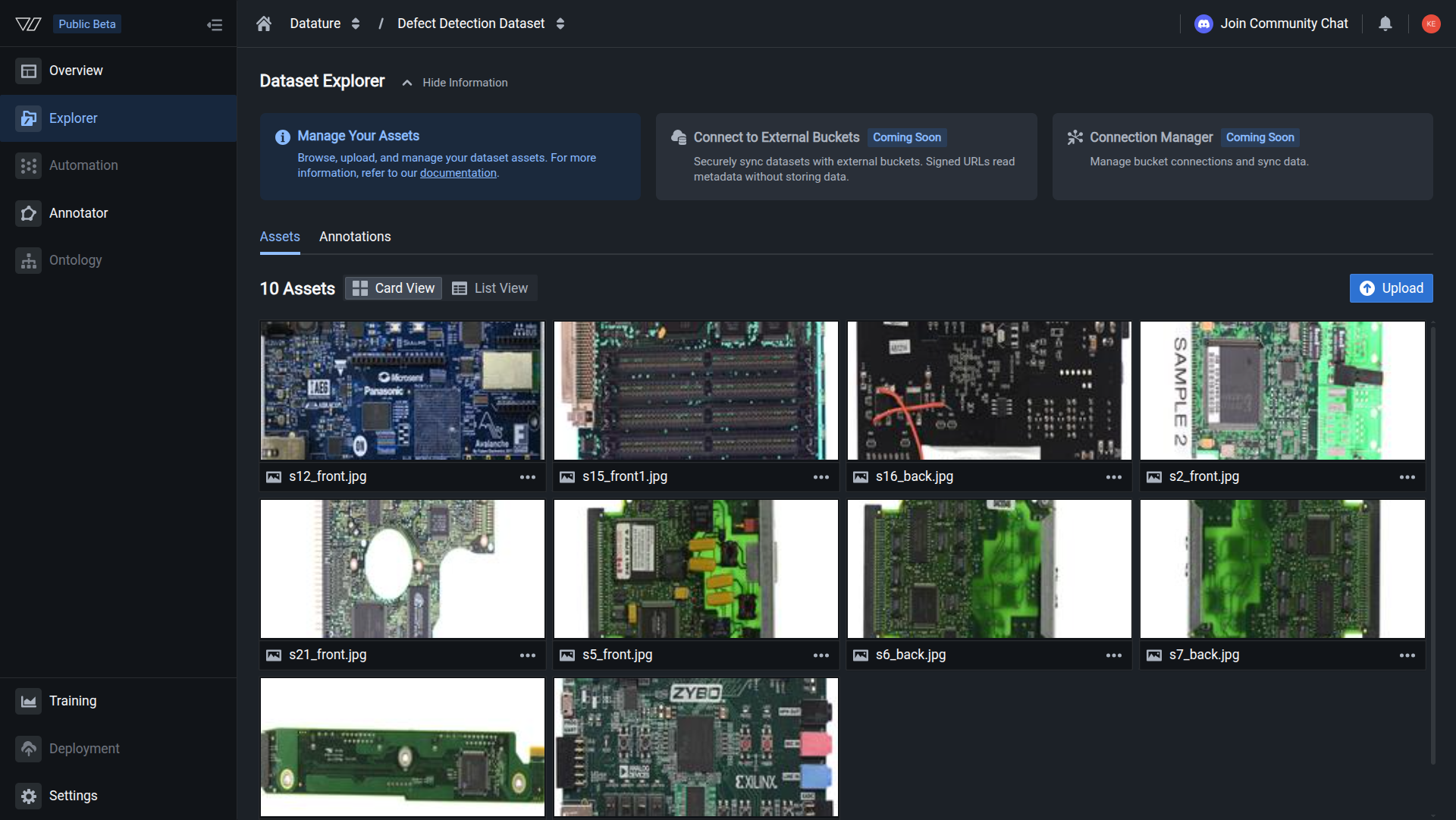
  1. In your organization, navigate to the Explorer section from the sidebar

  2. Select the dataset you want to download from the dataset list

  3. Click the Annotations tab in the Dataset Explorer header

  4. The Annotations page displays the Export Annotations section with an Export button

📘

Dataset Explorer - Annotations tab

Dataset Explorer showing Export Annotations section

The Export Annotations section allows you to export your dataset in various formats.


Export your full dataset

Open the export dialog

  1. Click the Export button in the Export Annotations section

  2. The Annotation Export dialog opens with configuration options

Configure export settings

Export Format

  1. In the Export Format dropdown, select Full Dataset

    This option exports both your assets and annotations together in a structured format.

📘

Full Dataset export configuration

Annotation Export dialog with Full Dataset format selected

Configure the export format, test split ratio, and normalization options before exporting.

Test Split Ratio (Optional)

The test split ratio automatically divides your dataset into training and testing subsets:

  1. Check the Enabled checkbox to activate test splitting

  2. Enter a decimal value between 0 and 1 (e.g., 0.2 for 20% test, 80% train)

    • 0.0 — No split; all data saved in the dump/ folder
    • 0.1 — 10% for testing, 90% for training
    • 0.2 — 20% of data for testing, 80% for training
    • 0.3 — 30% for testing, 70% for training
  3. Leave unchecked (or set to 0) if you want the entire dataset without splitting

📊

Test split best practices

  • No split (0.0) — All data saved in dump/ folder; useful for backups or custom splitting
  • Standard split — 0.2 (80/20) is commonly used for most datasets
  • Large datasets — 0.1 (90/10) works well when you have thousands of images
  • Small datasets — 0.2 or 0.3 ensures sufficient test data for validation
  • Stratified splits — Maintains class distribution across train/test sets

Normalization

Select the Normalized option to organize your export in a training-ready structure:

  • Normalized — Assets and annotations organized by class/category for easy training
  • Creates structured folders compatible with common ML frameworks

Export preview

The dialog displays a summary of what will be exported:

You are about to export [N] assets with [M] annotations.

This helps you verify the export scope before downloading.

Download the dataset

  1. Review your configuration settings:

    • Export Format: Full Dataset
    • Test Split Ratio: Your chosen value or disabled
    • Normalization: Normalized
  2. Click the Export button to start the download

  3. The export job begins processing and will appear in the Annotation Job History section below

  4. Once completed, the download will begin automatically or a download link will be provided


Export structure

The full dataset export is organized in a structured format for easy use:

Directory structure

With train/test split enabled (split ratio > 0):

dataset-name/
├── train/
│   ├── images/
│   │   ├── image1.jpg
│   │   ├── image2.jpg
│   │   └── ...
│   └── annotations/
│       ├── image1.json
│       ├── image2.json
│       └── ...
├── test/
│   ├── images/
│   │   ├── test1.jpg
│   │   └── ...
│   └── annotations/
│       ├── test1.json
│       └── ...
└── metadata.json

Without train/test split (split ratio = 0 or disabled):

dataset-name/
├── dump/
│   ├── assets/
│   │   ├── image1.jpg
│   │   ├── image2.jpg
│   │   └── ...
│   └── annotations/
│       └── annotations.jsonl
└── metadata.json

Annotation format

Each annotation file contains:

  • Image metadata — Dimensions, filename, source path
  • Annotation objects — Bounding boxes, labels, segmentation data
  • Class information — Category IDs and names
  • Attributes — Custom attributes if configured

Working with downloaded datasets

Once you've downloaded your dataset, you can work with it programmatically using the Vi SDK.

Download via Vi SDK

Download datasets directly from your Python scripts:

import vi

# Initialize client
client = vi.Client(
    secret_key="your-secret-key",
    organization_id="your-organization-id"
)

# Download dataset
result = client.get_dataset(
    dataset_id="your-dataset-id",
    save_dir="./data"
)

print(result.summary())
print(f"Downloaded to: {result.save_dir}")
Load and iterate through data

Use the ViDataset loader to iterate through asset and annotation pairs:

from vi.dataset.loaders import ViDataset

# Load the downloaded dataset
dataset = ViDataset("./data/your-dataset-id")

# Get dataset info
info = dataset.info()
print(f"Total assets: {info.total_assets}")
print(f"Total annotations: {info.total_annotations}")

# Iterate through training data
for asset, annotations in dataset.training.iter_pairs():
    print(f"\n🖼️  {asset.filename}")
    print(f"   Size: {asset.width}x{asset.height}")

    for ann in annotations:
        if hasattr(ann.contents, 'caption'):
            # Phrase grounding annotation
            print(f"   📝 Caption: {ann.contents.caption}")
            print(f"      Bounding boxes: {len(ann.contents.grounded_phrases)}")
        elif hasattr(ann.contents, 'interactions'):
            # VQA annotation
            print(f"   💬 Q&A pairs: {len(ann.contents.interactions)}")
Visualize annotations

Visualize annotations overlaid on assets:

from vi.dataset.loaders import ViDataset

# Load dataset
dataset = ViDataset("./data/your-dataset-id")

# Get first asset and its annotations
asset, annotations = next(dataset.training.iter_pairs())

# Visualize annotations on the asset
asset.visualize(
    annotations=annotations,
    save_path="output.jpg",  # Optional: save to file
    show=True  # Display the visualization
)

Complete Vi SDK documentation →


Common use cases

Dataset backup

Create regular backups of your annotated data:

  1. Export full dataset at project milestones
  2. Store backups in secure cloud storage
  3. Maintain version history of datasets
  4. Enable disaster recovery and rollback
Local development

Download datasets for local training and experimentation:

  1. Export with test split enabled or download via Vi SDK
  2. Use ViDataset loader to iterate through asset and annotation pairs
  3. Visualize annotations to verify data quality
  4. Train models on local GPU resources
  5. Iterate quickly without cloud dependencies
External training

Prepare datasets for training on external platforms:

  1. Export in normalized format
  2. Convert annotations to platform-specific formats
  3. Upload to external training services
  4. Maintain data consistency across platforms
Data migration

Move datasets between projects or platforms:

  1. Export complete dataset from source
  2. Transform annotations if needed
  3. Import to target platform
  4. Verify data integrity after migration

Best practices

Regular backups

Export datasets after major annotation sessions or milestones

Verify exports

Check file counts and sample annotations after downloading

Secure storage

Store downloaded datasets in secure, backed-up locations

Version control

Include dataset version or date in export filenames

Test splits

Use consistent test split ratios across training iterations

Document changes

Keep notes on dataset versions and modifications


Monitor export progress

The Annotation Job History section tracks all export operations:

  • Job type — Upload or Export
  • Initiated by — User who started the export
  • File count — Number of files included
  • Status — In Progress, Finished, or Failed
  • Timestamp — When the job completed

You can:

  • View job details — Click on a job to see more information
  • Track progress — Monitor active exports
  • Redownload — Access completed exports if available

Troubleshooting

Export takes too long
  • Large datasets — Exports with thousands of assets may take several minutes
  • Check job history — Verify the export is still processing
  • Internet connection — Ensure stable connection for download
  • Try smaller batches — Consider exporting subsets if needed
Downloaded file is corrupted
  • Retry download — Use job history to redownload
  • Check disk space — Ensure sufficient storage for the export
  • Browser issues — Try a different browser or clear cache
  • Network interruption — Ensure stable connection during download
Missing assets or annotations
  • Verify asset count — Check dataset contains expected number of items
  • Check filters — Ensure no filters are active during export
  • Annotation status — Verify assets have completed annotations
  • Re-export — Try exporting again if data appears incomplete
Cannot open export files
  • Extract archive — Unzip downloaded file if in compressed format
  • Check file format — Verify annotation format matches your tools
  • Encoding issues — Use UTF-8 compatible tools for JSON files
  • File permissions — Ensure proper read permissions on extracted files

Next steps