Create a Training Project
Set up a training project to organize your VLM workflows, runs, and models.
Create a training project
Training projects organize your VLM workflows, training runs, and models. Each project serves as a dedicated workspace for a specific machine learning task or use case.
Looking for a quick start?This is the comprehensive guide. For a streamlined quickstart version, see:
PrerequisitesBefore creating a training project, ensure you have:
- An active Vi account (sign up for free)
- Access to a dataset with annotations (learn how to prepare your dataset)
- Understanding of your project's localization requirements
Steps to create a training project
1. Navigate to the training section
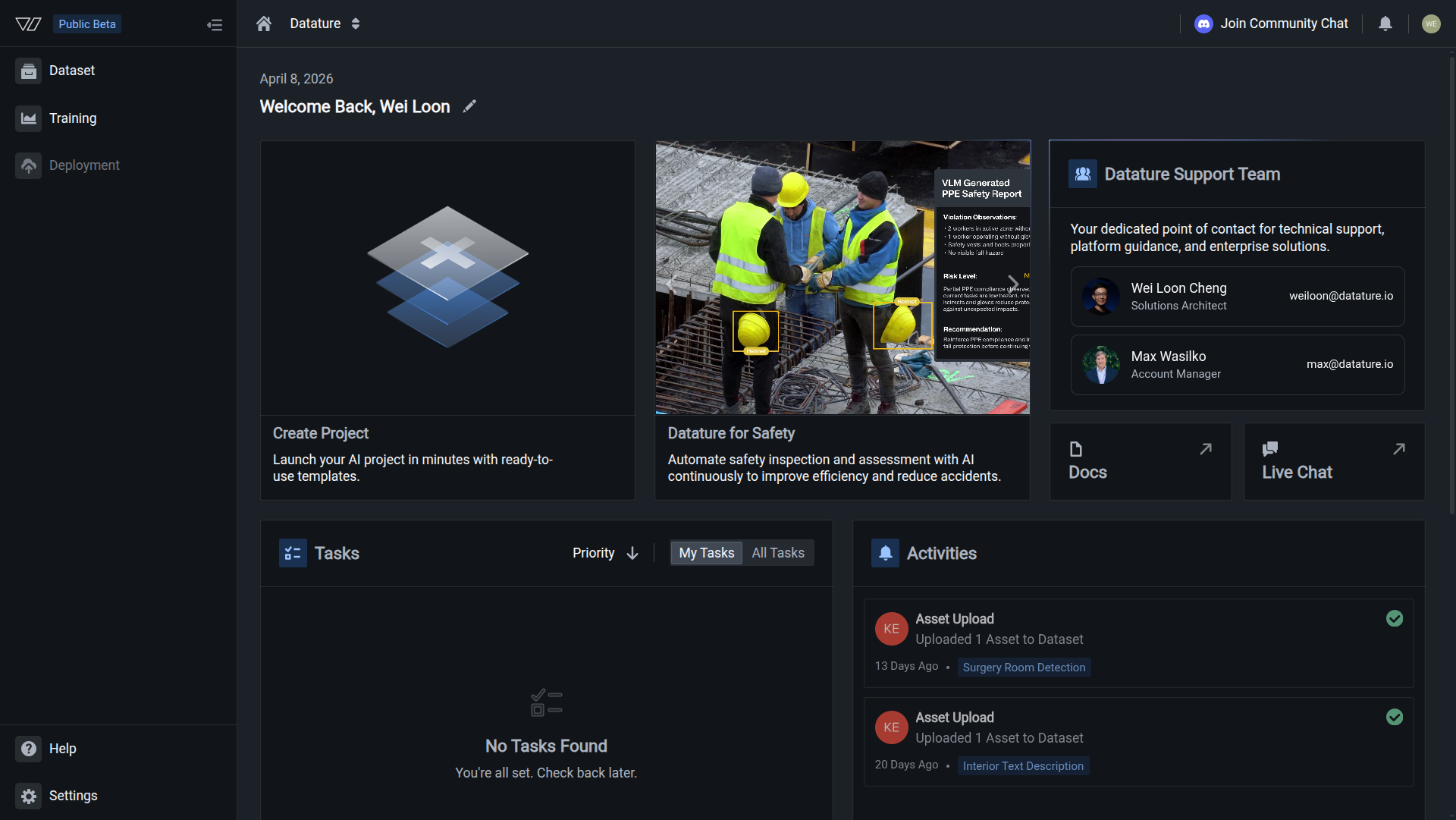
From the Vi platform sidebar, click Training to access the training projects page.
2. Initiate project creation
On the Training page, click the Create Training Project card to open the project configuration dialog.
3. Configure project settings
Configure your project's identity and operational parameters:
Project name
Enter a descriptive name for your project that clearly identifies its purpose.
- Example: "Defect Detection", "PCB Components Detection", "Pedestrian Detection"
- Best practice: Use clear, descriptive names that indicate the project's objective
Project description
Provide a brief description of your project to help collaborators understand its purpose and scope.
- Optional field
- Character limit: 500 characters
- Purpose: Document the project's goals, use case, or any important context
- Best practice: Include information about the expected input data, output format, and intended application
Project localization
Select the geographic region where your training workloads are executed. This affects data processing location and performance.
Available options include:
- Multi-Region (recommended): Automatically distributes workloads across multiple regions for optimal performance
- Europe [EU-BELGIUM]: European Union data center location
- North America [US-CENTRAL]: United States central region
- United Kingdom [UK-LONDON]: United Kingdom data center location
- Asia [ASIA-SOUTHEAST]: Southeast Asia region
Considerations when choosing localization
- Data Residency: Select a region that complies with your data governance requirements
- Latency: Choose a region closer to your location for better performance
- Multi-Region: Recommended for most use cases as it provides the best availability and performance
Click Next to proceed to the project summary.
4. Review project summary
The Project Summary screen displays a comprehensive overview of your configured settings before creation:
- Project name: Confirms the name you've selected
- Project description: Shows your project description (if provided)
- Project localization: Shows your selected region configuration
Review all settings carefully. If you need to make changes, click Back to return to the configuration screen.
5. Create the project
When you're satisfied with your configuration, click Create Project to finalize the creation process.
Training project created!Your project is ready. You can now create workflows, start training runs, and manage your models.
6. Access your new project
After creation, you'll be automatically directed to your project's Overview page. Your new training project includes:
Overview tab
Displays training insights, project metrics, and workflow management. This tab contains:
Training insights and metrics — Populates after you complete training runs, showing:
- Training history and trends
- Performance metrics across runs
- Model comparison data
- Resource usage statistics
Workflows section — Houses your training workflow configurations. Workflows are reusable training configurations that define:
- Model architecture selection
- Dataset configuration and splitting strategy
- Training parameters (learning rate, batch size, epochs)
- GPU resource requirements
Runs tab
Manages all training runs within the project. Each run represents a training session using a specific workflow configuration. You can:
- Monitor active training runs in real-time
- View completed run results
- Compare performance across multiple runs
- Cancel or delete runs as needed
Models tab
Contains trained models and their versions. After successful training runs:
- Access trained model artifacts
- Download models for deployment
- Compare model performance
- Manage model versions
What you can do next
From your project overview, you can:
- Create a workflow to define your training pipeline
- Start a training run using an existing workflow
- View training history and compare runs
- Access trained models for evaluation and deployment
- Monitor resource usage and project metrics
Next steps
After creating your training project, follow these steps to train your first model:
1. Create a workflow
Define your training configuration by creating a workflow. This includes:
- Selecting a model architecture
- Configuring dataset splitting (train/validation/test)
- Setting training parameters
- Defining system prompts for VLM tasks
Learn how to create a workflow →
2. Configure system prompt
Define instructions for your VLM to guide its behavior:
- Set task-specific instructions
- Customize prompt templates
- Define expected output format
- Optimize for your use case
Learn about system prompt configuration →
3. Configure your dataset
Set up your dataset for training:
- Select which dataset to use
- Configure train/validation/test split ratios
- Enable data shuffling and augmentation
- Validate dataset quality
Learn about dataset configuration →
4. Configure your model
Choose and customize your model:
- Select from available VLM architectures
- Configure model-specific parameters
- Set training hyperparameters (learning rate, batch size, epochs)
- Choose optimization strategies
Learn about model configuration →
5. Start a training run
Launch your training:
- Configure advanced settings (checkpointing, evaluation)
- Select GPU hardware
- Validate dataset before training
- Monitor training progress in real-time
Understanding training projects
Project organization
Training projects help you organize related machine learning work:
- Multiple workflows: Create different training configurations within one project
- Run history: Track all training attempts and compare results
- Model versioning: Maintain multiple model versions from different runs
- Team collaboration: Share projects with team members
Localization options explained
Localization determines where your training computations are executed:
Multi-region (recommended)
- Automatically routes workloads to the best available region
- Provides highest availability and reliability
- Optimizes for performance and cost
- Suitable for most use cases
Single region
- Keeps all data and computations in one geographic location
- Required for data residency compliance
- May be necessary for regulatory requirements (GDPR, HIPAA, etc.)
- Choose the region closest to your location for best performance
Resource management
Training projects consume Compute Credits based on:
- GPU type: Different GPUs have different usage multipliers
- Training duration: Credits consumed per minute of training
- Number of GPUs: Multi-GPU training scales credit consumption
View detailed pricing and resource usage →
Best practices
Naming conventions
Choose clear, descriptive project names that:
- Indicate the project's purpose or use case
- Include relevant context (e.g., "Warehouse Defect Detection")
- Are easily searchable and identifiable
- Follow your organization's naming standards
Examples:
- ✅ "PCB Component Detection - Production Line"
- ✅ "Retail Shelf Analysis Q1 2025"
- ✅ "Medical Image Segmentation - CT Scans"
- ❌ "Project 1"
- ❌ "Test"
Project documentation
Use the project description field to document:
- Objective: What problem is this project solving?
- Dataset: What type of data is being used?
- Expected output: What kind of predictions or classifications?
- Use case: How will the trained model be deployed?
- Special requirements: Any specific constraints or considerations?
Team collaboration
For team projects:
- Use clear, descriptive names that all team members understand
- Document the project's purpose in the description field
- Establish naming conventions for workflows and runs
- Communicate localization choices based on team requirements
- Manage team member access and permissions
Common questions
Can I change the localization after creating a project?
No, project localization cannot be changed after creation. If you need a different localization, you'll need to create a new project. Choose carefully based on your data residency requirements and performance needs.
How many workflows can I create in a project?
There is no limit to the number of workflows you can create within a project. Workflows are lightweight configuration templates that help you organize different training approaches for the same project.
Can I delete a training project?
Yes, you can delete training projects. However, this will permanently delete all associated workflows, runs, and models. Make sure to download any trained models you want to keep before deleting a project.
How do I share a project with team members?
Projects are automatically shared with all members of your organization. Team members with appropriate permissions can view workflows, monitor runs, and access trained models.
What happens to running training jobs if I leave the page?
Training runs continue in the background even if you close your browser or navigate away. You can return anytime to check progress. You'll also receive notifications when training completes.
Can I rename a project after creation?
Currently, project names cannot be changed after creation. If you need to rename a project, you would need to create a new project with the desired name and recreate your workflows.
Additional resources
Training guides
- Train a model — Complete guide to training workflows
- Create a workflow — Define training configurations
- Configure your dataset — Set up data splitting
- Configure your model — Select and customize models
- Configure training settings — Fine-tune parameters
Management guides
- Manage workflows — Edit, delete, and organize workflows
- Manage runs — Monitor and control training runs
- Evaluate a model — Assess model performance
Organization
- Resource usage — GPU pricing and credit consumption
- Team settings — Manage team access
Quickstart
- Quickstart: Train a model — Fast-track guide
Related resources
- Train a model — Complete training workflow guide
- Create a workflow — Define training configuration
- Configure your model — Select model architecture and settings
- Configure training settings — Set checkpoint strategy and GPU
- Manage runs — Monitor, kill, and delete runs
- Manage workflows — Rename, duplicate, and delete workflows
- Evaluate a model — Assess model performance and quality
- Quickstart — End-to-end training tutorial
- Prepare your dataset — Upload images and annotations
- Resource usage — Understanding Compute Credits and GPU pricing
- Vi SDK — Programmatic training management
- Team settings — Manage organization settings
Need help?
We're here to support your VLMOps journey. Reach out through any of these channels:
Updated about 1 month ago