
Sync From MinIO
Connect a Datature Vi dataset to a self-hosted MinIO deployment using access keys and a scoped read policy. Designed for on-premise and private-cloud storage.
MinIO is a self-hosted, S3-compatible object store that many teams run on-premise or inside a private cloud. Datature Vi connects to MinIO the same way it connects to a cloud bucket, using an access key, a secret key, and an HTTPS endpoint. The integration is read-only, so the platform reads object metadata in place without copying files into Vi infrastructure.
- A paid Datature Vi account. External bucket sync is not available on the free tier.
- A running MinIO deployment reachable from the public internet over HTTPS, with a valid TLS certificate.
- A bucket with the assets you want to sync.
- Permission to create users, access keys, and policies in MinIO.
Open the Explorer tab
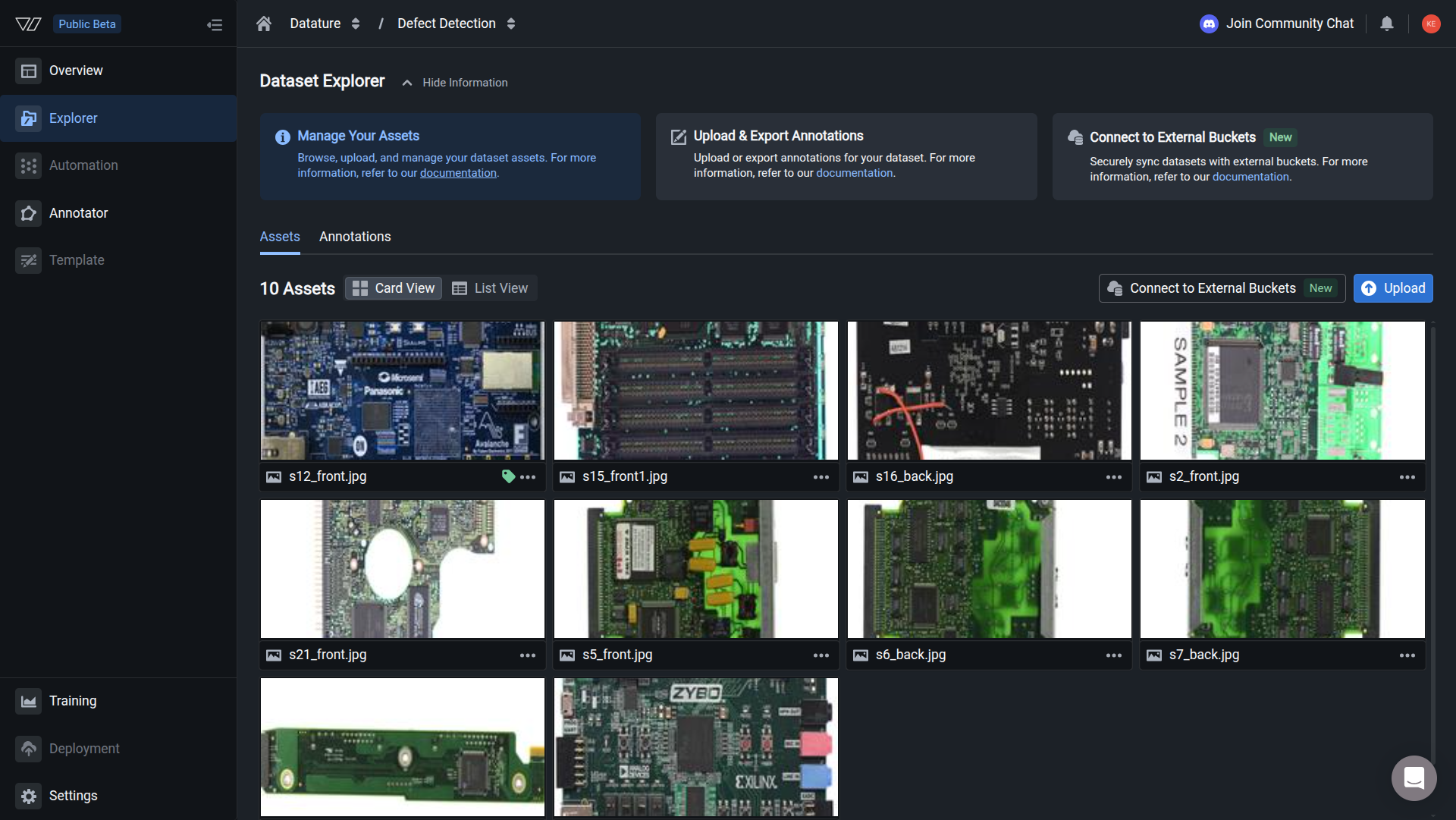
In the left sidebar, click the Explorer tab on your dataset. This is where the synced assets will appear after the connection is set up.
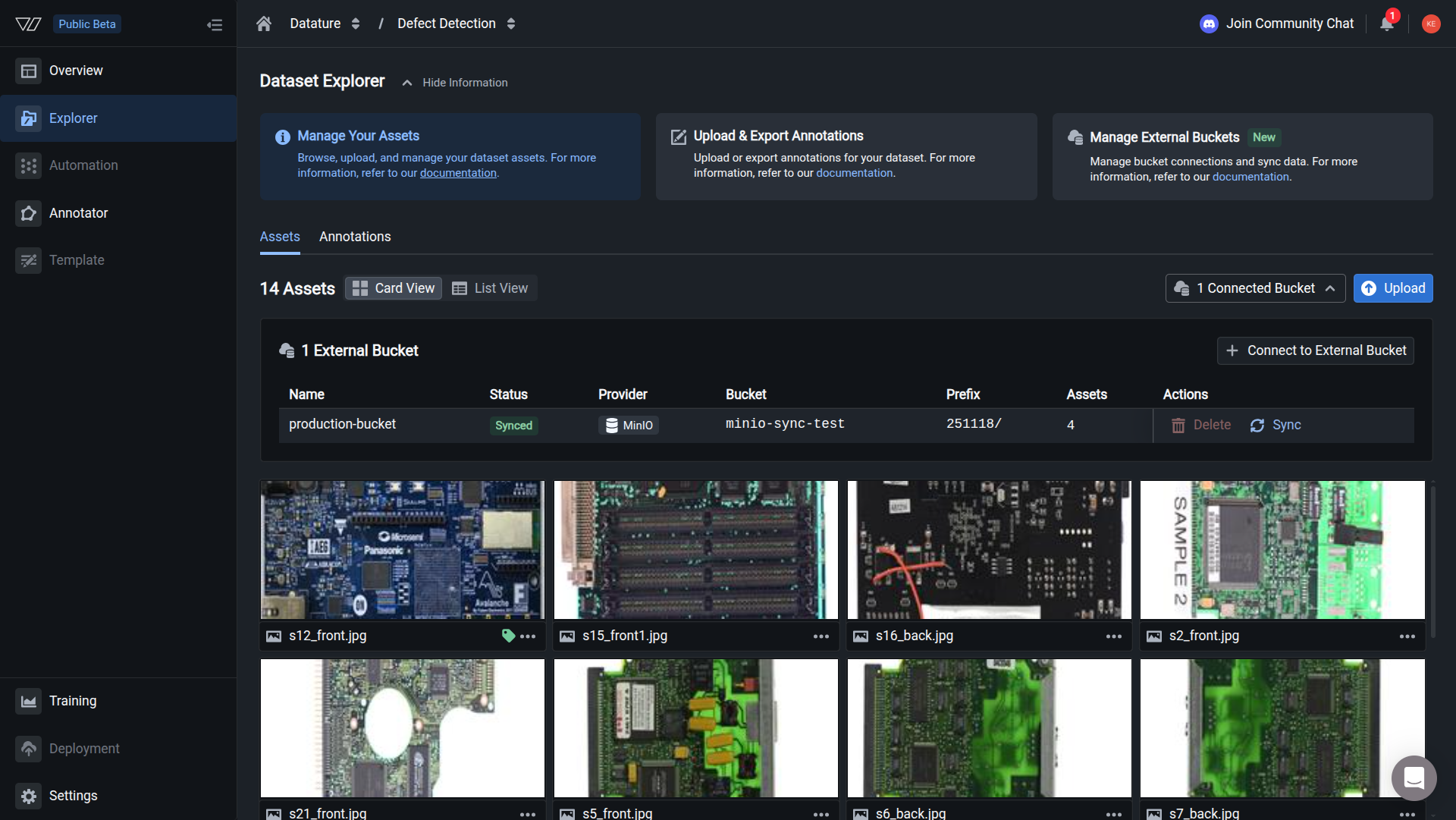
Synced images appear in the dataset Explorer. The asset count in the header reflects the MinIO objects that passed the format checks.
Step 1: Create a scoped read policy
The default readonly policy in MinIO does not include s3:ListBucket, which Vi needs to enumerate objects. Create a policy that grants the three permissions Vi requires, scoped to a single bucket.
{
    "Version": "2012-10-17",
    "Statement": [
        {
            "Effect": "Allow",
            "Action": [
                "s3:GetBucketLocation",
                "s3:GetObject",
                "s3:ListBucket"
            ],
            "Resource": [
                "arn:aws:s3:::your-bucket-name",
                "arn:aws:s3:::your-bucket-name/*"
            ]
        }
    ]
}
Replace your-bucket-name with the bucket you plan to sync. Apply the policy in the MinIO console or with mc:
Step 2: Create an access key for the integration
Create a dedicated MinIO user for the Vi integration so you can rotate or revoke its credentials without touching other services.
Create the user
In the MinIO console, open Identity > Users, click Create User, and choose a username such as vi-sync. Generate a strong secret key.
Attach the policy
On the user's profile, attach the vi-read-policy policy you created in Step 1. Do not attach the default admin policies.
Generate an access key
Open Access Keys for the user and create a new key pair. Copy both the access key ID and the secret key now; the secret is not shown again.
- Grant only the three actions in the policy above. Wider permissions break the principle of least privilege.
- Use a dedicated access key for the Vi integration. Sharing keys with other services makes audit and rotation hard.
- Rotate the access key every 90 days as a baseline.
- Avoid using MinIO root credentials for sync.
Step 3: Enter the connection details in Vi
Open your dataset, then walk through the wizard.
The Bucket Details tab asks for these fields:
Click Next to advance to the credentials step.
Step 4: Enter the access credentials
Paste the access key ID and the secret access key from Step 2.
Click Next. Vi tries the connection and reports success or failure on the Connection Status screen.
If your MinIO deployment is behind an IP allowlist, contact [email protected] to request the current set of egress IPs. We rotate them periodically, so plan to refresh the allowlist when notified.
Step 5: Sync your assets
Choose Sync Now to start the first sync immediately, or Sync Later to set up the connection without syncing. If you pick Sync Now, Vi walks through three more screens before the sync starts in earnest.
- Preview Files to Sync. Vi scans the bucket prefix and shows the file count alongside a sample of object paths. Confirm the preview matches what you expect, then click Sync.
- Sync Started. A confirmation appears letting you know the job is running in the background. Click I Understand to dismiss the dialog; the sync continues even after you close the wizard or the browser tab.
- Track progress. Open the Connected Bucket dropdown in the top-right of the Explorer to see the connection name, status, provider, bucket, prefix, asset count, and a live progress bar while assets are retrieved.
The first sync takes 5 to 40 minutes depending on the bucket size. Progress is also visible in the Connection Manager tab.
Asset requirements
MinIO accepts a wider set of MP4 major brands than the cloud providers, because the metadata sync uses the broader S3-compatible video pipeline.
Use ffprobe your-video.mp4 on Linux or macOS to read the major brand and pixel format before troubleshooting a video that fails to sync.
Annotations are not part of the bucket sync. Vi reads only image and video metadata from MinIO. If you have existing labels in COCO, YOLO, Pascal VOC, CSV, or Vi JSONL, upload them directly to Vi once the assets finish syncing.
Multiple buckets, one dataset
You can connect more than one MinIO bucket to the same dataset. Vi merges objects from every connection into a single asset list. If two buckets contain a file with the same name, the latest sync overwrites the earlier reference. Use folder prefixes to keep collections separate, or rename files at the source.
Troubleshooting
Next steps
Updated 5 months ago