
AI-Assisted Tools
Speed up phrase grounding and freeform image annotation with IntelliScribe's auto-caption generation and automatic phrase-box linking.
IntelliScribe is Datature Vi's AI-assisted annotation tool for phrase grounding and freeform image annotation. It reduces manual annotation work by generating text automatically: for phrase grounding, it creates captions and links phrases to bounding boxes; for freeform image annotation, it generates text content that you can edit to match your schema. You still review and refine the output, but the repetitive text work goes much faster.
IntelliScribe is available in the phrase grounding and freeform image annotators. It does not apply to VQA or video annotations.
- A phrase grounding or freeform text dataset with uploaded images
- Familiarity with the phrase grounding or freeform image annotation workflow
What IntelliScribe does
IntelliScribe provides AI features inside both the phrase grounding and freeform image annotators.
IntelliScribe Caption
When you press C in the annotator, IntelliScribe analyzes the image and generates text automatically.
- In phrase grounding: The caption appears in the Phrase Grounding panel describing the main objects. You can accept it as-is or edit it with the Text tool (press T).
- In freeform image annotation: The generated text appears in the Freeform panel. Edit it to match your annotation schema before saving.
The caption generation works well on common objects in clear images. For specialized equipment or domain-specific vocabulary, the AI caption gives you a starting point. Review and edit the terminology before continuing.
IntelliScribe Phrases
When you press P, IntelliScribe reads the current caption and your drawn bounding boxes, then creates phrase-box links automatically. Each phrase in the caption gets highlighted and connected to the box that most closely matches it.
You need at least one bounding box and a caption before running IntelliScribe Phrases. Review the output: the AI is accurate on clear, distinct objects, but may mismatch phrases when objects overlap or captions are ambiguous.
IntelliScribe Phrases is available in phrase grounding only, since freeform text annotations do not use bounding boxes.
How it fits into annotation
The AI-assisted workflow runs after you draw your boxes:
Open the Annotator tab
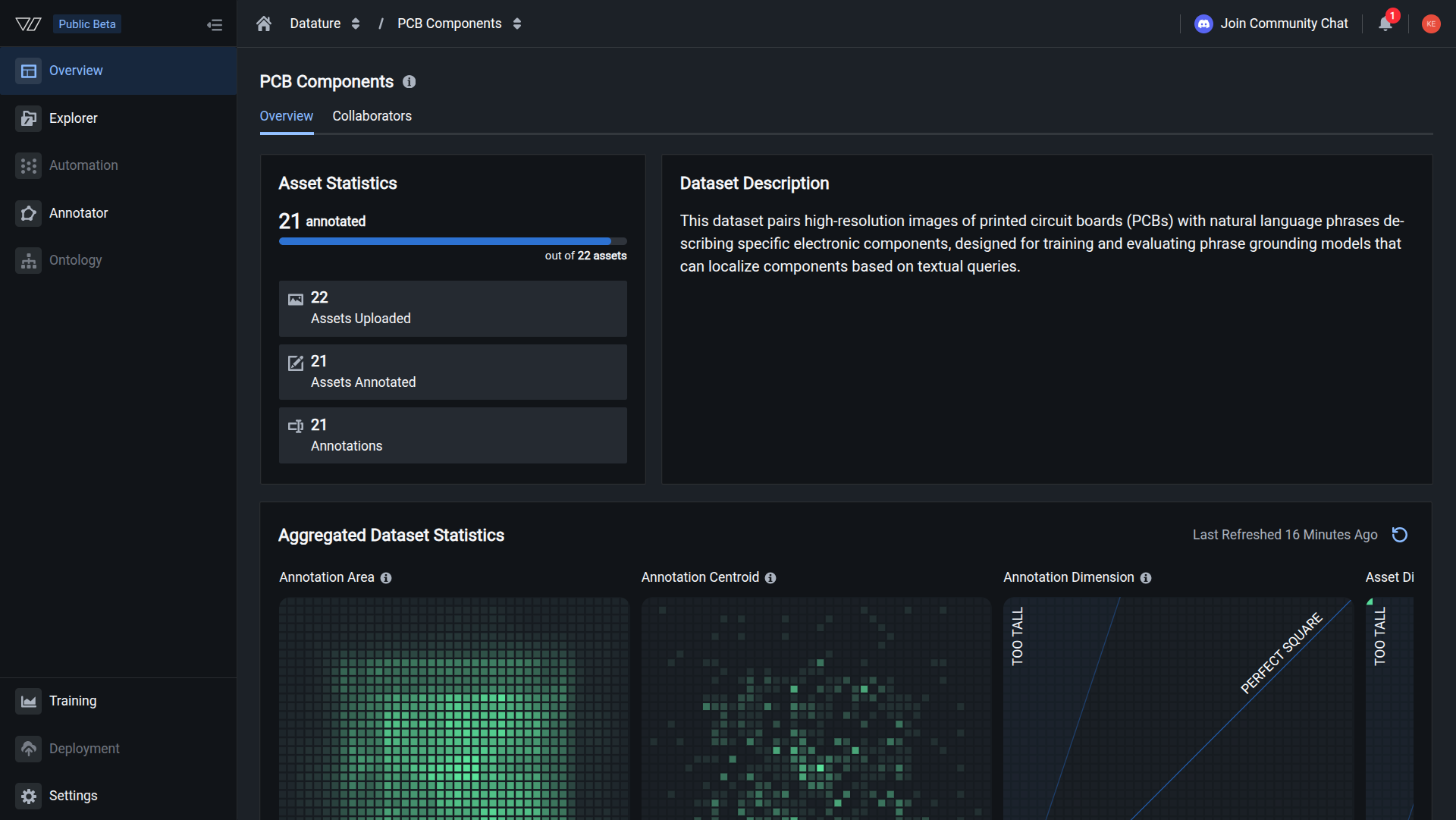
From the Dataset Overview page, click the Annotator tab to open the labeling interface.
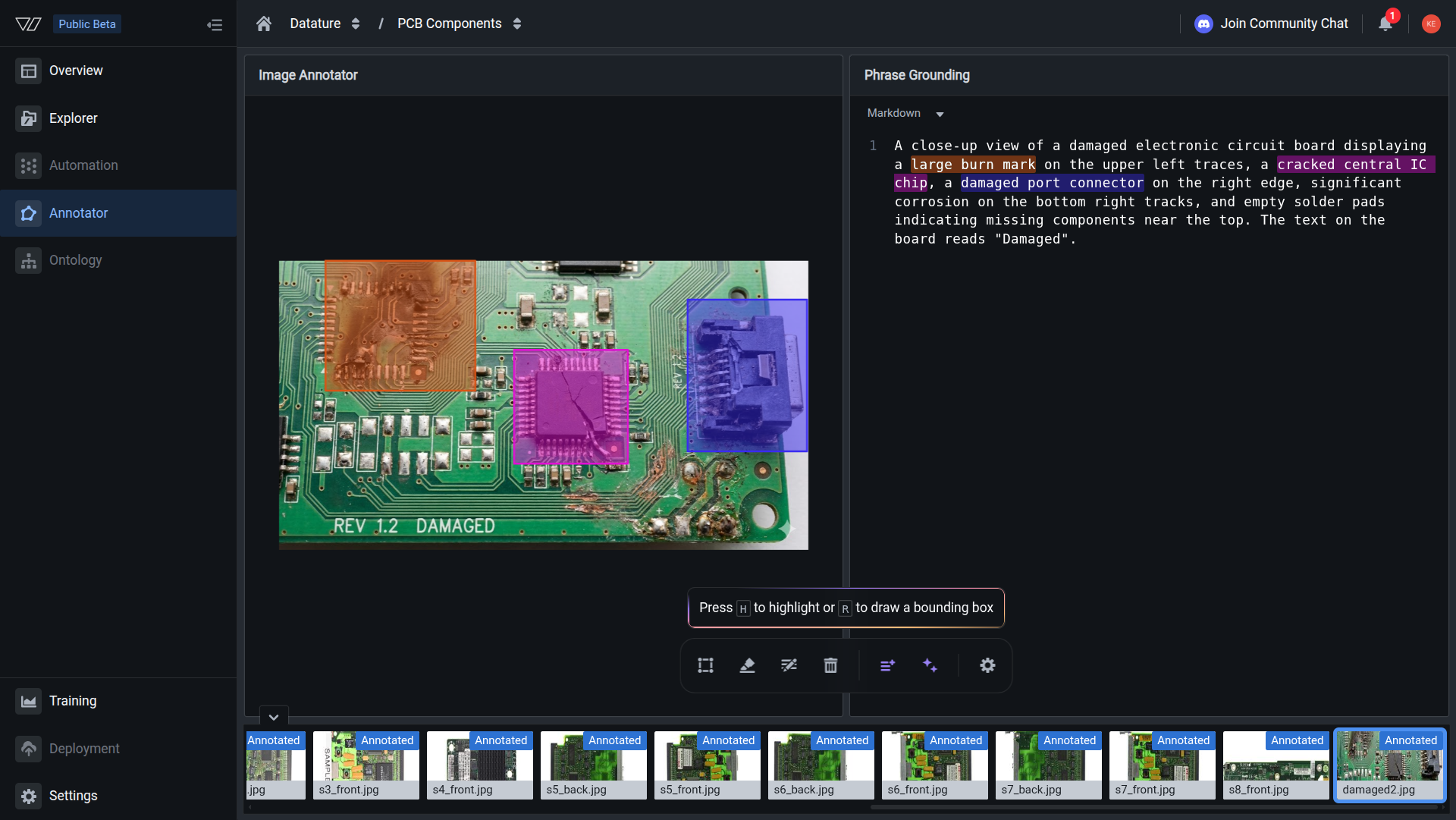
Your AI-assisted annotation is complete when each phrase in the caption is linked to the correct bounding box and all connections are reviewed.
Manual phrase grounding annotation walkthrough
When to use AI assistance
- Large datasets with hundreds or thousands of images
- Common objects in standard photography conditions
- Getting started quickly and refining later
- Maintaining consistent terminology across a team
- Highly specialized domains where generic terms won't work
- Images with heavy occlusion or unusual angles
- Small datasets where manual annotation is equally fast
- Use cases where every phrase link must be exact
Manual vs AI-assisted annotation
The recommended approach for most projects: use IntelliScribe for speed, then edit the caption for domain accuracy before running IntelliScribe Phrases.
Tips for better AI output
The quality of IntelliScribe's output depends on the image quality and how you use it.
Image quality:
- Use clear, well-lit photos. Low-contrast or blurry images produce weaker captions.
- Front-facing angles with minimal occlusion work best.
- Higher resolution images generally yield more detailed captions.
Caption editing:
- Replace generic terms with your domain vocabulary before drawing boxes. A caption that says "integrated circuit" when you need "FPGA chip" will produce incorrect phrase links.
- Keep captions structured so phrases are distinctly separated. Overlapping phrases cannot be linked simultaneously.
After running IntelliScribe Phrases:
- Check each link. Click any highlighted phrase to confirm it connects to the right box.
- For incorrect links, press D and click the phrase to unlink it, then manually highlight the correct phrase.
Frequently asked questions
Do this with the Vi SDK
import vi

client = vi.Client(
    secret_key="your-secret-key",
    organization_id="your-organization-id"
)

result = client.annotations.upload(
    dataset_id="your-dataset-id",
    paths="annotations.jsonl",
    wait_until_done=True
)
print(f"Imported: {result.total_annotations}")
For more details, see the full SDK reference.
Related resources
Annotate For Phrase Grounding
Full step-by-step guide to phrase grounding annotation, including how IntelliScribe fits into the workflow.
Annotate With Freeform Text
Write freeform text annotations for images, with IntelliScribe for AI-generated starting text.
Dataset Overview
Check annotation coverage and quality after annotating your dataset.
Updated 6 months ago