Edit a Model Key

Update the unique identifier assigned to your model checkpoint for better organization and reference.

Edit your model key to update the unique identifier assigned to your model checkpoint. Model keys help you organize and reference specific checkpoints from your training runs.

🔑

What are model keys?

Model keys are unique identifiers assigned to model checkpoints. They help you:

  • Reference specific checkpoints — Identify particular versions of your trained model
  • Organize models — Keep track of different checkpoints and versions
  • Integrate with workflows — Use consistent identifiers across your deployment pipelines
  • Maintain clarity — Distinguish between multiple checkpoints from the same training run

When to edit model keys

Update your model keys in these situations:

  • Improved organization — Create more descriptive or meaningful identifiers
  • Consistent naming — Align model keys with your team's naming conventions
  • Version tracking — Use keys that reflect model versions or iterations
  • Integration requirements — Match identifiers expected by your deployment systems
  • Clarity improvements — Replace auto-generated keys with human-readable ones
  • Project reorganization — Update keys to reflect current project structure

Navigate to model key settings

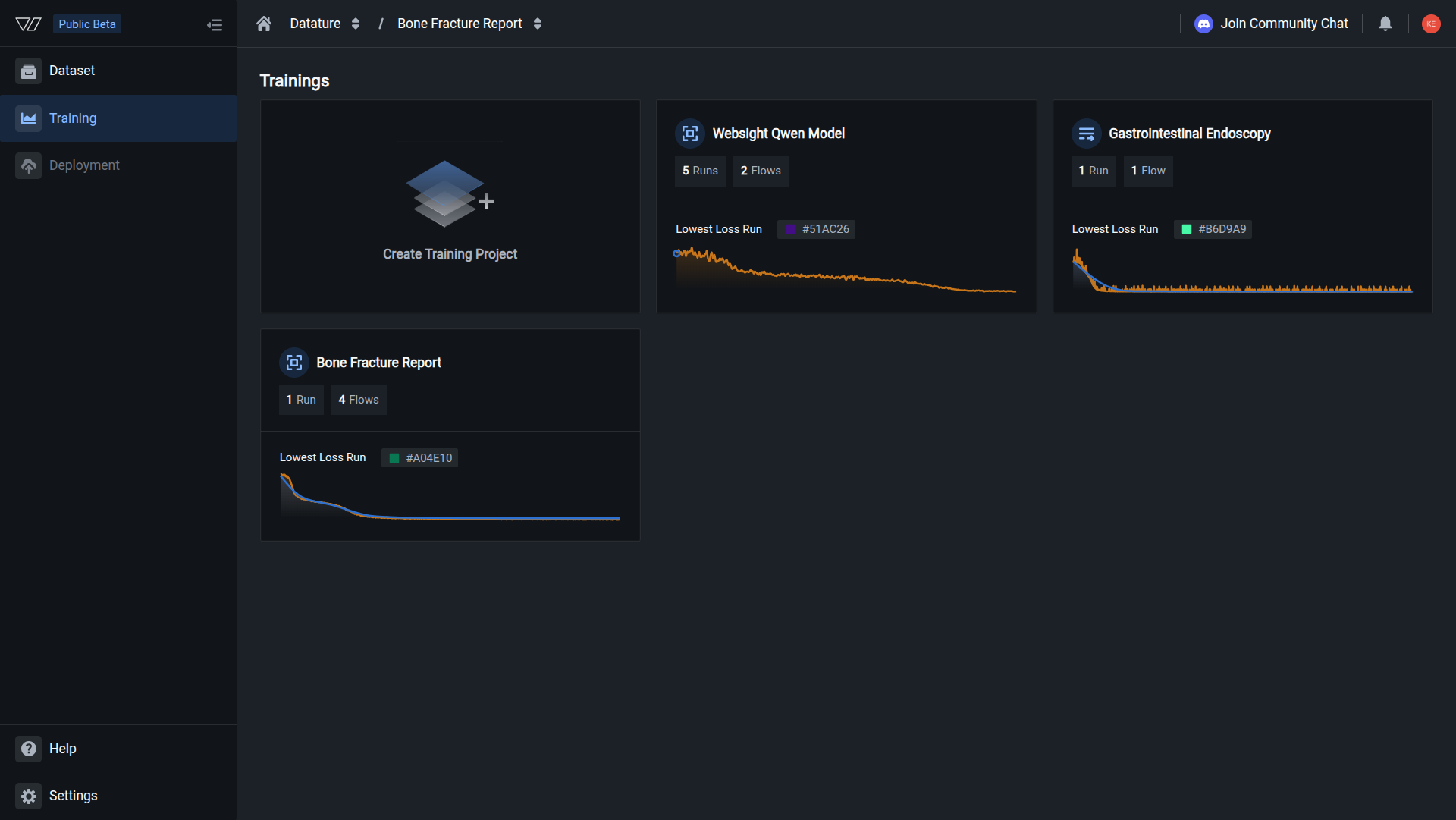
  1. Navigate to your training project

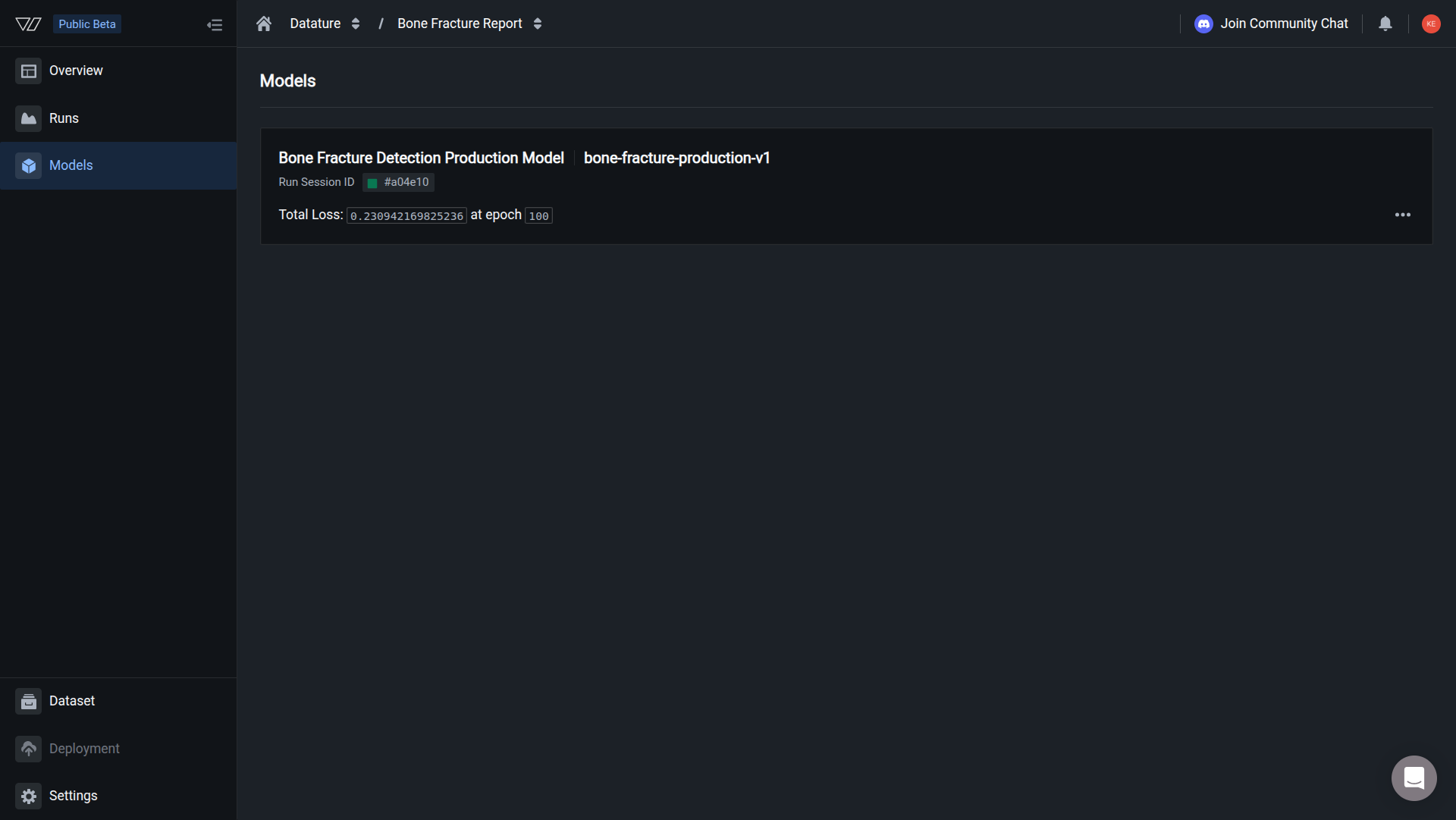
  2. Click the Models tab in the sidebar

  3. Locate the model whose key you want to edit

  4. Click the three-dot menu (⋮) on the right side of the model card

  5. A dropdown menu appears with these options:

    • View Run — View detailed run information
    • Export ModelDownload model for deployment
    • Create Deployment — Deploy model to production (if configured)
    • Rename Model — Update model name
    • Edit Model Key — Update model identifier (select this)
    • Delete Model — Permanently remove model

Update your model key

  1. Click Edit Model Key from the dropdown menu

  2. A dialog appears showing the current model key

  3. The dialog displays:

    • Current key — Your existing model checkpoint identifier
    • Key format — Expected format or pattern (if applicable)
    • Usage notes — Where this key is currently referenced
  4. Enter your new model key in the input field

    💡

    Key naming tips

    • Be descriptive — Use keys that indicate the checkpoint's purpose
    • Follow conventions — Match your team's identifier format
    • Include version — Consider adding version numbers (e.g., pcb-v2-checkpoint-35)
    • Avoid special characters — Stick to alphanumeric characters, hyphens, and underscores
    • Keep it concise — Shorter keys are easier to reference and remember
    • Be consistent — Use similar patterns across related models
  5. Click Save or Confirm to apply the new key

Model key updated

Your model checkpoint identifier has been updated. You may need to update references in:

  • Deployment configurations
  • Integration scripts
  • Documentation and wikis
  • Workflow automation
  • Team member notes

What changes when you edit

Updated:

  • Model checkpoint identifier
  • References in the platform UI
  • Key returned in API responses
  • Identifier used in deployment configurations
  • Key shown in model export operations

Unchanged:

  • Model ID (Run ID) — The underlying model identifier remains the same
  • Model weights and configurations
  • Training history and metrics
  • Model performance characteristics
  • Model name (change separately via Rename Model)
  • Downloaded model files (already exported)
🔑

Model ID vs Model Key

  • Model ID (Run ID) — Permanent unique identifier that never changes
  • Model Key — Customizable reference label you can update anytime

Your Model ID remains constant and is used internally by the platform. The Model Key is a human-readable identifier you can customize for your workflows.


Update references after editing

After changing a model key, update any external references:

Deployment configurations

If your deployment scripts reference the model key:

# deployment-config.yml
model:
  name: "PCB Defect Detection"
  key: "pcb-v2-checkpoint-35"  # Update this if changed
  run_id: "run_abc123"  # This never changes

Documentation

Update any documentation that references the old key:

  • Project wikis and README files
  • Deployment guides and runbooks
  • Integration documentation
  • Team onboarding materials
  • API integration guides

Integration scripts

If your scripts use the model key for identification:

# Update model key references in your code
MODEL_CONFIGS = {
    "pcb-v2-checkpoint-35": {  # New key
        "run_id": "run_abc123",
        "description": "PCB defect detection model"
    }
}

Team communication

  • Notify team members of the key change
  • Update shared spreadsheets or tracking documents
  • Inform stakeholders who reference the model
  • Update project management tools

Model key naming conventions

Establish consistent patterns for better organization:

Pattern 1: Version-based

Include version numbers for clear progression:

  • model-v1-checkpoint-final
  • model-v2-checkpoint-epoch-50
  • model-v3-checkpoint-best

Pattern 2: Task-based

Emphasize what the model does:

  • defect-detection-checkpoint-35
  • quality-control-checkpoint-final
  • classification-checkpoint-best

Pattern 3: Date-based

Include training dates for temporal tracking:

  • pcb-model-2026-01-checkpoint
  • qc-model-202601-v2
  • detection-20260105-final

Pattern 4: Performance-based

Reflect model characteristics:

  • high-accuracy-checkpoint-89
  • fast-inference-checkpoint-final
  • balanced-model-checkpoint-best
💡

Choose what works for your team

Select a naming pattern that makes sense for your workflow and apply it consistently across all your models.


Common questions

Can I use the same model key for multiple models?

No. Model keys must be unique within your organization. Each model checkpoint requires its own distinct identifier.

If you attempt to use a duplicate key, the platform will prompt you to choose a different identifier.

What happens if I don't set a custom model key?

The platform automatically assigns a default model key when a training run completes. This auto-generated key is typically based on:

  • Training run ID
  • Epoch number
  • Checkpoint timestamp
  • Model architecture

Example: model-run_abc123-epoch-35

You can edit this default key anytime to make it more meaningful for your workflow.

Will changing the model key break my deployments?

It depends on how you reference the model:

  • References by Run ID — No impact (Run ID never changes)
  • References by Model Key — May need updating if your deployment system uses the key

Best practice:

  • Always use the Run ID for critical integrations
  • Use model keys for human-readable organization only
  • Update any scripts that specifically reference the old key
Can I see the history of key changes?

The platform doesn't currently maintain a visible history of model key changes. To track changes over time:

  • Keep a changelog document for model updates
  • Document key changes in project notes
  • Use version control for deployment configurations
  • Include change notes when updating keys

For audit requirements, maintain an external log of model key updates with dates and reasons.

What characters are allowed in model keys?

Model keys support:

  • Lowercase letters (a-z)
  • Numbers (0-9)
  • Hyphens (-)
  • Underscores (_)

Restrictions:

  • No spaces (use hyphens or underscores instead)
  • No special characters (!@#$%^&*)
  • Cannot start with a number
  • Maximum length varies (typically 64-128 characters)
  • Must be unique within your organization

Examples:

  • pcb-defect-v2-checkpoint-35
  • quality_control_2026_01
  • model-final-epoch-100
  • Model Final! (spaces and special chars)
  • 123-model (starts with number)
How is this different from renaming a model?

Renaming a model changes the display name shown in the UI and documentation.

Editing a model key changes the technical identifier used to reference the checkpoint.

Example:

  • Model Name: "PCB Defect Detection v2.0" (what users see)
  • Model Key: pcb-defect-v2-checkpoint-35 (technical reference)
  • Run ID: run_abc123def456 (permanent internal ID)

You can update both independently:

  • Change the name for better readability
  • Change the key for better technical organization
  • The Run ID always stays the same
Can I edit model keys via the Vi SDK?

Model key editing is currently available through the web interface only. The Vi SDK uses Run IDs for model operations:

import vi

client = vi.Client(
    secret_key="your-secret-key",
    organization_id="your-organization-id"
)

# Models are accessed by Run ID, not by model key
model_data = client.get_model(run_id="run_abc123")

# For loading models
from vi.inference import ViModel

model = ViModel(
    run_id="run_abc123",  # Always use Run ID
    secret_key="your-secret-key",
    organization_id="your-organization-id"
)

Best practice: Use Run IDs in all programmatic operations. Model keys are primarily for human reference and organization.


Best practices

Descriptive identifiers

Use keys that clearly indicate the checkpoint's purpose or characteristics

Consistent patterns

Apply the same naming convention across all models in your project

Document changes

Keep notes on why you changed a model key and what it represents

Update references

Review and update any documentation or scripts that reference the old key

Version tracking

Include version information in keys for better tracking

Team coordination

Inform team members when changing keys for shared models


When model keys are useful

Multi-checkpoint workflows

When training produces multiple checkpoints, model keys help distinguish them:

  • Best performing: pcb-defect-best-map-89
  • Latest: pcb-defect-latest-epoch-100
  • Lightweight: pcb-defect-quantized-4bit
  • Production: pcb-defect-prod-stable

This makes it clear which checkpoint serves which purpose.

A/B testing scenarios

Use model keys to track different variants:

  • Variant A: classification-variantA-prompt1
  • Variant B: classification-variantB-prompt2
  • Control: classification-baseline

Clear identifiers make it easy to compare results and reference specific variants in analysis.

Deployment pipelines

Organize checkpoints by deployment stage:

  • Development: model-dev-testing
  • Staging: model-staging-validated
  • Production: model-prod-v2
  • Rollback: model-prod-v1-backup

This helps teams understand which checkpoint is deployed where.

Team collaboration

Use keys that communicate status to team members:

  • In review: model-review-accuracy-check
  • Approved: model-approved-ready
  • Deprecated: model-deprecated-old

Clear naming reduces confusion and improves team coordination.


Troubleshooting

Cannot edit model key

Potential causes:

  • Insufficient permissions
  • Model is still training
  • Browser caching issues
  • Key validation failed

Solutions:

  • Verify you have edit access to the training project
  • Ensure the training run has completed
  • Check that your proposed key follows naming rules
  • Refresh the page and try again
  • Try a different key if validation fails
New key not appearing

Possible issues:

  • Changes not saved properly
  • Browser cache not refreshed
  • Viewing old cached page

Solutions:

  • Refresh the page (hard refresh: Ctrl+Shift+R or Cmd+Shift+R)
  • Clear browser cache
  • Try viewing in an incognito/private window
  • Check if the change was actually saved (edit again to verify)
Duplicate key error

This means:

Another model in your organization already uses this key.

Solutions:

  • Choose a different, unique identifier
  • Add distinguishing information (version, date, checkpoint number)
  • Check existing models to see what keys are in use
  • Use more specific naming to avoid conflicts

Example:

  • model-final (too generic, likely duplicate)
  • pcb-defect-final-epoch-89-2026-01 (specific and unique)

Next steps