
Annotate For VQA
Create Visual Question Answering annotations by adding question-answer pairs to your images.
Visual Question Answering (VQA) annotations teach your VLM to understand and answer questions about images. Create comprehensive question-answer datasets using Datature's visual annotator.
Prerequisites
- A dataset with uploaded images
- Understanding of what questions you want your model to answer
- Basic familiarity with VQA concepts
Create a dataset if you don't have one yet.
What is VQA?Visual Question Answering allows you to ask questions about images and get answers from your model. Examples: "What color is the car?", "How many defects are visible?", "Is this product damaged?"
Open the annotator
- Navigate to your dataset and click the Annotator tab
-
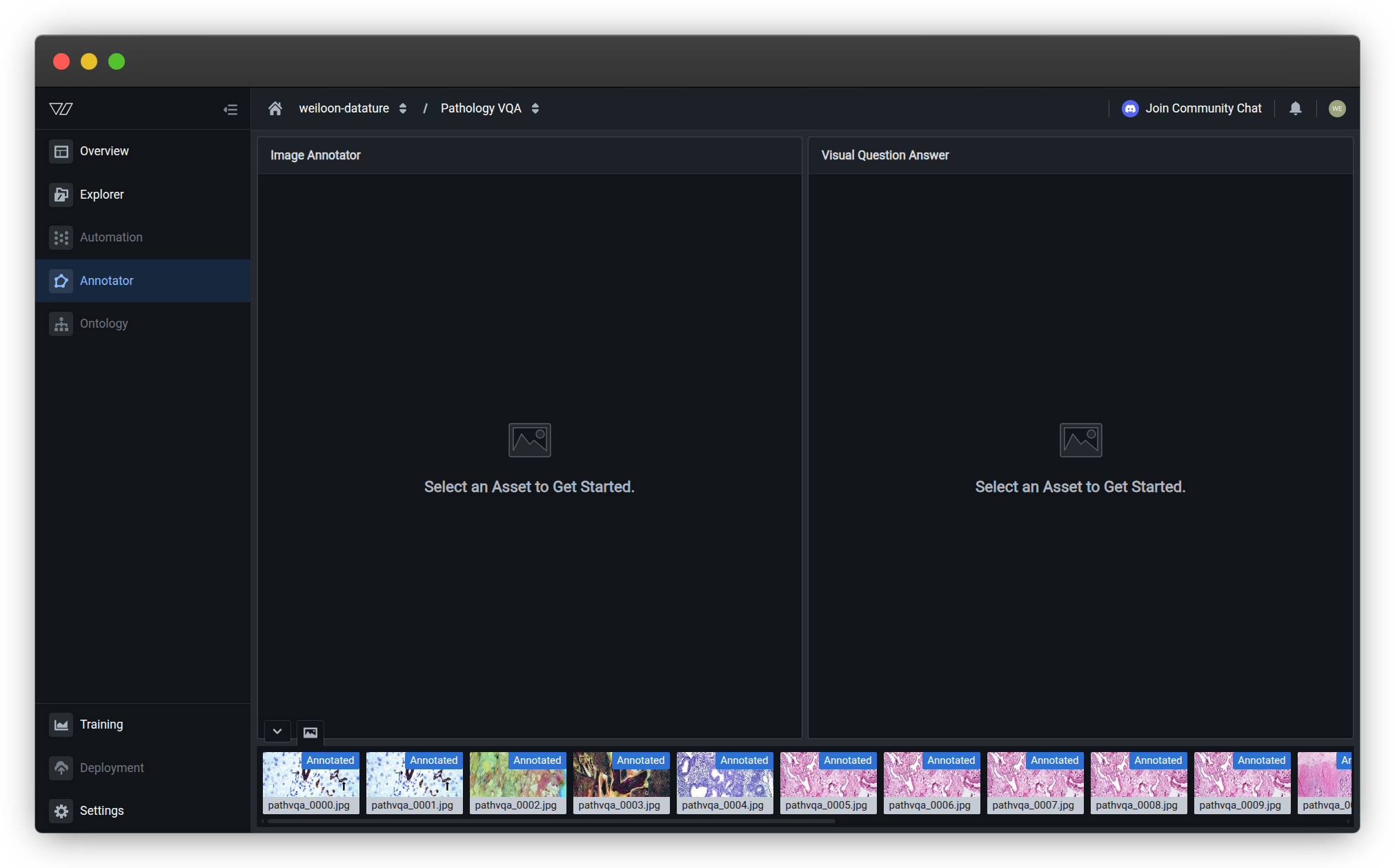
The annotator will open with empty views
-
Click on an image thumbnail at the bottom to load it
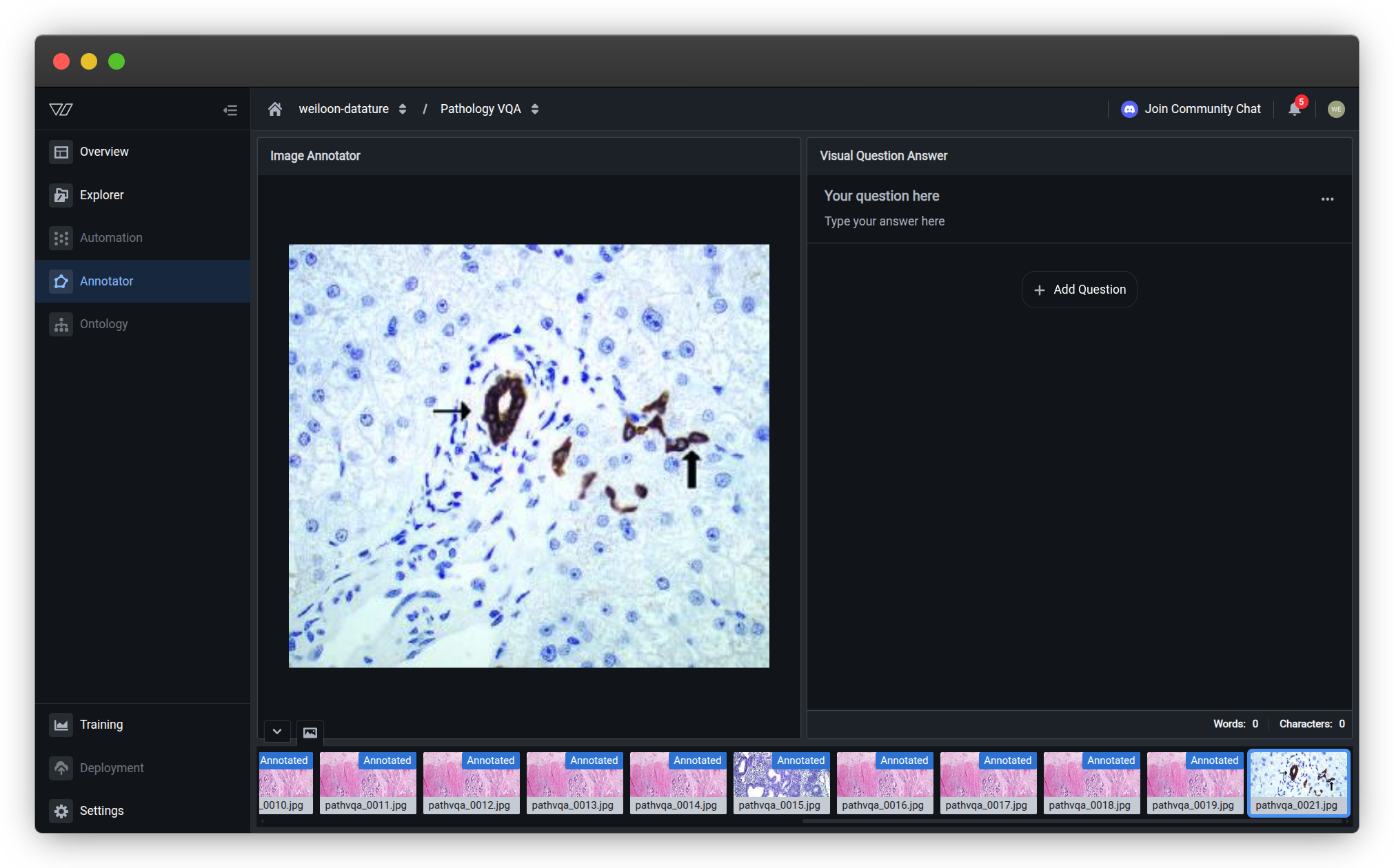
Annotator interfaceThe VQA annotator has three main areas:
- Left side — Image Annotator (displays your selected image)
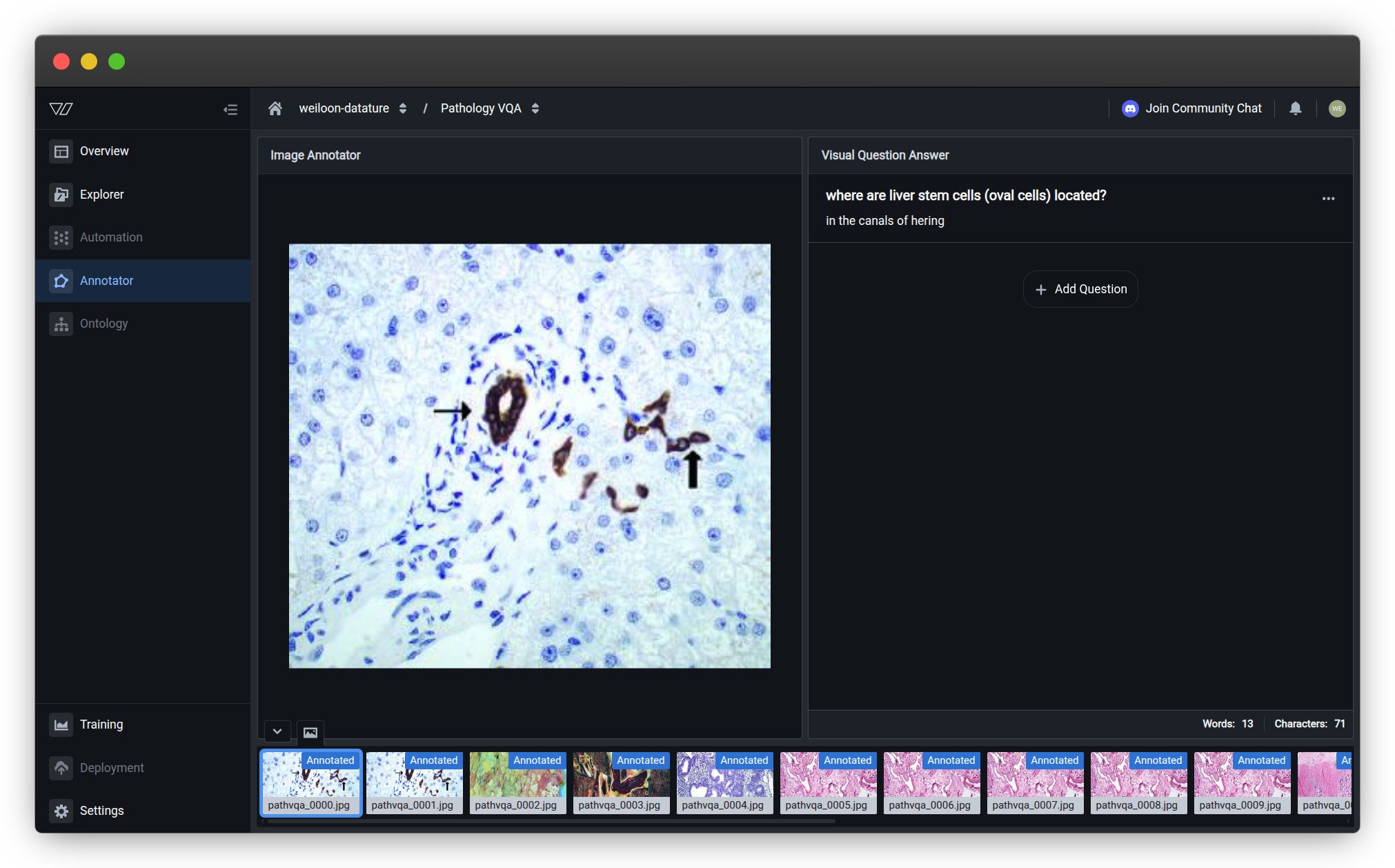
- Right side — Visual Question Answering panel (shows question-answer pairs for the selected image)
- Bottom — Image thumbnail navigation strip (click any thumbnail to load that image)
- Bottom right — Word and character count statistics for your annotations
Create VQA annotations
VQA annotations consist of question-answer pairs that teach your model to understand and respond to visual queries. Each image can have multiple questions, and each question should have a clear, concise answer.
Add a question-answer pair
- On the right side, in the Visual Question Answering panel, click + Add Question
-
Type your question in the Question field
-
Type the answer in the Answer field
-
Click Add to save the question-answer pair
The annotation appears in the Visual Question Answering panel on the right. You can edit or delete it later if needed.
Word and character count tracking:
The bottom right corner displays the total word and character count for all question-answer pairs on the current image. This helps you:
- Monitor annotation length across your dataset
- Ensure consistency in answer detail
- Track overall annotation volume
To view individual QA pair statistics:
- Click on any question-answer pair in the right panel
- The bottom right counter updates to show words and characters for that specific pair
- This helps identify verbose answers that should be kept concise
Best practices for VQA annotations
- Be specific — Ask clear, focused questions (see Write effective questions)
- Keep answers concise — Short answers work better for training (monitor using the word count)
- Stay consistent — Use similar phrasing across similar questions
- Vary question types — Include different question types (counting, colors, presence/absence, descriptions)
Review Annotation best practices for comprehensive guidelines.
Add multiple questions per image
You can add multiple question-answer pairs to the same image:
-
After adding your first question-answer pair, click + Add Question again
-
Enter another question and answer
-
Click Add to save
-
Repeat as needed
Example for a manufacturing image:
- Q: "How many defects are visible?" → A: "3"
- Q: "What type of defect is this?" → A: "Scratch"
- Q: "Is the product acceptable?" → A: "No"
See Question types to include for more examples and guidance.
How many questions per image?Recommended: 2-5 question-answer pairs per image
More questions = more comprehensive training data. Vary the question types to teach your model different aspects of visual understanding.
Edit or delete annotations
You can modify or remove annotations at any time. This is useful for correcting mistakes, improving question clarity, or removing low-quality annotations.
To edit a question-answer pair:
-
In the Visual Question Answering panel on the right, locate the question-answer pair you want to edit
-
Click the question-answer pair to focus it (the word and character count will update on the bottom right to show this pair's statistics)
-
Click the edit icon or the question-answer pair itself to open the edit mode
-
Make your changes to improve clarity or accuracy (see Write effective questions)
-
Changes save automatically as you type
The word and character count updates in real-time as you edit. Your edits are tracked in your annotation statistics.
To delete a question-answer pair:
-
In the Visual Question Answering panel, locate the question-answer pair you want to remove
-
Click the three-dot menu (⋮) on the right side of the question-answer pair
-
Click Delete
-
Confirm the deletion
Deletions are immediateDeleted annotations cannot be recovered. Make sure you want to remove the annotation before confirming. Use filters to review annotations before deletion.
When to edit vs. delete:
- Edit — Fix typos, improve clarity, correct answers, or rephrase questions
- Delete — Remove duplicate questions, unclear questions, or annotations that don't follow your annotation best practices
Navigate between images
Efficient navigation helps you annotate large datasets quickly. Use keyboard shortcuts or mouse controls to move between images while maintaining your annotation workflow.
Move to the next image
After adding question-answer pairs, move to the next image:
Using keyboard (recommended for speed):
- Press E → Next image
- Press Q → Previous image
Using mouse:
- Click the next image thumbnail in the bottom navigation strip
- Click on any specific image thumbnail at the bottom to jump directly to it
The bottom thumbnail strip shows all images in your dataset with "Annotated" badges indicating which images already have question-answer pairs.
Pro tip: Use keyboard shortcuts to maintain annotation speed without switching between keyboard and mouse.
Save your work
Your annotations save automatically when you:
- Click Add after entering a question-answer pair
- Navigate to another image using the bottom thumbnail strip or keyboard (press E or Q)
- Make edits to existing annotations
- Close the annotator
Auto-save enabledAll changes save automatically and appear immediately in the Visual Question Answering panel on the right. You don't need to manually save your work. Use keyboard shortcuts to navigate efficiently through the bottom thumbnail strip.
Keyboard shortcuts
Speed up annotation with keyboard shortcuts. Master these to significantly improve your annotation efficiency.
Essential shortcuts
| Shortcut | Action | Use case |
|---|---|---|
| E | Next image | After adding questions to current image |
| Q | Previous image | Review or edit previous annotations |
| Tab | Move between input fields | Quickly switch from Question to Answer field |
| Enter | Submit form | Add annotation without clicking Add button |
| ? | Show all shortcuts | View complete keyboard shortcut reference |
Workflow optimization
Efficient annotation pattern:
- View image → Type question → Press Tab → Type answer → Press Enter
- Press E to move to next image
- Repeat
Alternative workflow:
- Press Q to go back to previous images for review
- Press E to continue forward through your dataset
This workflow keeps your hands on the keyboard for maximum speed. See Annotation best practices for more efficiency tips.
Pro tipPress ? in the annotator to see the complete list of keyboard shortcuts. Different annotation tools may have additional shortcuts.
Question writing guidelines
Writing effective questions is critical for training accurate VQA models. Well-structured questions lead to consistent answers and better model performance.
Write effective questions
Good VQA questions are clear, answerable, and useful for your use case. See Question types to include for specific categories and examples.
Good examples:
| Use case | Question | Answer |
|---|---|---|
| Manufacturing QC | "Is this part defective?" | "Yes" |
| Retail inventory | "How many items are on the shelf?" | "12" |
| Agriculture | "What is the crop condition?" | "Healthy" |
| Medical imaging | "Is there abnormality present?" | "No" |
Avoid these patterns:
| Bad question | Why it's bad | Better version |
|---|---|---|
| "What do you see?" | Too vague | "What type of vehicle is this?" |
| "Is this good or bad or maybe damaged?" | Multiple questions | Split into separate questions |
| "Describe everything in detail" | Too broad | "What is the primary defect type?" |
See Common questions for guidance on answer formatting and consistency.
Question types to include
Train a well-rounded model by including diverse question types. Use a mix of these categories across your dataset for comprehensive VQA training.
Counting questions
Format: "How many [objects] are visible?"
Counting questions teach your model to quantify objects or features in images. These are essential for inventory, quality control, and monitoring applications.
Examples:
- "How many defects are present?" → "3"
- "How many people are in the image?" → "7"
- "How many red items are on the shelf?" → "12"
- "How many complete products are visible?" → "5"
- "How many safety violations are shown?" → "0"
Answer format: Use numbers only ("3", "0", "15")
Best practices:
- Be specific about what to count
- Use "0" for none, not "None" or "Zero"
- For large numbers, ensure accuracy by counting carefully
- Consider combining with presence/absence questions for validation
See Write effective questions for clarity guidelines.
Yes/No questions
Format: "Is [condition] true?"
Yes/No questions are simple binary classifications that help models make quick decisions. These are ideal for quality control, compliance checks, and condition assessment.
Examples:
- "Is the product damaged?" → "Yes"
- "Is the workspace clean?" → "No"
- "Is protective equipment worn?" → "Yes"
- "Is packaging intact?" → "Yes"
- "Is there visible rust?" → "No"
Answer format: Use "Yes" or "No" consistently (not "yes"/"no", "Y"/"N", or "True"/"False")
Best practices:
- Make questions unambiguous — avoid "maybe" situations
- Phrase positively when possible ("Is X present?" vs. "Is X absent?")
- Keep questions focused on one condition
- Add multiple questions for complex scenarios
Pair with attribute questions for more detailed information.
Attribute questions
Format: "What [attribute] is the [object]?"
Attribute questions help models identify specific characteristics like color, size, shape, material, or condition. These are valuable for detailed object description and classification.
Examples:
- "What color is the vehicle?" → "Blue"
- "What size is the defect?" → "Large"
- "What material is the surface?" → "Metal"
- "What shape is the container?" → "Rectangular"
- "What is the lighting condition?" → "Bright"
Answer format: Single word or short phrase ("Blue", "Large", "Metal")
Common attribute types:
- Color: "Red", "Blue", "Green", "Silver"
- Size: "Small", "Medium", "Large"
- Shape: "Round", "Square", "Irregular"
- Material: "Metal", "Plastic", "Wood", "Glass"
- Condition: "New", "Worn", "Damaged"
Best practices:
- Use consistent vocabulary across your dataset
- Define size categories clearly for your team (see collaborative annotation)
- Standardize color names (e.g., always "Blue" not "Light blue" or "Navy")
- See Write effective questions for consistency guidelines
Category questions
Format: "What type of [object] is this?"
Category questions teach models to classify objects or conditions into predefined groups. These are essential for sorting, routing, and decision-making applications.
Examples:
- "What type of defect is visible?" → "Scratch"
- "What category does this product belong to?" → "Electronics"
- "What kind of damage occurred?" → "Water damage"
- "What vehicle type is shown?" → "Sedan"
- "What equipment is this?" → "Forklift"
Answer format: Category name ("Scratch", "Electronics", "Water damage")
Best practices:
- Define your categories clearly before annotating
- Use mutually exclusive categories when possible
- Maintain a category list for consistency
- For overlapping categories, use multiple questions
Category planning:
- List all possible categories for your use case
- Create examples of each category
- Share with your team if annotating collaboratively
- Review annotation statistics to ensure balanced coverage
Combine with Yes/No questions for hierarchical classification.
Presence/Absence questions
Format: "Is [object] present in the image?"
Presence/absence questions focus on detecting specific objects or features regardless of quantity or attributes. Similar to Yes/No questions but specifically about object existence.
Examples:
- "Is a safety helmet visible?" → "Yes"
- "Is packaging intact?" → "No"
- "Is the label present?" → "Yes"
- "Is there any text in the image?" → "Yes"
- "Is liquid leaking?" → "No"
Answer format: "Yes" or "No" consistently
When to use:
- Safety and compliance checks
- Quality control verification
- Completeness validation
- Component detection
Presence/Absence vs. Counting:
- Use presence/absence when you only care if something exists
- Use counting questions when quantity matters
- Combine both for comprehensive coverage
Example combination:
- "Is protective equipment visible?" → "Yes" (presence)
- "How many people are wearing helmets?" → "3" (counting)
See Write effective questions to ensure clarity between presence and counting.
Complete annotation strategies
Apply question types strategically based on your use case. Here are proven annotation patterns for common scenarios.
Manufacturing quality control
Goal: Detect and classify defects for automated quality inspection
Question strategy:
- Presence/Absence: "Is this product defective?" → "Yes"/"No"
- Counting: "How many defects are visible?" → "2"
- Category: "What type of defect is this?" → "Scratch"
- Attribute: "What is the defect severity?" → "Minor"
- Yes/No: "Should this be rejected?" → "Yes"
Why this works: Covers detection → classification → decision-making workflow
Retail inventory and shelf monitoring
Goal: Track products, stock levels, and planogram compliance
Question strategy:
- Counting: "How many items are on the shelf?" → "15"
- Category: "What product category is displayed?" → "Beverages"
- Presence/Absence: "Is the price tag visible?" → "Yes"
- Yes/No: "Is the shelf fully stocked?" → "No"
- Attribute: "What is the stock level?" → "Low"
Why this works: Enables inventory tracking and compliance verification
Safety and compliance monitoring
Goal: Verify safety equipment usage and workplace compliance
Question strategy:
- Counting: "How many people are in the workspace?" → "4"
- Counting: "How many people are wearing helmets?" → "3"
- Presence/Absence: "Is safety signage visible?" → "Yes"
- Yes/No: "Is the area compliant?" → "No"
- Category: "What type of violation is shown?" → "Missing PPE"
Why this works: Combines counting with compliance assessment
Agricultural monitoring
Goal: Assess crop health, growth stage, and pest detection
Question strategy:
- Attribute: "What is the crop condition?" → "Healthy"
- Presence/Absence: "Are pests visible?" → "No"
- Category: "What growth stage is shown?" → "Flowering"
- Yes/No: "Does the crop need irrigation?" → "Yes"
- Attribute: "What is the canopy color?" → "Green"
Why this works: Monitors multiple health indicators simultaneously
Use these patterns as templates and adapt to your specific needs. Track your progress to ensure balanced coverage across question types.
Track annotation progress
Monitor your annotation progress to ensure you have sufficient training data. Track both quantity (number of annotations) and quality (diverse question types).
View annotation statistics
Check your progress from the dataset Explorer page:
-
Click the Annotations tab
-
View statistics:
- Total annotated images
- Total question-answer pairs
- Average questions per image
- Distribution by question type
View dataset insights for detailed analytics on your annotations.
How many annotations do I need?Minimum: 50 question-answer pairs across 20+ images
Recommended: 200+ question-answer pairs across 50+ images
Optimal: 500+ question-answer pairs with diverse question types
More diverse questions = better model understanding. See Write effective questions for quality guidelines.
Filter annotated images
In the Annotator:
- Check the bottom thumbnail navigation strip to see which images have annotations (marked with "Annotated" badges)
- Monitor word and character count on the bottom right corner:
- Total count — Shows combined statistics for all QA pairs on the current image
- Individual count — Click any QA pair to see its specific word and character count
- Quickly identify images that need additional questions
Use the word count feature to ensure answer consistency across your dataset.
In the Explorer:
-
Click the Assets tab
-
Use filters to show:
- Images with annotations
- Images without annotations
- Images with specific answer values
Learn more about dataset management
Troubleshooting
Common issues and solutions when creating VQA annotations.
My annotations aren't saving
Possible causes and solutions:
-
Network connectivity — Check your internet connection. Annotations require an active connection to save.
-
Session timeout — If you've been idle, refresh the page and reopen the annotator.
-
Browser issues — Clear cache or try a different browser. Supported browsers: Chrome, Firefox, Safari, Edge.
-
Form incomplete — Ensure both Question and Answer fields are filled before clicking Add.
Verify your annotations saved:
- Check annotation statistics in the dataset Explorer
- Filter annotated images to see which images have annotations
I can't find the annotator
Solution steps:
-
Navigate to your dataset from the main Datasets page
-
Click the Annotator tab in the left sidebar (see Open the annotator)
-
If the tab is missing or annotator won't open, verify:
- You have uploaded images to the dataset
- You have permission to annotate (check with your organization admin)
- Your dataset type supports VQA annotations
The annotator interface shows your image on the left, question-answer pairs on the right, and thumbnails at the bottom.
The interface is slow or lagging
Performance optimization:
-
Large images — Images over 10 MB may load slowly. Upload optimized images when possible.
-
Browser resources — Close unnecessary tabs and applications.
-
Use keyboard shortcuts — Keyboard navigation is faster than mouse clicks.
-
Batch workflow — Annotate similar images together to reduce context switching.
My question-answer pairs disappeared
Recovery steps:
-
Check the image — Ensure you're viewing the correct image. Check the bottom thumbnail strip to confirm which image is selected.
-
Check the right panel — Question-answer pairs appear in the Visual Question Answering panel on the right side. Scroll down if you have many annotations.
-
Check filters — Remove filters that might be hiding annotations.
-
Review edit history — If annotations were deleted, they cannot be recovered. Re-annotate the image.
-
Browser cache — Try refreshing the page or clearing your browser cache.
Prevention: Use annotation statistics to regularly verify your progress. The bottom thumbnail strip shows "Annotated" badges on images with question-answer pairs.
I accidentally deleted annotations
Unfortunately, deletions cannot be undone. Best practices to prevent this:
-
Double-check before deleting — Review annotations carefully before clicking the three-dot menu and selecting Delete
-
Use edit instead — Edit annotations rather than deleting and recreating (edits save automatically)
-
Export backups — Regularly download your dataset as a backup
-
Team coordination — If annotating collaboratively, communicate before bulk deletions
How do I handle special characters in questions or answers?
Special characters are supported:
- Standard punctuation — Question marks, commas, periods work normally
- Numbers — Use digits for counting questions ("3", not "three")
- Unicode — Non-English characters and symbols are supported
- Avoid — Excessive special characters may confuse the model
Best practice: Keep answers concise with minimal special characters for better model training.
Common questions
Should I ask the same questions for every image?
It depends on your use case:
Same questions — Best when you want the model to answer consistent questions across different images (e.g., "Is this product defective?")
Varied questions — Best when training a general-purpose VQA model that needs to handle diverse questions
Recommended approach: Use a core set of questions for all images, plus additional specific questions where relevant.
Review Question types to include to plan your annotation strategy and Write effective questions for consistency guidelines.
How specific should my answers be?
Keep answers concise:
- ✅ Good: "3", "Red", "Damaged", "Top-left corner"
- ❌ Too detailed: "There are three defects visible on the surface, including two scratches and one dent located near the edge"
Why shorter is better:
- Easier for the model to learn
- Faster to annotate
- More consistent across annotators
- Better training results
Monitor answer length:
Use the word and character count displayed on the bottom right of the annotator:
- Click any QA pair to see its individual word count
- Compare counts across your annotations to ensure consistency
- Aim for answers with fewer than 5 words when possible
For specific formats by question type, see Question types to include.
Can I use the same answer for different questions?
Yes! It's fine (and often correct) to have the same answer for different questions:
- Q: "Is the product damaged?" → A: "Yes"
- Q: "Is this part acceptable?" → A: "No"
- Q: "Should this be rejected?" → A: "Yes"
The model learns to understand different questions that relate to the same visual information. This is common with Yes/No questions and Category questions.
You can add multiple questions to the same image with overlapping answers.
What if I don't know the answer to a question?
Best practices:
- Skip unclear images — If you genuinely can't determine the answer, navigate to the next image
- Use 'Unknown' — For questions where the answer isn't visible, you can use "Unknown" or "Not visible" consistently across your dataset
- Refine your questions — If many images are unclear, revisit your question writing strategy
Avoid guessing — Incorrect annotations hurt model performance more than missing annotations. Focus on effective questions that have clear, verifiable answers.
Can I annotate images collaboratively?
Yes! Multiple team members can annotate different images in the same dataset:
- Add team members to your organization
- Assign different images to different annotators using filters
- Use consistent question formats and answer styles across your team
- Reference Question writing guidelines for consistency
Pro tip: Create annotation guidelines for your team based on Question types to include and Write effective questions to ensure consistency.
Track annotation progress across your team using dataset insights.
Can I import existing VQA annotations?
Yes! You can upload pre-existing VQA annotations:
- Upload VQA annotations in Vi JSONL format
- This is useful if you have annotations from other tools or datasets
- You can then edit or add to these annotations in the annotator
After importing, use Track annotation progress to verify your uploaded annotations.
How do I handle multiple objects in one image?
Approach 1 — General questions:
- Q: "How many defects are visible?" → A: "3" (see Counting questions)
- Q: "What types of defects are present?" → A: "Scratches and dents" (see Category questions)
Approach 2 — Specific questions:
- Q: "Is there a scratch on the left side?" → A: "Yes" (see Yes/No questions)
- Q: "Is there a dent on the right side?" → A: "Yes" (see Presence/Absence questions)
- Q: "What is near the center?" → A: "Paint chip" (see Attribute questions)
Both approaches work — Choose based on your use case. You can add multiple questions per image to combine both approaches.
Review Write effective questions for guidance on clarity and consistency.
Annotation best practices
Follow these guidelines to create high-quality VQA annotations that improve model performance.
Consistency is key
- Use the same phrasing for similar questions across images
- Standardize answer formats (e.g., always use "Yes"/"No", not "yes"/"no" or "Y"/"N")
- Create a style guide for your team if annotating collaboratively
- Review Question writing guidelines regularly
Quality over quantity
- Accurate annotations are more valuable than many low-quality ones
- Take time to write effective questions
- Review and edit annotations when you spot errors
- Use filters to review your work
- Monitor word and character counts (bottom right) to maintain consistent answer length
Diverse coverage
- Include various question types in your dataset
- Cover different scenarios and edge cases
- Add multiple questions per image when appropriate
- Balance question difficulty (easy, medium, challenging)
Efficient workflow
- Learn keyboard shortcuts to speed up annotation (use E and Q to navigate)
- Use navigation features to move quickly between images
- Click on QA pairs to check individual word counts and identify verbose answers
- Track your progress to stay motivated
- Take breaks to maintain annotation quality
What's next?
Annotations complete!Your VQA annotations are ready for training. Your model will learn to answer these types of questions on new images.
Review Annotation best practices to ensure your dataset is optimized for training.
Next steps
Use your annotations to fine-tune a vision-language model
Import existing VQA annotations in Vi JSONL format
Understand how VQA works and best practices
Speed up annotation with AI-powered suggestions
Related resources
- Annotate for Phrase Grounding — Object detection annotations
- Upload annotations — Import existing VQA annotations
- Visual Question Answering concepts — Deep dive into VQA
- View dataset insights — Analyze your annotation quality
- Manage datasets — Organize and maintain your datasets
- Add team members — Collaborate on annotation projects
Need help?
We're here to support your VLMOps journey. Reach out through any of these channels:
Updated 3 months ago